GeezerVisonThe World Wide Web, restored to 800 pixels of glory. |
| Home|About|Gaming cabinet|Archives|How it works|Starter sites |
GeezerVison is showing itol.embl.de — iTOL: Data sharing Access iTOL shared projects
Use this form to access publicly shared projects of any iTOL user, or to access a privately shared project. Type
the iTOL user login or the shared project key into the field below and click 'Display shared
projects'. You can view and export any tree in these projects, but you
cannot modify them in any way. If you are logged into your own iTOL account, you can also copy the shared trees into your own projects.
An example shared folder: https://itol.embl.de/shared/ivica
Access tree exports
Use this form to access shared exports for a particular iTOL tree. Type
the tree ID into the field below and click 'Display shared
exports'.
Manage your personal shared exports: Export management
Sharing your own trees in iTOLPublic project sharingYou can share any project in your workspaces. Use the "Toggle public project sharing" function in the project options menu to change the shared status. Publicly shared projects will have the sharing icon displayed ( ) in front of their title. Send your iTOL login to your collaborators, and they can type it into the box above to see all your publicly shared projects. They will be able to view and export the trees, and copy them to their own accounts (including any associated datasets and named views). All your publicly shared projects can also be accessed through a simple URL: https://itol.embl.de/shared/loginID 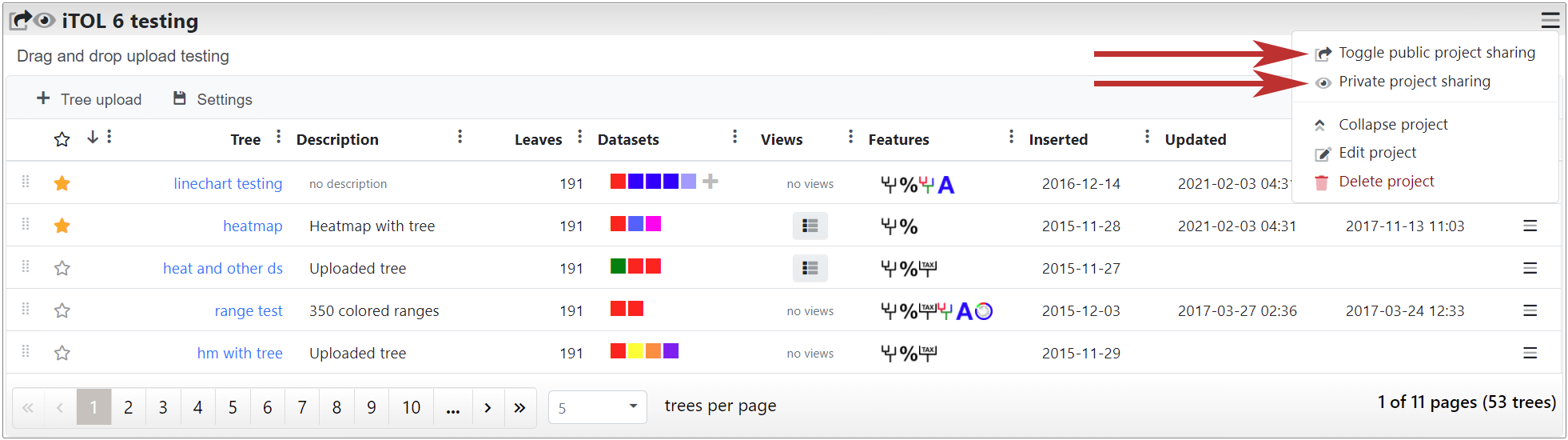
Sharing a project Private project sharingIf you want to share a particular project privately, and do not want it to show in the list of your publicly shared projects, select 'Private project sharing' in the project options menu. A popup window will be displayed where you can generate a new sharing key for the project. Privately shared projects will have the eye icon displayed ( ) in front of their title. Send the sharing key to your collaborators, and they can type it into the box on the top of this page to access the project. Privately shared projects can also be accessed through a simple URL: https://itol.embl.de/shared/sharingKey To disable private access to a project, select 'Private project sharing' option again, and click the 'Disable private sharing' button. 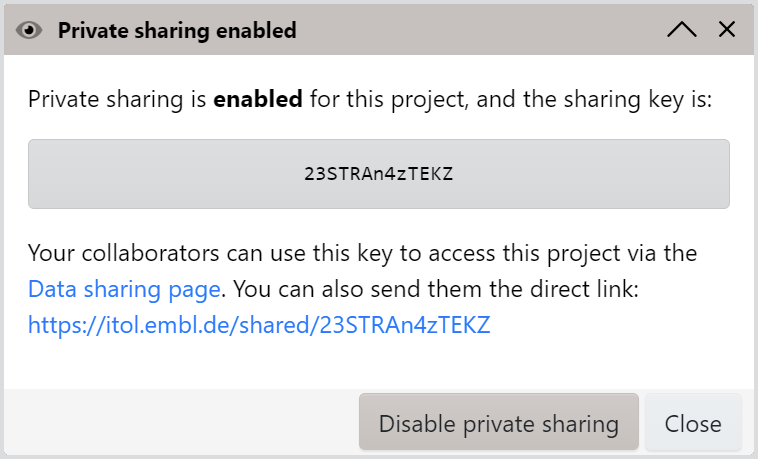
Private sharing key for a project Sharing tree exportsWhen exporting a tree figure, click the Share button to create a shared export. The exported figure will be stored on the iTOL server and associated with the tree. Send the tree ID to your collaborators, and they can type it into the box on the top of this page to access all the shared exports for that tree. Tree shared exports can also be accessed through a simple URL: https://itol.embl.de/export/treeID To delete shared exports, visit the Export management page which will show all your shared exported figures. 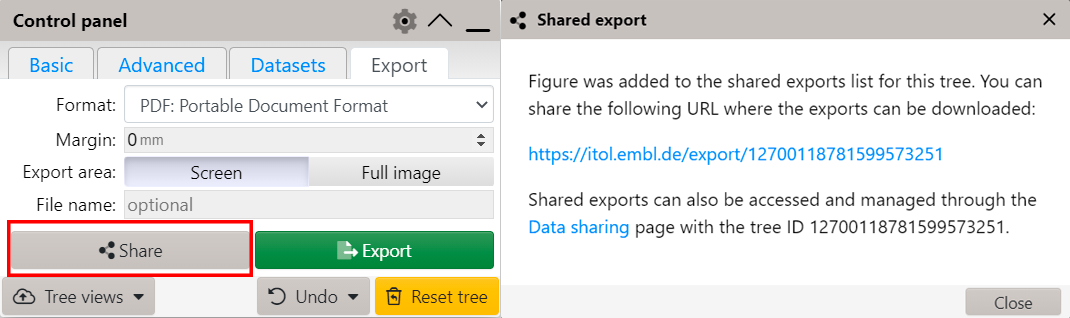
Sharing tree exports |
| You are visitor 01402503 — GeezerVison does not store the pages you look up. Best viewed with Netscape Navigator 4.7 or Internet Explorer 6 at 800×600. No cookies required. |