GeezerVison is showing keysplera.mosuzo.com — Keyboard and mouse overlay for Windows — KeySplera
Every keystroke.Every click. Seen. Give your audience the missing half of the demo. Show keys, mouse buttons and click ripples right on screen, while you work as usual.
v0.1.0 · Windows 10 / 11 · x64
v0.1.0
Original showcase GIF from the KeySplera repository MOSUZO STUDIO / KeySplera Keyboard and mouse overlay for Windows
Made for focused work ↗ A WORKFLOW, THOUGHT THROUGH
Show the how, A shortcut makes sense when viewers can see the keys. A click is easier to follow when it leaves a visual cue.
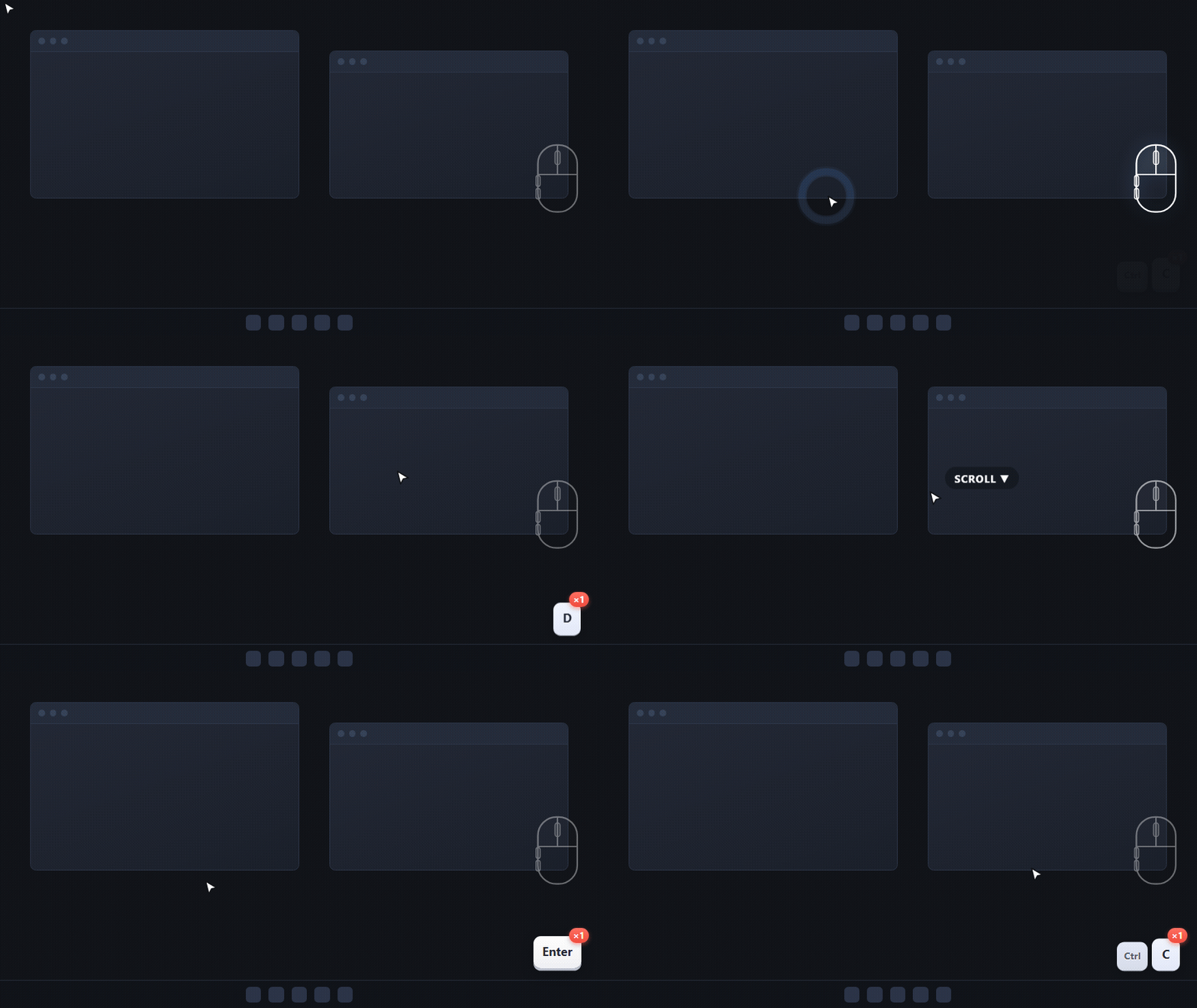
01 / KEYCAPS A little feedback for every press. Keycaps sink on press, bounce back on release, then fade. Repeated presses get a ×N badge, and combinations stay together.
Press & release Repeat count Key combinations ⌖
02 / KEYBOARD Your whole layout, lit as you type. Choose from five US keyboard layouts: 104, 87 TKL, 75, 68 (65%) and 61 (60%). Pressed keys light up in the wireframe.
Five layouts Key highlights Adjustable position ⊞
03 / MOUSE Let every click leave a clue. Left is blue, right is red, middle is amber, and side buttons are purple. Ripples mark the click position; a capsule shows wheel direction.
Button colors Click ripples Wheel capsule ◉
04 / OVERLAY In the picture. Out of your way. The transparent, always-on-top overlay spans the virtual desktop, passes clicks through and does not take focus. Tune its elements from the tray.
Click-through Multiple monitors Live settings ↗
Works well with Another tool for the step you are about to take.
Download available Shotera Screenshot, scrolling capture and screen recording, with clear annotations.
Combine input feedback with a screen recording for teaching and demos. Check the recording preview to confirm the overlay appears.
Visit product site↗ Each tool is installed and licensed separately; these are suggested manual hand-offs.
A LITTLE HANDS-ON
One press says it all. A browser illustration. Focus the field and press a key, or try a colored button.
Try a key here
↑
Responds inside this demo only · No global input capture · Not the app GET INTO YOUR FLOW
01 Install and open Download the Windows x64 installer. Launch KeySplera and find its icon in the system tray.
02 Make it yours Open Settings from the tray. Adjust size, opacity, visibility and position for the elements you need.
03 Start your demonstration Type and click as usual. Check your recorder’s preview to confirm the overlay is included.
SEE THE FEEDBACK
Keys and clicks, in focus. Keycap feedback Mouse and ripples Will the overlay block clicks? + The overlay is click-through and does not take focus. Input continues to reach the application underneath.
Can I choose a smaller keyboard layout? + Yes. Five US layouts are documented: 104, 87 TKL, 75, 68 (65%) and 61 (60%). Fn is drawn on compact layouts, but firmware handles that key so it cannot light up.
Why are clicks missing in an administrator window? + Windows can prevent a non-elevated process from observing input in elevated windows. KeySplera needs matching administrator privileges for that case.
KEYSPLERA / MOSUZO STUDIO
Make the next demo easier to follow. Get KeySplera↗