Workspaces
This page is a high-level guide to Modal Workspaces, the primary unit of organization for Modal resources and authentication.
A Workspace is an area where a user can deploy Modal Apps and other resources. When you sign up to Modal, a Workspace is automatically created for you. Its name is based on your GitHub username, but may be randomly generated if that name is taken or invalid.
Every Workspace is shared, meaning you can invite others by email to collaborate with you.
Create a Workspace
There are two ways to create an additional Modal Workspace on the settings page.
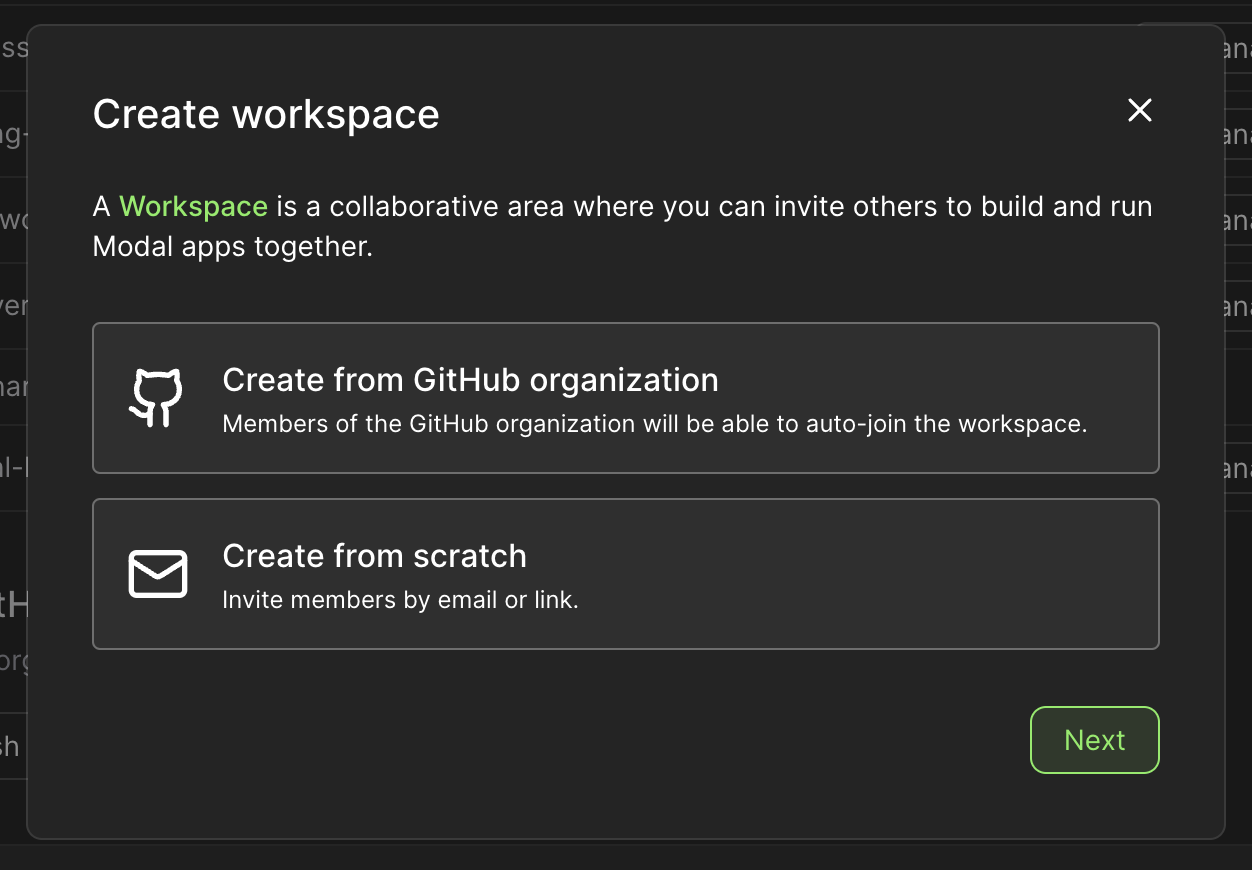
Create from GitHub organization. Allows members of the GitHub organization to auto-join the Workspace.
Create from scratch. You can invite anyone to your Workspace.
If you’re interested in configuring SSO for a Workspace, see our SAML SSO docs.
To use SSO through Google or other providers, reach out to us at [email protected].
Auto-joining a Workspace associated with a GitHub organization
Note: This is only relevant for Workspaces created from a GitHub organization.
Users can automatically join a Workspace on their Workspace settings page if they are a member of the GitHub organization associated with the Workspace.
To turn off this functionality a Workspace Manager can disable it on the Workspace Management tab of their Workspace’s settings page.
Inviting new Workspace members
To invite a new Workspace member, you can visit the settings page and navigate to the Members tab for the appropriate Workspace.
You can either send an email invite or share an invite link. Both existing Modal users and people who don’t yet have a Modal account can use the link to join your Workspace; if they don’t have an account, one is created for them.
Inviting members requires a verified account. If you haven’t already, add a payment method to verify your account.

Create a token for a Workspace
To interact with a Workspace’s resources programmatically, you need to add an API token for that Workspace. Your existing API tokens are displayed on the settings page and new API tokens can be added for a particular Workspace.
After adding a token for a Workspace to your Modal config file you can activate that Workspace’s profile using the CLI (see below).
As a Manager or Workspace Owner you can manage active tokens for a Workspace on the member tokens page. For more information on API token management see the documentation about configuration.
Switching active Workspace
When on the dashboard or using the CLI, the active profile determines which Workspace is associated with your actions.
Dashboard
You can switch between your Workspaces by using the workspace selector at the top of the dashboard.
CLI
To switch the Workspace associated with CLI commands, use modal profile activate.
Administering Workspace membership
Workspaces have three different levels of access privileges:
- Owner
- Manager
- Member
A user that creates a Workspace is automatically set as the Owner for that Workspace. The owner can assign any other roles within the Workspace, as well as remove other members of the Workspace.
A Manager within a Workspace can assign all roles except Owner and can also remove other members of the Workspace.
A Member of a Workspace cannot assign any access privileges within the Workspace but can otherwise perform any action like running and deploying Apps and modifying Secrets.
As an Owner or Manager you can administer the access privileges of other
members on the Workspace Management tab in settings.
Renaming a Workspace
Workspace Owners and Managers can rename a Workspace from the Identity & provisioning page. Members stay signed in, and deployed web endpoints keep their existing URLs until they are redeployed, after which they use the new name. The old name is held for your Workspace for 30 days, during which dashboard links to it redirect members to the new name and you can switch back.
If your Workspace uses SAML SSO, update the Workspace field in your Okta app, or the ACS URL and login URL in another identity provider, right after renaming, or SSO sign-in stops working. Personal Workspaces can’t be renamed; contact [email protected].
Leaving a Workspace
To leave a Workspace, navigate to the settings page and click “Leave” on a listed Workspace. You can’t leave a Workspace if you’re its only remaining member. If you’re the last Owner of a Workspace that still has other members, assign a new Owner before leaving. Personal Workspaces are single-member, so they can’t be left.