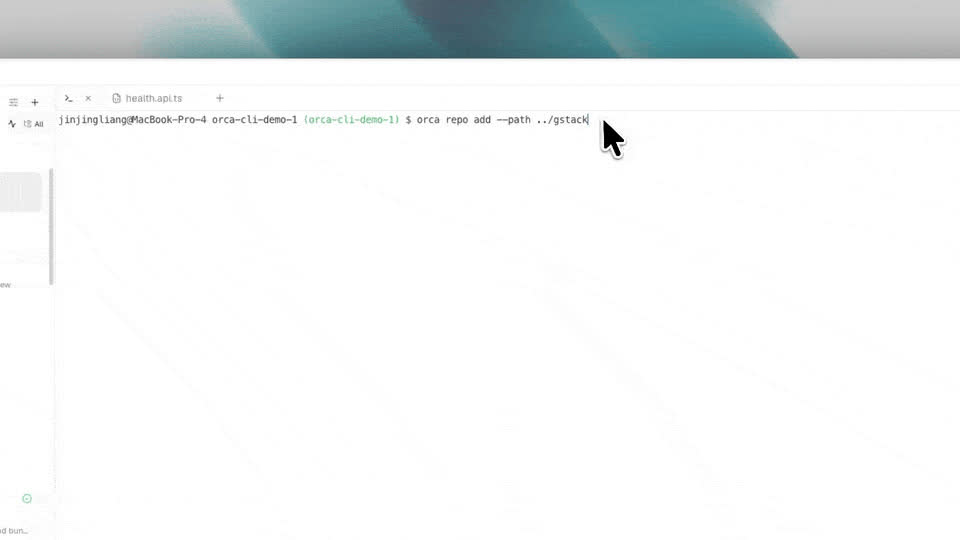
The Orca CLI is the orca command-line interface for scripting a running Orca editor from any shell. Use it to create and inspect worktrees, drive agent terminals, open files and diffs, automate the built-in browser, run scheduled automations, share HTML/Markdown artifacts, and control Orca-native tools from scripts or AI agents.
It ships with the desktop app; register it under Settings → General → Orca CLI. Orca keeps its own orca command first on a terminal's PATH even when a shell startup file adds an older global install, so scripts and agents call the CLI that matches the running app.
Agents can install the matching Orca CLI skill with:
For tracked multi-agent work, use Orchestration instead of plain terminal prompts.
File commands
Open files and diffs in the active Orca worktree from a shell:
orca file open src/App.tsxorca file diff src/App.tsx --stagedorca file open-changed --mode both
Use --worktree <selector> when the shell's current directory is not inside the target worktree.
Browser profiles
Browser profiles isolate tab session state, so a script or agent can test with different cookies, local storage, and logged-in identities. The CLI exposes profile commands under orca tab profile; start with orca tab profile list --json, then use create, set, clone, or use-default as needed.
Scheduled automations
Use orca automations to create, inspect, run, and remove scheduled Orca tasks from a shell. Start with Scheduled automations when you want a recurring prompt to run against a repo or an existing worktree.
Artifacts
Share HTML or Markdown as public view links through the signed-in Orca account (orca artifacts share|update|list|delete). Publishing is opt-in under Settings → Artifacts. Command details: CLI reference → Artifacts.
Browser automation
The CLI also drives the built-in browser with a snapshot-interact-re-snapshot loop:
For responsive browser checks, switch the active tab to a named device profile:
orca set device --name "iPhone 12" --jsonorca screenshot --json
Mobile emulator
The CLI can also drive an iOS Simulator through Orca's mobile emulator bridge. It is scoped to the active worktree, so agents and scripts can attach a simulator from orca emulator list, tap normalized coordinates, type text, send gestures, rotate the device, and shut it down without leaving Orca.
orca emulator list --jsonorca emulator attach "<device-name-or-udid>" --jsonorca emulator tap 0.5 0.7 --jsonorca emulator type "hello" --jsonorca emulator gesture '[{"type":"begin","x":0.5,"y":0.8},{"type":"move","x":0.5,"y":0.4},{"type":"end","x":0.5,"y":0.2}]' --jsonorca emulator rotate landscape_left --jsonorca emulator kill --json
Use --worktree <selector>, --device <udid-or-name>, or --emulator <id> when a script needs an explicit target.
You are visitor 01402775 — GeezerVison does not store the pages you look up. Best viewed with Netscape Navigator 4.7 or Internet Explorer 6 at 800×600. No cookies required.