A Remote Orca Server lets one computer do the work while another computer provides the UI. The server keeps the projects, worktrees, terminals, tabs, provider accounts, and agent sessions. Your laptop connects to that running Orca instance.
The easiest setup is the Orca desktop app on both computers, connected through Tailscale. You do not need to run orca serve for this path.
What runs where
Client computer · Orca client Shows the UI and sends your input │ │ private network route ▼Server computer · Orca server Stores repos and worktrees Runs terminals and agents
Install and authenticate Codex, Claude Code, OpenCode, git, and any provider CLIs on the server computer. A login on your laptop does not automatically carry over to the server.
On a headless orca serve host, register managed Claude/Codex accounts from the server shell (the remote client disables Add account):
The server computer awake, online, and running Orca
Tailscale gives the server a private address that usually starts with 100.. Orca puts that address first in its connection-address picker.
1. Create an access link on the server
On the computer that should keep the sessions running:
Open the Orca desktop app.
Open Settings → Remote Orca Servers.
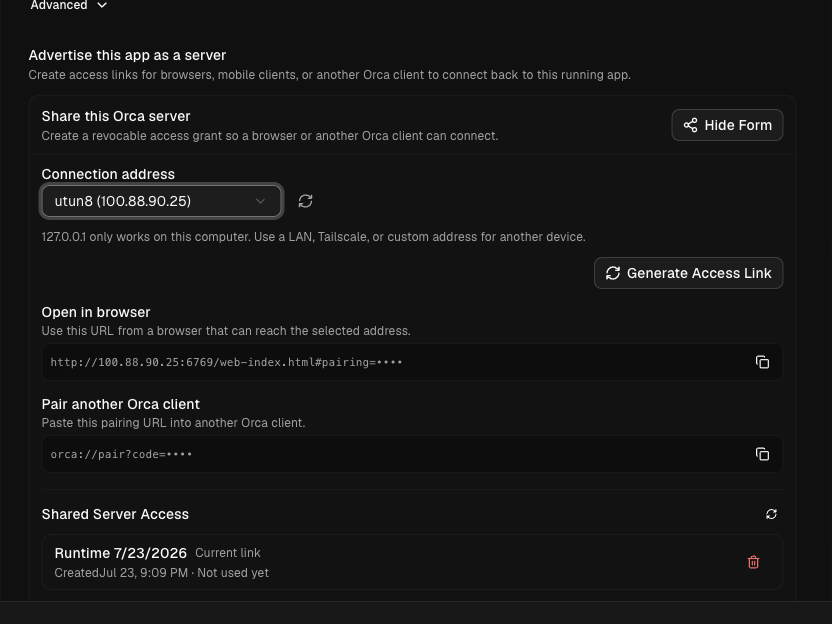
Under Advertise this app as a server, click New Link.
For Connection address, select the Tailscale address. It usually looks like 100.x.y.z.
Click Generate Access Link.
Copy the link under Pair another Orca client.
If the Tailscale address is missing, confirm Tailscale is connected and click the refresh button beside Connection address.
On the server: choose its Tailscale address, generate an access link, and copy the redacted pairing URL. The grant can be revoked later.
2. Add the server on your laptop
On the computer you want to use as the client:
Open Settings → Remote Orca Servers.
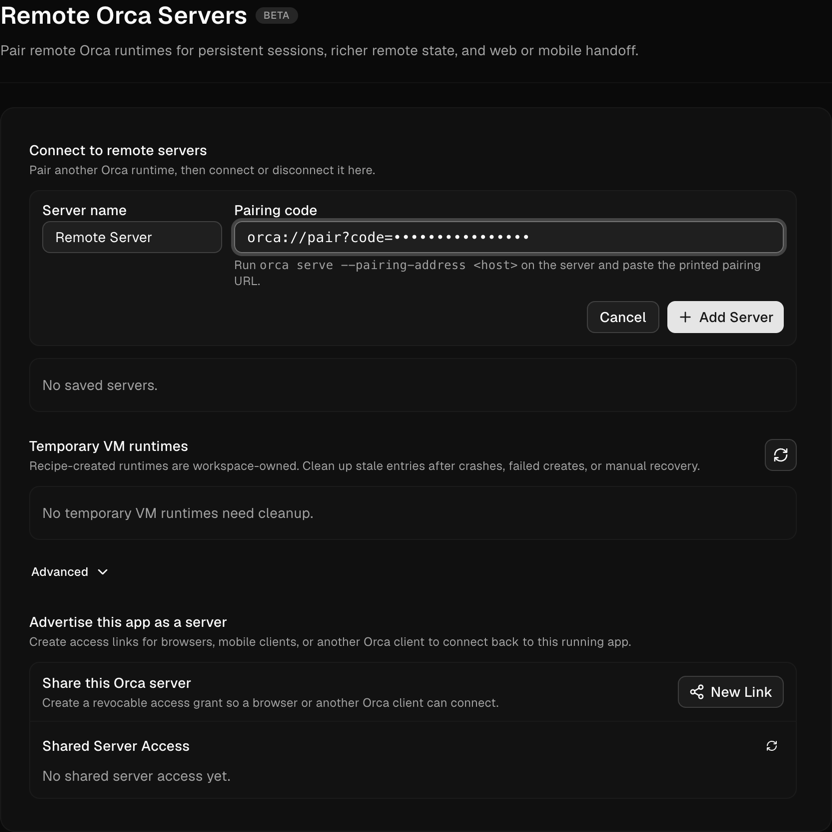
Click Add Server.
Enter a recognizable name, such as Remote Server.
Paste the access link from the server.
Click Add Server.
If the saved server shows Disconnected, click Connect.
On the client: name the server, paste its access link, and add it. The pairing code is redacted in this example.
Adding a server saves it without forcing every new project onto it. Open Advanced → Active Server only when you want server-routed projects, terminals, provider checks, and browser or mobile handoff to use that server by default.
Use the remote server
Once the server shows Connected, select it or one of its projects and use Orca normally. Terminals, agent processes, files, worktrees, and session state live on the server computer.
When several paired clients share that server, the sidebar filter can offer Hide other-client workspaces so this device only lists workspaces it created. See Worktrees → Sidebar layout.
That means:
agents keep running when the client laptop sleeps or disconnects;
the server needs the repository, tools, and credentials used by those agents;
the server must stay awake and connected to the tailnet;
reconnecting the client or reopening Orca returns you to the server-owned workspace, tab, and visible-pane state without duplicating paired tabs; paired-server tabs persist across desktop restarts, while tabs you closed stay closed;
a paired terminal accepts input again after the host app relaunches, remote browser tabs come back after a network drop, and the phone keeps its terminals after orca serve restarts;
creating a workspace on a remote host does not pull other connected desktops to it;
projects you delete on the server disappear from every paired client's sidebar (no permanent ghost rows).
Access and security
Orca creates a separate, revocable token for each paired client. The server lists these under Shared Server Access.
Click the trash button beside a grant to revoke it. Active clients using that grant are disconnected immediately.
Generating another link replaces the previous unused link. Clients that already paired keep their own grants until you revoke them.
Keep Tailscale ACLs or grants as narrow as your setup allows.
Do not forward the Orca port directly to the public internet. Prefer Tailscale, WireGuard, a trusted LAN, SSH forwarding, or an authenticated tunnel.
Do not select 127.0.0.1 for another computer. That address only works on the server itself.
Alternative: orca serve
Use orca serve when the host should run without the desktop window—for example, a headless Linux server or a service-managed VM. For a MacBook or desktop you can leave signed in, the in-app setup above is simpler.
Install Orca and its bundled CLI on the server, then run:
starts the Orca runtime without opening the desktop window;
runs in the foreground until you press Ctrl-C;
prints the bound endpoint and a runtime pairing URL;
uses --pairing-address only for the address clients should dial.
orca serve runs on Orca's own Node server (orcad) by default. If orcad can't serve on that computer, Orca falls back to the desktop app's server and prints one line saying why. A packaged macOS app currently always uses the desktop app's server so paired clients can still update it; set ORCA_SERVE_RUNTIME=electron to force that path.
Paste the printed pairing URL into Settings → Remote Orca Servers → Add Server on the client.
Add --port 6768 when a firewall, tunnel, or service definition requires a fixed port:
Use only one host mode at a time. If the Orca desktop app is already sharing that computer, do not start a second orca serve process for the same setup.
Mobile from a headless server
For the Orca mobile app, request a mobile-scoped QR code and link:
Keep the phone on the same tailnet, open Orca Mobile, choose Pair, and scan the terminal QR code or paste the printed link.
orca serve as a service
To keep the server running under a service manager, orca serve supervises itself and can install its own per-user service:
orca serve service install --port 6768orca serve service statusorca serve service uninstall
install writes a LaunchAgent on macOS or a systemd user unit on Linux that runs orca serve --supervise --no-pairing for this profile. The supervisor restarts the server with growing delays instead of looping on repeated failures, and waits while an update replaces the app. The service never prints a pairing link to its log — pair clients from the desktop app, or run orca serve in a terminal while the service is stopped. On Linux the service stops at logout unless lingering is on (loginctl enable-linger), which install reports. status says whether it is running, and uninstall stops it and removes the unit while leaving the terminal daemon and its sessions running. These service commands are not available on Windows yet.
Use orca serve --supervise directly when another service manager or a container already restarts the process.
Desktop app or orca serve?
Desktop app on the server
orca serve
Best for
An old laptop, Mac mini, or desktop
A headless Linux box, VM, or managed service
Setup
Settings and buttons
Terminal command and service configuration
Server window
Open
None
Access link
New Link → Generate Access Link
Printed in the terminal
Lifetime
While the desktop app is running
While the foreground process or service is running
Remote Orca Server or SSH?
Use SSH worktrees when Orca on your laptop should own the runtime and use another machine only to run selected worktrees and terminals.
Use a Remote Orca Server when the other machine should own the full Orca runtime and preserve shared sessions for desktop, browser, mobile, or automation clients.
On the server, confirm Tailscale is connected, then click the refresh button beside Connection address. Both computers must be signed in to the same tailnet. A Tailscale IPv4 address usually starts with 100..
The server is disconnected
Confirm the server computer is awake, Orca is still running, and Tailscale shows both devices online. Check your tailnet ACLs or grants if one device cannot reach the other.
Update Orca on both computers if the server row reports an incompatible protocol version.
The access link was shared with the wrong person
On the server, open Settings → Remote Orca Servers → Shared Server Access and revoke that grant. Generate a new link for the intended client.
The server cannot find an agent CLI
Install and authenticate that CLI on the server computer. Remote sessions use the server's PATH, home directory, and credentials—not the client's.
orca serve advertises the wrong address
Stop the command and restart it with an address the client can reach:
Use SSH worktrees when the laptop should own the Orca runtime.
See the Orca CLI reference for orca serve flags and automation commands.
You are visitor 01402775 — GeezerVison does not store the pages you look up. Best viewed with Netscape Navigator 4.7 or Internet Explorer 6 at 800×600. No cookies required.