GeezerVisonThe World Wide Web, restored to 800 pixels of glory. |
| Home|About|Gaming cabinet|Archives|How it works|Starter sites |
GeezerVison is showing orca.dev — SSH worktrees — Orca Docs Orca can drive agents on remote machines over SSH — useful for long-running builds, GPU boxes, or any environment where your laptop isn't the right place to run the work. 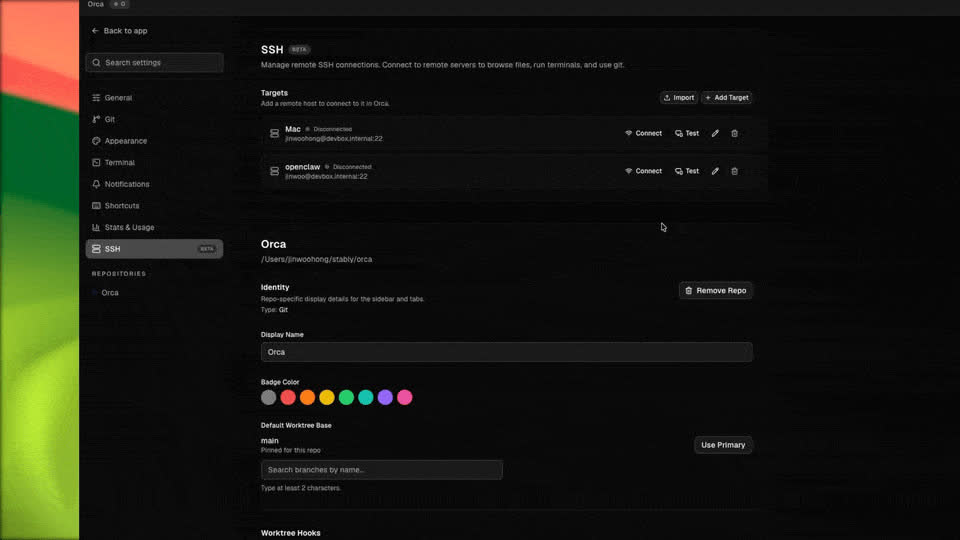 Add an SSH target
Dirty add/edit forms ignore outside clicks so an accidental click away does not discard your fields; use Escape, Cancel, or × to discard. Host key verificationOrca checks built-in SSH connections against your effective OpenSSH A changed, revoked, or unexpectedly different key type is rejected before Orca asks for a password or key passphrase. If you intentionally rebuilt or reprovisioned the host, verify its new fingerprint first, then follow the recovery path in the error. For a Use a targetWhen creating a worktree, choose an SSH target instead of Local. Orca will:
Advanced connection optionsOpen Settings → SSH, edit a target, and expand Advanced Connection when the host needs a proxy, jump host, or SSH multiplexing override. Orca enables Reuse SSH connection for faster setup by default, which uses OpenSSH connection reuse on macOS and Linux so setup commands do not each pay a fresh SSH handshake. Turn it off only for hosts whose SSH policy rejects multiplexed sessions. PassphrasesPassphrases are held in memory for the life of the Orca session. Closing Orca clears them. You can opt into a longer TTL under SSH settings. Multi-factor sign-inHosts that ask for a verification code or another keyboard-interactive prompt (a one-time password, an MFA challenge, or a similar prompt) work over the built-in connection: Orca relays the prompt to you and forwards your answer. If the prompt is part of a scripted setup step, it is deferred to a step you can answer rather than failing the connect. If the built-in client and host have no compatible SSH algorithm, Orca retries through your system StatusRemote worktrees show a chip with live SSH status — green connected, yellow reconnecting, red disconnected. While an SSH host is still connecting, Orca can list workspaces from persisted local metadata so the sidebar is not empty until the live provider comes up; those rows refresh to authoritative remote state once the connection settles. Disconnects don't kill running agents; Orca reconnects and re-attaches, replaying scrolling output and restoring full-screen app panes from their rendered frame instead of returning them blank or fragmented. Keystrokes you type while a restored SSH terminal reattaches are kept, not dropped. When a host drops, the affected workspace card can show an inline Connect / reconnect control so you can recover without opening a terminal overlay or hunting the status bar. If an SSH connection drops with a "Multiplexer disposed" style failure, Orca recovers automatically instead of leaving the pane stuck until you restart. Agent status (working / idle / blocked) propagates over SSH the same way it does locally, so the sidebar and Agents feed reflect remote agents in real time. Sessions across app closeClosing the desktop app no longer kills your remote PTY sessions. They live on the host's managed Orca server, so they survive Orca closing on your laptop. When you reopen the app and reconnect to the target, the sessions are restored to their tabs in the attached state, with their scrollback intact. A structured chat on a managed server keeps its provider loaded while a reply is running or a question is waiting, so an approval is still there after the desktop disconnects. Losing contact with a host is not evidence that its work stopped, so check the host before starting a second agent on the same worktree. Reconnect and restartOpen files, live agent tabs, and paused Claude or Codex resume offers survive an SSH reconnect and an app restart, so the workspace comes back the way you left it. Keys you type while the connection is down are delivered exactly once and in order when it returns, and a pane's scrollback and size survive the reconnect. Open tabs reattach after a managed server update. Tabs you closed long ago no longer return as empty shells, and clicking an SSH worktree whose last tab you closed opens a fresh terminal. To leave an on-demand SSH host disconnected when Orca starts, edit that host and turn off Advanced → Reconnect on launch. The switch is on by default. While it is off, Orca waits until you select Connect before reconnecting the host or its managed server for that session. Shell startup files that print text, folders with tens of thousands of entries, and 64-bit ARM Linux servers no longer break or drop the connection. When two machines share a path, files, browser tabs, links, and drag-and-drop stay on the machine they belong to. The orca CLI on an SSH hostBy default, When deleting an SSH workspace that Orca cannot delete on the host, Remove from Orca removes it from the app and leaves its files on the host. Downloading remote files and foldersRight-click in the SSH worktree file explorer:
Orca uses the same SSH transfer path as the connection. Folder download appears only when the connection advertises recursive folder transfer (typically full SFTP). Connections that stay on system OpenSSH-only transfer may still download files but not show Download Folder. This is a desktop-only action — the web client doesn't expose Download because it relies on Electron's save dialog. Open a remote workspace in VS CodeFor SSH worktrees, the worktree menu's Open in list can hand the remote path to VS Code Remote-SSH when your configured app is VS Code or VS Code Insiders (
Not supported for this remote path: Cursor, Zed, compound shell commands, or opening via a Remote Orca Server active runtime (those stay Local only). Use the Finder/Explorer item only for local paths. Kerberos / GSSAPIIf a host in OpenSSH config sets You do not flip a separate “Kerberos mode” switch for config-imported hosts — import/ FIDO2 / security keysHardware-backed OpenSSH identities ( Managed Orca serverOn first connect, Orca sets up its own server on the host — a pinned runtime it ships and keeps up to date — so a connection no longer fails because the host has the wrong Node version or no build tools. There is no setting to turn this on. If neither your computer nor the host can download the Node.js runtime, the connection error offers Use a Node.js mirror…. Review or replace the prefilled mirror, then choose Save and retry; Orca verifies each download against its pinned checksum. If the configured mirror also fails, open Settings → Advanced → Network to correct the mirror before reconnecting.
Manage each server under Settings → Managed servers: see its version and running terminals, Update or Roll back, Recover an interrupted update, or Stop… / Forget… it. If terminals are running, Update anyway updates the server without closing them. The CLI mirrors those actions — Runtime choicesThe old per-host Runtime selector (Auto / Orca-managed Node / Host Node) and the relay-only lifecycle settings are gone: every SSH connection runs on the managed Orca server. If Orca cannot run the managed server on a host — an unsupported OS or CPU, a Port forwardingFor remote worktrees, the right sidebar shows a Ports tab (toggle with |
| You are visitor 01402775 — GeezerVison does not store the pages you look up. Best viewed with Netscape Navigator 4.7 or Internet Explorer 6 at 800×600. No cookies required. |