GeezerVisonThe World Wide Web, restored to 800 pixels of glory. | ||||||||||||||||||||||||
| Home|About|Gaming cabinet|Archives|How it works|Starter sites | ||||||||||||||||||||||||
GeezerVison is showing pbpython.com — Using Python’s Pathlib Module - Practical Business Python 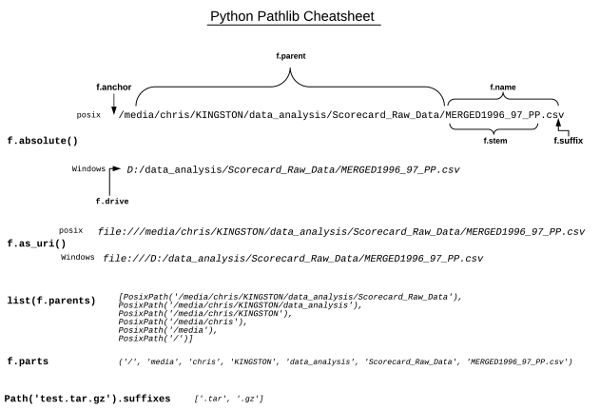
IntroductionIt is difficult to write a python script that does not have some interaction with the file system. The activity could be as simple as reading a data file into a pandas DataFrame or as complex as parsing thousands of files in a deeply nested directory structure. Python’s standard library has several helpful functions for these tasks - including the pathlib module. The pathlib module was first included in python 3.4 and has been enhanced in each of the subsequent releases. Pathlib is an object oriented interface to the filesystem and provides a more intuitive method to interact with the filesystem in a platform agnostic and pythonic manner. I recently had a small project where I decided to use pathlib combined with pandas to sort and manage thousands of files in a nested directory structure. Once it all clicked, I really appreciated the capabilities that pathlib provided and will definitely use it in projects going forward. That project is the inspiration for this post. In order to help others, I have created a pathlib cheat sheet that I hope will make it easier to use this great library. Later in this post, I include an example of building out a pandas DataFrame based on a directory structure. This is a useful tool for reviewing and analyzing a large number of files - especially on a Windows system where the breadth of shell tools is not readily available. Getting Started with PathlibThe pathlib library is included in all versions of python >= 3.4. I recommend using the latest version of python in order to get access to all the latest updates. For this article, I will use python 3.6. One of the useful features of the pathlib module is that it is more intuitive to
build up paths without using import os in_dir = os.path.join(os.getcwd(), "in") out_dir = os.path.join(os.getcwd(), "out") in_file = os.path.join(in_dir, "input.xlsx") out_file = os.path.join(out_dir, "output.xlsx") This works but it is a little clunky. For instance, if I wanted to define just the input and output files without defining the directories, it looks like this: import os in_file = os.path.join(os.path.join(os.getcwd(), "in"), "input.xlsx") out_file = os.path.join(os.path.join(os.getcwd(), "out"), "output.xlsx") Hmmm. That’s not complex but it is certainly not pretty. Let’s see what it looks like if we use the pathlib module. from pathlib import Path in_file_1 = Path.cwd() / "in" / "input.xlsx" out_file_1 = Path.cwd() / "out" / "output.xlsx" Interesting. In my opinion this is much easier to mentally parse. It’s a similar
thought process to the Additionally, if you don’t like the syntax above, you can chain multiple parts
together using in_file_2 = Path.cwd().joinpath("in").joinpath("input.xlsx") out_file_2 = Path.cwd().joinpath("out").joinpath("output.xlsx") This is a little clunkier in my opinion but still much better than the Finally, there is one other trick you can use to build up a path with multiple directories: parts = ["in", "input.xlsx"] in_file_3 = Path.cwd().joinpath(*parts) Regardless of the method you use, these approaches work for building a path to
a file or a directory. The added benefit of these methods is that you
are creating a Path object vs. just a string representation of the path. Look at
the difference between printing the print(in_file) print(type(in_file)) /home/chris/src/pbpython/code/notebooks/in/input.xlsx <class 'str'> The output of the print(in_file_1) print(type(in_file_1)) /home/chris/src/pbpython/code/notebooks/in/input.xlsx <class 'pathlib.PosixPath'> The actual string representation is the same but the variable type is a Working with Path objectsNow that you know the basics of creating a 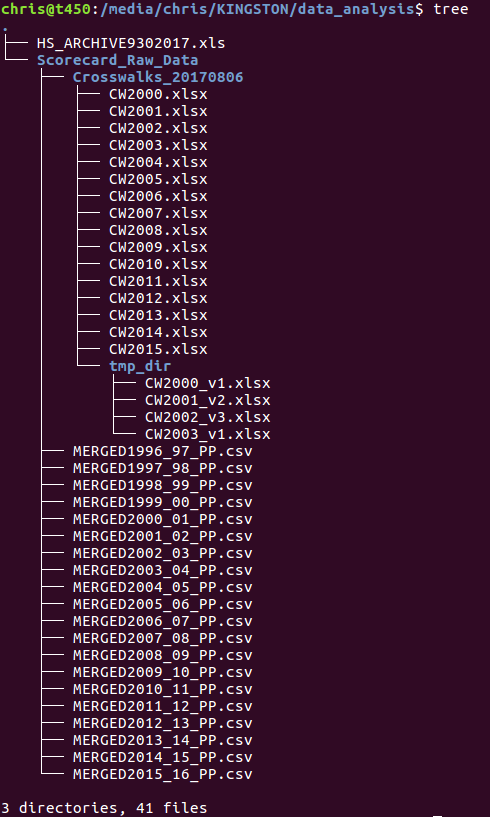
To get the examples started, create the Path to the from pathlib import Path dir_to_scan = "/media/chris/KINGSTON/data_analysis" p = Path(dir_to_scan) This example shows how to use a full string to create a path object. In this case,
I am passing the full path to the USB drive. Let’s see what we can do with the
p.is_dir() True p.is_file() False p.parts ('/', 'media', 'chris', 'KINGSTON', 'data_analysis')
p.absolute() PosixPath('/media/chris/KINGSTON/data_analysis')
p.anchor '/' p.as_uri() 'file:///media/chris/KINGSTON/data_analysis' p.parent PosixPath('/media/chris/KINGSTON')
I think you’ll agree that it is pretty straightforward to use and interpret the results from this object. There are many other functions available through this API. Outside of interrogating the path in various manners, a very common need is to parse all the files and directories within a given directory. The python standard library has several methods to walk through all the files and subdirectories in a path. I will describe those next. Walking DirectoriesThe first approach I will cover is to use the folders = [] files = [] for entry in os.scandir(p): if entry.is_dir(): folders.append(entry) elif entry.is_file(): files.append(entry) print("Folders - {}".format(folders)) print("Files - {}".format(files)) Folders - [<DirEntry 'Scorecard_Raw_Data'>] Files - [<DirEntry 'HS_ARCHIVE9302017.xls'>] The key items to remember with this approach is that it does not automatically
walk through any subdirectories and the returned items are If you need to parse through all the subdirectories, then you should use for dirName, subdirList, fileList in os.walk(p): print('Found directory: %s' % dirName) for fname in fileList: print('\t%s' % fname) Found directory: /media/chris/KINGSTON/data_analysis
HS_ARCHIVE9302017.xls
Found directory: /media/chris/KINGSTON/data_analysis/Scorecard_Raw_Data
MERGED1996_97_PP.csv
MERGED1997_98_PP.csv
MERGED1998_99_PP.csv
<...>
MERGED2013_14_PP.csv
MERGED2014_15_PP.csv
MERGED2015_16_PP.csv
Found directory: /media/chris/KINGSTON/data_analysis/Scorecard_Raw_Data/Crosswalks_20170806
CW2000.xlsx
CW2001.xlsx
CW2002.xlsx
<...>
CW2014.xlsx
CW2015.xlsx
Found directory: /media/chris/KINGSTON/data_analysis/Scorecard_Raw_Data/Crosswalks_20170806/tmp_dir
CW2002_v3.xlsx
CW2003_v1.xlsx
CW2000_v1.xlsx
CW2001_v2.xlsx
This approach does indeed walk through all the subdirectories and files but once again
returns a These two approaches allow a lot of manual control around how to access the individual directories and files. If you need a simpler approach, the path object includes some additional options for listing files and directories that are compact and useful. The first approach is to use for i in p.glob('*.*'): print(i.name) HS_ARCHIVE9302017.xls As you can see, this only prints out the file in the top level directory. If you want to recursively walk through all directories, use the following glob syntax: for i in p.glob('**/*.*'): print(i.name) HS_ARCHIVE9302017.xls
MERGED1996_97_PP.csv
<...>
MERGED2014_15_PP.csv
MERGED2015_16_PP.csv
CW2000.xlsx
CW2001.xlsx
<...>
CW2015.xlsx
CW2002_v3.xlsx
<...>
CW2001_v2.xlsx
There is another option to use the list(p.rglob('*.csv')) [PosixPath('/media/chris/KINGSTON/data_analysis/Scorecard_Raw_Data/MERGED1996_97_PP.csv'),
PosixPath('/media/chris/KINGSTON/data_analysis/Scorecard_Raw_Data/MERGED1997_98_PP.csv'),
PosixPath('/media/chris/KINGSTON/data_analysis/Scorecard_Raw_Data/MERGED1998_99_PP.csv'),
<...>
PosixPath('/media/chris/KINGSTON/data_analysis/Scorecard_Raw_Data/MERGED2014_15_PP.csv'),
PosixPath('/media/chris/KINGSTON/data_analysis/Scorecard_Raw_Data/MERGED2015_16_PP.csv')]
This syntax can also be used to exclude portions of a file. In this case, we can get everything except xlsx extensions: list(p.rglob('*.[!xlsx]*')) [PosixPath('/media/chris/KINGSTON/data_analysis/Scorecard_Raw_Data/MERGED1996_97_PP.csv'),
PosixPath('/media/chris/KINGSTON/data_analysis/Scorecard_Raw_Data/MERGED1997_98_PP.csv'),
PosixPath('/media/chris/KINGSTON/data_analysis/Scorecard_Raw_Data/MERGED1998_99_PP.csv'),
<...>
PosixPath('/media/chris/KINGSTON/data_analysis/Scorecard_Raw_Data/MERGED2014_15_PP.csv'),
PosixPath('/media/chris/KINGSTON/data_analysis/Scorecard_Raw_Data/MERGED2015_16_PP.csv')]
There is one quick note I wanted to pass on related to using Combining Pathlib and PandasOn the surface, it might not seem very beneficial to bring file and directory information into a pandas DataFrame. However, I have found it surprisingly useful to be able to take a complex directory structure and dump the contents into a pandas DataFrame. From the DataFrame, it is easy to format the results as Excel. Which in turn makes it very easy for non-technical users to identify missing files or do other analysis that might be difficult to automate. The other positive benefit is that you can use all the pandas string, numeric and datetime functions to more thoroughly analyze the file and directory structure data. I have done some looking and have not found a simpler way to get thousands of files into a formatted Excel file. For this example, I will go through all the files in the Here’s the standalone example: import pandas as pd from pathlib import Path import time p = Path("/media/chris/KINGSTON/data_analysis") all_files = [] for i in p.rglob('*.*'): all_files.append((i.name, i.parent, time.ctime(i.stat().st_ctime))) columns = ["File_Name", "Parent", "Created"] df = pd.DataFrame.from_records(all_files, columns=columns) df.head()
This code is relatively simple but is very powerful when you’re trying to get
your bearings with a lot of data files. If the Once the data is in a DataFrame, dumping it to Excel is as simple as doing
Additional FunctionalityThe pathlib module is very rich and provides a lot of other useful functionality. I recommend looking at the documentation on the python site as well as this excellent article on the Python 3 Module of the Week. Finally, since I find a visual reference useful, here is a pathlib cheatsheet I created based on this article. 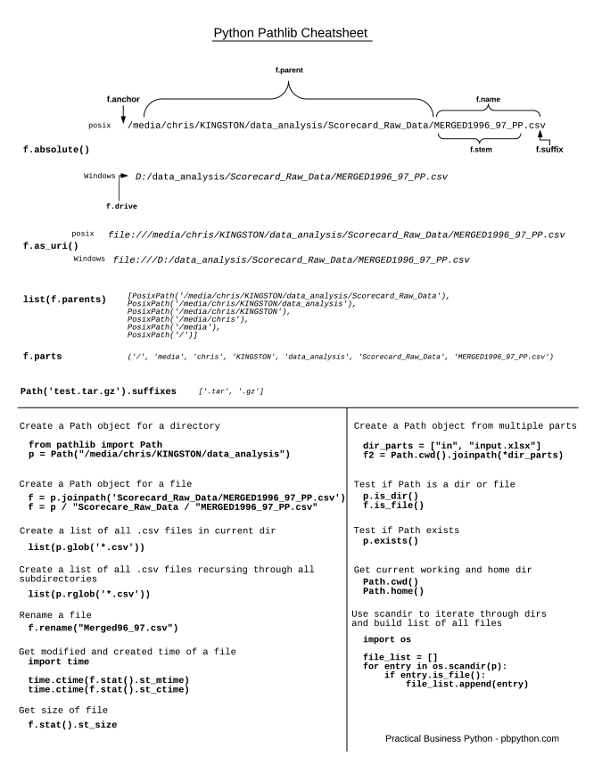
ConclusionOne of python’s strengths is that it continues to develop and grow over time. The pathlib module is a prime example of the care that the maintainers take to build new capabilities that improve the overall capabilities of python. There are many reasons to move to python 3 and I think pathlib should certainly be in the top 10 reasons. It is really useful to bring the standard library and a powerful package likes pandas together to accomplish some really useful tasks. I am quite happy with how useful a few lines of python can be when faced with cleaning up or dealing with thousands of files spread across many directories. Updates
Comments | ||||||||||||||||||||||||
| You are visitor 01402503 — GeezerVison does not store the pages you look up. Best viewed with Netscape Navigator 4.7 or Internet Explorer 6 at 800×600. No cookies required. |