GeezerVisonThe World Wide Web, restored to 800 pixels of glory. |
| Home|About|Gaming cabinet|Archives|How it works|Starter sites |
GeezerVison is showing pmd.github.io — The rule designer | PMD Source Code Analyzer
Release date: 28-December-2026
The rule designerLearn about the usage and features of the rule designer.
Table of ContentsInstalling, running, updatingThe designer is part of PMD’s binary distributions. To install a distribution, see the documentation page about installing PMD. Besides Java (version 8, or 11 or later; Java 9 and 10 are not supported), the designer requires JavaFX to work. You can obtain JavaFX as part of Java distribution from Azul (Zulu JDK FX) or Bellsoft (Liberica Full JDK). Note: The latest Java 8 from Oracle does not include JavaFX anymore, see https://www.oracle.com/javase/javafx/. If you use a JavaFX from these distributions, then all is set. However, it is recommended to use OpenJDK along with OpenJFX. The recommended Java Runtime is Java 11 (or later) with OpenJFX 17 (or later). You can get OpenJDK from Adoptium, Azul, Bellsoft, Microsoft, SAP, Amazon and other OpenJDK vendors. OpenJFX is available from JavaFX download page.
You need the SDK. Extract the zip file, and set the Example (for linux x64 only, with Java 21 and OpenJFX 21): If the bin directory of your PMD distribution is on your shell’s path, then you can then launch the app with Note
This is to allow easy updating, and let you choose the dependencies you’re interested in. The available language modules are those on the classpath of the app’s JVM. That’s why it’s recommended to use the standard PMD startup scripts, which setups the classpath with the available PMD libraries. UpdatingThe latest version of the designer currently works with PMD 7.0.0 and above (pmd-core API). However, since version 7.30.0, the designer doesn’t bundle ControlsFX anymore. ControlsFX is a separate library, which is provided by the start scripts of PMD’s binary distribution 7.30.0 and later (ControlsFX 8.x for Java 8, ControlsFX 11.x for Java 11+). You can replace If you embed the designer in your own application, add Note that updating may cause some persisted state to get lost, for example the code snippet. Usage referenceThe rule designer is both a tool to inspect the tree on which PMD rules run on, and to write XPath rules in an integrated manner. This page describes the features that enable this. AST inspection
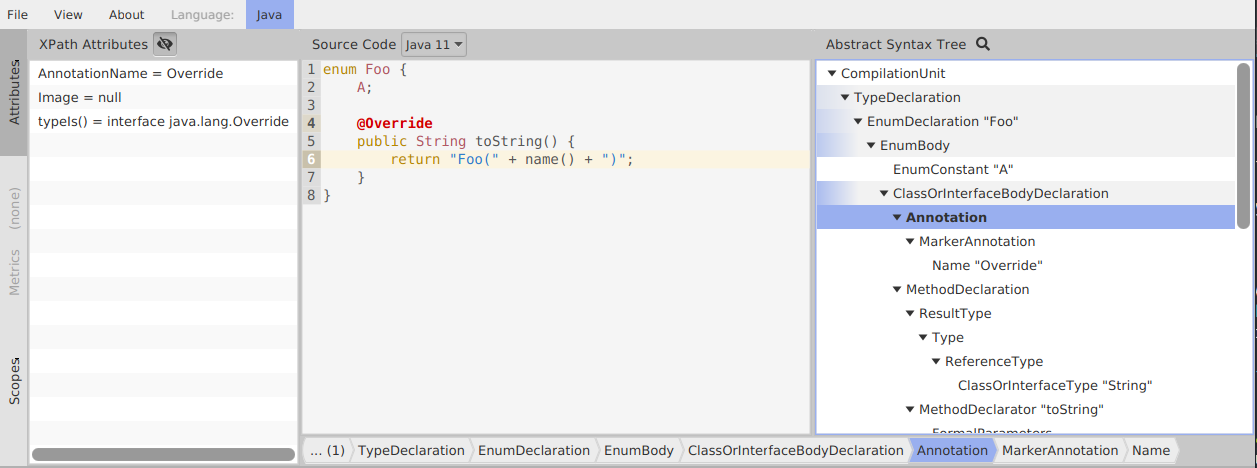
You can enter source code in the middle zone.
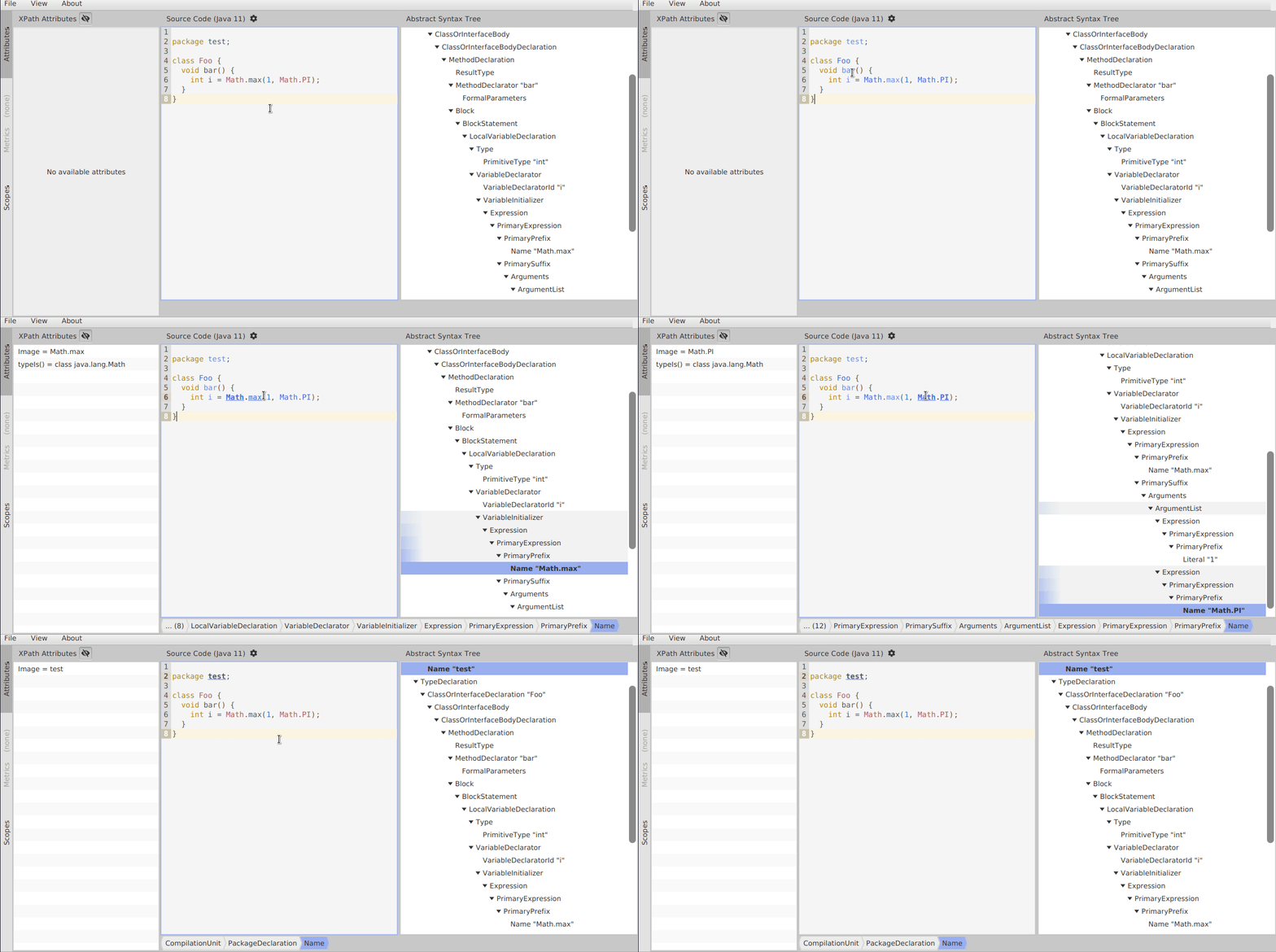
Selecting nodesThere are several ways to focus a node for inspection:
Ancestor crumb bar demo
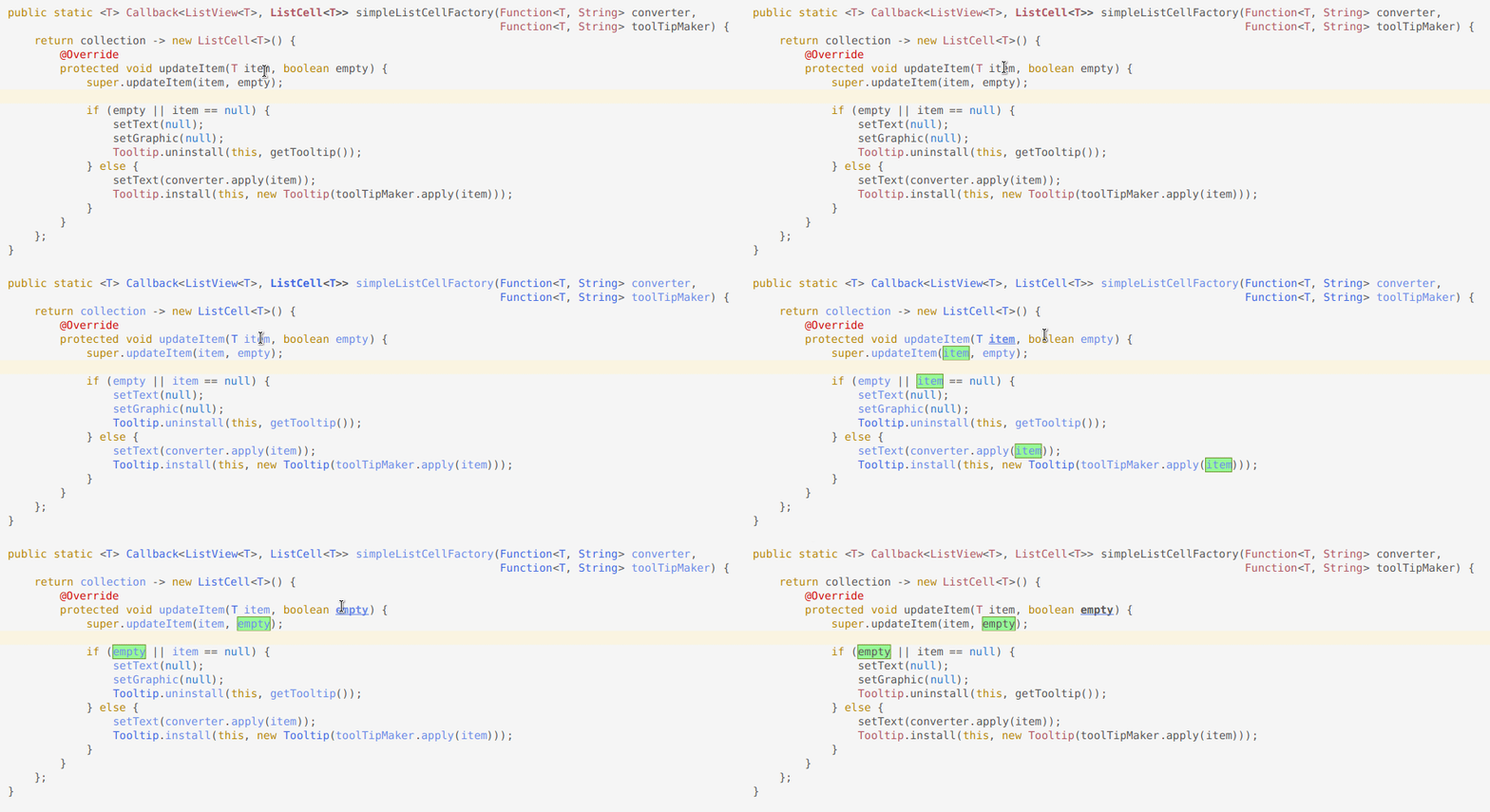
Ctrl-hover selection demo
Node inspectionThe left panel displays the following information:
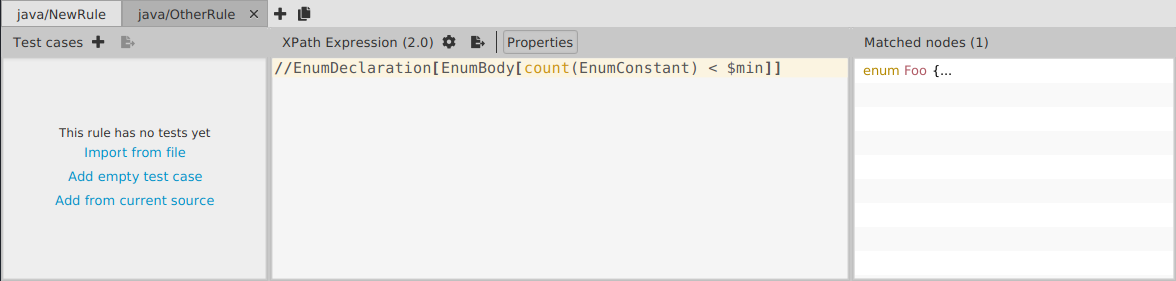
XPath rule designThe bottom part of the UI is dedicated to designing XPath rules:
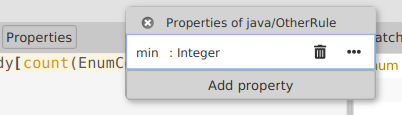
The center is an XPath expression. As you type it, the matched nodes are updated on the right, and highlighted on the code area. Autocompletion is available on some languages. Note: you can keep several rules in the editor (there’s a tab for each of them). Rule propertiesAbove the XPath expression area, the “Properties” button allows you to define new properties for your prototype rule. You can also edit the existing properties. When you click on it, a small popup appears:
The popup contains in the center a list of currently defined properties, displaying their name and expected type.
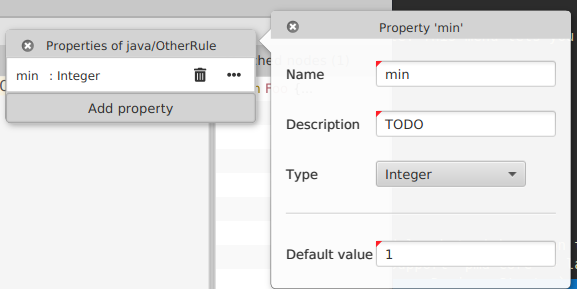
Editing propertiesThe edit menu of a property looks like the following:
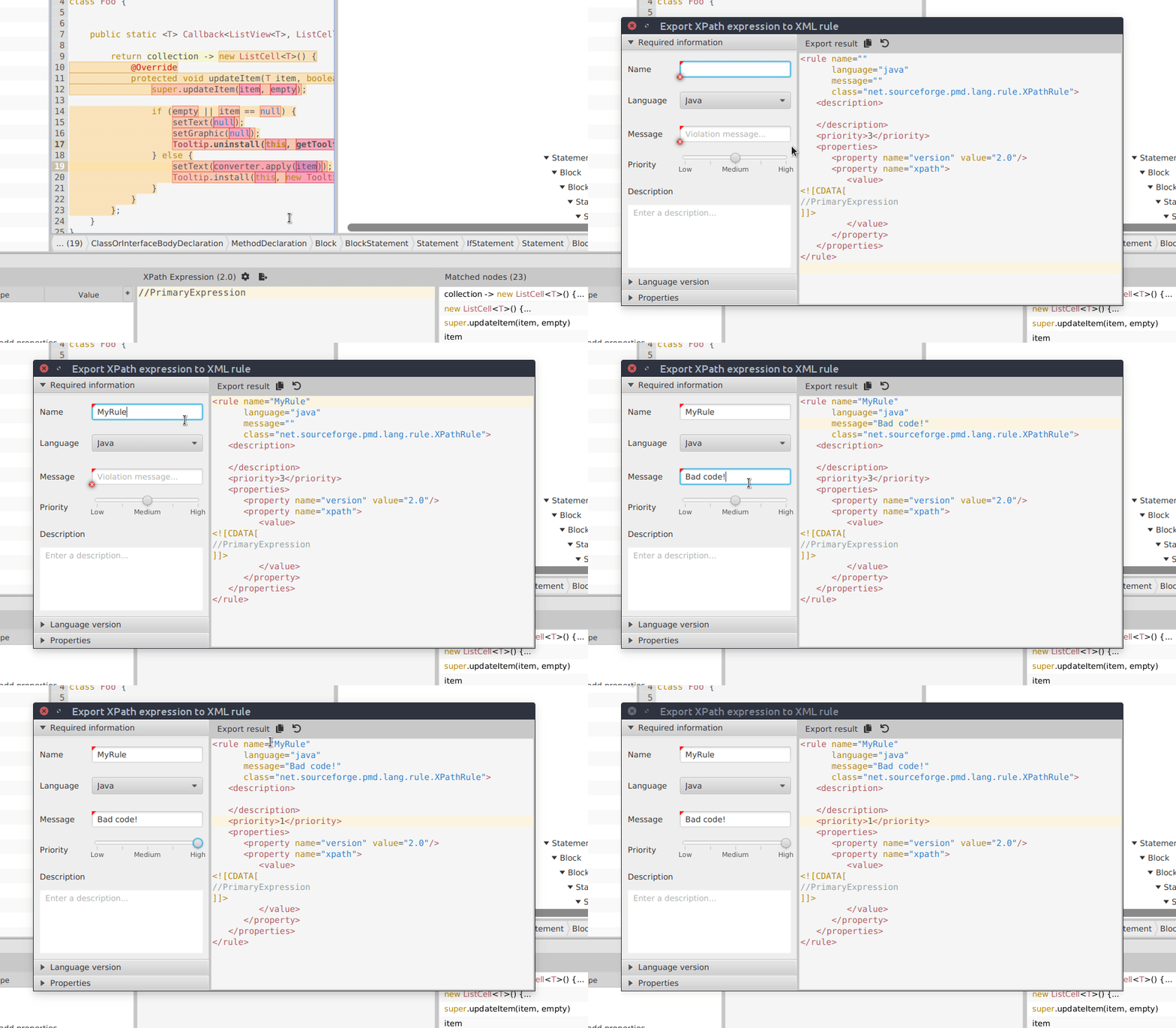
Exporting to an XML ruleThe little export icon next to the gear icon opens a menu to export your rule. This menu lets you fill-in the metadata necessary for an XPath rule to be included in a ruleset. Rule export demo
Testing a rulePMD has its own XML format to describe rule tests and execute them using our test framework. The designer includes a test editor, which allows you to edit such files or create a new one directly as you edit the rule. This is what the panel left of the XPath expression area is for. See also the test framework documentation. Testing modelA rule test describes
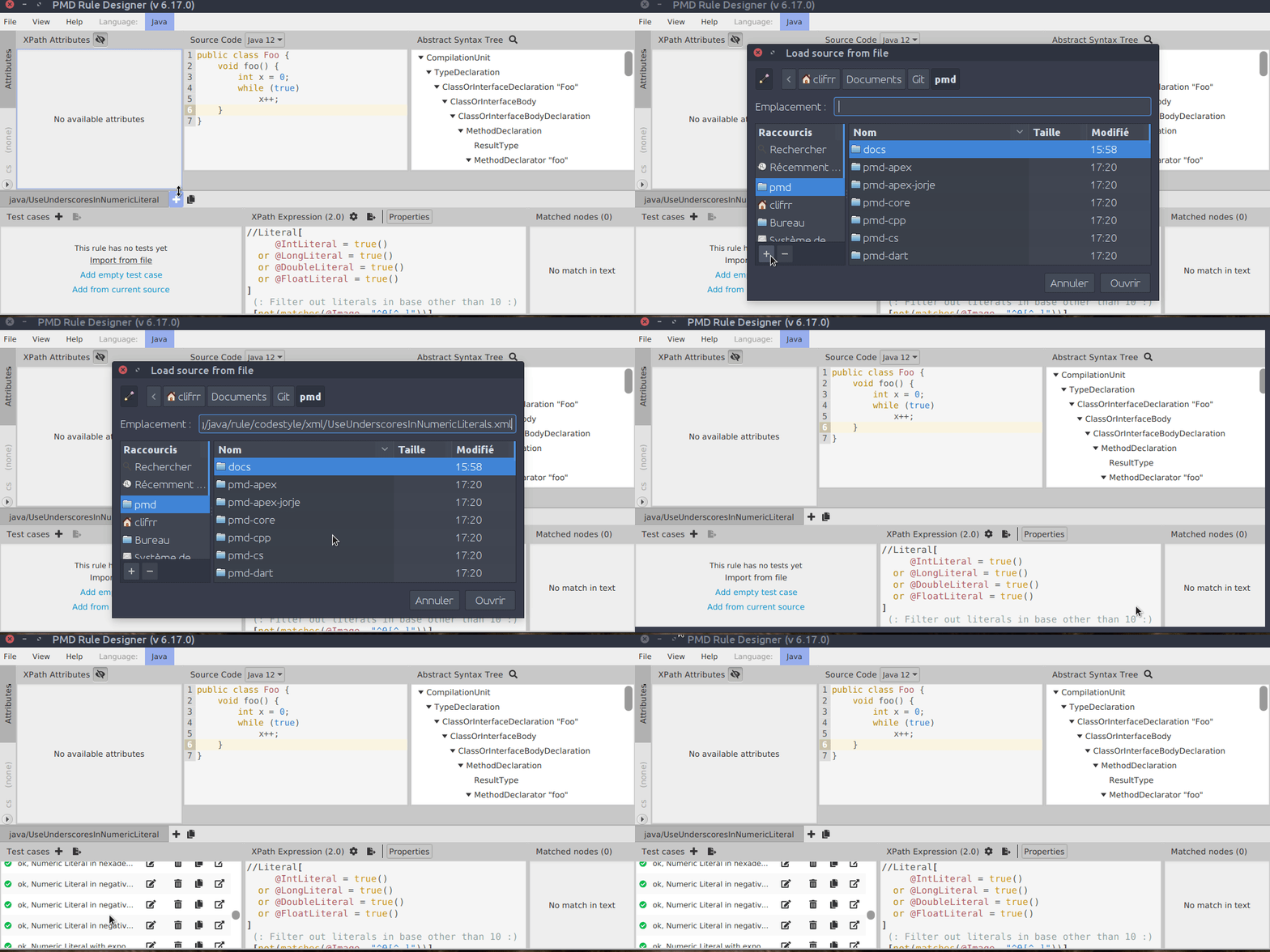
When executing a test, the rule is run on the source with the given configuration, then the violations it finds are compared to the expected ones. Adding testsTests can be added in one of four ways:
Test import demo
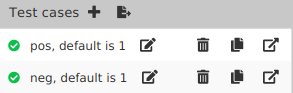
Test statusIn the designer, the test panel is a list of test cases. Their status (passing, failing, error, unknown) is color coded. Test status color coding examplesAll tests passing (green):
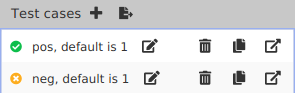
A failing test (orange):
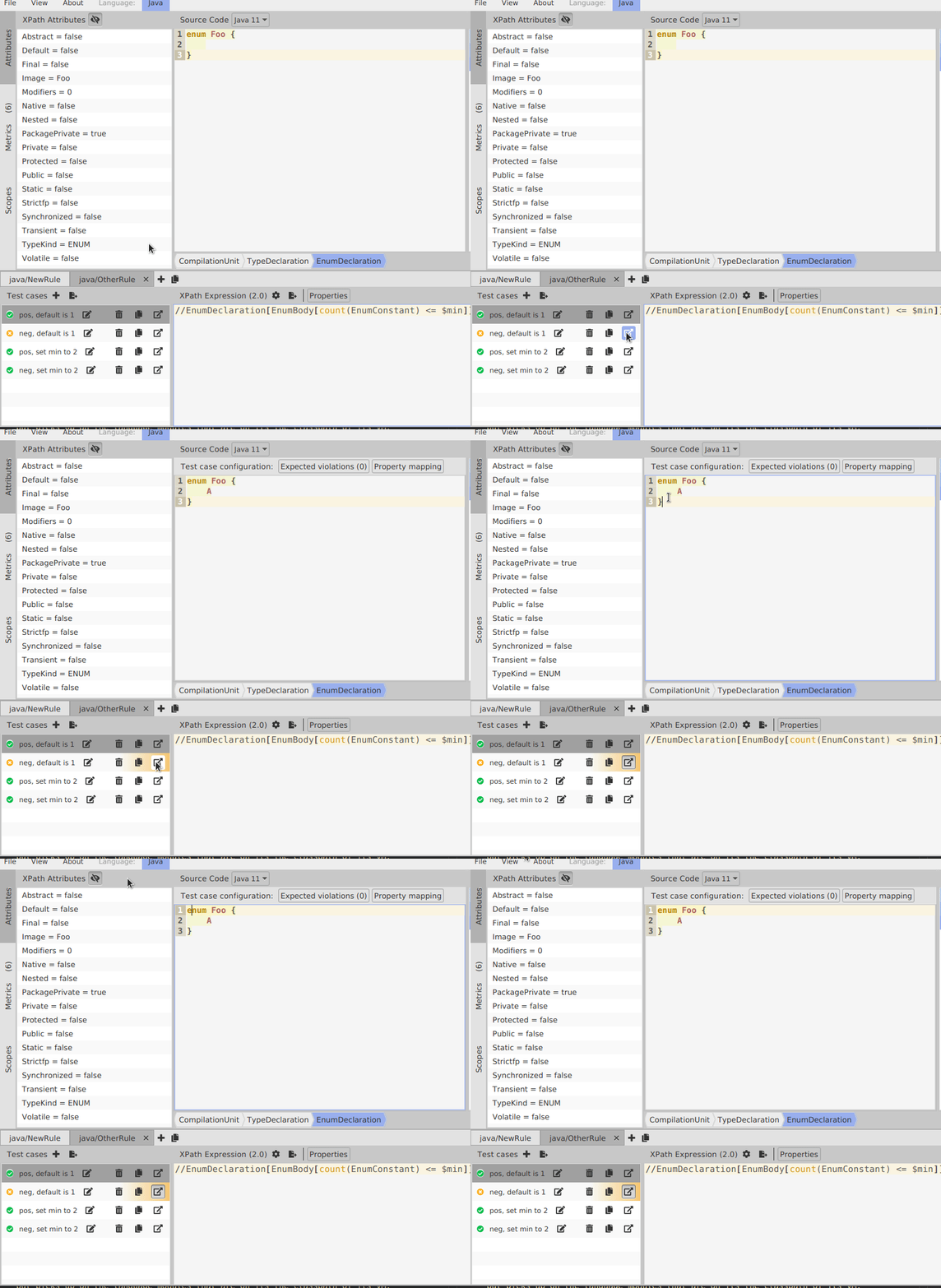
Loading a test caseEach test has a piece of source, which you can edit independently of the others, when the test is loaded in the editor. Additional rule configuration options can be chosen when the test is loaded. Loading is done with the Load button: Test loading demo
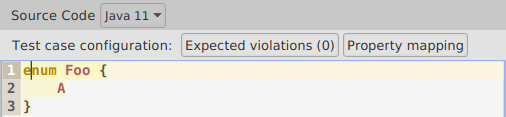
Only one test case may be loaded at a time. If the loaded test is unloaded, the editor reverts back to the state it had before the first test case was loaded. Editing a loaded test caseWhen a test is loaded, the source you edit in the code area is the source of the test. Changes are independent from other tests, and from the piece of source that was previously in the editor. When a test is loaded, an additional toolbar shows up at the top of the code area:
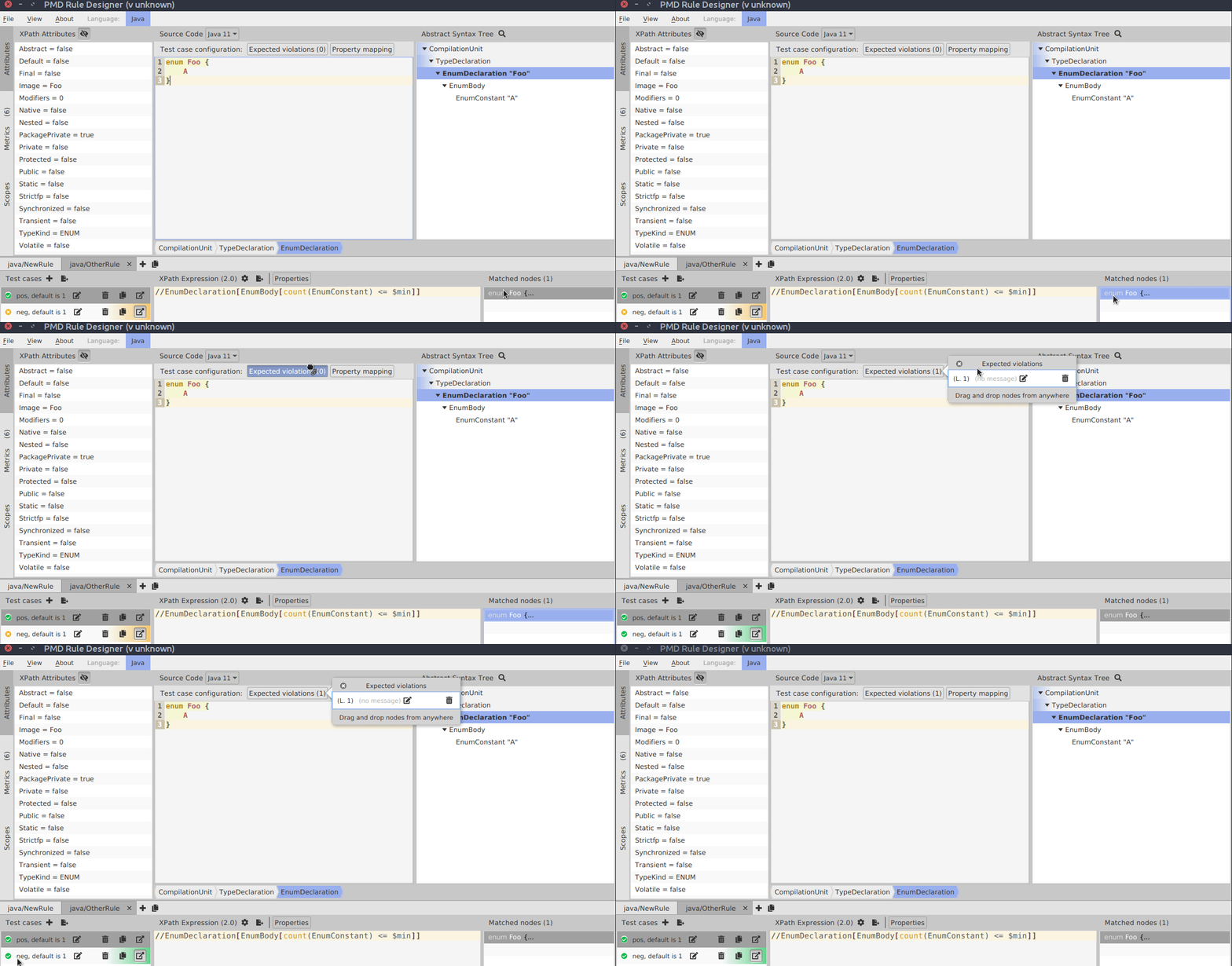
Expected violationsThe “Expected violations” button is used to add or edit the expected violations. Initially the list of violations is empty. You can add violations by dragging and dropping nodes onto the button or its popup, from any control that displays nodes. For example: Adding a violation demo
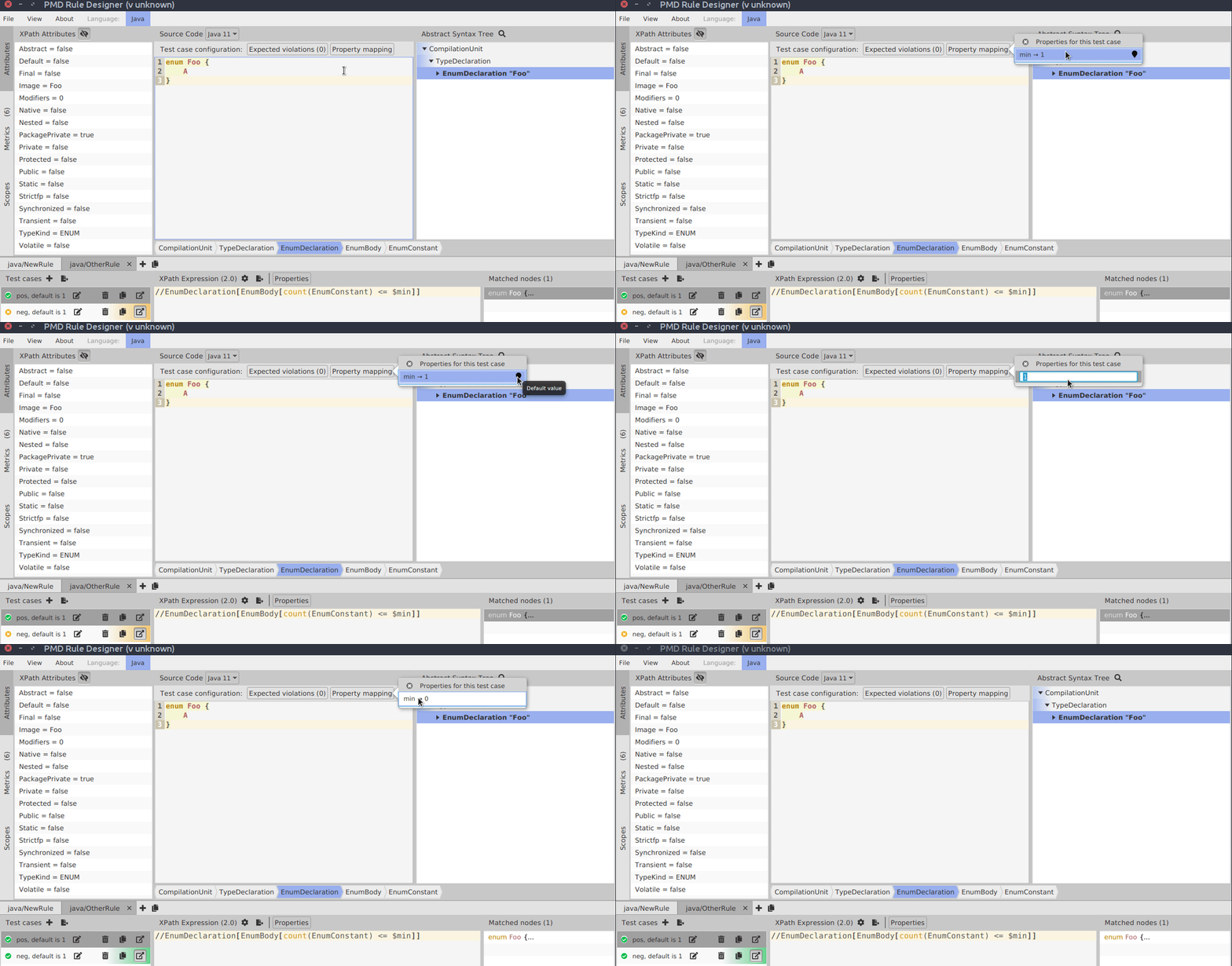
Test case rule configurationRule properties can be configured for each test case independently using the “Property mapping” button. For example: Test rule property demo
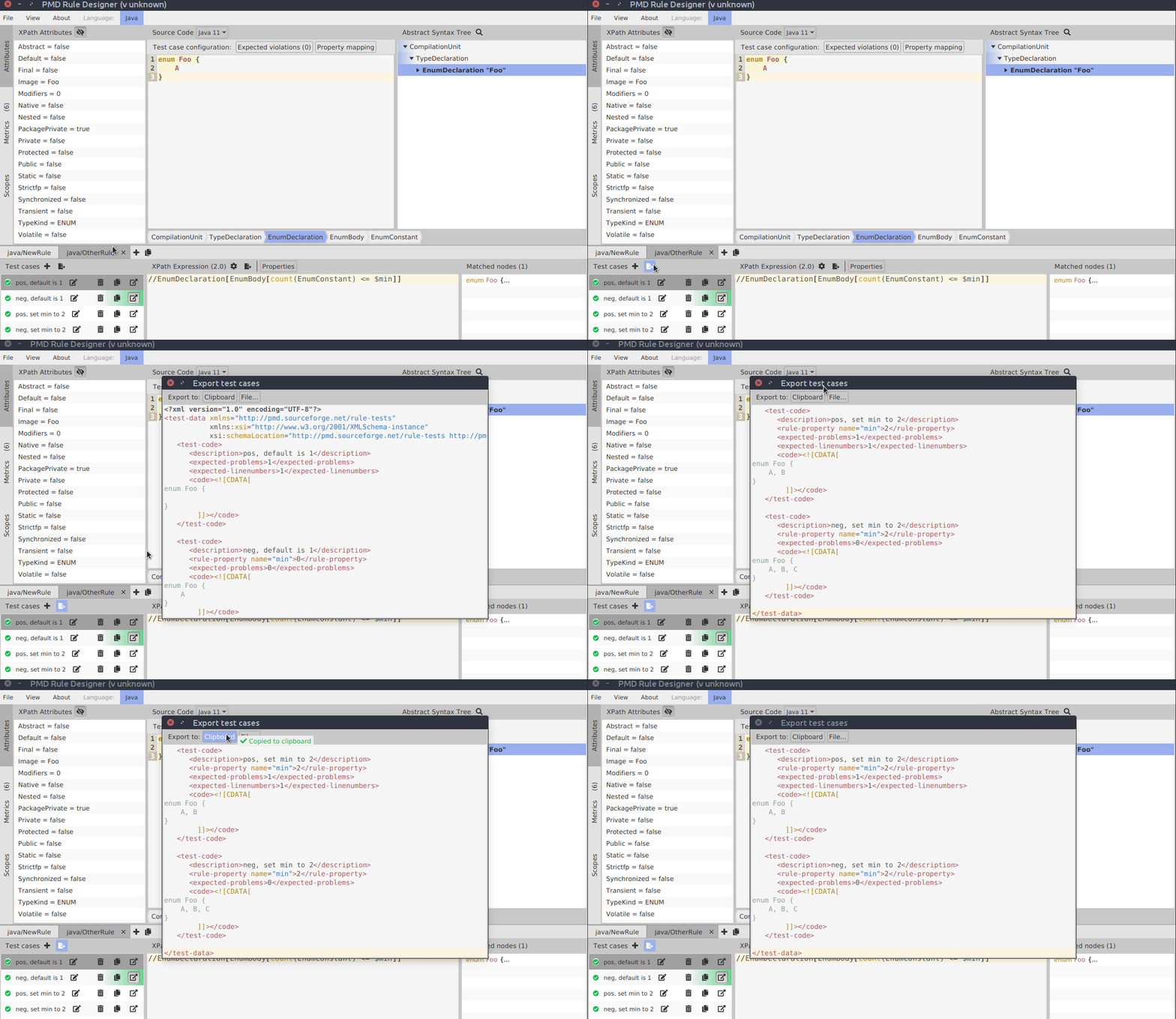
This configuration will be used when executing the test to check its status. Exporting testsWhen you’re done editing tests, it’s a good idea to save the test file to an XML file. Exporting is done using the “Export” button above the list of test cases: Test export demo
Note that the exported file does not contain any information about the rule. The rule must be in a ruleset file somewhere else. If you want to use PMD’s test framework to use the test file in your build, please refer to the conventions explained in the test framework documentation. |
| You are visitor 01402775 — GeezerVison does not store the pages you look up. Best viewed with Netscape Navigator 4.7 or Internet Explorer 6 at 800×600. No cookies required. |