GeezerVisonThe World Wide Web, restored to 800 pixels of glory. | ||||||||||
| Home|About|Gaming cabinet|Archives|How it works|Starter sites | ||||||||||
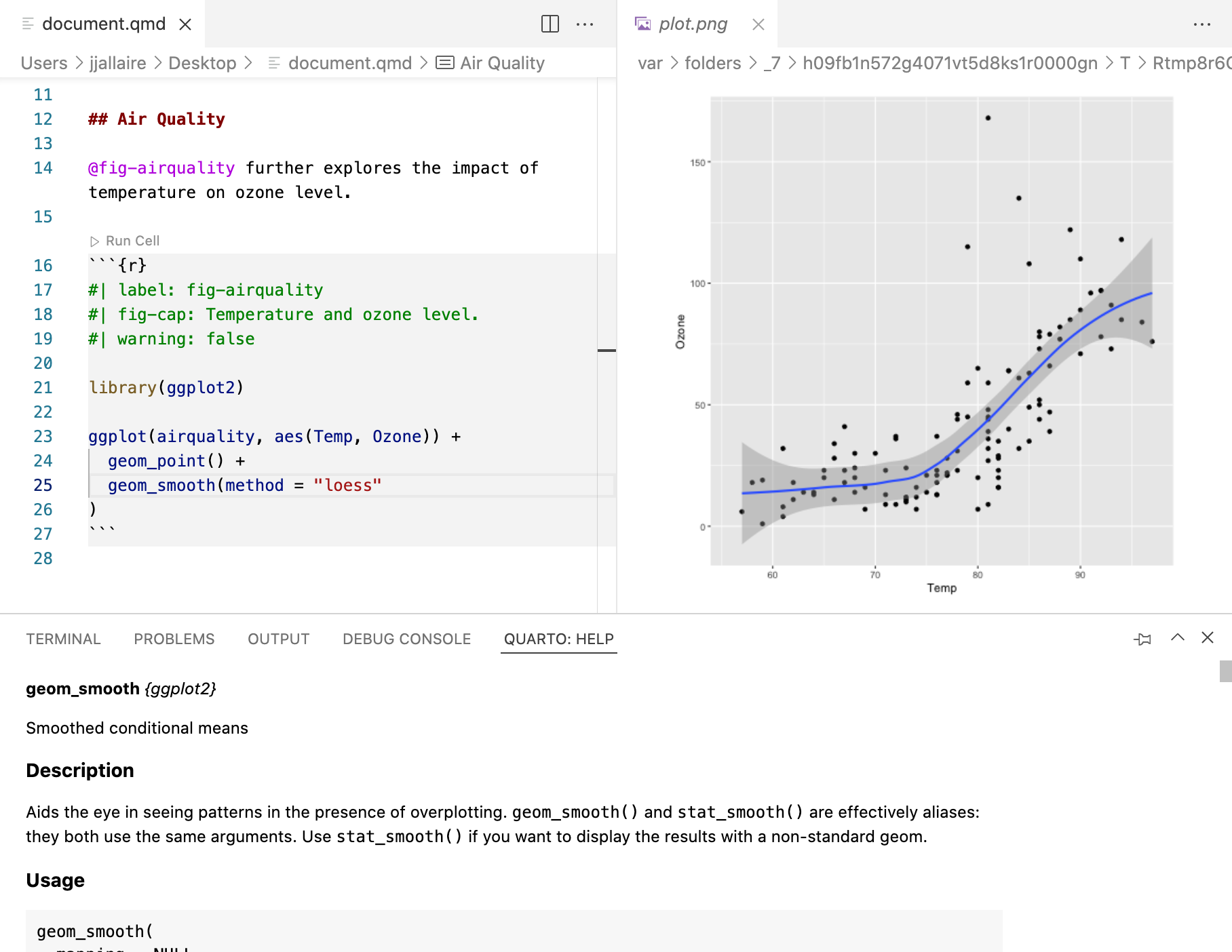
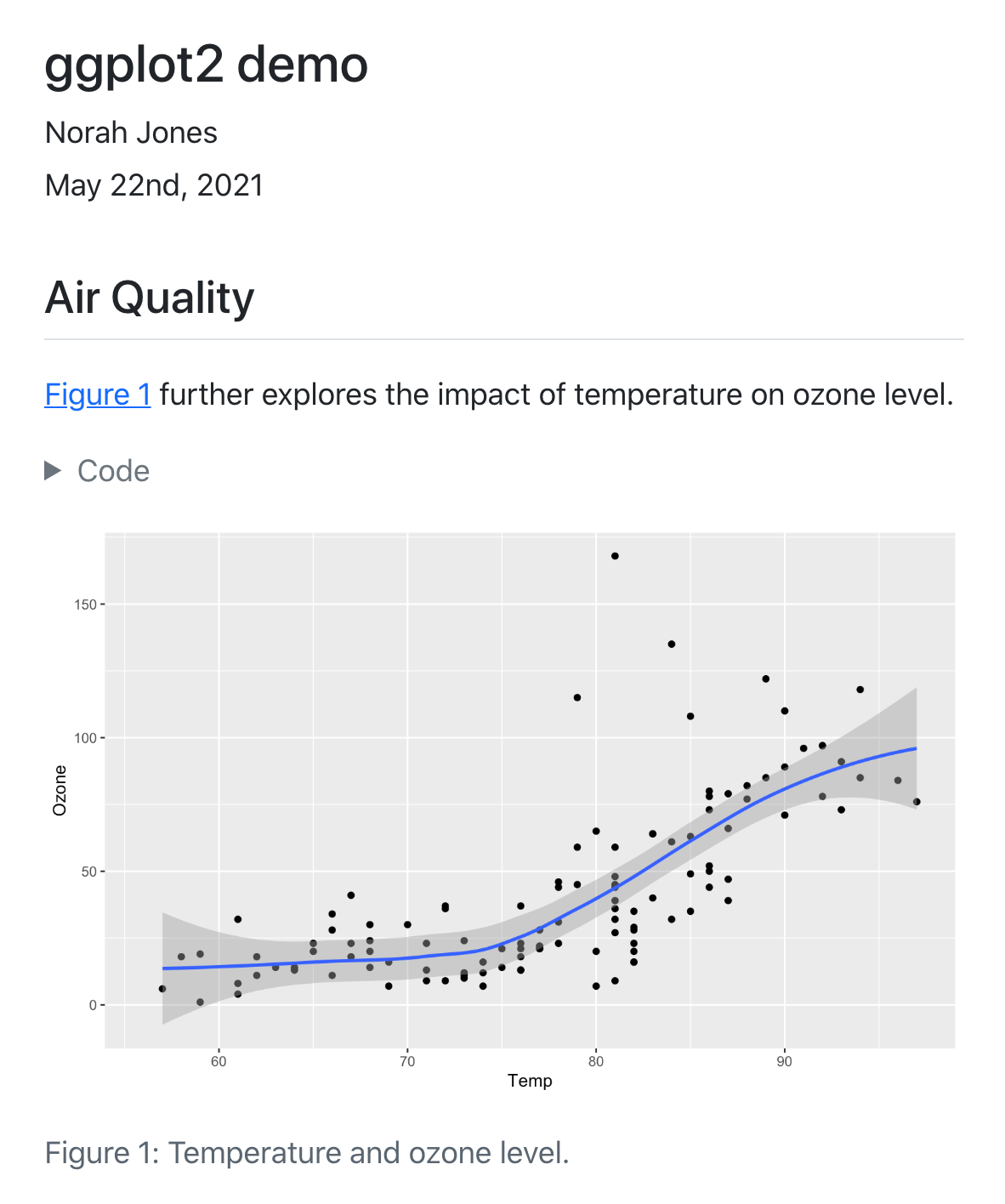
GeezerVison is showing quarto.org — Using R – Quarto OverviewQuarto is a multi-language, next generation version of R Markdown from RStudio, with many new features and capabilities. Like R Markdown, Quarto uses Knitr to execute R code, and is therefore able to render most existing Rmd files without modification. We’ll start by covering the basics of Quarto, then delve into the differences between Quarto and R Markdown in the sections on Chunk Options and Output Formats below. Code BlocksCode blocks that use braces around the language name (e.g. You’ll note that there are some special comments at the top of the code block. These are cell level options that make the figure cross-referenceable. This document results in the following rendered output:
You can produce a wide variety of output types from executable code blocks, including plots, tabular output from data frames, and plain text output (e.g. printing the results of statistical summaries). There are many options which control the behavior of code execution and output, you can read more about them in the article on Execution Options. In addition to code blocks which interrupt the flow of markdown, you can also include code inline. Read more about inline code in the Inline Code article. RenderingWhen a Quarto document is rendered, R code blocks are automatically executed. You can render Quarto documents in a variety of ways:
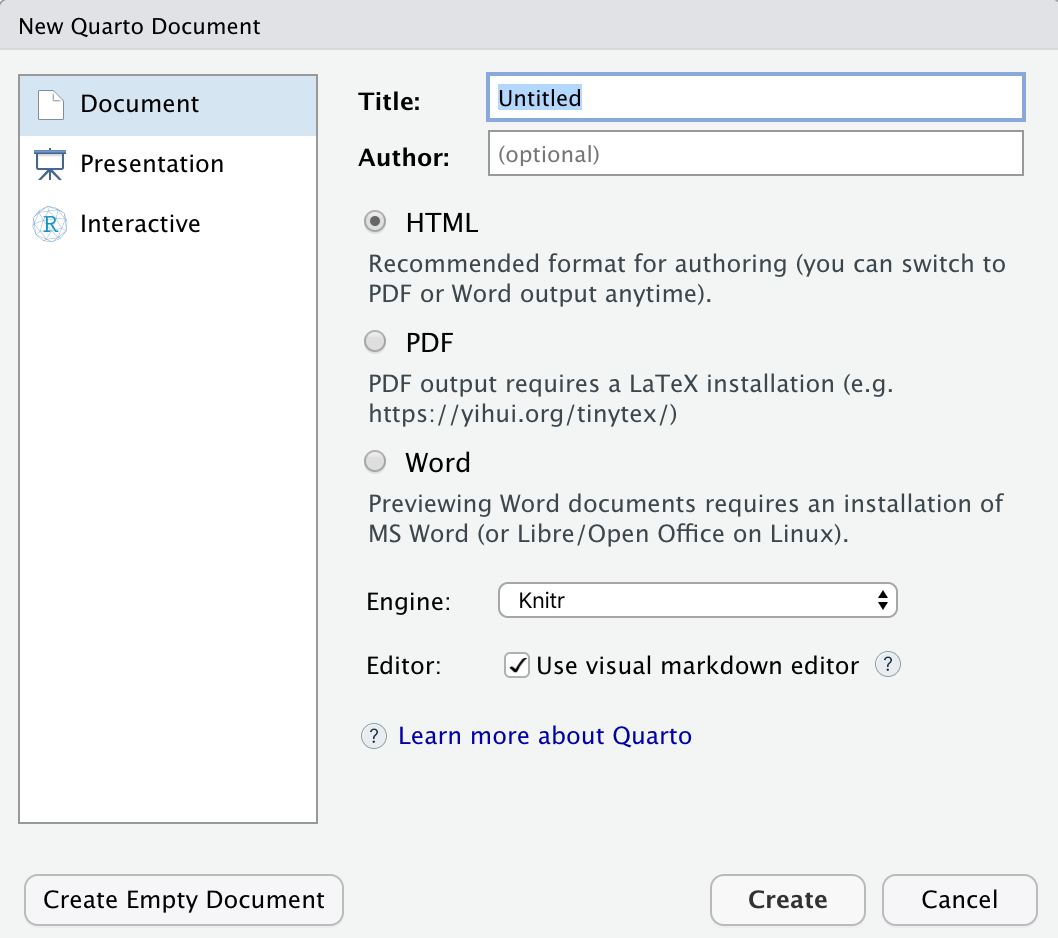
InstallationTo use Quarto with R, you should install the rmarkdown R package: Installation of the rmarkdown package will also install the knitr package so you will have everything required to render documents containing R code. Quarto will select a version of R by looking on the system RStudioRStudio v2022.07 and later includes support for editing and preview of Quarto documents (the documentation below assumes you are using this build or a later version). If you are using Quarto within RStudio it is strongly recommended that you use the latest release of RStudio. You can download RStudio from https://posit.co/download/rstudio-desktop/. Creating DocumentsUse the File : New File : Quarto Document… command to create new Quarto documents:
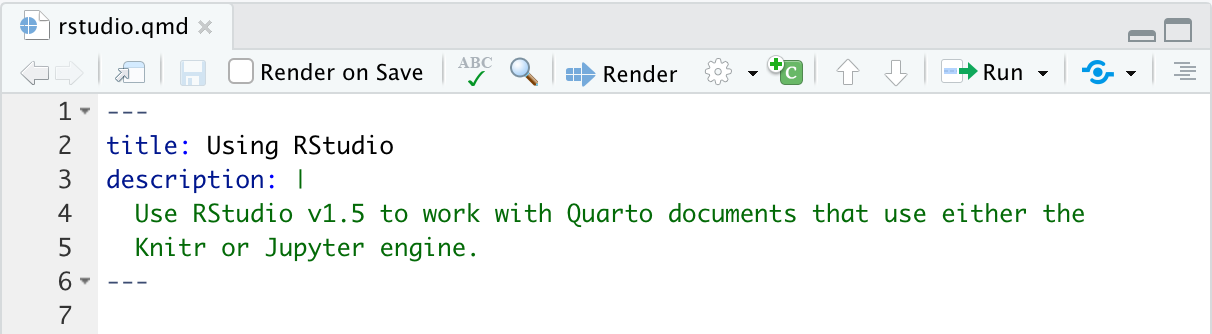
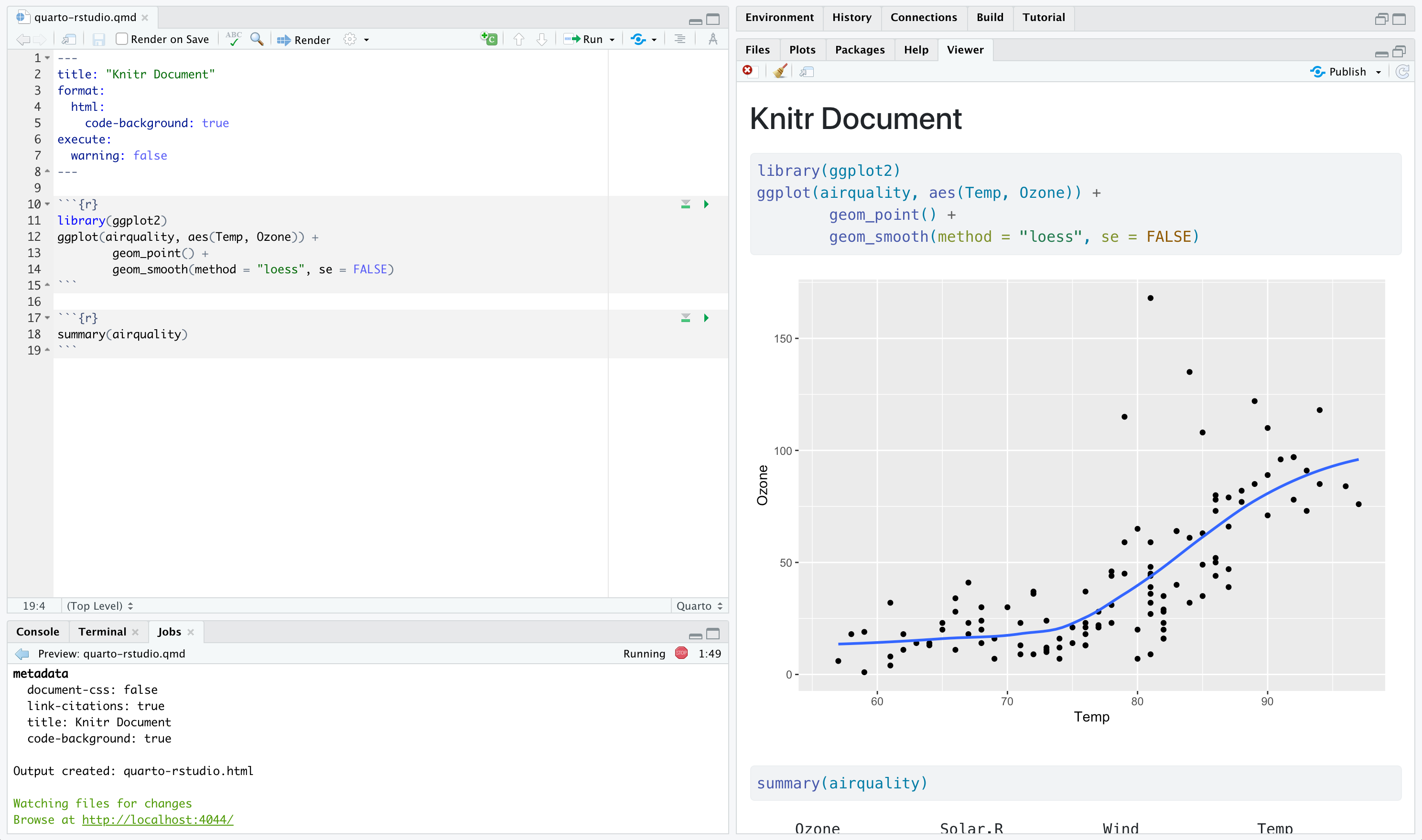
Render and PreviewUse the Render button to preview documents as you edit them:
If you prefer to automatically render whenever you save you can check the Render on Save option on the editor toolbar. The preview will appear alongside the editor:
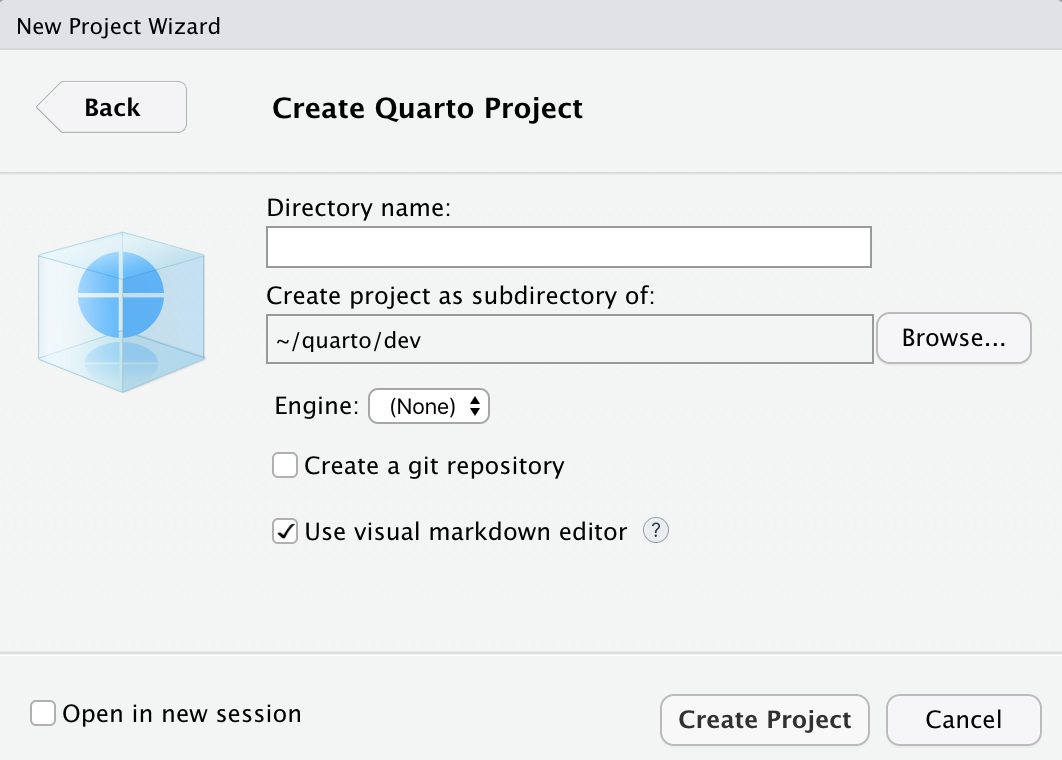
The preview will update whenever you re-render the document. Side-by-side preview works for both HTML and PDF output. ProjectsIf you want to create a new project for a Quarto document or set of documents, use the File : New Project… command, specify New Directory, then choose Quarto Project:
You can use this UI to create both vanilla projects as well as websites and books. Options are also provided for creating a git repository and initializing an renv environment for the project. PositronThe Quarto Extension is bundled with Positron, and provides a variety of tools for working with
The extension includes a Quarto: Preview command that can be accessed via the Command Palette, the keyboard shortcut , or a Preview button ( You can read more about using Positron in Tools: Positron. VS CodeThe Quarto Extension for VS Code provides a variety of tools for working with
You can install the VS Code extension by searching for ‘quarto’ in the extensions panel or from the extension marketplace. The VS Code extension includes a Quarto: Preview command that can be accessed via the Command Palette, the keyboard shortcut , or a Preview button ( You can read more about using VS Code in Tools: VS Code. EmacsThe quarto-mode MELPA package is an Emacs mode for editing Quarto documents. Install If you have ESS, Use Chunk OptionsOne important difference between R Markdown documents and Quarto documents is that in Quarto chunk options are typically included in special comments at the top of code chunks rather than within the line that begins the chunk. For example: Quarto uses this approach to both better accommodate longer options like
Note
Note that if you prefer it is still possible to include chunk options on the first line (e.g. Chunk options included this way use YAML syntax rather than R syntax for consistency with options provided in YAML front matter. You can still however use R code for option values by prefacing them with
Caution
the Chunk LabelsYou can set a label for a code chunk with the Unless you want to specify a cross-reference avoid using the reserved cross-reference prefixes for chunk labels. Conditional ExecutionTo execute a cell only for certain output formats, read the This pairs well with conditional content when both visibility and execution should depend on format. See Execution Context Information for the full JSON schema. For R cells using the knitr engine, knitr’s Output FormatsAnother difference between R Markdown and Quarto is related to output formats. Quarto includes many more built in output formats (and many more options for customizing each format). Quarto also has native features for special project types like Websites, Books, and Blogs (rather than relying on external packages). To use a format in Quarto you use the One source of the difference in syntax is that Quarto is more closely aligned with Pandoc format names and options (thus the use of See the listing of all supported formats along with their user guides and reference pages for more details. See the articles on creating Websites, Books, and Blogs for additional details on more advanced output formats. Data FramesYou can control how data frames are printed by default using the
For example, here we specify that we want Knitr OptionsIf you are using the Knitr cell execution engine, you can specify default document-level Knitr chunk options in YAML. For example: You can additionally specify global Knitr options using The In the example above, we establish default Knitr chunk options for a single document. You can also add shared CachingThe Knitr Cache operates at the level of individual cells rather than the entire document. While this can be very convenient, it also introduced some special requirements around managing the dependencies between cells. You can enable the Knitr cache at the document or project level using standard YAML options: You can also enable caching on a per-cell basis (in this you would not set the document level option): There are a variety of other cell-level options that affect Knitr caching behavior. You can learn about them in the Knitr cell options reference. Another excellent resource is Yihui Xie’s article on cache invalidation. RenderingYou can use AlternativesIf you are using caching to mitigate long render-times, there are some alternatives you should consider alongside caching. Disabling ExecutionIf you are working exclusively with prose / markdown, you may want to disable execution entirely. Do this by specifying the Note that if you are authoring using Jupyter Freezing ExecutionIf you are working within a project and your main concern is the cumulative impact of rendering many documents at once, consider using the You can use the Note that Terminal Learn more about using | ||||||||||
| You are visitor 01402503 — GeezerVison does not store the pages you look up. Best viewed with Netscape Navigator 4.7 or Internet Explorer 6 at 800×600. No cookies required. |

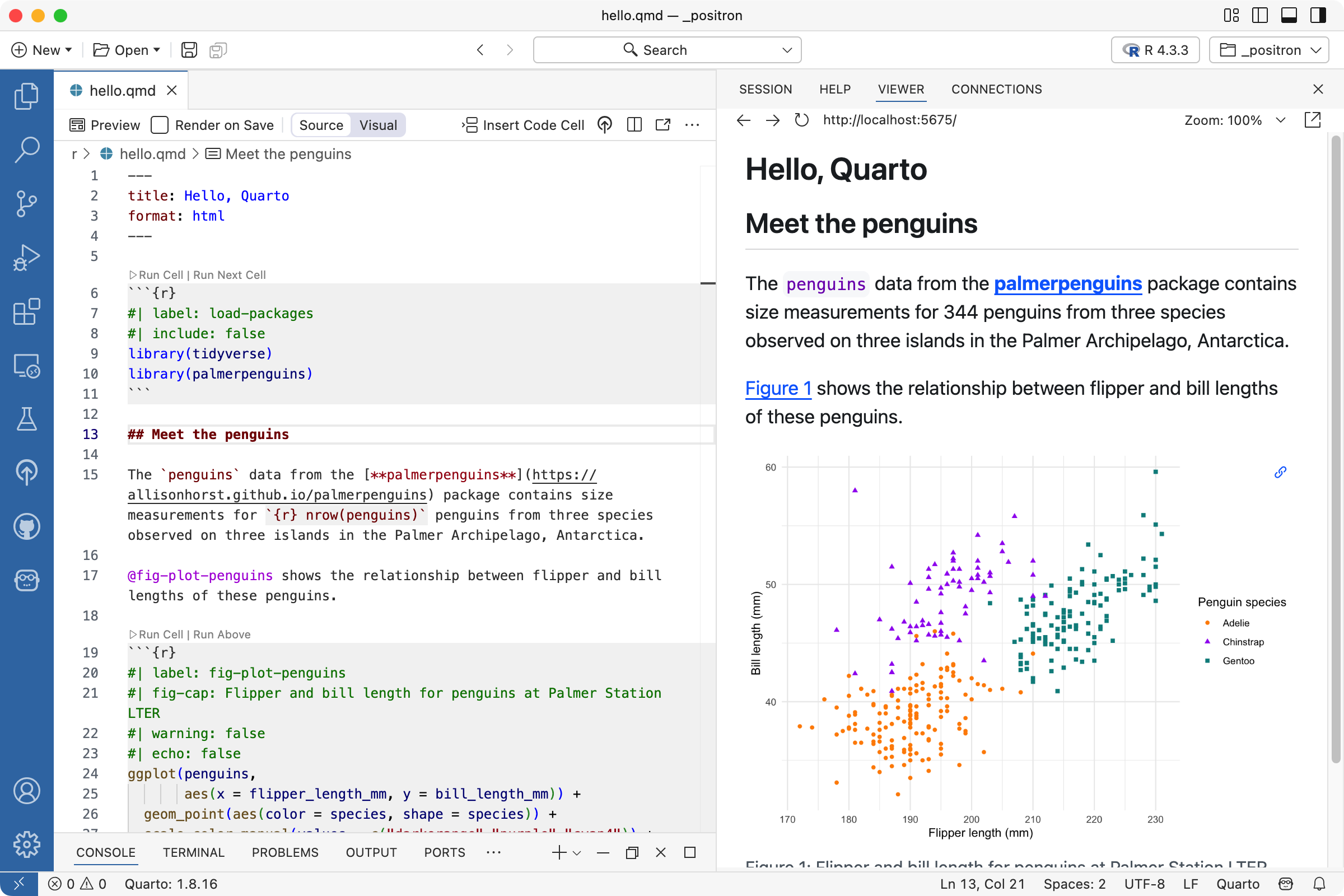

 ) in the editor toolbar. After rendering, a preview is displayed in the Viewer pane within Positron.