GeezerVisonThe World Wide Web, restored to 800 pixels of glory. |
| Home|About|Gaming cabinet|Archives|How it works|Starter sites |
GeezerVison is showing thepythoncode.com — How to Make a Text Editor using Tkinter in Python - The Python Code Struggling with multiple programming languages? No worries. Our Code Converter has got you covered. Give it a go! IdeaIn this tutorial, we are going to make a simple text editor with the Tkinter module which comes with Python so we don't have to install anything. It will have the following features.
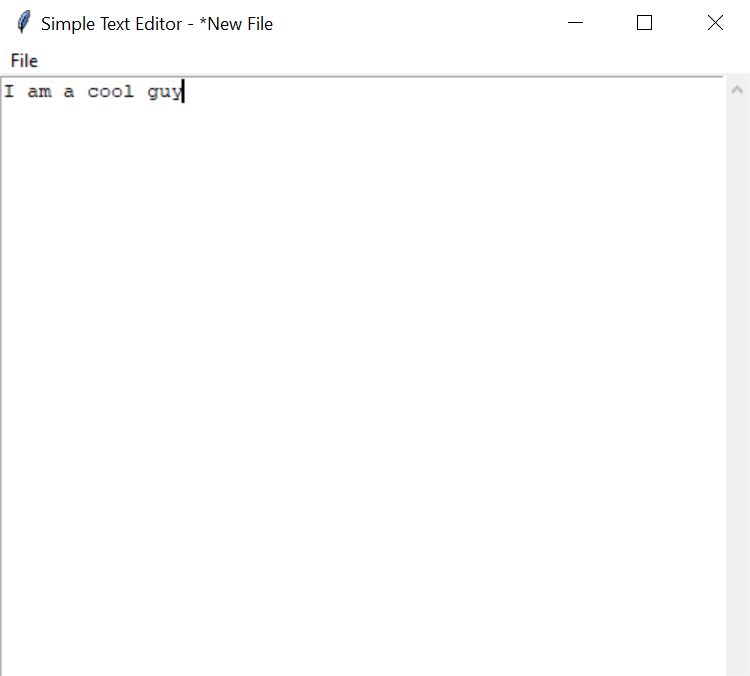
We start by importing some modules which we all later need. We import everything from Tkinter so we have all the variables available and we also import the Next, we import Here's what a low DPI looks like:
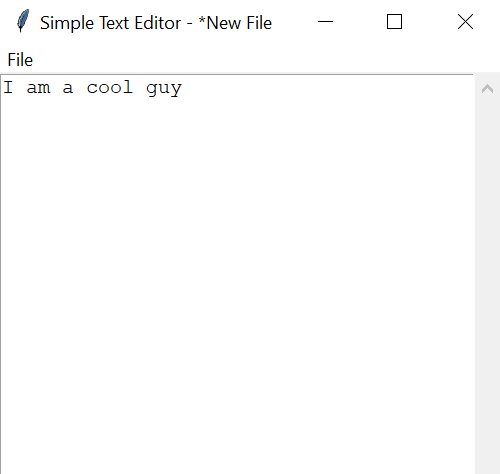
High DPI:
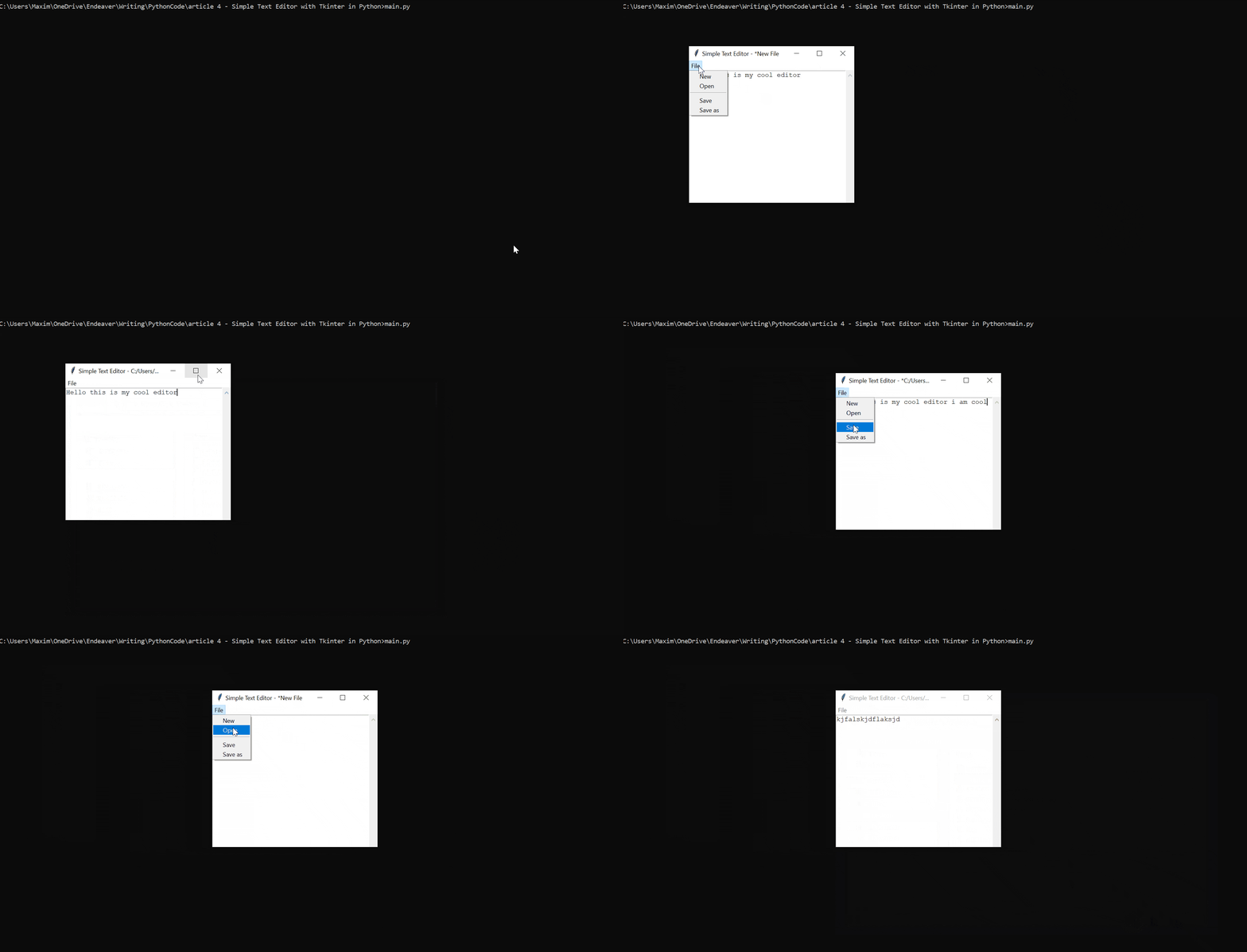
We import Variable SetupNow we set up some variables for our little program. The first two variables are used to keep consistency when titling our program. The Tkinter SetupNext, we are going to set up the Tkinter window. To do that we make a new Tk object. After that, we give the window a title, and we use the variables we defined earlier. Because we have no file opened at the moment it will say Simple Text Editor - New File. We will also make it so an asterisk will be added in front of the file name so we know when we have unsaved changes. Then we set the initial window dimensions in pixels with the geometry method of Tkinter. Last but not least we set the first column to take up 100% of the space so our text area will be the full width: Handler FunctionsNow we are going to set up two functions that are connected to some events called by Tkinter widgets. File ActionsThe first function is called when we press any of the file buttons so we can save open and make new files. Later you will see how we connect them. We have to get the So if the action is open, we will trigger the After we choose the file, the function will return the path of the file. Then we set the window title to our " If the action is new, we will set the file path to the new file. We also delete the text in the text area and reset the window title: Last but not least, we will check for Text ChangeNow for a simple function. Whenever the text area is changed, we'll call this function to simply add an asterisk after the WidgetsNow we are going to set up the Graphical Elements. Text AreaFirst, we set up the Text Area and set its height to 999 so it spans the full height, we set its position through the In the MenuNow let's set up our Dropdown menu for file interactions. We first make a new Then we add commands to this menu with its We can also add separators with the Open withNow we need to enable the user to open a file directly with our program with this little code snippet. We check if the system argument length equates to two we know that the second argument is the path of the desired file. So we now set the Main LoopIn the end, we call the main loop method on the window so the window displays: ShowcaseLet's see how the program works in this short GIF:
ConclusionExcellent! You have successfully created a simple text editor using Python code! See how you can add more features to this program such as making key shortcuts. If you want to learn more about using Tkinter, check this tutorial if you want to make a file explorer using Python. or this one where you create a calculator app along with many features! Get the complete version of the code here. If you want to build more GUIs with Python, check our GUI programming tutorials page! Learn also: How to Make Buttons in PyGame. Happy coding ♥ Liked what you read? You'll love what you can learn from our AI-powered Code Explainer. Check it out!
Sharing is caring!
Read also
How to Make a Typing Speed Tester with Tkinter in PythonLearn how to build a UI-based typing speed tester in Python using the built-in Tkinter library. 
How to Make a Drawing Program in PythonLearn how to make a simple drawing tool with brush color and size changing feature using PyGame library in Python. 
How to Make a File Explorer using Tkinter in PythonLearn how to make a simple file explorer that is able to navigate through folders, create folders and files and more using Tkinter in Python. CommentsGot a coding query or need some guidance before you comment? Check out this Python Code Assistant for expert advice and handy tips. It's like having a coding tutor right in your fingertips! |
| You are visitor 01402503 — GeezerVison does not store the pages you look up. Best viewed with Netscape Navigator 4.7 or Internet Explorer 6 at 800×600. No cookies required. |