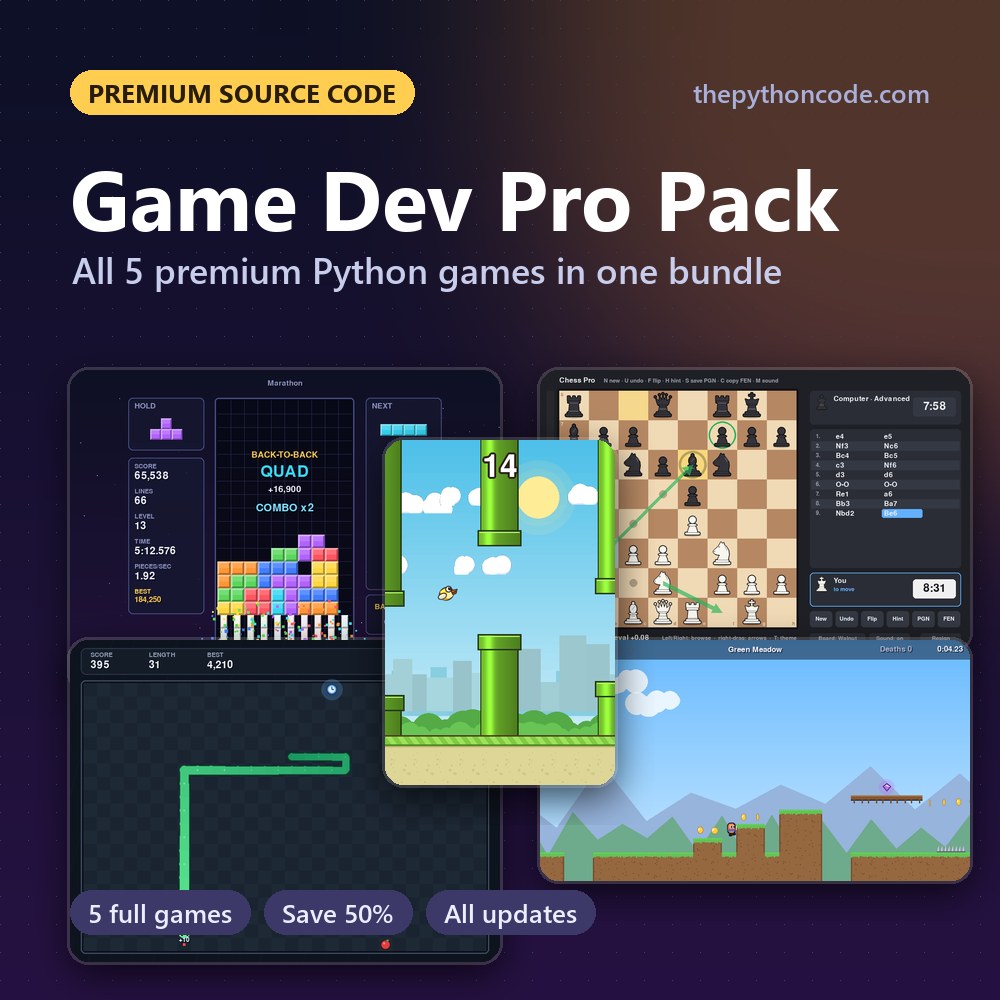
 Want the complete games? Get the source code of 5 polished Python games
(Tetromino Pro, Flappy Wings Pro, Chess Pro, Snake Pro, Platformer Pro) in the Game Dev Pro Pack.
$29
View on Github
drawing_tool.py
# Imports
import sys
import pygame
import ctypes

# Increas Dots Per inch so it looks sharper
ctypes.windll.shcore.SetProcessDpiAwareness(True)

# Pygame Configuration
pygame.init()
fps = 300
fpsClock = pygame.time.Clock()
width, height = 640, 480
screen = pygame.display.set_mode((width, height), pygame.RESIZABLE)

font = pygame.font.SysFont('Arial', 20)

# Variables

# Our Buttons will append themself to this list
objects = []

# Initial color
drawColor = [0, 0, 0]

# Initial brush size
brushSize = 30
brushSizeSteps = 3

# Drawing Area Size
canvasSize = [800, 800]

# Button Class
class Button():
    def __init__(self, x, y, width, height, buttonText='Button', onclickFunction=None, onePress=False):
        self.x = x
        self.y = y
        self.width = width
        self.height = height
        self.onclickFunction = onclickFunction
        self.onePress = onePress

        self.fillColors = {
            'normal': '#ffffff',
            'hover': '#666666',
            'pressed': '#333333',
        }

        self.buttonSurface = pygame.Surface((self.width, self.height))
        self.buttonRect = pygame.Rect(self.x, self.y, self.width, self.height)

        self.buttonSurf = font.render(buttonText, True, (20, 20, 20))

        self.alreadyPressed = False

        objects.append(self)

    def process(self):

        mousePos = pygame.mouse.get_pos()

        self.buttonSurface.fill(self.fillColors['normal'])
        if self.buttonRect.collidepoint(mousePos):
            self.buttonSurface.fill(self.fillColors['hover'])

            if pygame.mouse.get_pressed(num_buttons=3)[0]:
                self.buttonSurface.fill(self.fillColors['pressed'])

                if self.onePress:
                    self.onclickFunction()

                elif not self.alreadyPressed:
                    self.onclickFunction()
                    self.alreadyPressed = True

            else:
                self.alreadyPressed = False

        self.buttonSurface.blit(self.buttonSurf, [
            self.buttonRect.width/2 - self.buttonSurf.get_rect().width/2,
            self.buttonRect.height/2 - self.buttonSurf.get_rect().height/2
        ])
        screen.blit(self.buttonSurface, self.buttonRect)


# Handler Functions

# Changing the Color
def changeColor(color):
    global drawColor
    drawColor = color

# Changing the Brush Size
def changebrushSize(dir):
    global brushSize
    if dir == 'greater':
        brushSize += brushSizeSteps
    else:
        brushSize -= brushSizeSteps

# Save the surface to the Disk
def save():
    pygame.image.save(canvas, "canvas.png")

# Button Variables.
buttonWidth = 120
buttonHeight = 35

# Buttons and their respective functions.
buttons = [
    ['Black', lambda: changeColor([0, 0, 0])],
    ['White', lambda: changeColor([255, 255, 255])],
    ['Blue', lambda: changeColor([0, 0, 255])],
    ['Green', lambda: changeColor([0, 255, 0])],
    ['Brush Larger', lambda: changebrushSize('greater')],
    ['Brush Smaller', lambda: changebrushSize('smaller')],
    ['Save', save],
]

# Making the buttons
for index, buttonName in enumerate(buttons):
    Button(index * (buttonWidth + 10) + 10, 10, buttonWidth,
           buttonHeight, buttonName[0], buttonName[1])

# Canvas
canvas = pygame.Surface(canvasSize)
canvas.fill((255, 255, 255))

# Game loop.
while True:
    screen.fill((30, 30, 30))
    for event in pygame.event.get():
        if event.type == pygame.QUIT:
            pygame.quit()
            sys.exit()

    # Drawing the Buttons
    for object in objects:
        object.process()

    # Draw the Canvas at the center of the screen
    x, y = screen.get_size()
    screen.blit(canvas, [x/2 - canvasSize[0]/2, y/2 - canvasSize[1]/2])

    # Drawing with the mouse
    if pygame.mouse.get_pressed()[0]:
        mx, my = pygame.mouse.get_pos()

        # Calculate Position on the Canvas
        dx = mx - x/2 + canvasSize[0]/2
        dy = my - y/2 + canvasSize[1]/2

        pygame.draw.circle(
            canvas,
            drawColor,
            [dx, dy],
            brushSize,
        )

    # Reference Dot
    pygame.draw.circle(
        screen,
        drawColor,
        [100, 100],
        brushSize,
    )

    pygame.display.flip()
    fpsClock.tick(fps)