GeezerVisonThe World Wide Web, restored to 800 pixels of glory. |
| Home|About|Gaming cabinet|Archives|How it works|Starter sites |
GeezerVison is showing tkdocs.com — TkDocs Tutorial - Styles and Themes Styles and ThemesThe themed aspect of the modern Tk widgets is one of the most powerful and exciting aspects of the newer widget set. Yet, it's also one of the most confusing. Tutorial
This chapter explains how to use existing styles (which control how widgets like buttons look) and themes (which are a collection of styles that define how all the widgets in your application look). Changing themes can give your application an entirely different look. If you're looking to create custom styles and themes, the following chapter will guide you through the details.
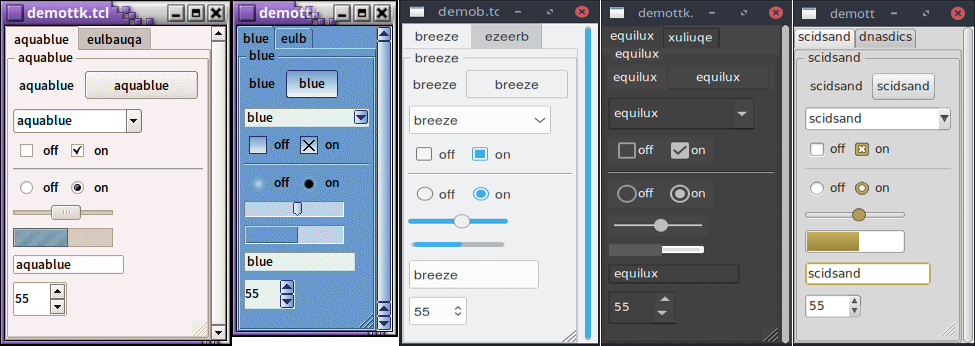
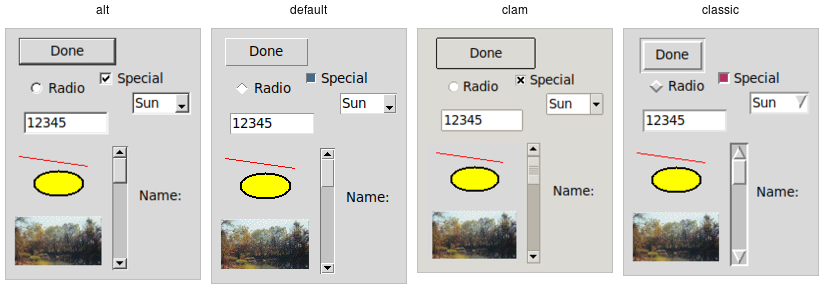
Note that it's not just colors that have changed, but the actual shape of individual widgets. Styles and themes are extremely flexible. Why?However, before you get carried away, very few applications will benefit from switching themes like this. Some games or educational programs might be exceptions. Using the standard Tk theme for a given platform will display widgets the way people expect to see them, particularly if they're running macOS and Windows. On Linux systems, there's far less standardization of look and feel. Users expect (and are more comfortable with) some
variability and "coolness." Because different widget sets (typically GTK and QT) are used by window managers, control panels, and other system
utilities, Tk can't seamlessly blend in with the current settings on any particular system. Most of the Linux screenshots in this
tutorial use Tk's Styles and themes, used in a more targeted manner and with significant restraint, can have a role to play in modern applications. This chapter explains why and when you might want to use them and how to go about doing so. We'll begin by drawing a parallel between Tk's styles and themes and another realm of software development. Understanding styles and themesIf you're familiar with web development, you know about cascading stylesheets (CSS). There are two ways it can be used to customize
the appearance of an element in your HTML page. One way is to add a bunch of style attributes (fonts, colors, borders, etc.) directly
to an element in your HTML code via the The other way to use CSS is to attach a class to each widget via the Back to Tk.
Yes, there are a few exceptions, like labels where you can customize the font and colors through both styles and configuration options. Applying a styleTo use a style means to apply that style to an individual widget. All you need is the style's name and the widget to apply it to. Setting the style can be done at creation time: A widget's style can also be changed later with the BenefitsSo why use styles and themes in Tk? They take the fine-grained details of appearance decisions away from individual instances of widgets. That makes for cleaner code and less repetition. If you have 20 entry widgets in your application, you don't need to repeat the exact appearance details every time you create one (or write a wrapper function). Instead, you assign them a style. Themes collect a series of styles, putting all appearance decisions in one place. And because styles for a button and styles for other widgets can share common elements, collecting them in themes promotes consistency and improves reuse. Styles also have many benefits for widget authors. Widgets can delegate most appearance decisions to styles. A widget author no longer has to hardcode logic to the effect of "when the state is disabled, consult the 'disabledforeground' configuration option and use that for the foreground color." Not only did that make coding widgets longer (and more repetitive), but it also restricted how a widget could be changed based on its state. If the widget author omitted logic to change the font when the state changed, you were out of luck as an application developer using the widget. Using styles, widget authors don't need to provide code for every possible appearance option. That not only simplifies the widget but paradoxically ensures that a wider range of appearances can be set, including those the widget author may not have anticipated. Using existing themesBefore delving into the weightier matters of tastefully and selectively modifying and applying styles to improve the usability of your application and cleanliness of your code, let's deal with the fun bits: using existing themes to completely reskin your application. Themes are identified by a name. You can obtain the names of all available themes: Tkinter encapsulates all style manipulations in the
Besides the built-in themes ( Only one theme can be active at a time. To obtain the name of the theme currently in use, use the following: As of Ruby/Tk 0.2.0 (current version as of 2020), the Tk::Tile::Style.theme_use API doesn't allow querying the current style. This API, which was originally targeted for Tk 8.6, was back-ported to Tk 8.5.9. If you're using an earlier version of Tk getting this info is a bit trickier. Switching to a new theme can be done with: What does this actually do? Obviously, it sets the current theme to the indicated theme. Doing this, therefore, replaces all the currently available styles with the set of styles defined by the theme. Finally, it refreshes all widgets, so they take on the appearance described by the new theme. Third-party themesWith a bit of looking around, you can find some existing add-on themes available for download. A good starting point is https://wiki.tcl-lang.org/page/List+of+ttk+Themes. Though themes can be defined in any language that Tk supports, most that you will find are written in Tcl. How can you install them so that they are available to use in your application? For Tkinter users, you'll find an increasing number of themes on PyPi and elsewhere designed to be directly incorporated into your applications. Some of these are small wrappers around the Tcl-based themes below, making them easier to use. Some are full-fledged themes in their own right, created using Python and Tkinter, without making use of Tcl code. The book version of this tutorial, Modern Tkinter, includes bonus material describing some of these, including a powerful and highly configurable theme called ttkbootstrap, which adds not only new visuals but also several entirely new widgets you can use in your Tkinter applications. As an example, let's use the "awdark" theme, available from https://sourceforge.net/projects/tcl-awthemes/.
Download and unzip the One of the files is named To use it, we need to tell Tcl where to find the package (via adding its directory to Tcl's If the theme is instead implemented as a single Tcl source file, without a You should now be able to use the theme in your own application, just as you would a built-in theme. |
| You are visitor 01402503 — GeezerVison does not store the pages you look up. Best viewed with Netscape Navigator 4.7 or Internet Explorer 6 at 800×600. No cookies required. |