GeezerVisonThe World Wide Web, restored to 800 pixels of glory. |
| Home|About|Gaming cabinet|Archives|How it works|Starter sites |
GeezerVison is showing www.best-microcontroller-projects.com — PIC Programming using ICSP Easily Learn how to use Microcontrollers in Your Projects Menu
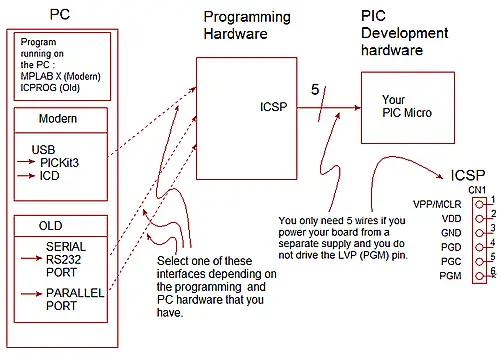
PIC Programming using ICSPThis page shows you how to use ICSP for PIC programming giving some ICSP connection diagrams. Note Part of this page shows you how to use ICPROG which is a parallel port/serial port based software that requires use of an older computer having either a serial port or a parallel port - there are lots around. These days those interfaces have been replaced with USB ports so you can not use ICPROG if you only have USB interface ports. For USB ports, buy a USB programmer such as pickit2 or pickit3 (programmable
using the Free MPLAB X software from Microchip - see screen shots on
programming a pre-bult hex file below). Jump to ICSP Overview. ICSPICSP (In Circuit Serial Programming) is the
serial interface used by the PIC micro to download a program into the PIC
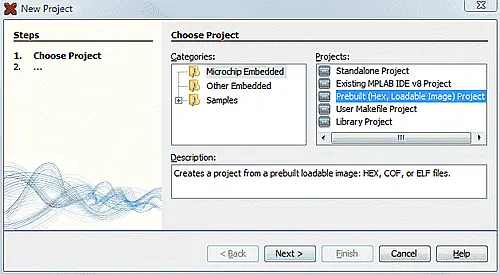
micro's program memory. MPLAB X : Programming a Hex fileMPLAB X is a big program and it is sometimes difficult to see exactly how to do the simplest task. One of those tasks is programming a simple hex file without doing anything else! The instructions below will guide you to effortlessly complete this fundamental task: Download MPLAB X (Currently Version 2.2) Creating a Prebuilt-Project in MPLAB XStart MPLAB X¦wait...wait...wait... ...Click Menu: File-->New Project... ...and select Prebuilt (Hex, Loadable Image) Project,
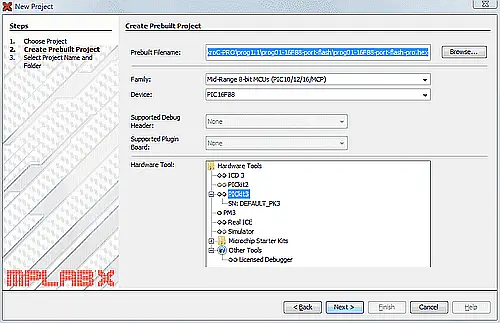
Click Next. Choose your programmer, in this case PICKit3. Click the Browse button and navigate to your hex file e.g.: C:\PIC-C-Course-MikroC-PRO\prog1.1\prog01-16F88-port-flash\prog01-16F88-port-flash-pro.hex In this case program 1 in the PIC C Course. Choose the Family: Mid-Range 8bit MCUs, Choose the device PIC16F88
Click Next, In the new pop-up window (not shown here), leave everything else at default values, Click Finish, and a project will be created at directory: prog01-16F88-port-flash-pro.X Click Finish and the main project pane will be updated with the new project named: prog01-16F88-port-flash-pro
Programming the Hex fileThe above screen-shot shows the hex file that will be used. To program in the new hex file you can hit the green down arrow-to-chip icon.
You can also program the file using the menu (in this case no build is performed since it is pre-built): Run-->Run Main Project PIC ICSP connectionsThis section shows connection pins for PIC programming. 12F675 : ICSP PIC Programming connections: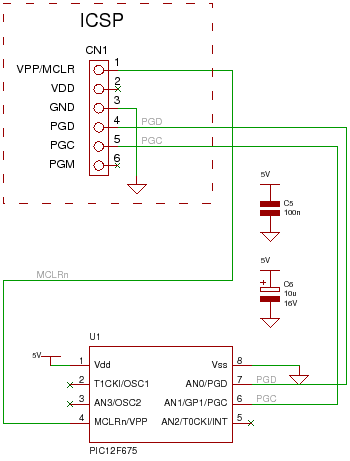 16F88 : ICSP PIC Programming connections: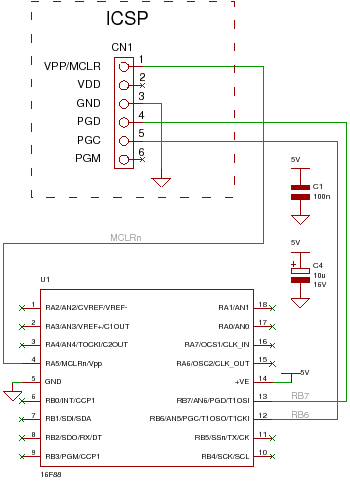 16F877A : ICSP PIC Programming connections: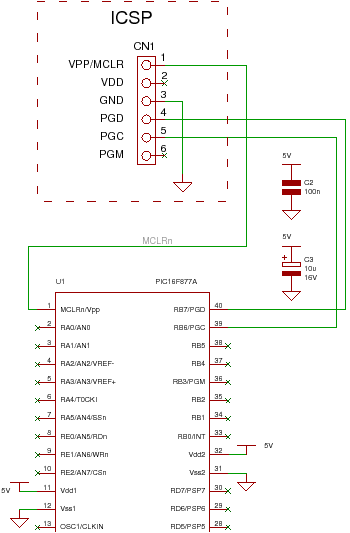 Legacy information for ICPROGto use ICPROG requires a parallel or serial port. The rest of this page is left for reference for if you are using ICPROG and it is also useful to see the ICSP connections, that remain the same whichever programming method you use. Note: The following
dicsussion on ICPROG is left here for reference. Most computers only have USB
port so ICPROG is not useful to you. Therefore you should use the standard
programming interface either Pickit2 or Pickit3 and use MPLABX as the
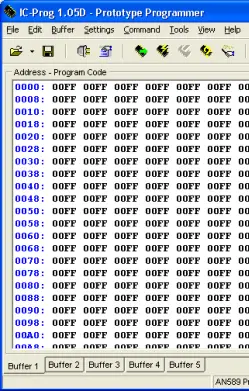
programming IDE. ICPROG for PICMicroICPROG is a free windows program that you can use for PIC Programming. It
interfaces using either the serial or parallel port on a PC, via programming
hardware, to the ICSP pins on the PIC micro. 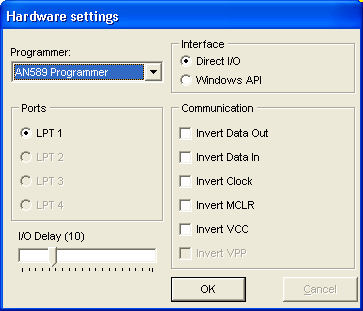
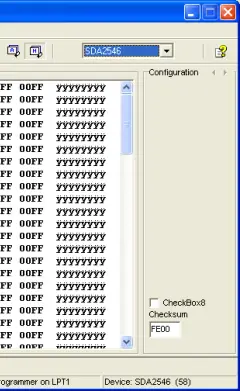
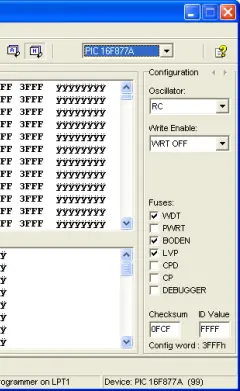
Select DeviceTo use it for PIC programming select the device from the menu
Settings--> Hardware checkYou can check to see if ICPROG is communicating with your hardware by using
the menu option Settings-->Hardware check. This lets you toggle the state
of individual ICSP signals and the VCC power. Load Hex fileThe next thing to do with the PIC software is programming the PIC
by loading up the hex file (unless you have a 12F675 that has an oscillator
calibration value that you will want to keep -in this case do a read first). Erase device
Program device
Verify device
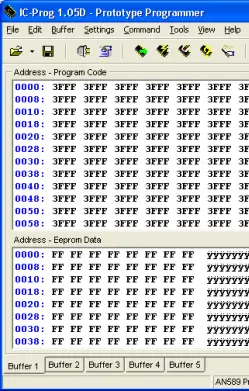
Read device The read device button reads back the entire contents of the chip into the
currently selected buffer (shown at the bottom of the ICPROG window). So you
can save the hex file or compare it to the contents of another buffer. CommentsHave your say about what you just read! Leave me a comment in the box below. Don’t see the comments box? Log in to your Facebook account, give Facebook consent, then return to this page and refresh it. Site Map | Terms of Use Search: Recent Articles
Readers
Comments "I wanted
to thank you so so so much for all the information you have provided in your site it's SUPERB and FANTASTIC." - Ranish Pottath "This site really is the best and my favorite. I find here many useful projects and tips." - Milan bursach<at>gmail.com< "Awesome site, very, very easy and nice to navigate!" - Matt matt_tr<at> wolf359.cjb.net Learn Microcontrollers "I am a newbie to PIC and I wanted to say how great your site has been for me." - Dave de_scott<at>bellsouth.net "Your site is a great and perfect work. congratulations." - Suresh integratredinfosys<at> yahoo.com "I couldn't find the correct words to define yourweb site. Very useful, uncovered, honest and clear. Thanks so much for your time and works. Regards." - Anon All Rights Reserved. No reproduction without permission. × × |
| You are visitor 01402503 — GeezerVison does not store the pages you look up. Best viewed with Netscape Navigator 4.7 or Internet Explorer 6 at 800×600. No cookies required. |




 The next
PIC programming action is to erase the device by hitting the erase device
button. It sends a command to the PIC which erases the whole device including
protection bits (in newer devices). Old devices used to be un-usable after
you had set the protection bits!
 The
program device button does just that it programs the contents loaded from the
hex file (in ICPROG memory) into the program memory of the PIC micro. If
there is any EEPROM in the chip then it programs this as well. Finally it
programs the configuration word.
 The
verify device button reads back the entire contents of the chip ensuring that
it matches the hex file (loaded into ICPROG).


