GV

GeezerVison

The World Wide Web, restored to 800 pixels of glory.

Home|About|Gaming cabinet|Archives|How it works|Starter sites

On this site

  • Tower
  • Features
  • Undo Anything Just press Cmd+Z
  • Drag and Drop Make the complex effortless
  • Integrations Use your favorite tools
  • Tower Workflows Branching Configurations
  • All Features
  • Release Notes
  • Join Beta Channel
  • Tower Pro
  • Stacked Branches Supercharged workflows
  • Custom Workflows Start and finish instantly
  • Graphite Support Code review at scale
  • Branch Cleanup Cut through the branch noise

This view

  • Original page
  • New address

GeezerVison is showing www.git-tower.com — Tower Git Client - Tower Workflows

Tower 18 for Mac – A Better Command Line Experience Learn More Tower 15 for Windows – Syntax Highlighting Learn More

Tower Workflows Currently Supports

git-flow-next icon

Gitflow

The timeless classic. Feature to Main, Fast.

GitHub Flow icon

GitHub Flow

Simple, Speedy, and Branch-Focused.

GitLab Flow icon

GitLab Flow

A Flow for Every Release Need.

Graphite icon

Graphite Pro

Stacked PRs for Faster Reviews.

Tower Workflows in Action

Getting up and running is simple!

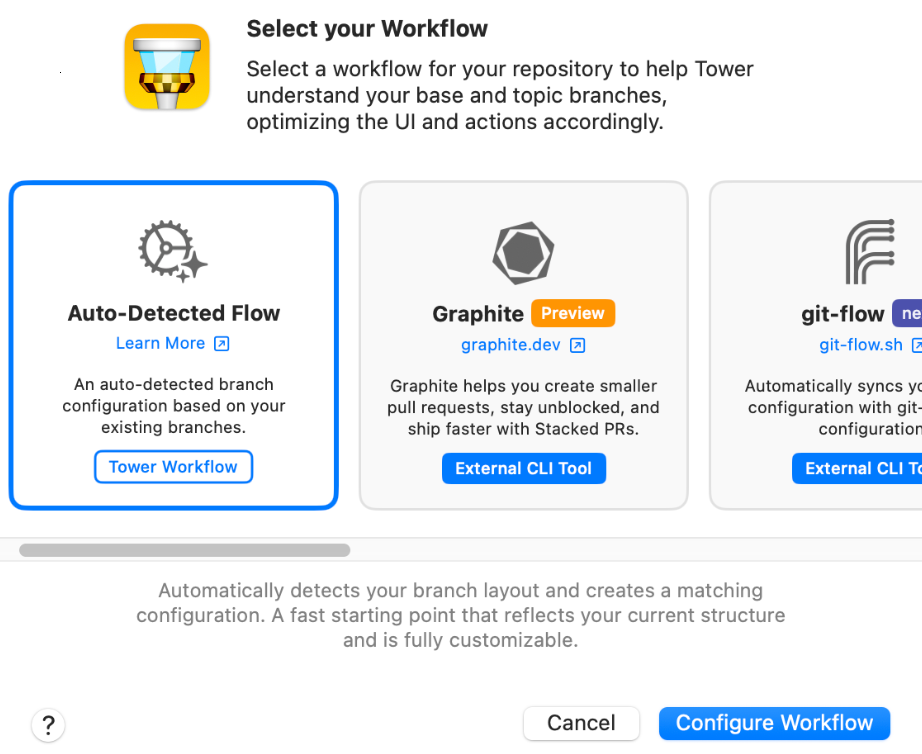
Tower Workflows - Workflow picker Tower Workflows - Workflow picker

Step 1: Choose a Workflow — or Design Your Own

Get started quickly by selecting from the most popular, battle-tested strategies, or build a custom flow tailored to your team.

Available presets are:

  • git-flow
  • GitHub Flow
  • GitLab Flow
  • Graphite (Stacked Pull Requests) Pro

Step 2: Customize it!

Start with a preset, then tailor everything to your team's exact needs.

Tower Workflows lets you fine-tune every aspect of your branching process:
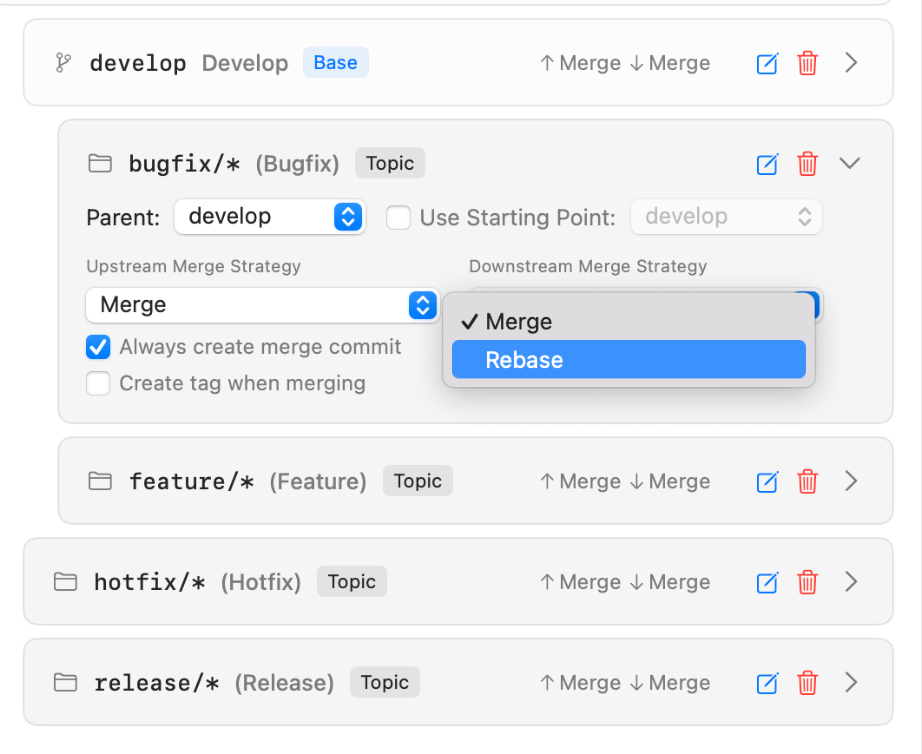
  • Add and remove Base and Topic branches.
  • Keep branches updated by defining their parent.
  • Define upstream/downstream merge strategies.
  • Enable or disable merge commit creation.
  • Enable or disable tag creation when integrating changes.

Tower Workflows – Choosing the Downstream Merge Strategy Tower Workflows – Choosing the Downstream Merge Strategy
Tower Workflows - Finish Feature Tower Workflows - Finish Feature

Step 3: Begin and Finalize Your Task Pro

To begin, click the "Start..." option. This instantly creates and checks out a dedicated feature branch for your work.

When complete, click "Finish..." to integrate your changes. Upon a successful merge (e.g., into "develop"), your local branch will be automatically deleted.

Learn More about this Pro feature

Try Tower Workflows Today

Download the trial and start designing the perfect branching workflow for your project.

Get Started - It's Free
Also available for WindowsAlso available for macOS
Get Started - It's Free (x64)
Get Started - It's Free (ARM)

Also available for WindowsAlso available for macOS

Keeping Branches in Sync

With the parent branch set up, Tower can easily notify you whenever it's time to update your topic branch and inform you if any merge conflicts will occur during the process.

More Control, One Update at a Time

Stacked Illustration

Here are some other features we're looking forward to shipping later in the year:

  • Use Tower Workflows actions to streamline repetitive tasks.
  • Access and manage only the branches you are actively working on.
  • Organize your branches with smart filters or by manually arranging them in order.
  • Share and sync workflows with your entire team, as well as commit templates, commit guidelines, branch naming conventions, and hook script configurations.

Try Tower Workflows Today

Download the trial and start designing the perfect branching workflow for your project.

Get Started - It's Free
Also available for WindowsAlso available for macOS
Get Started - It's Free (x64)
Get Started - It's Free (ARM)

Also available for WindowsAlso available for macOS
You are visitor 01402503 — GeezerVison does not store the pages you look up.
Best viewed with Netscape Navigator 4.7 or Internet Explorer 6 at 800×600. No cookies required.