GV

GeezerVison

The World Wide Web, restored to 800 pixels of glory.

Home|About|Gaming cabinet|Archives|How it works|Starter sites

On this site

  • iMore
  • US
  • RSS
  • iPhone
  • Macs
  • MacBook
  • MacBook Air
  • MacBook Pro
  • Mac Mini
  • iMac
  • macOs
  • iPad
  • iPad Air
  • iPad Mini

This view

  • Original page
  • New address

GeezerVison is showing www.imore.com — How to use the Compass on iPhone

This content was produced prior to the launch of iMore Labs. Find out more about Labs.
  • Facebook
  • X
  • Email
Share this article
Join the conversation
Follow us
Add us as a preferred source on Google
Subscribe to our newsletter

Your iPhone has a built-in magnometer. That's a fancy way of saying 'digital compass' and, what it means, is that your iPhone tell which direction it — and by extension, you — are pointing. Most of the time you'll use this feature for maps and turn-by-turn navigation, but Apple also bundles a Compass app onto every iPhone. You can also do more with it than checking direction — you can use it as a handy level!

  • How to set up and calibrate the Compass app on iPhone
  • How to use the Compass on iPhone
  • How to switch to true north in the Compass app for iPhone
  • How to use the level in the Compass app on iPhone

How to set up and calibrate the Compass app on iPhone

Digital compasses need calibration. If you're walking, they can typically use location to figure out which way you're going. If you're standing still, though, you may need to play a little game for before they can get going.

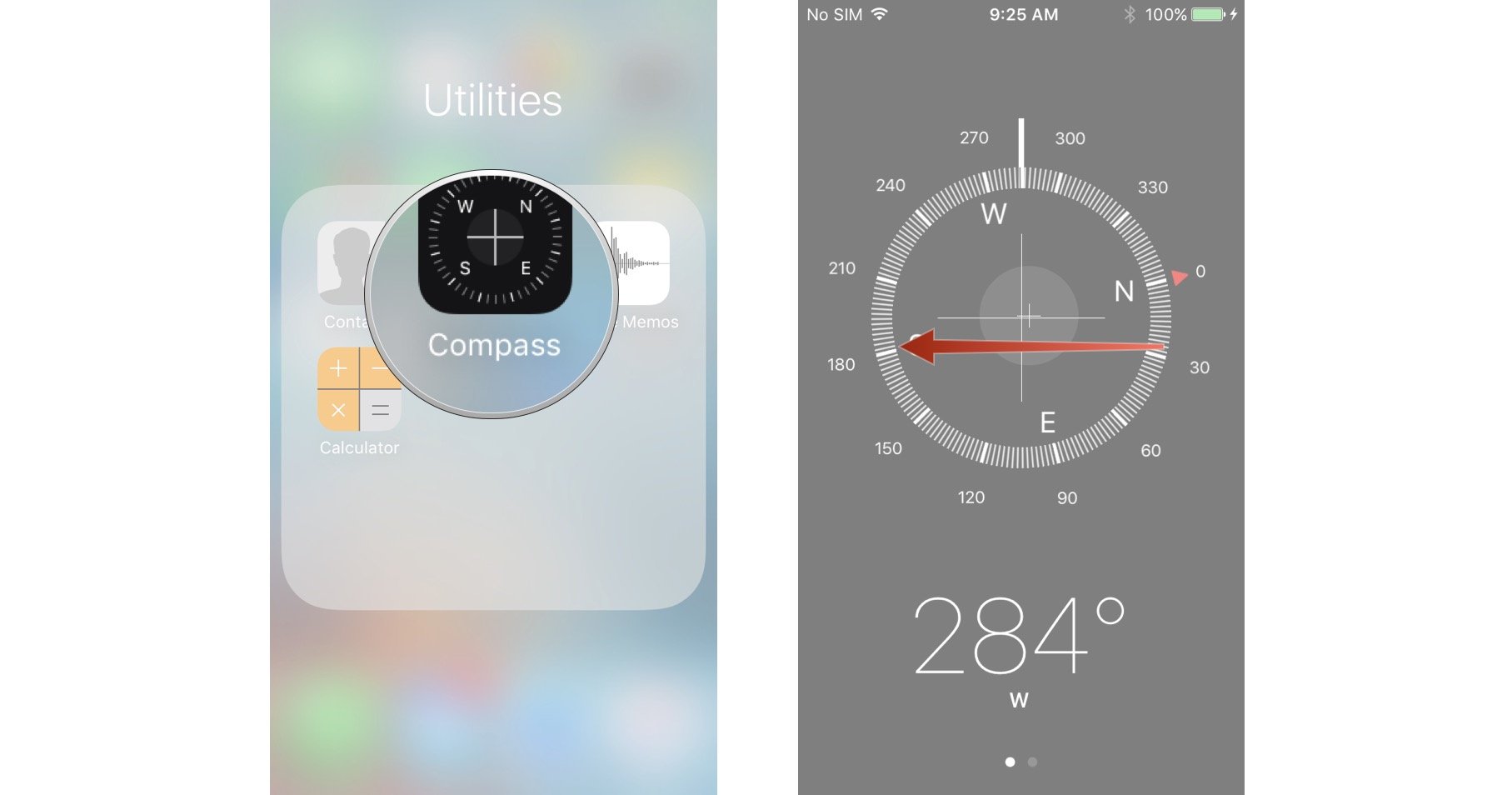
  1. Launch Compass from your Home screen.
  2. Hold your iPhone flat in your palm and follow the on-screen instructions when prompted to calibrate. You'll have to tilt your iPhone to roll the ball around the on-screen circle.

Launch the Compass, follow the on-screen instructions

After you get the ball all the way around the circle, the compass will be calibrated and you'll be able to start using it right away!

How to use the Compass on iPhone

The Compass app on iPhone isn't as accurate as the real thing, but it'll help you follow basic directions and bearings in a pinch.

  1. Launch the Compass app from your Home screen.
  2. Hold your iPhone flat in the palm of your hand.
  3. Spin around, holding your iPhone in your hand until you hit the bearing (degrees) you want to follow. For example, 30 degrees north-northeast.
  4. Tap the compass face once to lock in that bearing.

Launch Compass, spin around, tap the compass face to lock in a bearing

Now when you stray from that path, you'll see the beginnings of a red circle inside the compass. Spin around so that your white pointer is pointed back on the bearing of your choice.

How to switch to true north in the Compass app for iPhone

You can choose to use true north or magnetic north when navigating with your iPhone. Here's how to turn on true north:

  1. Launch Settings from your Home screen.
  2. Tap Compass.
  3. Tap the switch next to Use True North.

Launch Settings, tap Compass, tap the switch next to Use True North

How to use the level in the Compass app on iPhone

The level in the Compass app on your iPhone is a bit of a doozy to work with, especially if you're fighting off a hoard of zombies whilst trying to build a barricade to keep them out. And that barricade has to be perfectly level.

  1. Launch the Compass app from your Home screen.
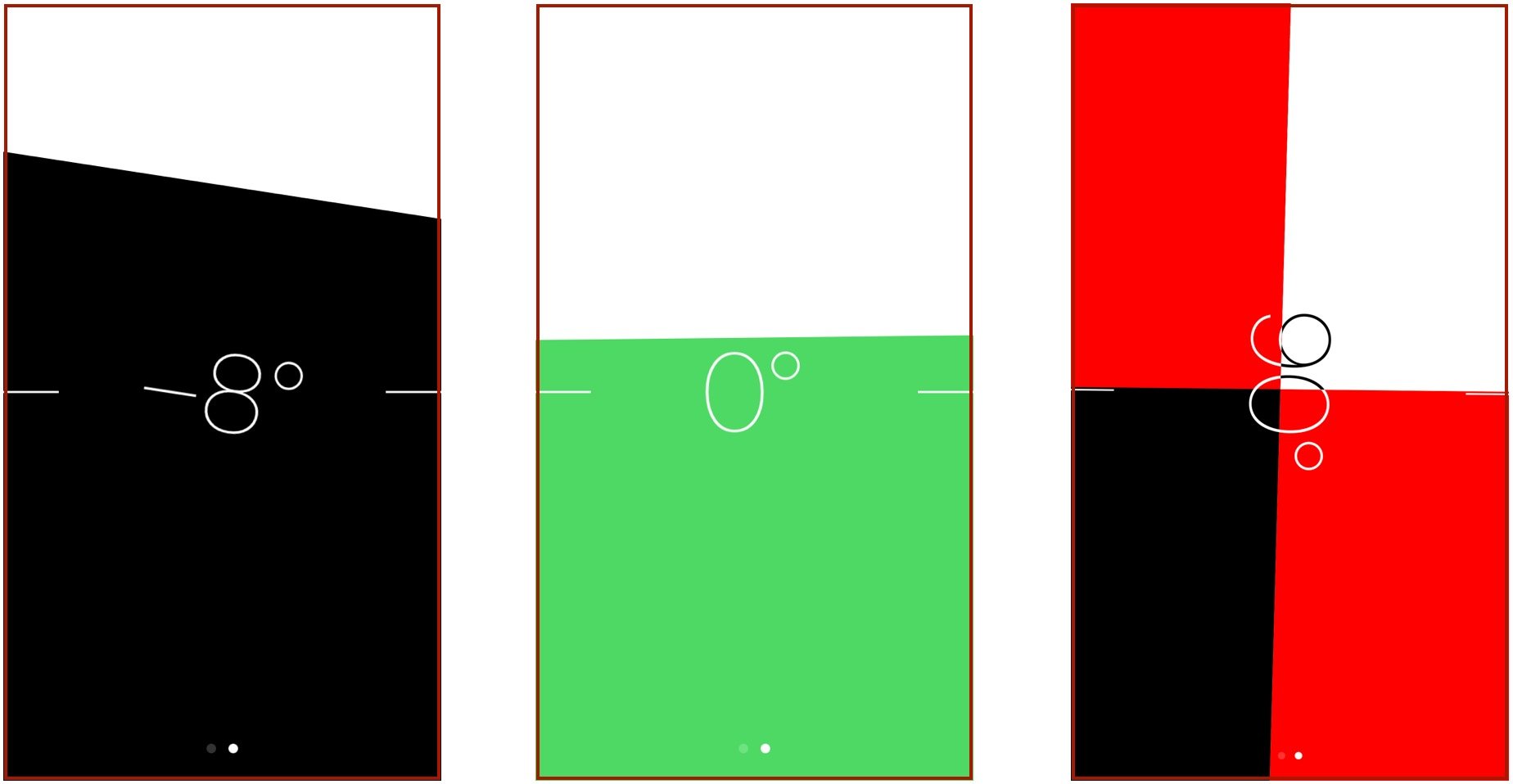
  2. Swipe left on the compass face. If you're holding your iPhone flat in your palm, you should see white bubbles around a number in black, the horizontal level. If you tilt your phone so that the screen is parallel to your face, you'll get the vertical level.

Launch the Compass, swipe left on the compass face

Horizontal level

  1. Place your iPhone flat on the surface of the object you're trying to level off.
  2. Tilt your iPhone in all directions until you hit 0 degrees and the screen turns green.
  3. You can tap once to turn the black screen red, and it will stay that way until your iPhone is level, at which point it'll turn green.

Horizontal level

Vertical level

  1. Hold your iPhone against the object that you're trying to vertically level.
  2. Tilt your iPhone in all directions until your hit 0 degrees and the bottom half of the screen turns green.
  3. If you want to then take another measurement off of that angle, tap the level once. You'll then see red as you stray away from the angle you were on. This can help you measure 90-degree and 45-degree angles.

Vertical level

Questions?

Let me know in the comments below!

iOS

HomeKit

○ iOS 14 Review
○ What's new in iOS 14
○ Updating your iPhone ultimate guide
○ iOS Help Guide
○ iOS Discussion

Mick Symons
Mick Symons

Mick is a staff writer who's as frugal as they come, so he always does extensive research (much to the exhaustion of his wife) before making a purchase. If it's not worth the price, Mick ain't buying.

Latest in iOS
A person repairing an iPhone
iOS 18 iOS 18 features a new tool to help repair your iPhone
 
 
Glowtime 2024
iOS 18 iOS 18 release date confirmed — Apple Intelligence is closer than you think
 
 
iOS 18 Color tint Home Screen customization
iOS 18 These are the best iPhone apps getting a major iOS 18 update so far
 
 
United Airlines Live Activities
iOS iOS 18 may actually make Live Activities less useful
 
 
ChatGPT on Mac showing breakfast query
iOS 18 Apple reportedly in early talks of investing in OpenAI — just before ChatGPT comes to Siri in iOS 18
 
 
Apple Sports app on iPhone 15 Pro Max
iOS 18 The Apple Sports app will soon offer real-time updates via Live Activities on iPhones running iOS 18
 
 
Latest in How to
iPhone 16 Event Invite It's Glowtime
Apple How to watch the iPhone 16 Glowtime reveal event - tune in for iPhone 16, iPhone 16 Pro, iPhone 16 Plus and iPhone 16 Pro Max
 
 
macOS Sequoia
Apple Macos Here's how to use Window Tiling on macOS Sequoia
 
 
iPhone 14 with Messages app on home screen
iOS Here's how to add some flair to your messages with new iOS 18 text effects
 
 
watchOS 11
Apple Watch How to pause activity streaks in watchOS 11
 
 
Apple Intelligence Siri on iPhone 15 Pro Max
iOS How to type to Siri on iOS 18 and why it's made me use it more
 
 
Control Center iOS 18
iOS Control Center has been supercharged in iOS 18 — here’s how to get the most from it
 
 
LATEST ARTICLES
  1. Time to power down for good.
    1
    One more thing… Goodbye from iMore
  2. 2
    Tapo TC73 pan/tilt AI camera is a vision of perfection
  3. 3
    Aqara Smart Video Doorbell G4 review: fast notifications, needs more height
  4. 4
    iFi GO blu review: The best Bluetooth mobile DAC right now
  5. 5
    Jony Ive’s OpenAI hardware device could be his next world-changing design
You are visitor 01402503 — GeezerVison does not store the pages you look up.
Best viewed with Netscape Navigator 4.7 or Internet Explorer 6 at 800×600. No cookies required.