GeezerVisonThe World Wide Web, restored to 800 pixels of glory. |
| Home|About|Gaming cabinet|Archives|How it works|Starter sites |
GeezerVison is showing www.pgadmin.org — Directory Dialog — pgAdmin 4 9.19 documentation
This page in other versions:
Latest
(9.19) | 9.18 | 9.17 | Development
Warning: this documentation is for a pre-release version of pgAdmin 4. Contents
Directory Dialog¶Use the Directory dialog to create an alias for a file system directory path. To create directories, you must have the CREATE ANY DIRECTORY system privilege. When you create a directory, you are automatically granted READ and WRITE privileges on the directory, and you can grant READ and WRITE privileges to other users and roles. The superuser can also grant these privileges to other users and roles. Please note that directories are supported when connected to EDB Postgres Advanced Server. For more information about using directories, please see the EDB Postgres Advanced Server Guide, available at: The Directory dialog organizes the definition of a directory through the following tabs: General, Definition, Security, and SQL. The SQL tab displays the SQL code generated by dialog selections. 
Use the fields on the General tab to specify directory attributes:
Click the Definition tab to continue. 
Click the Security tab to continue. 
NOTE:- This Security tab will be only available for EPAS 17. Use the Security tab to assign privileges for the directory. Use the Privileges panel to assign security privileges. Click the Add icon (+) to assign a set of privileges:
Click the Add icon to assign additional sets of privileges; to discard a privilege, click the trash icon to the left of the row and confirm deletion in the Delete Row popup. Click the SQL tab to continue. Your entries in the Directory dialog generate a SQL command (see an example below). Use the SQL tab for review; revisit or switch tabs to make any changes to the SQL command. Example¶The following is an example of the sql command generated by user selections in the Directory dialog: 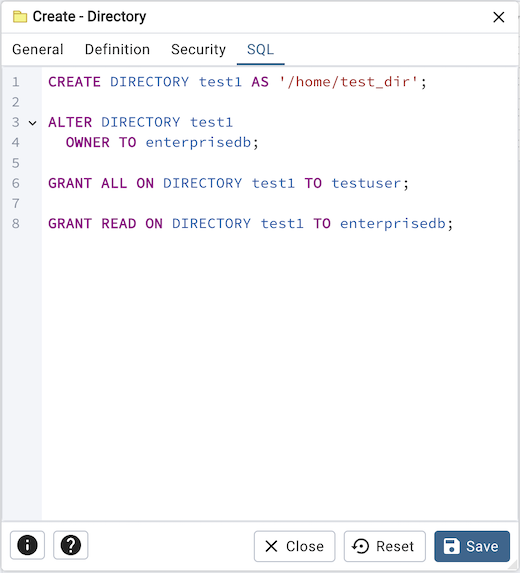
The example shown demonstrates creating a directory named test1. It has a location value equal to /home/test_dir.
|
| You are visitor 01402775 — GeezerVison does not store the pages you look up. Best viewed with Netscape Navigator 4.7 or Internet Explorer 6 at 800×600. No cookies required. |