GeezerVisonThe World Wide Web, restored to 800 pixels of glory. |
| Home|About|Gaming cabinet|Archives|How it works|Starter sites |
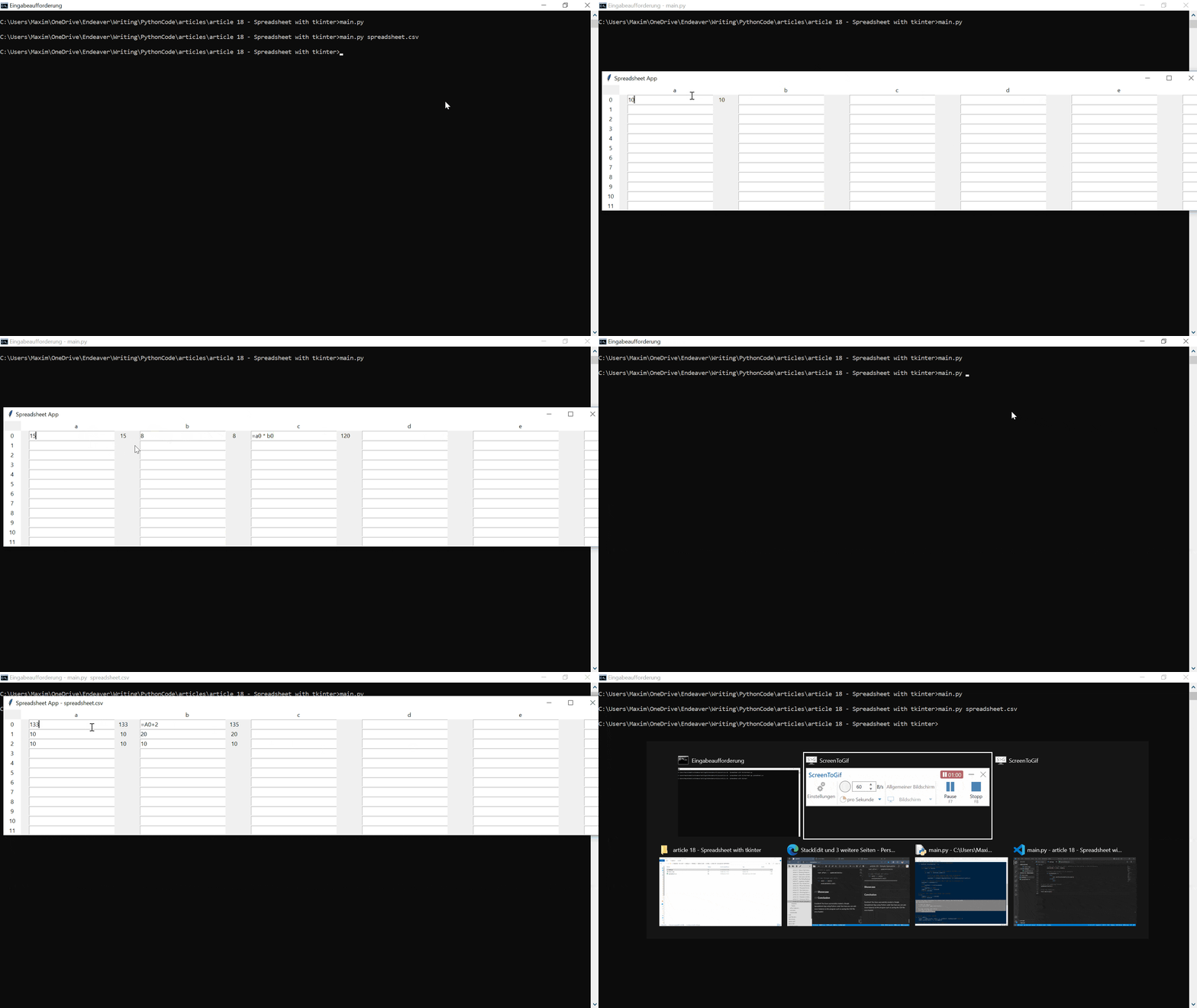
GeezerVison is showing thepythoncode.com — How to Build a Spreadsheet App with Tkinter in Python - The Python Code Turn your code into any language with our Code Converter. It's the ultimate tool for multi-language programming. Start converting now! This tutorial will show a simple spreadsheet app with the UI Library Tkinter. We will make it so cells can either just hold a value or reference other cells and do some calculations. Each cell will have a coordinate consisting of a letter and a number representing the row and column. Last but not least, we also make it so if the user provides the path to a CSV file, it will open it and insert the values at the proper positions. It will be a bit like Microsoft Spreadsheet App Excel, but we will focus on the functionality, not the looks. Let's get started! ImportsFirst, let us go over the Modules we need for this program. Of course, to make the UI, we need the Tkinter, which comes with Python. We import everything from there with Then we get SetupNow let us set up a bunch of important things for our program. We start by getting the first seven letters from the Usually, this is used in loops, but this function just returns a list of numbers in the given range. So we make 12 rows. Lastly, we also define the Continuing, we open the file given in the command line. But we first define the variable that will hold this content. This is done so the later program will not stop because it checks the value of an uninitiated variable. Then we check if the Then we make a new top-level window that will act as the root of our GUI application, and we set the title. If the program is opened with a file, we append this name to the title; if not, it just says Spreadsheet App. We do this with a ternary operator: Make the ElementsNow let us generate some elements. We start with the labels for the Y and X axis. For the For the X axis, we have to use the Then we also make the cells themself. To do this, we make a nested loop with the y and x-axis. Once again, we need to enumerate. Right after that, we create a unique id that identifies the cell with the two axes: After that, we make a Then we make two elements; one After that, we save the string var and the reference to the label and add the specified Last but not least, we check if a CSV file was opened, and if that's the case, we try to get the content at the current position in the grid and set the string var value: At the very end of the program, we call our FunctionsNow let us define two important functions that enable the reference system. Remember that these functions have to be defined before the code earlier in the program. Evaluation Function The Then we also get the label element from the cell dictionary: Then we check if the content starts with a After we have inserted all the values from other cells, we remove the We skip all that if the content does not start with a Evaluate All Function Now, this function will call itself once every ten milliseconds. We do this by calling the ShowcaseNow let's look at our program in action. First, we simply open the program and write some cells. And then, we open the program with a CSV file, so the content is inserted from there:
ConclusionExcellent! You have successfully created a Simple Spreadsheet App using Python code! See how you can add more features to this program, such as saving the CSV file once loaded. Learn also: How to Make a Markdown Editor using Tkinter in Python. Happy coding ♥ Just finished the article? Now, boost your next project with our Python Code Generator. Discover a faster, smarter way to code.
Sharing is caring!
Read also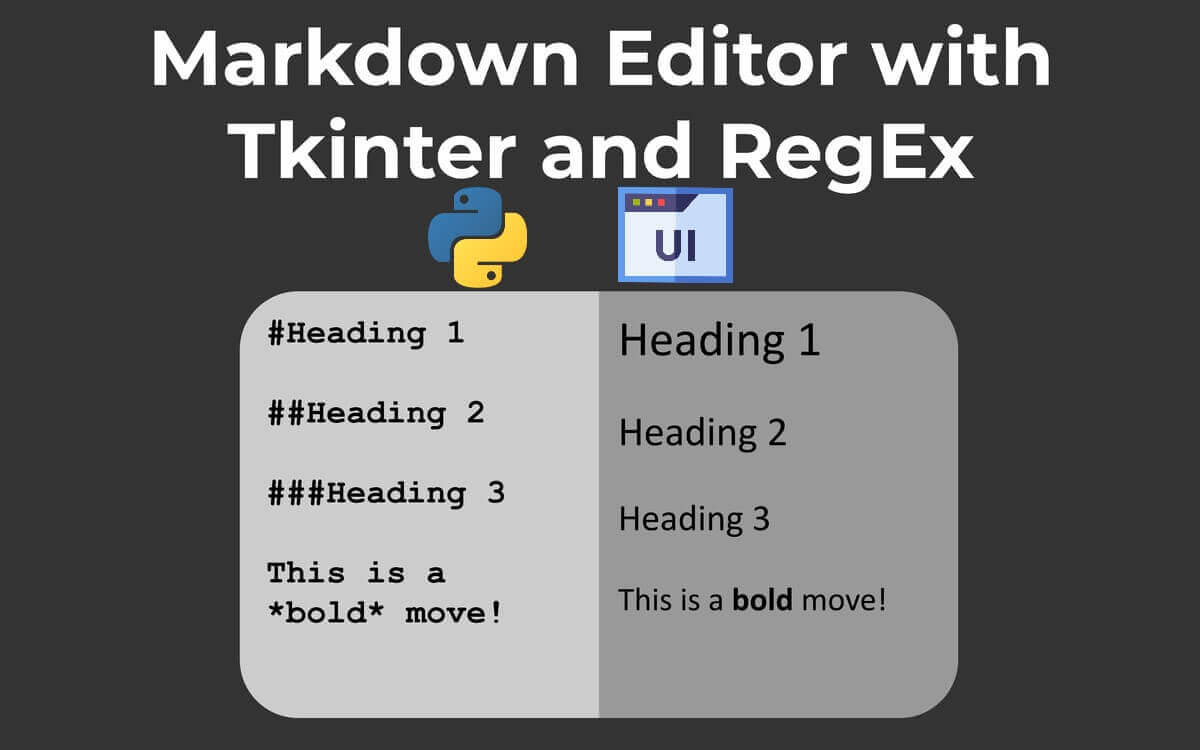
How to Make a Markdown Editor using Tkinter in PythonLearn how you can create a markdown editor using the Tkinter library and regular expressions in Python. 
How to Detect Gender by Name using Tkinter in PythonLearn how to extract gender from first name using genderize.io API and build a GUI around it with Tkinter in Python. 
How to Make a File Explorer using Tkinter in PythonLearn how to make a simple file explorer that is able to navigate through folders, create folders and files and more using Tkinter in Python. CommentsGot a coding query or need some guidance before you comment? Check out this Python Code Assistant for expert advice and handy tips. It's like having a coding tutor right in your fingertips! |
| You are visitor 01402503 — GeezerVison does not store the pages you look up. Best viewed with Netscape Navigator 4.7 or Internet Explorer 6 at 800×600. No cookies required. |