In this quick start guide, we will write our first script ran from a Docker container.
Windmill natively supports Python, TypeScript, Go, PHP, Bash or SQL. In some cases where your task requires a complex set of dependencies or is implemented in a non-supported language, Windmill allows running any Docker container through its Bash support.
The recommended way is the sandboxed # sandbox <image> runtime: it is daemonless (no Docker socket or Docker-in-Docker sidecar) and runs the image inside the job's own nsjail sandbox, so it is safe to run untrusted code and is available on Windmill Cloud. See Run Docker containers for the full reference.
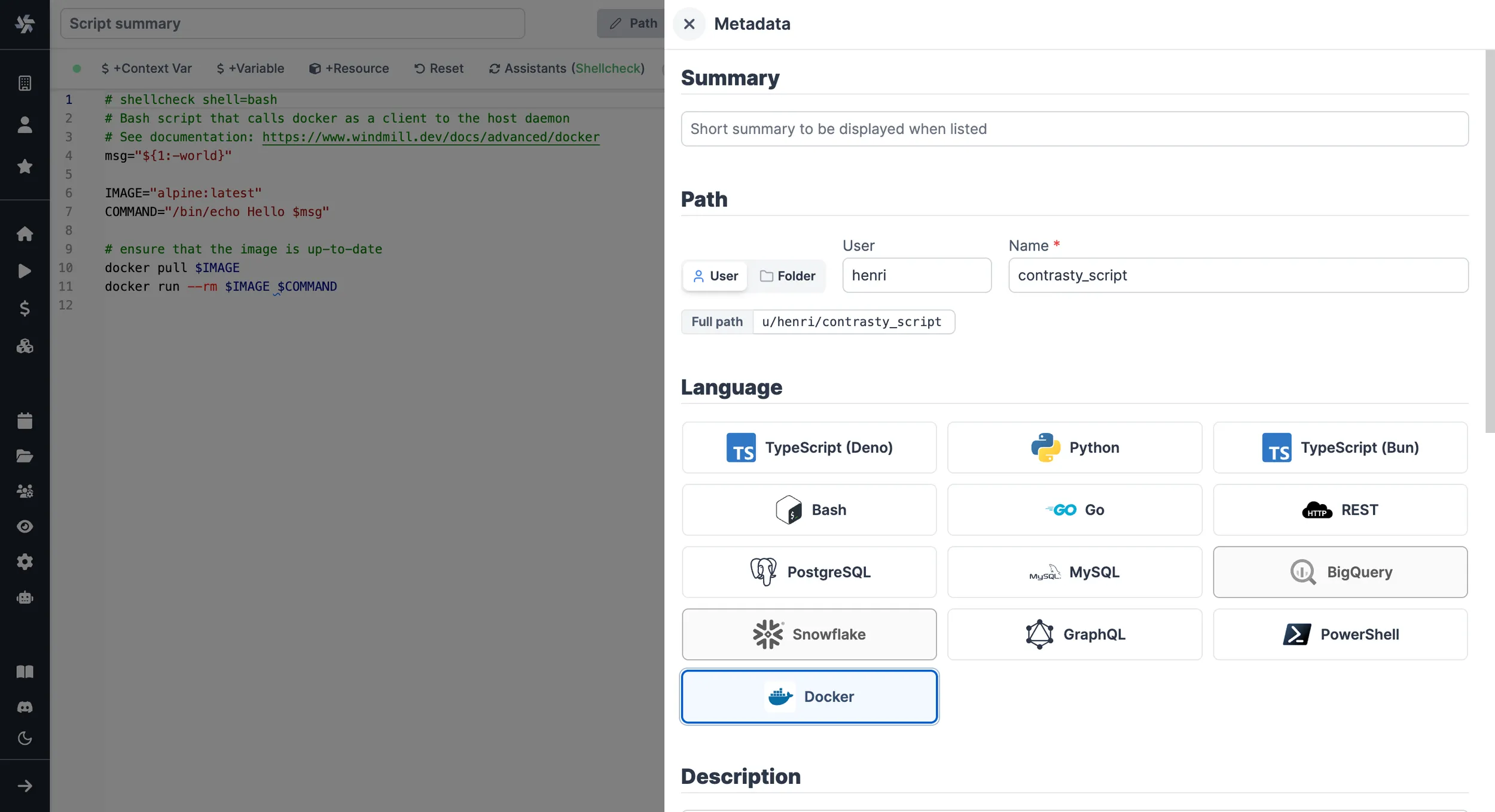
This tutorial covers how to create a simple script through Windmill web IDE. See the dedicated page to develop scripts locally.
Scripts are the basic building blocks in Windmill. They can be run and scheduled as standalone, chained together to create Flows or displayed with a personalized User Interface as Apps.
Scripts consist of 2 parts:
- Code.
- Settings: settings & metadata about the Script such as its path, summary, description, JSON Schema of its inputs (inferred from its signature).
When stored in a code repository, those 2 parts are stored separately at <path>.docker and <path>.script.yaml.
Below is a simple example of a script built using Bash to run a Docker container from Windmill:
# shellcheck shell=bash
# sandbox alpine:latest
# The "# sandbox <image>" annotation runs this script INSIDE the image above,
# sandboxed via nsjail. The body runs with the image's /bin/sh and windmill args
# bind positionally as $1, $2, ...

msg="${1:-world}"

echo "Hello $msg"
cat /etc/os-release | head -1
To see more details about the sandboxed runtime, see Run docker containers.
A bare # docker annotation selects a separate legacy daemon-based runtime that requires a mounted Docker socket and is intended for trusted setups only. New scripts should use # sandbox <image>.
Settings

As part of the settings menu, each script has metadata associated with it, enabling it to be defined and configured in depth.
- Summary (optional) is a short, human-readable summary of the Script. It will be displayed as a title across Windmill. If omitted, the UI will use the
pathby default. - Path is the Script's unique identifier that consists of the script's owner, and the script's name. The owner can be either a user, or a group (folder).
- Description is where you can give instructions through the auto-generated UI to users on how to run your Script. It supports markdown.
- Language of the script.
- Script kind: Action (by default), Trigger, Approval, Error handler or Preprocessor. This acts as a tag to filter appropriate scripts from the flow editor.
This menu also has additional settings on Runtime, Generated UI and Triggers.
Now click on the code editor on the left side.
Code
Windmill provides an online editor to work on your Scripts. The left-side is the editor itself. The right-side previews the UI that Windmill will generate from the Script's signature - this will be visible to the users of the Script. You can preview that UI, provide input values, and test your script there.

As we picked Docker for this example, Windmill provided some Bash
boilerplate. Let's take a look:
# shellcheck shell=bash
# sandbox alpine:latest
# The "# sandbox <image>" annotation runs this script INSIDE the image above,
# sandboxed via nsjail. The body runs with the image's /bin/sh and windmill args
# bind positionally as $1, $2, ...

msg="${1:-world}"

echo "Hello $msg"
cat /etc/os-release | head -1
msg is just a normal Bash variable. It can be used to pass arguments to the script. This syntax is the standard Bash one to assign default values to parameters.
With the # sandbox <image> annotation, the rest of the script runs inside that image, sandboxed by nsjail: the image rootfs is pulled and the body runs chrooted in it via the image's /bin/sh, inheriting the job's confinement. Windmill arguments bind positionally as $1, $2, … It is daemonless, so there is no Docker socket to mount and no docker run to manage.
Instant preview & testing
Look at the UI preview on the right: it was updated to match the input
signature. Run a test (Ctrl + Enter) to verify everything works.
Now let's go to the last step: the "Generated UI" settings.
Generated UI
From the Settings menu, the "Generated UI" tab lets you customize the script's arguments.
The UI is generated from the Script's main function signature, but you can add additional constraints here. For example, we could use the Customize property: add a regex by clicking on Pattern to make sure users are providing a name with only alphanumeric characters: ^[A-Za-z0-9]+$. Let's still allow numbers in case you are some tech billionaire's kid.
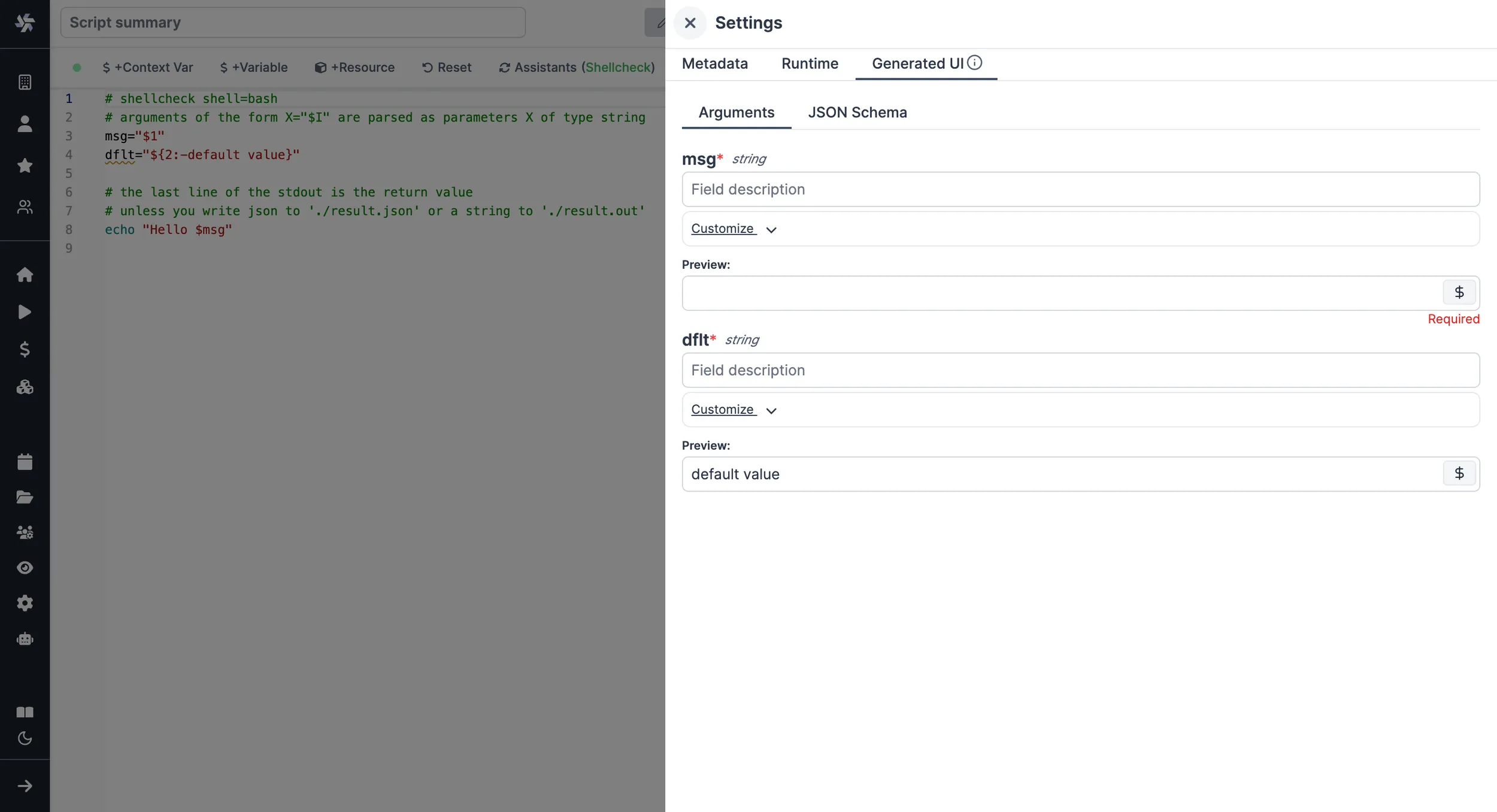
We're done! Save your script. Note that Scripts are versioned in Windmill, and each script version is uniquely identified by a hash.
Run!
Now let's look at what users of the script will do. Click on the Deploy button to load the script. You'll see the user input form we defined earlier.
Fill in the input field, then hit "Run". You should see a run view, as well as your logs. All script runs are also available in the Runs menu on the left.

You can also choose to run the script from the CLI with the pre-made Command-line interface call.
JSON result
The last line returned by the script will be the string result. To use a json result instead, output your result in ./result.json and it will be automatically picked-up and considered as the JSON result for Bash and Powershell scripts.
What's next?
This script is a minimal working example, but there's a few more steps that can be useful in a real-world use case:
- Pass variables and secrets to a script.
- Connect to resources.
- Trigger that script in many ways.
- Compose scripts in Flows, low-code apps or full-code apps.
- You can share your scripts with the community on Windmill Hub. Once submitted, they will be verified by moderators before becoming available to everyone right within Windmill.
Scripts are immutable and there is an hash for each deployment of a given script. Scripts are never overwritten and referring to a script by path is referring to the latest deployed hash at that path.
For each script, a UI is autogenerated from the JSON schema inferred from the script signature, and can be customized further as standalone or embedded into rich UIs using the App builder.
In addition to the UI, sync and async webhooks are generated for each deployment.