GV

GeezerVison

The World Wide Web, restored to 800 pixels of glory.

Home|About|Gaming cabinet|Archives|How it works|Starter sites

On this site

  • Login
  • 0
  • Subscribe!
  • Hungarian
  • Spanish
  • French
  • Turkish
  • Arabic
  • Russian
  • Chinese
  • Portuguese
  • Japanese
  • About UsAll about Chimera Tool.
  • FeaturesThe key features of Chimera Tool.

This view

  • Original page
  • New address

GeezerVison is showing chimeratool.com — First steps - ChimeraTool help

First steps

Are you planning to hop on the phone repair world and you are wondering how you can start using our ChimeraTool?
You are in the right place.

LicenceCredits

This document created at Mar 31, 2022, 10:57:20 AM and modified at Aug 30, 2026, 3:05:15 AM.

back iconBack
HelpFAQVideos
First steps

In the present guide, we illustrate in-depth how you can start your phone repair journey with us and what elements you need to be aware of.

To set up your Chimera is pretty simple as we aim to create user-friendly software.

The following steps need to be done:

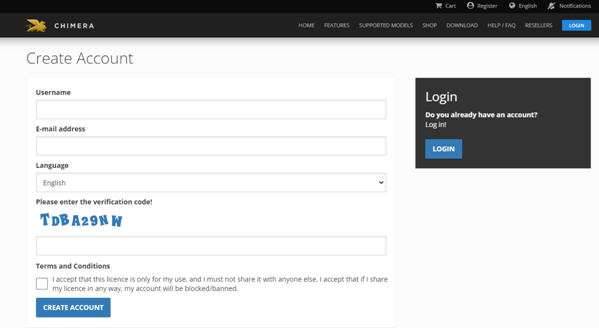
1. Register yourself on the website here 


For the registration, you need to fill in the Username and e-mail address, choose a language (9 available), enter the verification code correctly, accept our Terms and Conditions, and click on the Create Account button. After that, we will send you an activation link to your E-mail address. By clicking on the link, you will be able to set your password up for your created account.

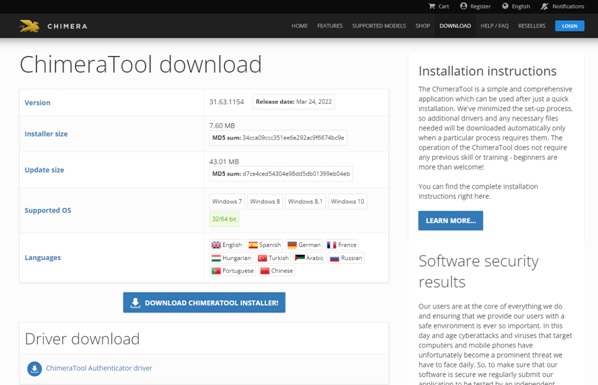
2. Download the chimera.exe here and install it on your computer


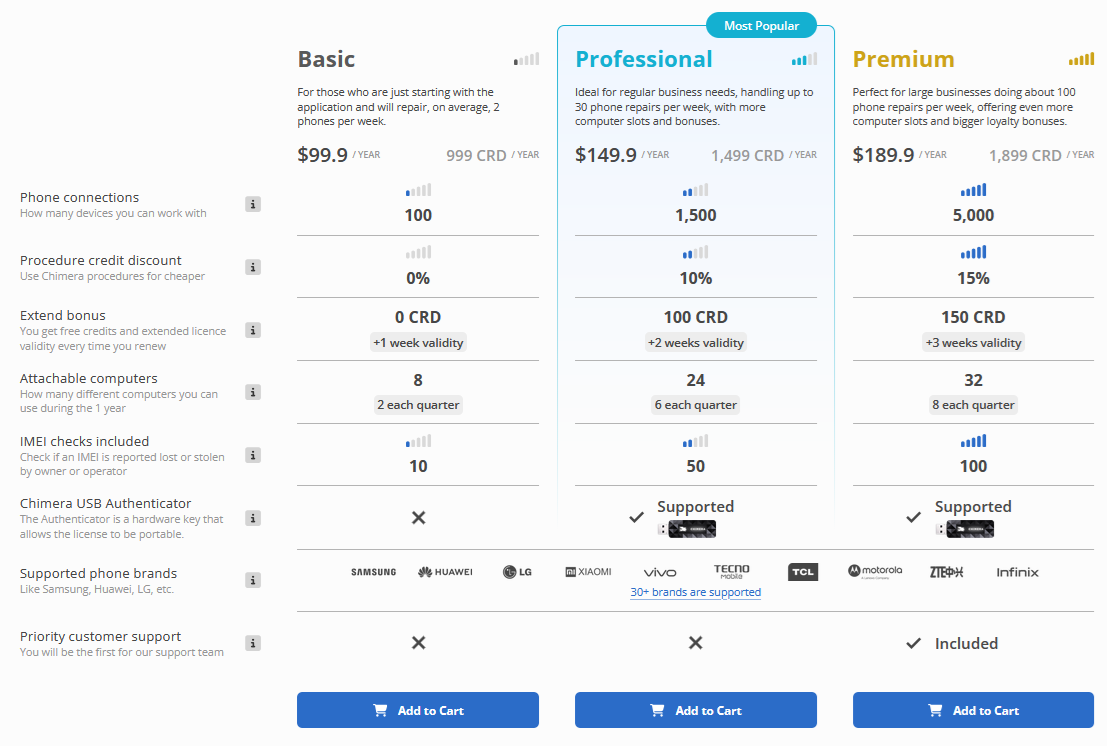
3. Choose and buy the license you would like to activate here 


We have 3 available licenses you can choose from: Basic, Professional, and Premium.


The Basic license works for every device we support; 100 devices can be connected until the license expires. During its validity, you can use the license on 2 computers each quarter (Q1 = 3 months).


The Professional license works on all of our supported models and 1500 devices can be connected until the license expires. You will be able to use the license on 6 computers each quarter (Q1=3 months) during its validity.


The Premium license works on all of our supported models and 5000 devices can be connected until the license expires. Premium license Users will have access to our priority support hotline and their queries will be handled with priority. You will be able to use the license on 8 computers each quarter (Q1=3 months) during its validity.

*side note: There is an Authenticator possibility if you would like to switch between computers frequently without waiting for the 48-hour waiting period to end and use the license without any computer registration limitation. The authenticator can be only connected to the Professional and Premium licences. For more info, click here.
You can also read further/step-by-step instructions about the license activation if you click here.

It is essential to speak briefly of our credit system. Even though the majority of our features are free of charge, there are some credit-based services within the active license. Our credit-based procedures and their prices can be checked here.


Therefore, if you in need to perform a credit-based procedure on a device, you need to have enough credits on your account first.
You can purchase credits in two ways:

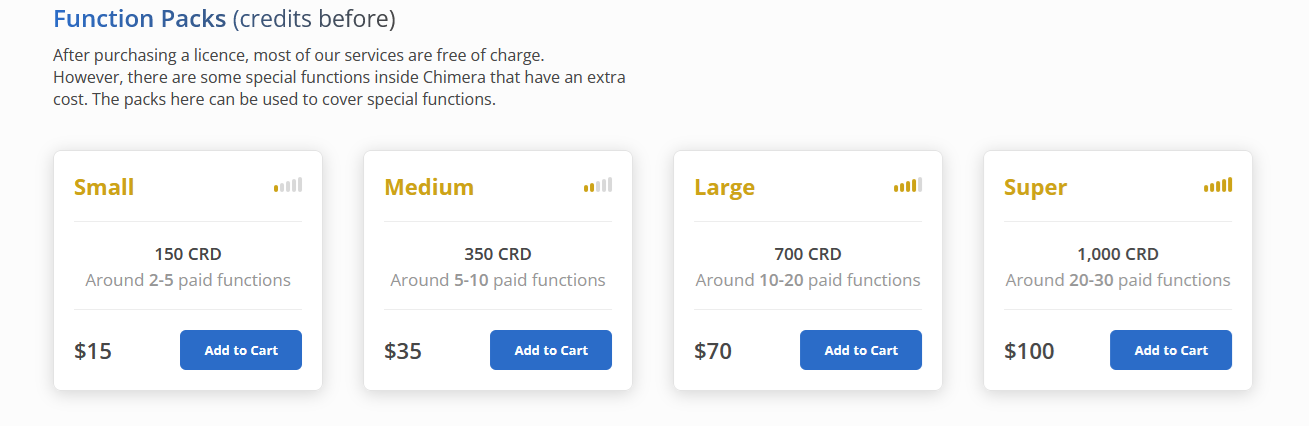
  • Directly from us in packages at the Chimera webshop, under the Shop menu, and here.

Four different function packages are available on our webshop:

SMALL: Contains 150 credits – depending on its use, it can cover 2–4 functions that come at additional charges.

MEDIUM: Contains 350 credits – depending on its use, it can cover 5–10 functions that come at additional charges.

LARGE: Contains 700 credits – depending on its use, it can cover 10–20 functions that come at additional charges.

SUPER: Contains 1,000 credits – depending on its use, it can cover 14–24 functions that come at additional charges.

  • OR you can also purchase exact credit amounts from our Resellers. You can find our Reseller list here.
     

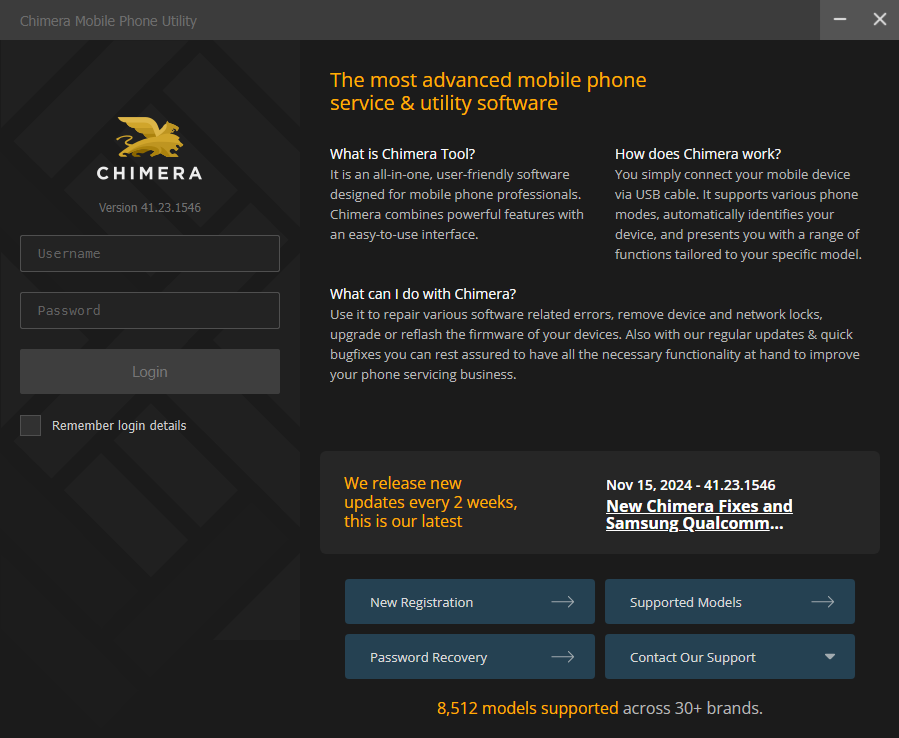
4. Start the tool on your computer and login to it with your previously created username and password


5. Connect the phone with a simple micro USB cable to your computer.

6. The available functions will appear on the ChimeraTool. Choose the action and the tool will do everything automatically. If some interaction is needed during the procedure, the tool will let you know.

If you have any questions or need further information, please feel free to contact our Support Team.
 

Login required to continue!

Login

Was this help useful?

YesNo

Thank you for your answer!

FAQ

Check Frequently Asked Questions about ChimeraTool features!

Video Guide

Watch our YouTube video tutorials about ChimeraTool features!

Martview forum

Martview is not our official forum but it can bring help to all our customers, since the questions asked are answered by professionally relevant users and administrators there.

Open forum

Test Points Library

A continuously updated collection of Test Point photos, PCB Diagrams and Blueprints to help everyone easily find the test point pins on smartphone motherboards - all at one place!

Open Test point library

GSMHosting forum

This is our official English-language forum. We recommend it for all of our users, because many problems and errors have been described and answered here over the years.

Open forum

iconPopular Helps

2,689Loyalty time bonus2,028Loyalty credit bonus986Samsung Modem Mode832Resellers Sales System727Mediatek Bootrom/Preloader mode702How to enable USB debugging mode on Android?638Easy-Firmware account integration618IMEI Repair- Legal Information481Chimera Autoroot

iconPopular Tags

SamsungHuaweiBlackBerryLicenceIMEI repairBuyADBCreditsMediaTek (MTK)LGMTKHTCPatch CERTFRP LockFirmware updateRootingAuthenticatorLumiaNetwork Factory ResetFilesModelsResellersXiaomiFactory resetFastbootDetach-attachEDL modeSIM cardEUBDriver
You are visitor 01402503 — GeezerVison does not store the pages you look up.
Best viewed with Netscape Navigator 4.7 or Internet Explorer 6 at 800×600. No cookies required.