Two tools help you know where you are and what time it is. AetherClock decodes the WWV/WWVH and WWVB time signals off the air and shows how far your computer's clock is from them. AetherGPS shows what a GPS-equipped radio knows: position, satellites, frequency reference and time.
Requirements
- AetherClock needs a receiver tuned to WWV, WWVH or WWVB. On a FlexRadio it listens through a DAX channel; on radios without DAX (Hermes-Lite 2 and others) it uses the slice's own audio.
- AetherGPS needs a radio that reports GPS hardware, for example a FlexRadio fitted with the GPSDO option, or an IC-705. A radio without GPS shows no GPS window, indicators or controls.
Setup
Setting up AetherClock
AetherClock is an applet (applet-tray button CLK, title AetherClock, Station category). It is off by default.
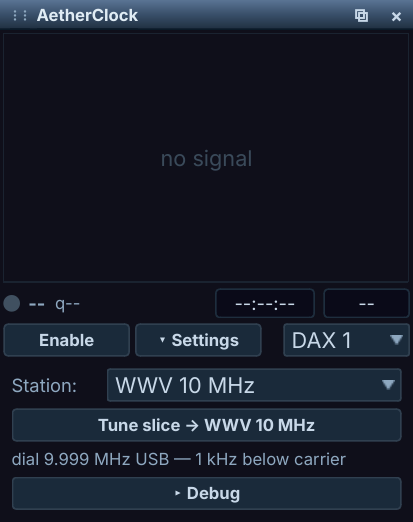
The AetherClock applet with its settings drawer open, before it is enabled.
- Open the applet and its settings drawer.
- Pick a Station: preset: WWV 2.5 / 5 / 10 / 15 / 20 MHz or WWVB 60 kHz.
- Press Tune slice → preset to put the bound slice on the right frequency (USB, 1 kHz below the carrier). This works while the decoder is stopped.
- On a FlexRadio, choose a DAX channel in the applet's DAX chooser (DAX Off, DAX 1 …). On radios without DAX the chooser is hidden.
- Press Enable (it turns green while running).
On a FlexRadio with a DAX channel assigned, AetherClock decodes that slice alone, regardless of your speaker volume or mute.
Using AetherClock
| Item | Meaning |
|---|---|
| Lock LED | Green when locked |
| Decoded UTC | The time decoded from the signal |
| Offset | How far the computer's clock is from the decoded time |
| Station tag | WWV or WWVH, shown as "--" until it is sure |
| Quality · age | Decode confidence and how old the last good decode is |
| Alignment scope | The received signal against the expected pattern |
| Car, Tick, Frm, Dec, Vote | The five decoding stages, from carrier to a voted time; each turns green as it succeeds |
| Verdict line | A plain-language status, for example "Locked — all stages green", "No carrier — check antenna / band / preset dial" or "Syncing frame… (marker search, up to ~2 min)" |
A debug log in the settings drawer shows the decoder's internal steps, useful when reporting a problem.
Using AetherGPS
Open it from Tools → AetherGPS…, or click the GPS indicator in the status bar.
The window has no title bar. Drag any empty part of it to move it, and drag an edge or corner to resize it. Close it with the round ✕ in the top-right corner, Esc or Ctrl+W (⌘W on macOS). It's a window of its own, with its own taskbar entry, so you can minimize it from the taskbar or park it on another monitor. View → Frameless Window does not apply to it.
Header cards
GPS FIX, SATELLITES, 10 MHz REFERENCE and TELEMETRY (the age of the latest GPS report).
On FlexRadio firmware that reports fix state, GPS FIX shows 3D, 2D, Time only or No fix. Unknown means the radio has not reported a recognized fix state, including older firmware and other radio feeds that do not supply it. It does not mean No fix. A partial GPS report keeps the last reported fix state; a new connection starts at Unknown.
Time only means the receiver reports timing mode without a position fix. Time validity, receiver status (available in the GPS FIX tooltip) and 10 MHz REFERENCE lock are separate readings. A fix label alone does not establish usable time, position or frequency-reference lock. Time only and No fix prevent use of the reported coordinates as a current position; older feeds continue to use their existing position-validity report. With No fix, the status-bar UTC clock uses the computer clock even if the frequency reference remains locked. Hover over GPS FIX for the receiver status and an explanation of the fix state.
Current Location
Position source, Grid square, Latitude, Longitude, the coordinates in the radio's own format, Altitude, Speed and Course, plus the nearest mapped address (an online OpenStreetMap lookup). Buttons: Copy gridsquare, Copy address and Refresh address.
When a valid position returns after Time only or No fix, the address lookup resumes even if the coordinates have not changed.
Station Map
A map of the radio's position. Use the arrow keys to pan, plus and minus to zoom, and Home to re-center.
Satellite Reception and Frequency Reference
Satellites Tracked and Visible, the tracking ratio, the GPS Frequency error, the reference setting, actual source and lock, and how long GPS has been locked.
Installing AetherGPS on the radio
On a FlexRadio, the bar at the bottom of the window has an Install AetherGPS on the radio checkbox. Tick it to install a small tool on the radio that reads its GPS receiver directly. AetherSDR carries the tool: a FLEX-8000 or Aurora gets a container, and a FLEX-6000 a legacy waveform. Clear the box to remove it. You can also install it from Install… > AetherGPS in the Waveforms window. However it was installed, it's listed under Installed Waveforms there.
While it is installed, AetherGPS adds the Sky View section below.
Sky View
This section shows every satellite the radio's GPS receiver lists:
- The sky plot looks straight up: the center is overhead, the rim is the horizon, north is at the top and east on the right, with rings at 30° and 60° elevation. Each dot's color shows its system (GPS, GLONASS, Galileo, BeiDou, QZSS or SBAS). A filled dot is used in the position fix, a ring is heard but not used, and a faint ring is listed but not heard.
- The table gives each satellite's system, PRN, elevation, azimuth, signal strength in dB-Hz and whether it is in the fix. Click a column heading to sort.
- The line above them counts satellites listed, heard and used in the fix.
- The receiver readouts below them:
- Fix mode: 2D or 3D.
- HDOP / VDOP / PDOP and TDOP / GDOP: dilution of precision. Lower is better; it rises when the satellites in use bunch together.
- Est. horizontal error, Est. vertical error and Est. time error: the receiver's own 95% estimates.
- Radio clock vs PPS: how far the radio's clock is from the GPS pulse-per-second, within the second.
- Receiver, PPS source and gpsd: the GPS device, its driver and speed, the pulse-per-second source, and the gpsd version on the radio.
The radio's own Visible count includes satellites it lists but can't hear, so it is usually well above the number heard here.
The sky view reads the radio only while AetherGPS is open, on the radio's local network or through Remote Access.
The radio's GPS for other programs
The AetherGPS waveform also makes the radio's GPS available to other programs on your network, in two standard forms:
- gpsd on TCP port 2947 at the radio's address. Any gpsd client works, for example
cgps 192.168.1.50, OpenCPN, or chrony's gpsd support. Only reading commands are passed on: a client can't change the GPS receiver's settings. - NMEA 0183 sentences broadcast on UDP port 10110 on the radio's local network, for programs that listen for NMEA from the network. Remote Access carries TCP only, so the NMEA broadcast stays on the local network.
Both include your station's position, as the radio's GPS reports it, to anything on your network that asks or listens. Clear Install AetherGPS on the radio if you don't want that.
Satellite Time
UTC, local time and time zone, the radio's GPS UTC, and Clock agreement between the radio's GPS time and your computer. The radio's GPS supplies the time of day but not the date, so dates come from your computer. Use Clock agreement as a rough guide when looking at FT8 DT, and keep the computer synchronized with NTP for precise work.
Radio Clock Synchronization
On radios that support it, this group shows and changes clock settings stored in the radio itself: Enable NTP client, the NTP server (with Apply), Correct radio clock from GPS automatically, and Sync now. On a local FLEX-8000 the window also shows a tip for using the radio as an NTP server on a trusted network.
Where your position is used
The GPS page in Radio Setup holds the radio's GPS settings. Your position also feeds the AetherMap home location, the APRS beacon in AetherModem Packet Radio and the distance and bearing on Callsign Lookup cards.
Troubleshooting
AetherClock shows "Bound slice has no DAX channel — no audio"
On a FlexRadio, AetherClock listens through DAX, and the bound slice has no DAX channel.
- Choose a channel in the applet's DAX chooser (DAX 1 …) instead of DAX Off.
AetherClock says "No carrier — check antenna / band / preset dial"
The slice is not hearing the time station.
- Check the Station: preset matches a station you can receive.
- Press Tune slice → preset to put the slice on the right frequency.
- Check the antenna and try another WWV frequency.
AetherClock stays on "Syncing frame…"
The decoder is searching for the frame marker, which can take up to about two minutes.
- Wait for the marker search to finish before changing anything.
There is no GPS window or indicator
The connected radio does not report GPS hardware. The GPS window only appears for a radio that has GPS, such as a FlexRadio with the GPSDO option or an IC-705.
The Sky View says nothing answered on the radio's GPS port
AetherGPS can't reach the tool on the radio.
- Just after installing, wait: the tool takes a few seconds to start, and AetherGPS tries again every 10 seconds.
- Make sure you're on the radio's local network or connected through Remote Access. SmartLink doesn't carry it.
- If it says gpsd is not running on the radio, the radio's firmware doesn't run gpsd. Please report your radio model and firmware version.