Audio settings control the radio's own audio outputs, the computer's speaker and microphone (PC Audio), SmartLink audio compression and QSO recording.
Setup
Audio settings live on the Audio page of Radio Setup:
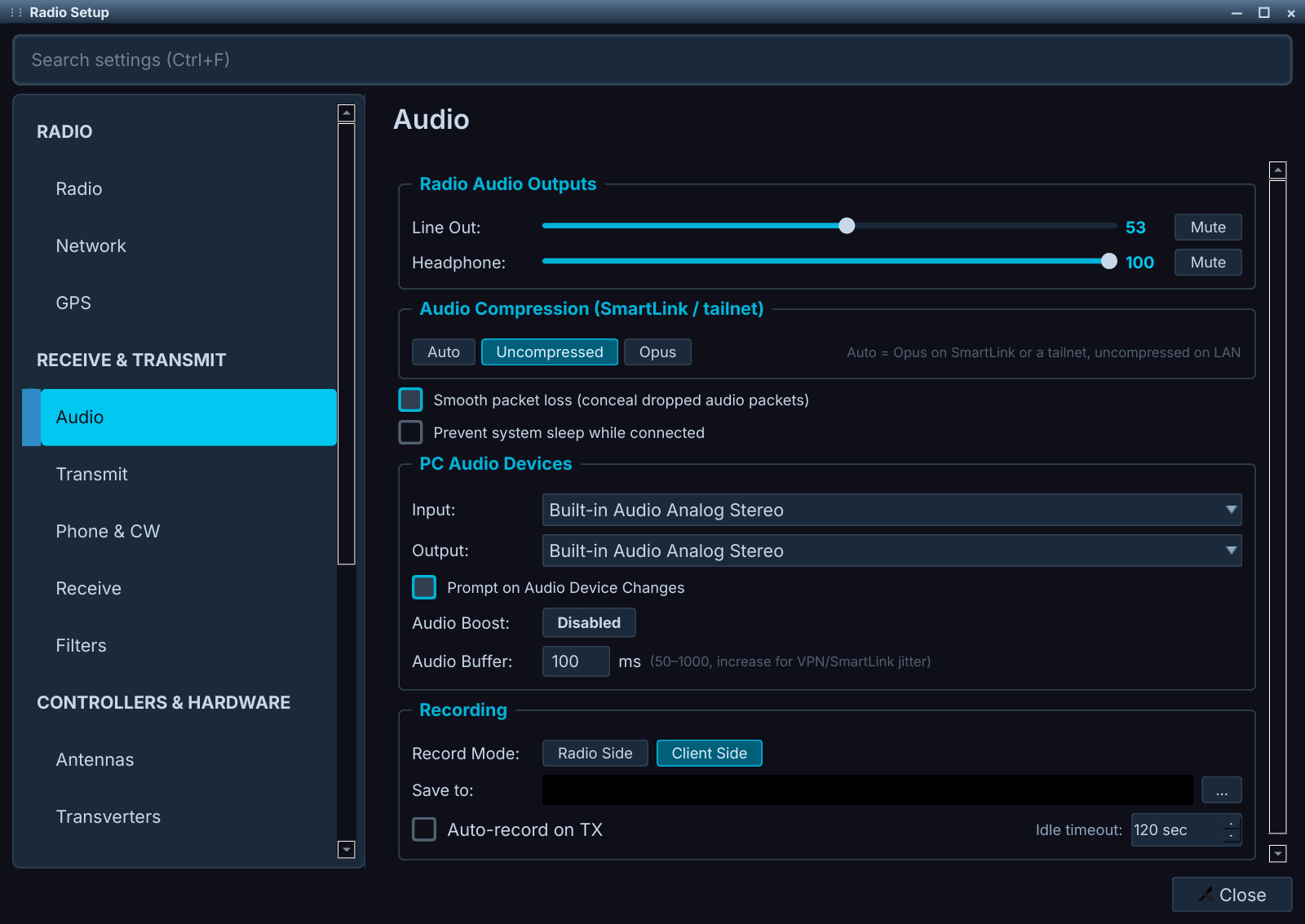
Radio Setup, Audio page: the radio's audio outputs, audio compression, the PC audio devices and recording.
- Windows and Linux: Settings → Radio Setup... → RECEIVE & TRANSMIT → Audio
- macOS: AetherSDR → Preferences..., then Audio
See Radio Setup.
Choosing PC audio devices
Input and Output
Choose the computer's microphone (Input) and speaker (Output) devices. The selection is saved and restored at startup, and you can switch devices while connected.
If the saved device is not connected, AetherSDR uses the system default device and keeps your saved choice. It switches back to the saved device when that device connects, without asking. On Linux, saved devices with IDs containing .monitor, auto_null, echo-cancel, or combined, or starting with pulse_input_loopback, are used again at the next launch rather than automatically restored when they reappear.
AetherSDR handles sample-rate conversion itself. The microphone is captured at whatever rate the device offers, processed at 48 kHz, and converted once to the radio's transport rate. The PC microphone is used for transmit when the radio's mic source is PC (see Choosing the mic source).
When a device is plugged in or removed
When the operating system adds or removes an audio device, an Audio Device Detected dialog offers to switch PC audio to the new device or keep the current one, with a Don't ask me again option. It does not appear while your selected device is still available. In the dialog, leaving a direction on System default while its saved device is not connected uses the default for now and keeps the saved choice. Turn it on or off with Prompt on Audio Device Changes (on by default).
Audio Boost
Audio Boost (Enabled / Disabled, off by default) applies a fixed software gain boost to PC speaker audio, for setups where AGC-controlled audio is quieter than you would like.
Audio Buffer
Audio Buffer limits the backlog of received audio waiting for PC playback. It does not make playback wait for the buffer to fill. The default is 100 ms, adjustable from 50 to 1000 ms. Increase it if audio stutters over a VPN or SmartLink link with a lot of jitter; lower values reduce latency on a clean LAN. The Audio Health page in Tools → Network Diagnostics... shows the buffer level live. See Runtime Monitor.
When the main RX backlog exceeds the limit, AetherSDR drops the oldest speaker-ready audio while keeping client DSP history continuous. Lowering the backlog limit also releases old queued audio when neural noise reduction is enabled. A long interruption can still cause an audible gap; raising the buffer allows more jitter at the cost of additional queued audio.
Volume and mute
- AF slider (VFO flag or RX applet): the slice's audio level, 0–100.
- Mute button: single-click mutes or unmutes this slice; double-click mutes or unmutes all of your slices. Radio Setup → Appearance & Behavior → Single-Click Delay sets how long AetherSDR waits to tell a single click from a double click (0 makes single clicks instant and turns off the double-click action).
- Slice mute belongs to the radio, so it is not restored by AetherSDR on reconnect.
- Title-bar speaker icon and master slider always show the path you are actually hearing. With PC Audio on, they show and control the computer's mute and level. With PC Audio off, they show the radio's Line Out mute and level, including changes made by another Multi-Flex client.
- Clicking the title-bar speaker mutes or unmutes this computer's output and, on a radio with a line out AetherSDR can control, the radio's Line Out as well. On a radio with no such line out and PC Audio off, there is nothing to mute: the click is refused and the icon stays as it was.
- The volume keyboard shortcuts, FlexControl and HID controllers, and TCI
volumeall adjust the same level the master slider shows: the computer's level with PC Audio on, the radio's Line Out level with it off. MIDI Master Volume has its own rules; see MIDI Controller Mapping. - The title-bar headphone controls follow the radio's headphone output, and are dimmed on radios that have none.
Recording QSOs
The Recording group controls QSO recording from the record and play buttons on the VFO flag and in AetherRX/AetherTX.
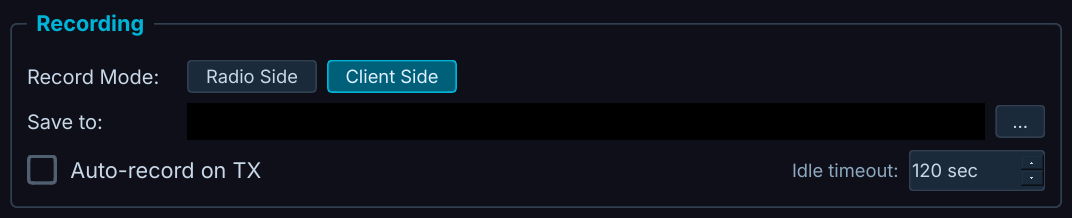
The Recording group on the Audio page. The save path is blacked out.
- Client-side recordings include the CW you send, so a QSO that switches between voice and CW stays in one file.
- Each recording is a 24 kHz or 48 kHz WAV, depending on the source, and never overwrites an existing file.
- Client-side recording needs PC Audio. With PC Audio off, AetherSDR refuses with "PC Audio Required for Client-Side Recording" rather than writing an empty file.
- On radios without a radio-side recorder, Radio Side is dimmed with the reason, and the record buttons record on this computer instead.
The settings are listed under Recording settings.
Choosing the mic source
On a FlexRadio the microphone source is chosen in the P/CW applet. The sources are listed under Mic sources.
AetherTX (the client-side transmit processing chain) works only on audio from the computer, so it needs PC selected. If another source is selected, the Aetherial Audio applet says so and shows how to fix it. See Aetherial Audio.
Reference
Radio audio outputs
These control the physical audio outputs on the radio itself, for speakers or headphones plugged into the radio.
| Output | Control | Command |
|---|---|---|
| Line Out | Gain slider (0–100) + Mute | mixer lineout gain N / mixer lineout mute 0|1 |
| Headphone | Gain slider (0–100) + Mute | mixer headphone gain N / mixer headphone mute 0|1 |
| Front Speaker | Mute only (models with a built-in speaker, the "M" models) | mixer front_speaker mute 0|1 |
On radios without one of these outputs, the matching controls are dimmed with the reason in the tooltip.
Audio Compression (SmartLink)
Over SmartLink the radio's audio can be Opus-compressed to save bandwidth.
| Setting | LAN | SmartLink (WAN) |
|---|---|---|
| Uncompressed (default) | Uncompressed | Uncompressed |
| Auto | Uncompressed | Opus |
| Opus | Opus | Opus |
- Opus must be chosen explicitly; the default is Uncompressed.
- The setting affects both receive audio and PC-microphone transmit audio.
- On a LAN connection the radio may ignore an Opus request and send uncompressed audio anyway.
- See Low Bandwidth Connections for when to use it.
Smooth packet loss
Smooth packet loss (conceal dropped audio packets) is on by default. When a UDP audio packet from the radio is lost, AetherSDR fades the gap to silence (uncompressed audio) or uses Opus's own concealment (Opus audio) instead of splicing the next packet straight in. This removes the high-pitched click you otherwise hear on lossy Wi-Fi, VPN or SmartLink links. Concealment covers up to about 80 ms; a longer gap drops to clean silence.
Prevent system sleep
Prevent system sleep while connected (on by default) stops the computer idling into sleep while a radio is connected, so long sessions keep their network and audio streams alive. It never stops the screen blanking or locking, and closing the lid still sleeps the computer. If you turned it off before, it stays off.
On Linux, GNOME and KDE block only automatic sleep, so choosing Sleep from the menu still works. Other desktops, such as Hyprland or Sway, use systemd-logind instead: there, choosing Sleep while connected asks for an administrator password, or untick this setting first.
Recording settings
| Setting | Meaning |
|---|---|
| Record Mode | Client Side (default) records on this computer; Radio Side uses the radio's own recorder |
| Save to | Folder for client-side recordings |
| Auto-record on TX | Start recording automatically when you transmit |
| Idle timeout | Stop recording after this many seconds of inactivity (10–3600 s, default 120 s) |
Mic sources
| Source | Description |
|---|---|
| MIC | Front-panel microphone jack |
| BAL | Rear balanced input |
| LINE | Rear line input |
| ACC | Accessory connector |
| PC | The computer microphone selected above, streamed to the radio |
Known issues
- On remote links that deliver packets out of order, received audio has short dropouts because late packets are treated as lost (#6051).
- Client-side recordings can sound noisier than the audio you hear when client-side noise reduction is on (#6246).
Troubleshooting
No audio from the speaker
The panadapter and waterfall run but nothing comes out of the computer's speakers. PC Audio is off, the wrong output device is selected, or something is muted.
- Check that PC Audio is on in the title bar.
- Check the Output device on the Audio page.
- Check that the slice is not muted, and that the title-bar speaker and master slider are not muted or at zero.
- Turn on the Audio log category in Help → Support & Diagnostics... and look for device-open errors. See Support and Logging.
More causes are listed in Troubleshooting.
"PC Audio Required for Client-Side Recording"
Record Mode is Client Side, which records the computer's audio, but PC Audio is off.
- Turn PC Audio on in the title bar, or
- Set Record Mode to Radio Side on radios that have a radio-side recorder.
The Aetherial Audio applet says the mic source is not PC
AetherTX processes only audio from the computer, and the radio's mic source is set to MIC, BAL, LINE or ACC.
- Select PC as the mic source in the P/CW applet.
- Check that the Input device on the Audio page is your microphone.
Audio stutters or clicks on a remote link
The link has jitter or packet loss, and the audio buffer runs dry or packets go missing.
- Raise Audio Buffer a little at a time from its 100 ms default.
- Leave Smooth packet loss on.
- Use Opus compression. See Low Bandwidth Connections.
- Watch Tools → Network Diagnostics... → Audio Health to see whether the buffer still empties.
See also
- Radio Setup
- DAX Virtual Audio: audio to and from digital-mode programs
- Aetherial Audio: AetherRX and AetherTX processing chains
- Low Bandwidth Connections
- Troubleshooting