AetherSDR has several ways to read signal strength, power, SWR and the radio's health: the S-Meter applet, a meter on every VFO flag, a cross-needle power/SWR meter, Radio Vitals, Antenna Health, and hover readouts on the transmit gauges. Most meter applets live in the Metering group of the applet button bar.
| Applet button | Title | What it shows |
|---|---|---|
| VU | S-Meter | Analog S-meter that switches to a transmit meter while you transmit |
| PWR | Power & SWR | Cross-needle forward/reflected power meter |
| MTR | Radio Vitals | PA temperature, supply voltage, fan speed |
| HLTH | Antenna Health | SWR and power trend with a health score (in Antennas & Switching) |
| LP100 | LP-100A Meter | TelePost LP-100A wattmeter readings (see Peripherals) |
To add an applet to the bar or move it into the favorites row, right-click the button bar and choose Customize Button Bar (see Panadapter Controls).
Using the meters
S-Meter applet (VU)
An analog needle meter in the applet panel. While receiving it shows the selected receive meter; while transmitting it switches to the selected transmit meter.
Right-click the meter for its options:
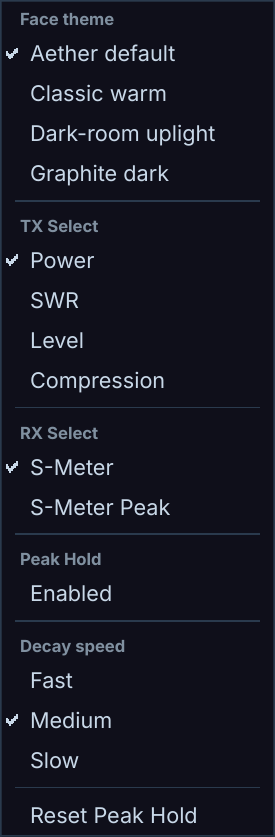
The S-Meter applet's right-click menu.
| Section | Choices |
|---|---|
| Face theme | Aether default (default), Classic warm, Dark-room uplight, Graphite dark |
| TX Select | Power, SWR, Level, Compression |
| RX Select | S-Meter, S-Meter Peak |
| Peak Hold | Enabled (off by default) |
| Decay speed | Fast, Medium (default), Slow |
| Reset Peak Hold | Clears the held peak |
Meter on the VFO flag (S-Meter and SmartMTR)
Every VFO flag has a meter strip under the frequency. Click the strip to open a selector with two views:
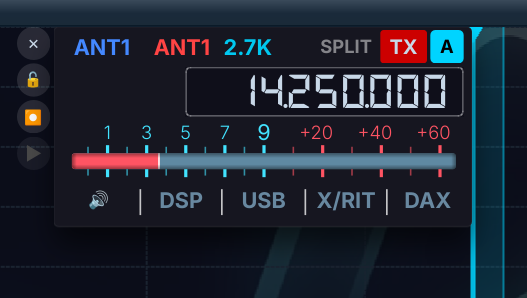
The VFO flag with SmartMTR selected: a bar meter with an S-unit and dB-over-S9 scale.
- S-Meter — the classic bar with S1–S9 and +20/+40/+60 markings.
- SmartMTR — a bar with analog-style needle ballistics and these extra options:
| Option | Choices |
|---|---|
| Show extremes | Draws sliding-window minimum and maximum markers |
| Extremes speed | Slow, Medium, Fast (needs Show extremes) |
| Show values | None, Signal, Extremes |
| TX meter | None, Mic Level, SWR, Power, Compression — shown while transmitting (MOX, PTT or VOX) |
| Show meter type | Labels the TX meter with which quantity it is showing |
The choice applies to every flag and is remembered. See VFO Widget.
Power & SWR cross-needle meter (PWR)
A classic cross-needle wattmeter: separate forward and reflected needles, with printed SWR curves (1.1, 1.2, 1.3, 1.4, 1.5, 1.7, 2, 2.5, 3, 4, 8, ∞). Read SWR where the needles cross. The applet is off by default; open it from the PWR button.
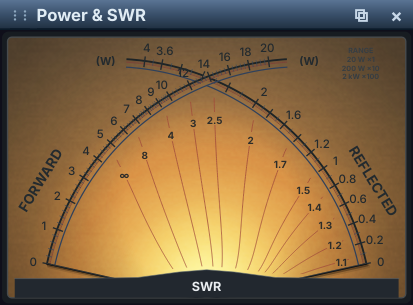
The Power & SWR cross-needle meter.
- Range is automatic: ×1 (20 W forward / 4 W reflected full scale) up to 20 W, ×10 up to 200 W, and ×100 above 200 W or whenever an amplifier is active. The face shows "RANGE 20 W ×1 / 200 W ×10 / 2 kW ×100".
- Pop it out from its title bar to get a floating meter window; the window can be shrunk down to a compact size.
Right-click the meter:
| Section | Choices |
|---|---|
| Face theme | Classic warm, Dark-room uplight (default), Graphite dark |
| Display | Show Range (on by default) |
The geometry behind the curves is documented in docs/cross-needle-meter-math.md.
Radio Vitals (MTR)
Gauges for the radio's hardware: PA Temp, Supply Voltage and Main Fan, each with its live value printed on the gauge. The °C / °F button in the "Radio Hardware" header switches the temperature unit and is remembered. On radios that report PA current, that gauge reads PA Current instead and the °C/°F button is hidden.
While connected to a radio without supply-voltage telemetry, Supply Voltage stays visible and dimmed. Its tooltip and screen-reader description say "This radio does not report its supply voltage." Radios that report supply voltage show the live reading; disconnecting clears the previous radio's reading.
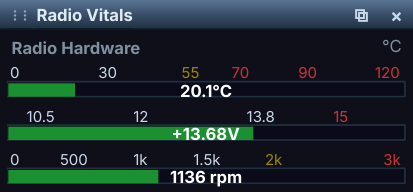
The Radio Vitals applet on a FLEX-8600: PA temperature, supply voltage and fan speed.
Antenna Health (HLTH)
A scrolling trend of SWR, RL (return loss, computed from SWR) and PWR (smoothed forward power) while you transmit, with incident markers.
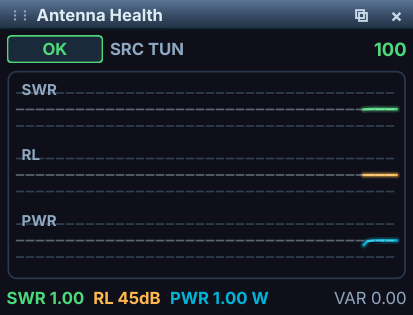
The Antenna Health applet on receive: the trend lines fill in when you transmit.
- A 0–100 health score combines SWR, return loss, variance and power sag.
- The state reads IDLE, RF IDLE, OK, WATCH or GROUND?. VAR is the recent SWR spread; a wide spread can point to grounding or counterpoise problems.
- SRC shows where the reading comes from: AMP (Power Genius XL), TUN (Tuner Genius XL) or RAD (the radio), whichever is freshest.
- Click the graph to pause or resume it.
See also AetherSweep for an SWR sweep across the band.
Hover readouts on the transmit gauges
Hover over the TX applet's RF Pwr or SWR gauge, or the P/CW applet's mic Level, Compression or ALC gauge, to get a small badge with the exact value (for example 12 W or 1.12:1). It updates live, only one shows at a time, and it disappears about half a second after the pointer leaves. See TX Controls.
Known issues
- The cross-needle PWR meter can read a different SWR from the TX applet's SWR gauge and from external meters (#4436).
- Antenna Health can show flat lines and no SWR or power during TUNE with a Tuner Genius XL in line (#4511).
- The S-Meter applet can't be dragged to a new place in the applet panel; it stays at the top (#4347).
Troubleshooting
A meter applet isn't in the button bar
The button is in the drawer or has been hidden. Buttons for accessories appear only when that hardware is present.
- Click the ▼ drawer button in the button bar and look for it there.
- If it isn't there either, right-click the button bar, choose Customize Button Bar and turn the button on.
The S-Meter needle holds a high reading
Peak Hold is on.
- Right-click the S-Meter and choose Reset Peak Hold, or untick Peak Hold to turn it off.
The Antenna Health graph has stopped scrolling
The graph is paused. Clicking it pauses or resumes it.
- Click the graph once to resume it.
See also
- VFO Widget (the per-flag meter)
- TX Controls (transmit gauges)
- Amplifiers (amplifier power and status meters)
- Peripherals (LP-100A and other external meters)
- AetherSweep
- Cross-needle meter maths