Transmit is controlled from the TX, Phone (PHNE), P/CW and EQ applets, with the client-side voice chain in Tools → AetherTX... (see Aetherial Audio). Receive-only radios (ANAN-G2 and RTL-SDR) do not transmit. Before you key up for the first time, read Before You Transmit.
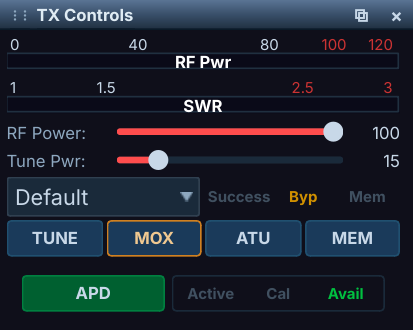
The TX Controls applet.
These controls operate the radio. External Elecraft tuners have their own applets and maintenance controls. RF Power and Tune Pwr display percentages; the meters show measured radio watts and SWR.
Using the TX applet
- Fwd Power gauge (0–200 W barefoot, 0–2000 W with a PGXL amplifier), with a PEP peak-hold tick
- SWR gauge (1.0–3.0)
- RF Power slider (0–100 %)
- Tune Power slider (0–100 %)
- TX Profile dropdown — select saved TX profiles
- TUNE — transmit a steady carrier for antenna tuning
- MOX — manual transmit
- ATU — run the antenna tuner
- MEM — use ATU memory
- APD — Adaptive Pre-Distortion (Active/Cal/Avail indicators). Active lights when the radio reports a correction on air for the transmit slice's antenna, frequency and power; on firmware 4.3 and later, that means the radio's APD state is active or hold. On FLEX-8000-series radios running fw 4.2.18+, APD also supports External APD: pick a sampler-port input via the sub-menu so the radio can train its predistortion against the output of an external linear amplifier rather than its own PA.
Hover RF Pwr or SWR for a floating badge with the exact value
(for example 12 W or 1.12:1). Forward power drops to zero as soon as you
unkey, and SWR does not show a stale reading while you receive.
An external amplifier or tuner adds its own applet: see Amplifiers and the PGXL section of Peripherals for amplifiers, and TGXL Tuner Control for the Tuner Genius XL.
TUNE
- Right-click TUNE to choose Mono Tone or Two Tone for the tune carrier. Two Tone requires a radio with a two-tone generator (FlexRadio). On other connected radios the entry is dimmed with a reason; its keyboard shortcut and MIDI action show the reason without starting TUNE. Use ordinary TUNE for a single carrier on transmit-capable radios. Stopping an active tune remains available.
- Changes to Tune Power made while TUNE is keyed take effect immediately, including on the Hermes-Lite 2 and networked Icom radios.
- TUNE and CW keying lock each other out: while TUNE is on, a paddle, straight key, keyboard CW or CWX text does not transmit, and TUNE will not start while a key is down or CWX is sending.
- On a FlexRadio running SmartSDR 4.3 or later, open Radio Setup → Transmit → TX Band Settings and use the RCA off/TUNE column. Each checkbox edits its named band's value on the radio, independently of the active slice or panadapter. Editing it never starts TUNE. When checked, firmware suppresses all three RCA keying outputs (TX1/TX2/TX3) during TUNE. Normal PTT uses the band's configured TX outputs. This setting does not disable TX REQ safety inputs or control other amplifier-keying connections.
- Each checkbox follows radio readback. It is dimmed until a supported radio and that band's reported value are available, and while its request awaits confirmation. Hover over it for the reason. A rejected or unconfirmed request retains the last confirmed value and does not become a saved client preference.
- If the firmware version arrives while TUNE is running, the cycle still restores RCA outputs it temporarily disabled before identifying the firmware. The next TUNE cycle uses the identified firmware's suppression behavior.
- On SmartSDR 4.2 and older, Settings → Inhibit during TUNE ▸ retains its ACC TX, TX1, TX2 and TX3 selections. On 4.3 and later, ACC TX remains a separate client setting, shown as a checkable menu item, and Configure RCA suppression… opens TX Band Settings directly. ACC TX inhibits the separate accessory connector's keying output during TUNE; the firmware RCA suppression setting does not cover it. Saved legacy RCA preferences remain available when using older firmware. AetherSDR does not copy them over the radio's per-band suppression values. No automatic migration or upgrade notice is shown; review each band's radio value in the table.
- For client-managed outputs, AetherSDR restores only outputs it temporarily disabled on the original band. Outputs already disabled stay disabled. Changing inhibit selections during TUNE applies to the next cycle; an explicit output edit in TX Band Settings takes precedence over current restoration. After a lost connection, check the band's output settings: temporary changes are not replayed on reconnect.
ATU, MEM and pre-tuning
- MEM shows the tuner's real memory state as the radio reports it, not just your last click.
- ATU tune failures are reported in the status bar.
- After a successful match, pressing ATU again at the same TX frequency requests bypass. At a different TX frequency, it starts a new matching cycle.
- On FlexRadio, selecting XVTA, XVTB or XVTR as the TX antenna dims ATU, MEM and the Success, Byp and Mem indicators. The internal ATU is outside that transmit path. TUNE remains available for carrier and transverter drive checks; it does not start an ATU matching cycle. Tools → Pre-tune ATU Bands... and Tools → Clear ATU Memories... are also disabled, with the same transverter-path explanation.
ATU band pre-tune sweep. Open it from Tools → Pre-tune ATU Bands... or right-click ATU → Pre-tune bands…. It walks the band-plan segments of the bands you choose, tunes the ATU at each point and stores the result in the ATU memory, so later band changes recall a match instead of re-tuning. On channelised bands such as US 60 m it uses one point per channel.
- For the internal radio ATU, MEM must be on; otherwise the entry is disabled with "Enable MEM before running the pre-tune sweep". It is hidden or disabled on radios without ATU memory, and a disabled entry says why.
- Mode: Step (confirm each point), with Tune / Skip / Abort per point, or Auto (run unattended).
- License class limits the points to sub-bands your class may use, where the active band plan has class data (the ARRL US plan has T/G/E).
- Safety nets: a warning with an estimated duration above 100 points; a warning when the Auto-mode Tune Pwr setting is above 20; an audible cue on a per-point timeout; and after 3 consecutive failed or bypassed results on one band, the sweep skips the rest of that band and moves on.
- The sweep keys the transmitter repeatedly. Make sure the bands are clear before you start.
KAT500 sweeps require the external tuner to remain connected in Auto/Manual. They use KAT500 memory-bin spacing, do not require the radio's MEM setting, and stop on an unsuccessful or unconfirmed result.
Clear ATU memories. Tools → Clear ATU Memories... or right-click ATU → Clear ATU memories… erases the stored tuner solutions after a confirmation.
Using the P/CW applet (Phone/CW)
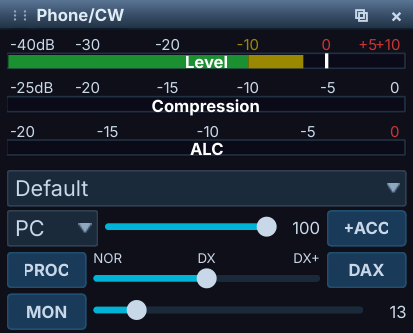
The P/CW (Phone/CW) applet: microphone level, compression and ALC meters with the microphone source and processor controls.
- Mic level gauge (−40 to +10 dB) with peak hold
- Compression gauge
- ALC gauge — reads the software ALC meter; it appears in both the Phone and CW views
- Mic profile dropdown — select mic profiles
- Mic source — MIC, BAL, LINE, ACC, PC. Choose PC to use a computer microphone and Aetherial Audio's AetherTX chain.
- Mic level slider (0–100), remembered across launches
- +ACC — accessory input toggle
- PROC — speech processor (NOR/DX/DX+)
- DAX — DAX audio toggle
- MON — monitor + volume slider. Both are disabled, with an explanation in their tooltips and accessible descriptions, when the connected radio does not expose monitor control.
MON and VOX shortcuts and MIDI mappings also refuse unsupported controls and show an unsupported-control notice instead of changing the model state. Radios that expose these controls keep their normal behavior.
Hover the Level, Compression or ALC gauge for its exact value. In CW modes the applet switches to keyer controls, including the APF toggle and level. Speed sets CW keying speed in WPM: move the slider, or type a value and press Enter or leave the value field to apply it. The field follows the radio's supported range. Pitch sits directly below Speed: use its slider or enter a frequency in Hz in the value field. Pitch follows the radio's supported range and step. Status refreshes preserve an unfinished speed or pitch entry. Breakin, Iambic, and Hold Delay share a separate row. Hold Delay re-sends your break-in delay after CW speed changes made here; it does not cover speed changes made at the radio or by another client. In CW modes, the RX Controls header shows the receive filter width beside the read-only QSK indicator. QSK follows the radio's break-in state, including changes made at the radio or by another client; Breakin requests a change.
Using the Phone applet
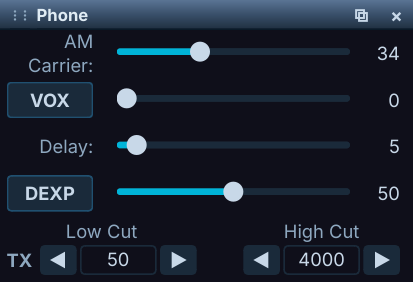
The Phone applet: AM carrier, VOX, downward expander and transmit filter.
-
AM Carrier slider (0–100)
-
VOX toggle + level + delay
The toggle and level slider are disabled, with an explanation in their tooltips and accessible descriptions, when the connected radio does not expose VOX control. Delay is available only when the radio exposes it.
Automation can explicitly disarm VOX with
invoke "VOX voice-operated transmit" setChecked falsewithout TX permission. Thevox_toggleautomation shortcut requires TX permission in either direction. -
DEXP — downward expansion (noise gate on the radio's mic path)
-
TX Filter — Low Cut / High Cut step buttons
TX filter warning
If the TX low and high cut leave out your transmit audio, the radio keys but puts out almost no RF. AetherSDR measures the loss across the radio's TX filter and, when it reaches 40 dB or more, shows a card on the panadapter naming the passband and the measured attenuation, once per transmission. This matters most in DIGU/DIGL, where WSJT-X reports a normal cycle at zero power. CW is excluded, and the card is not available on the Hermes-Lite 2.
Using the EQ applet
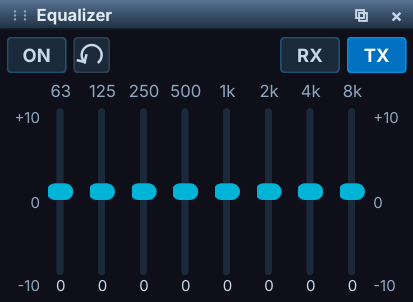
The Equalizer applet, here showing the transmit equaliser.
- 8-band graphic equalizer (63 Hz – 8 kHz)
- ±10 dB vertical sliders per band
- Independent RX and TX views; the view you chose is remembered
- ON toggle + reset button
- On a radio whose audio is processed in AetherSDR, such as the Hermes-Lite 2, the bands and both ON settings are remembered across restarts. They are saved while you are connected to that radio. A FlexRadio keeps its own EQ in the radio and AetherSDR does not save it; after a FlexRadio session, the saved settings come back when you connect the other radio again. Receive-only radios do not save the EQ.
Transmitting
- Press MOX (or use PTT) to transmit
- The VFO marker turns orange/red during TX
- With Show TX in Waterfall enabled in Settings → Radio Setup... → Transmit, the waterfall draws FFT-derived rows during TX at the receive scroll rate and masks the TX passband on every overlapping panadapter. With it disabled, those panes hold their waterfall rows until receive resumes. The dBm range stays fixed during TX. On a Hermes-Lite 2, AetherSDR remembers the choice per radio; on a FlexRadio, the radio owns and reports it
- Interlock problems that block transmit (amplifier warming up, ATU busy, band not allowed) appear as notifications, only when transmit is actually blocked
Station key guards (software)
A station device outside the radio, such as an antenna switch, can be set up to refuse a key-on that AetherSDR starts, for example while the switch routes this radio to the wrong port. This is a software guard, not an interlock. It is off unless you set up a device that provides one; no device in this version does.
When a guard objects, AetherSDR does not key the radio and shows the guard's reason as a transmit notification. The guard is asked at every key-on that AetherSDR starts: MOX and PTT from any source (buttons, shortcuts, controllers, serial PTT, CAT, TCI, WSPR, the automation bridge), TUNE and two-tone, ATU, CW key, paddle and CW PTT, CWX, the voice keyer, NAVTEX, switching VOX on, and a Tuner Genius XL autotune. It is never asked when you unkey, and never while AetherSDR is already transmitting, except for switching VOX on, which stays armed after the over. A CW message is asked about once, at its first element: a guard that starts to object in the middle of a message lets it finish and refuses the next one. While a hardware PTT or the radio's own VOX holds the radio keyed, the message stays open and its later elements are not asked.
A key guard cannot stop:
- a hardware PTT, a footswitch, or a key or paddle wired to the radio;
- another program, another client of the same radio, or a second copy of AetherSDR;
- a radio whose VOX is already on: AetherSDR refuses to switch VOX on, but it does not switch an active VOX off;
- a tuner started from its own front panel;
- a transmission already on the air when the guard starts to object. AetherSDR never unkeys by itself.
On a Hermes-Lite 2 the gateware also keys from its PTT and CW inputs without AetherSDR. If your station must never transmit into the wrong port, use a hardware interlock between the switch and the radio.
Hardware PTT and the TX source
(FlexRadio) A hardware PTT is a footswitch or keying line on the RCA PTT jack, the ACC connector or a supported mic-jack PTT input. On firmware before SmartSDR v4.3, a hardware PTT always transmits the analog microphone. From v4.3, a hardware PTT transmits whatever TX source is selected, just as MOX does. If DAX is on for a digital-mode program, or the mic source is PC, a footswitch press puts that audio on the air, not your microphone.
To restore the old behavior, turn on PTT Mic Override in the Interlocks - TX REQ group of Settings → Radio Setup... → Transmit. With it on, a hardware PTT transmits the analog mic input you last used, even while DAX or PC audio is selected. It changes nothing when an analog input (MIC, BAL, LINE or ACC) is already selected. The radio stores the setting and shares it with every client connected to it. With several clients connected (Multi-Flex), FlexRadio says the override applies when the client whose hardware PTT is pressed is also the transmitting client. On firmware before v4.3 the control is grayed out.
On SmartSDR v4.3, the radio can report several held PTT sources at once. AetherSDR keeps its TX meters and local audio gate in the transmit state while the radio confirms your hardware PTT transmission, including when VOX is also active. VOX reconciliation requires VOX to be enabled. Another client's transmission does not open your local TX audio gate. These status reports do not start a transmission or send a PTT command.
TX off delay
TX Off Delay (ms): in the Timings (in ms) group of Settings → Radio Setup... → Transmit keeps the radio transmitting for that many milliseconds after you release PTT, so the end of your last word is not cut off. Enter 0 to 2000 (2 seconds); 0 turns it off and is the default. AetherSDR stores the value on this computer, not on the radio.
- It applies in voice modes only (USB, LSB, AM, FM, NFM). CW, digital modes, DAX, CAT-keyed and WSPR transmissions unkey at once.
- It applies to PTT that AetherSDR handles: MOX, keyboard PTT, a footswitch on a computer serial port (CTS, DSR or DCD set to PTT input), the RC-28 PTT button, and TCI hardware PTT such as a Stream Deck. A footswitch or mic PTT wired to the radio's RCA PTT jack, ACC connector or mic jack unkeys at the radio and is not delayed. To use the delay with a footswitch, connect it to a computer serial port instead.
- Pressing PTT again during the delay continues the same transmission.
- The radio stays keyed, and MOX stays lit, until the delay ends. What
happens to your microphone depends on the mic source:
- With the PC mic source, your mic stays live for the first 300 ms after release, and the rest of the delay is silent.
- With a mic on the radio (MIC, BAL, LINE or ACC), AetherSDR cannot mute it. Your mic stays live for the whole delay, and anything you say during it goes on the air. Keep the delay short with these mics; a few hundred milliseconds is usually enough to keep your last word.
- Pressing TUNE during the delay does nothing; wait for the delay to end, then press it again.
- Disconnecting, or anything that stops transmit, ends the delay at once.
- With QUIN on, the delay runs first and the outro tone follows it.
Transmit timer
While you transmit, a green M:SS timer (H:MM:SS after an hour) appears in
the title bar, just left of the PC Audio button. It counts each key-down
from 0:00, holds the final time for 15 seconds after you unkey and then fades
out. It runs for any transmission you key yourself (MOX, PTT, footswitch, VOX,
including digital modes keyed with MOX) and never for CW, TUNE/ATU, a TGXL
autotune, or transmissions keyed by other programs through TCI, DAX or CAT.
The audio controls stay in place as the timer appears and fades. In minimal mode, the hidden timer reserves no space.
Transmit time-out
AetherSDR stops any transmission that lasts longer than the time-out, whatever keyed it: MOX, PTT, a footswitch, a controller, TCI, CAT, DAX, TUNE, ATU or the radio's own PTT. The default is 180 s. Set it in Transmit time-out (this computer) on the Transmit page of Radio Setup:
- Stop transmitting after: on by default, 15 to 1800 seconds.
- Warn before (sec):: a notice and a short beep this many seconds before the stop. The default is 10; Off turns the warning off.
It is stored on this computer, for each radio. On a FlexRadio the radio's own Timeout (sec): applies as well. Until this group has stored anything, its time-out follows the radio's and is never shorter than it. Once it has stored a value (any edit here, or leaving one of its boxes), the stored values apply, even if the radio's Timeout is raised later. On a radio without a timeout of its own, Timeout (sec): stays dimmed and this group is the time-out that applies. On a FlexRadio shared by several stations (multiFLEX), only this station's own transmissions are timed; another station's over is left to the radio.
When it stops a transmission, a notification says Transmit time-out: transmission stopped after N s. Nothing transmits again until every PTT input has been released, including a CAT or TCI program that keeps asking to transmit, and you key again. If the radio's own PTT input is still held, the notification says so. A CAT or TCI program sees the radio go back to receive. On a FlexRadio the time-out counts only while the radio reports TRANSMITTING: once it reports UNKEY_REQUESTED, the time-out treats it as idle, even if the radio still has RF up.
With full break-in, where the radio returns to receive between elements, each element is its own key-down, so the time-out bounds a key held down, not a whole over. With semi break-in, where the hang time is longer than the gaps between characters, and with CWX, the voice keyer or NAVTEX, the radio stays keyed across the whole message, so a long message is cut at the time-out.
Using AetherTX (Aetherial Audio)
The client-side transmit voice chain — RN2 microphone denoising, Tube, EQ, Compressor with Drive/Phase, AetherVoice Exciter, Reverb, and Final Output — lives in the AetherTX window, Tools → AetherTX... Final Output includes the brickwall limiter, DC block, test tone, and Quindar tones. AetherTX needs a computer microphone (Mic source PC).
See Aetherial Audio for the stage reference and profiles.
Quindar tones
The AetherTX Final Output stage has a QUIN button that plays the Apollo-era chirp when you key and unkey: a 2525 Hz intro and a 2475 Hz outro.
Right-click it to open the editor:
- Style — Tone (classic chirp) or Morse (keyed K / BK)
- Level — −20 to 0 dBFS
- Tone fields — Intro / Outro frequency (2400–2700 Hz), duration (100–500 ms)
- Morse fields — WPM (20–60), pitch (400–1200 Hz)
- Test intro / Test outro — audition locally without keying
Known issues
- With Mic source set to PC, transmit audio can be silent after startup until you switch the source to BAL and back to PC (#5442).
- On a remote FLEX-8600 over SmartLink, TUNE may not work while AetherSDR is connected to Genius peripherals (Antenna Genius, PGXL, TGXL) (#6001).
Troubleshooting
The radio keys but puts out almost no RF in DIGU/DIGL
The TX filter's low and high cut leave out your transmit audio. When the loss reaches 40 dB or more, AetherSDR shows a card on the panadapter naming the passband and the measured attenuation.
- In the Phone applet, use the TX Filter Low Cut and High Cut buttons to widen the filter until it covers your audio tones.
- Transmit again and check that the warning card no longer appears.
Mic source is PC, but VOX does not open and transmit audio is missing
The computer's selected microphone (Input) is not your microphone, for example a virtual "DAX Mic" device.
- Open Settings → Radio Setup... → Audio.
- Choose your real microphone as the Input device.
- Check that the Mic level gauge in the P/CW applet moves when you speak.
TUNE does not start
TUNE and CW keying lock each other out. TUNE will not start while a key is down or CWX is sending.
- Release the paddle or straight key.
- Wait for CWX to finish sending, or stop it.
- Press TUNE again.
Pre-tune bands is disabled
The ATU pre-tune sweep needs ATU memory, so the entry is disabled with "Enable MEM before running the pre-tune sweep".
- Turn on MEM in the TX applet.
- Open Tools → Pre-tune ATU Bands... again. If the entry is still disabled, hover it: the radio may have no ATU memory.
Transmit is unavailable until the radio has connected
During a reconnect attempt, transmit stays blocked until the radio connects. A transmit request can show "Transmit is unavailable until the radio has connected."
- Wait for the radio to reconnect.
- Confirm the connection before trying to transmit again.
A notification says transmit is blocked
An interlock is holding transmit off: for example an amplifier warming up, the ATU busy, or a band the radio does not allow.
- Read the notification for the reason.
- Wait for the amplifier or ATU to finish, or move to a band you may transmit on, then key again.
See also
- Before You Transmit
- Aetherial Audio — the AetherTX voice chain and its profiles.
- Meters — the cross-needle Power & SWR (PWR) applet and the HLTH antenna health trend.
- Amplifiers and TGXL Tuner Control — external amplifier and tuner applets.
- Split Operation — transmitting on a second slice.
- AetherMap — includes a one-shot WSPR beacon that transmits a single WSPR frame.