AetherSDR keeps its own client-side settings (window layout, applet choices, display preferences, spot sources, controller mappings and so on) in a single SQLite database on your computer. Settings that belong to the radio (profiles, memories, TX settings, antenna choices on a FlexRadio) stay on the radio and are not touched by anything on this page.
This page covers where the database lives, how it is protected, how to inspect or repair it, and how to reset it properly.
Where settings live
The settings store is a file called AetherSDR.db in AetherSDR's configuration folder:
| Platform | Configuration folder |
|---|---|
| Linux | ~/.config/AetherSDR/ |
| macOS | ~/Library/Preferences/AetherSDR/ |
| Windows | %LOCALAPPDATA%\AetherSDR\ |
The same folder also holds:
| Item | What it is |
|---|---|
AetherSDR.db (plus -wal / -shm while running) | The settings database |
AetherSDR.settings | The old XML settings file, kept as a frozen snapshot after the upgrade (see below) |
settings-backups/ | Verified automatic backups of the database |
settings-quarantine/ | Where a damaged database is moved if one is ever found |
logs/ | Application logs and support bundles. See Support and Logging. |
To print the exact database path on your machine, run AetherSDR --config path (see Using the command line).
MIDI controller mappings are kept in their own midi.settings file in the same folder.
Passwords and tokens are kept in the OS keychain
Credentials are never written to the settings database. AetherSDR stores them in the operating system's credential store (Keychain on macOS, Credential Manager on Windows, the desktop keyring on Linux):
- SmartLink sign-in (refresh token)
- MQTT broker password
- Agent automation (MCP) access token
- Copy Assist remote-server API key
- KiwiSDR / Web-888 receiver passwords
- Networked Icom user password
- QRZ.com password
- Access codes for 4O3A peripherals (TGXL, PGXL, Antenna Genius)
The Linux AppImage and the Windows builds include keychain support. On a build without it, these credentials are kept for the current session only and must be re-entered after each restart; nothing falls back to plain text.
How the store protects itself
- Saves are transactional. Only the settings you changed are written, in one transaction. A crash mid-save cannot leave a half-written file.
- Integrity check at startup. The database is checked every time AetherSDR starts.
- Verified automatic backups go into
settings-backups/. Each backup is checked before it counts:- one right after the upgrade from the old XML file (
*-postmigration.db); - at most one a week (
*-auto.db, the last 5 kept); - one immediately before Reset Settings removes anything (
*-prereset.db, the last 3 kept).
- one right after the upgrade from the old XML file (
- Automatic recovery. If the database is ever found to be genuinely corrupt, it is moved to
settings-quarantine/with a timestamp, the newest verified backup is restored, and AetherSDR shows a notice naming the backup and how old it is. If no usable backup exists, the frozen XML snapshot is imported instead. - Permission and lock problems are not treated as corruption. If the file cannot be opened because of permissions, a lock held by another process, read-only storage or a disk error, AetherSDR leaves the file exactly as it is, reports the problem and refuses to save for that session. A later launch can then retry without anything having been rolled back.
- Newer stores open read-only. If you run an older AetherSDR against a database written by a newer version, the older version can read it but will not save to it.
Bookmarks and band-stack entries are saved the moment you make them, so a crash cannot lose them.
Radio-specific state for radios that do not remember it themselves (for example the Hermes-Lite 2's per-band drive and gain, nicknames and band stacks) is stored as one document per radio and feature inside the same database.
Upgrading from an older version: releases before the SQLite store kept settings in an XML file,
AetherSDR.settings. On the first launch of a newer version:
- The XML file is imported automatically and verified key by key, then left in place, untouched, as a frozen snapshot of your settings on upgrade day.
- The MQTT password, the automation-bridge token and the Copy Assist remote API key are moved out of the settings and into the OS keychain.
- If you roll back to an older release, it finds your settings as they were on upgrade day. Changes made in the newer version stay with the newer version.
- If an older release then writes to the XML file, the next launch of the newer version shows a one-time notice that those changes were not carried forward. Settings are never merged in either direction.
Using the Settings Browser
Settings → Settings Browser... lets you look through and edit the whole store from inside the app.
It opens in a window of its own that remembers its size and position; choosing Settings Browser... while it is open brings it to the front, and it closes with the round ✕ in its top-right corner, Esc, or ⌘W (Ctrl+W on Windows and Linux). Delete and creating a new raw key both ask first, and Cancel is the default: pressing Return, Esc or the ✕ on the question changes nothing.
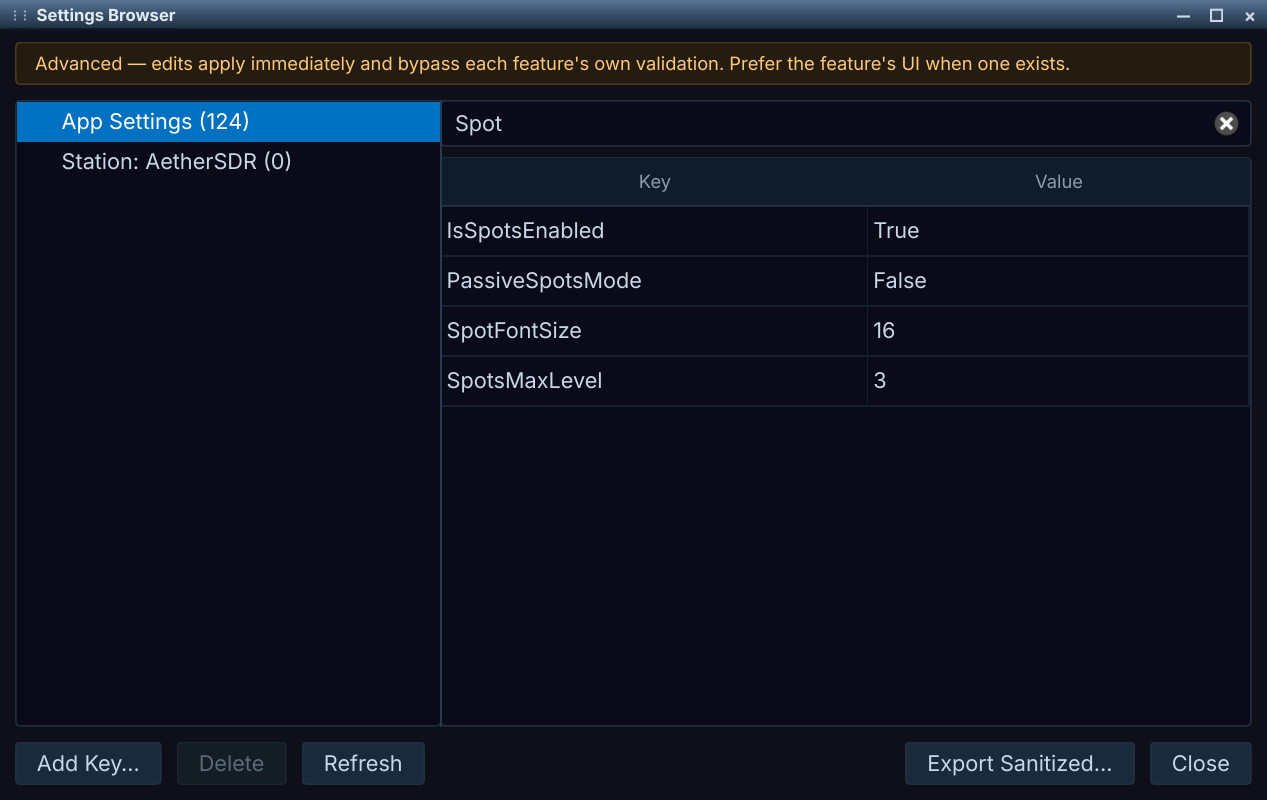
The Settings Browser, filtered to keys that contain Spot.
- The left tree lists the scopes: App Settings, the Station section, and under Radios each radio's stored feature documents.
- Filter keys and values... narrows the table as you type (case-insensitive).
- Add Key..., Delete, Refresh and Export Sanitized... sit below the table.
- Values stored as
True/Falseget a True/False picker instead of free text. Feature documents open in a viewer; Edit Raw JSON... validates the JSON before saving. - Credential-shaped values are masked and read-only.
- Export Sanitized... writes a secret-redacted dump for diagnosis. It is not a restorable backup.
Edits in the Settings Browser apply immediately and bypass each feature's own validation. Prefer the feature's normal controls when one exists.
Using the command line (AetherSDR --config)
AetherSDR --config <command> reads or changes the settings store without starting the GUI. It is the escape hatch when a bad stored value (for example a window placed off-screen) stops AetherSDR from starting normally. The commands are listed under Reference.
- Run it from a terminal, using the same program you normally launch, for example
./AetherSDR-*.AppImage --config pathon Linux or/Applications/AetherSDR.app/Contents/MacOS/AetherSDR --config pathon macOS. setandunsetconfirm the change by reading it back from the file, and report an error if it did not stick (for example when the store is read-only).- Credentials cannot be created with
set. Enter them in the app, which stores them in the keychain. - An AetherSDR that is already running keeps its own copy of the settings in memory and will not see command-line changes until it is restarted. Quit AetherSDR before editing.
- Advanced: the
AETHER_SETTINGS_DIRenvironment variable points AetherSDR (and--config) at a different configuration folder.
Resetting settings
Use Settings → Reset Settings... to return AetherSDR to a first-run state.
- A confirmation lists exactly which files will be removed and where the backup will be written.
- A verified
*-prereset.dbbackup is written tosettings-backups/. - AetherSDR removes the settings database, the frozen XML snapshot and its leftovers, the NR2 FFTW wisdom cache, the rolling automatic backups and anything in quarantine. The pre-reset backups are kept.
- AetherSDR then quits, so nothing is written back. Start it again to begin fresh.
Settings stored on the radio are not affected.
Deleting AetherSDR.db by hand is not a reset. See Troubleshooting.
Restoring a backup
The files in settings-backups/ are complete SQLite databases. To go back to one by hand:
- Quit AetherSDR.
- Keep a copy of the current
AetherSDR.dbsomewhere safe. - Copy the backup you want over
AetherSDR.db. - Delete any
AetherSDR.db-wal/AetherSDR.db-shmfiles beside it.
Client settings vs radio profiles
The settings store holds this computer's preferences. FlexRadio global, TX and microphone profiles, memories and other radio-side configuration are stored on the radio. To back those up or move them between SmartSDR and AetherSDR, use Profiles → Import/Export Profiles.... See Profile Management.
Reference
AetherSDR --config commands:
| Command | What it does |
|---|---|
list [prefix] | Print every setting as key<TAB>value, optionally only keys starting with prefix |
get <key> | Print one value (exit code 2 if the key does not exist) |
set <key> <value> | Create or change a setting |
unset <key> | Delete a setting |
export | Sanitized dump of the whole store, secrets redacted (diagnostic output, not a backup) |
features [family] | List radio-scoped feature documents (sanitized) |
path | Print the database path |
Known issues
- Running two copies of AetherSDR on one computer, which share one settings store, can make the second copy wrongly report that it last closed unexpectedly while popping out a panadapter, and restore its panadapters docked (#4901).
Troubleshooting
Your settings came back after you deleted AetherSDR.db
The next launch found the frozen AetherSDR.settings snapshot and imported it again, restoring your settings as they were on upgrade day.
- For a real factory reset, use Settings → Reset Settings....
- To remove a single troublesome value, quit AetherSDR and run
AetherSDR --config unset <key>.
A stored setting stops AetherSDR from starting
A bad stored value, such as a window placed off-screen, is applied at startup.
- Run
AetherSDR --config listto find the key. - Run
AetherSDR --config unset <key>to remove it, orAetherSDR --config set <key> <value>to correct it. - Start AetherSDR normally.
AetherSDR reports that it cannot save settings
The settings file could not be opened because of permissions, a lock held by another process, read-only storage or a disk error. AetherSDR leaves the file untouched and does not save for that session.
- Quit AetherSDR, and close any other process using the configuration folder.
- Check that the folder and
AetherSDR.dbare writable by your user. - Start AetherSDR again. It retries the file on every launch.
An older version of AetherSDR doesn't save your changes
A newer version wrote the settings database, and older versions open newer stores read-only.
- Run the newer version, or
- Restore an older backup from
settings-backups/as described in Restoring a backup.
Passwords must be re-entered after every restart
This build of AetherSDR has no keychain support, so credentials are kept for the current session only.
- Use the Linux AppImage or the Windows builds, which include keychain support.
Changes made with --config don't show up
AetherSDR was running when you edited the store, and a running copy keeps its own settings in memory.
- Quit AetherSDR.
- Make the change with
AetherSDR --configagain. - Start AetherSDR.
See also
- Support and Logging: logs, the support bundle (which includes a sanitized copy of your settings) and File an Issue
- Profile Management
- Troubleshooting