Applies to: All radios · the radio relay needs a FlexRadio
AetherSDR controls the 4O3A Tuner Genius XL (TGXL) through the TUN applet, including manual adjustment of the tuner's Pi-network relays.
Setup
AetherSDR can reach the TGXL two ways, and the applet shows which one it is using with an indicator at the end of its readout row:
| Indicator | Path |
|---|---|
● DIRECT | A direct TCP connection to the tuner on port 9010 (green) |
● RADIO | Through the FlexRadio, which relays the tuner's status and commands (yellow) |
● OFFLINE | Neither is available (orange) |
When a TGXL is connected to your FlexRadio, the radio reports its address and AetherSDR opens the direct connection automatically. For a tuner the radio does not report (on another subnet, over a VPN, or with a non-Flex radio), add it in Peripherals (Add → Tuner Genius XL) with its address.
- Connect directly when available (on by default, in Peripherals) controls the automatic direct connection. Turn it off to use only the radio's relay.
- Access code: if the TGXL asks for authorization, enter its code in Peripherals. AetherSDR sends it before any other command and saves it in the system keychain once the tuner accepts it. See Peripherals for how codes are stored.
- If direct authorization fails, AetherSDR falls back to the radio relay and
the indicator shows
● RADIO.
The direct connection is what adds port detail, the antenna buttons and manual relay control. Without it the applet still works from what the radio relays.
OPERATE, STANDBY and BYPASS use the FlexRadio relay when the radio reports the tuner, even if a direct connection is also available. For a TGXL added by IP alone, without a FlexRadio relay, these commands use the ready direct connection. On the direct path, the displayed mode follows the tuner's reported state, not an assumed successful button press. When the radio relays the tuner, its mode state remains authoritative; direct state polls still provide relay and antenna details.
Using the tuner applet
Docked in the applet panel, the TUN applet (title "TGXL") shows:
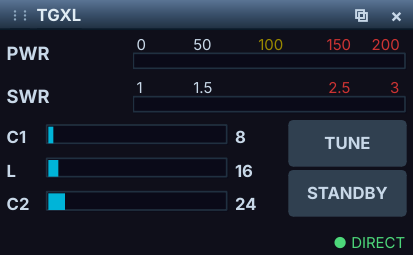
The TGXL applet with a Tuner Genius XL connected.
- Fwd Power gauge. Use Settings at the bottom of the applet to select
Auto (200 / 2,000 W) (the default) or Fixed 600 W. The choice is saved.
Fixed 600 W retains its scale at all power levels, including after reconnecting;
its labels are 0, 200, 400 and 600 W; at narrow widths intermediate labels
are hidden as needed to avoid overlap. Yellow starts at 400 W and red at 500 W.
Readings and peak markers above full scale are clamped to the end of the bar.
Auto starts at 0–200 W, changes to 0–2,000 W above
200 W, and returns to the low scale after forward power stays below 0.5 W
for 800 ms. This hold prevents range changes between syllables or CW elements.
Peak and MAX do not select the range.
The peak marker uses the tuner's own peak reading on a direct connection.
It is hidden when that reading rounds to 0 W.
The tuner's
maxfield is still parsed, but no MAX marker is displayed until a physical hardware capture establishes what it means. - SWR gauge. It starts at 1.0–3.0, changes to 1.0–10.0 above 3.0, and returns to the low scale at 1.0. Green, yellow, amber and red show the 1.5, 2.0 and 2.5 SWR boundaries on either scale. Below 5 W the bar is empty and idle readings cannot select the high range. A reported 1.0 still restores the low range. Accessible meter descriptions include the selected full scale.
- C1, L and C2 relay bars, refreshed from both direct status polls and state pushes.
- TUNE: starts an auto-tune. While a tune runs it reads STOP; pressing it stops the tune. The tuner stays in operate.
- OPERATE: cycles OPERATE → BYPASS → STANDBY.
- ANT 1 / ANT 2 / ANT 3 antenna buttons, shown when a directly connected
TGXL identifies itself as the 3-way model. Click a button to select that
antenna; the tuner's reported selection is highlighted. With firmware
1.2.41 or later, custom port names supplied by the tuner replace these labels.
When no names are returned, the buttons retain their default labels. SO2R
models do not show this row.
While transmitting (forward power at or above 5 W, or the TGXL interlock
cable is active), the selected antenna's button turns red.
Identification accepts the documented
inforeply prefix even if its sequence number differs from the request. While the direct variant is unknown, radio-relayed 3-way identification enables the row. A confirmed direct SO2R answer overrides that fallback and hides it.
Messages from the tuner appear across the applet for as long as the tuner
shows them: after a successful tune it shows the SWR it settled on
(Tuned SWR: 1.15:1), and a tune that could not run says why.
Meters update at about 60 Hz while transmitting and 4 Hz while receiving.
While a TGXL is present, the TUN indicator in the status bar shows its state and cycles it OPERATE → BYPASS → STANDBY, like the applet's OPERATE key. Click it, or Tab to it and press Return or Enter. Screen readers announce it as a button with its state.
The status-bar TX timer counts operator transmissions, not TGXL tune carriers. When the connected tuner reports STANDBY, a tune request does not suppress the timer for the next operator transmission, including with a direct-only tuner.
Popped out or on the canvas
Popped out into its own window, or placed on the Workspace Canvas, the applet is laid out like the tuner's front panel: the two meters, a status strip for each RF port showing what is feeding it and where it is tuned, the C1/L/C2 relay positions as dials, and separate STBY, BYP and TUNE keys. A port shows its source only while it has a live reading.
The SWR meter has the same flat dark track as PWR. Color in the bar shows the reported SWR.
Using manual relay control
With the direct connection active, the C1, L and C2 bars (and the dials in the popped-out layout) are adjustable:
- Scroll up over a relay to increase its position by 1.
- Scroll down to decrease it by 1.
- The cursor changes to ↕ over an adjustable relay.
This is useful for:
- Tweaking an auto-tune result for lower SWR
- Experimenting with different matching configurations
- Matching antennas the auto-tuner struggles with
Reference
Relays
| Relay | Component | Range |
|---|---|---|
| C1 | Input capacitor | 0–255 |
| L | Inductor | 0–255 |
| C2 | Output capacitor | 0–255 |
Protocol
The TGXL uses a text protocol in the same format as the SmartSDR API:
| Direction | Format |
|---|---|
| TGXL → Client (greeting) | V<version> or, when authorization is required, V<version> AUTH |
| Client → TGXL | C<seq>|<command>\n |
| TGXL → Client | R<seq>|<code>|<body>\n |
| TGXL → Client (push) | S0|state key=val ...\n |
Authorization: auth <code>. Manual relay command:
tune relay=<0\|1\|2> move=<+1\|-1> (C1 / L / C2).
Direct mode commands: operate set=<0|1> (standby / operate) and
bypass set=<0|1> (in line / bypass).
Known issues
- TUNE can fail on a remote FLEX-8600 while the Genius peripherals are connected in AetherSDR (#6001).
- On the radio-relay path, the TUN indicator may not change the tuner's state, and the OPERATE cycle can disagree with the tuner's real state (#4946).
Troubleshooting
A tune stops with "LOW RF POWER"
There was too little drive for the tuner to measure against.
- Raise the drive.
- Press TUNE again.
Relay bars don't scroll
Relay control needs the direct connection.
- Check the indicator reads
● DIRECT.● RADIOmeans AetherSDR is using the radio's relay. - Check the TGXL's row in Settings → Radio Setup... → Peripherals. Needs attention means a rejected code or failed connection; enter the code and click Connect.
- Make sure AetherSDR can reach TCP port 9010 on the tuner. Over SmartLink or a remote link, add the tuner's reachable address in Peripherals.
TGXL not detected
The radio is not reporting the tuner, or AetherSDR cannot reach it.
- Verify the TGXL is connected to the radio and powered on.
- Add it manually in Peripherals if the radio does not report it.
- Check the logs in Help → Support & Diagnostics....
OPERATE, STANDBY or BYPASS does not change the tuner
The tuner needs either a ready direct connection or a FlexRadio relay. If neither route is available when a control is requested, AetherSDR reports that the command was not sent.
- Check the indicator reads
● DIRECTor● RADIO. - For a direct connection, check the TGXL's row in Settings → Radio Setup... → Peripherals and reconnect if needed.
- If using the radio relay, connect the TGXL to your FlexRadio and connect AetherSDR to that radio.
- For direct-only control, check Help → Support & Diagnostics... for
TgxlConnection: command refused:. A nonzero reply code means the tuner rejected the command; the log includes its response.
See also
- Peripherals
- AetherSweep (automatic TGXL bypass during a sweep)
- Amplifiers