Skip allows you to share as much or as little code as you want between the iOS and Android versions of your app. The Cross-Platform Topics chapter details how to integrate Android-specific or iOS-specific code. This chapter focuses on shared dual-platform development.
The following sections assume you are already familiar with iOS development. We focus on where dual-platform Skip development differs from standard iOS development, including how to use Skip’s tools and what to do when things go wrong.
All multi-platform tools have limitations, and Skip is no exception. That is why we made it straightforward to exclude unsupported iOS code from your Android build. You can use any iOS feature on the iOS side of your app without compromising your project structure. When a feature is not available on Android, you provide a fallback or alternative. You may be able to find a solution among the thousands of cross-platform modules ↗ Skip already supports, or to port a Swift package that doesn’t yet compile for Android.
Skip also makes it easy to integrate Android-specific solutions, whether to work around limitations or to differentiate your Android experience.
So remember: build errors show you what may not yet be supported out of the box on Android. They might require extra work to overcome, but they are not blockers!
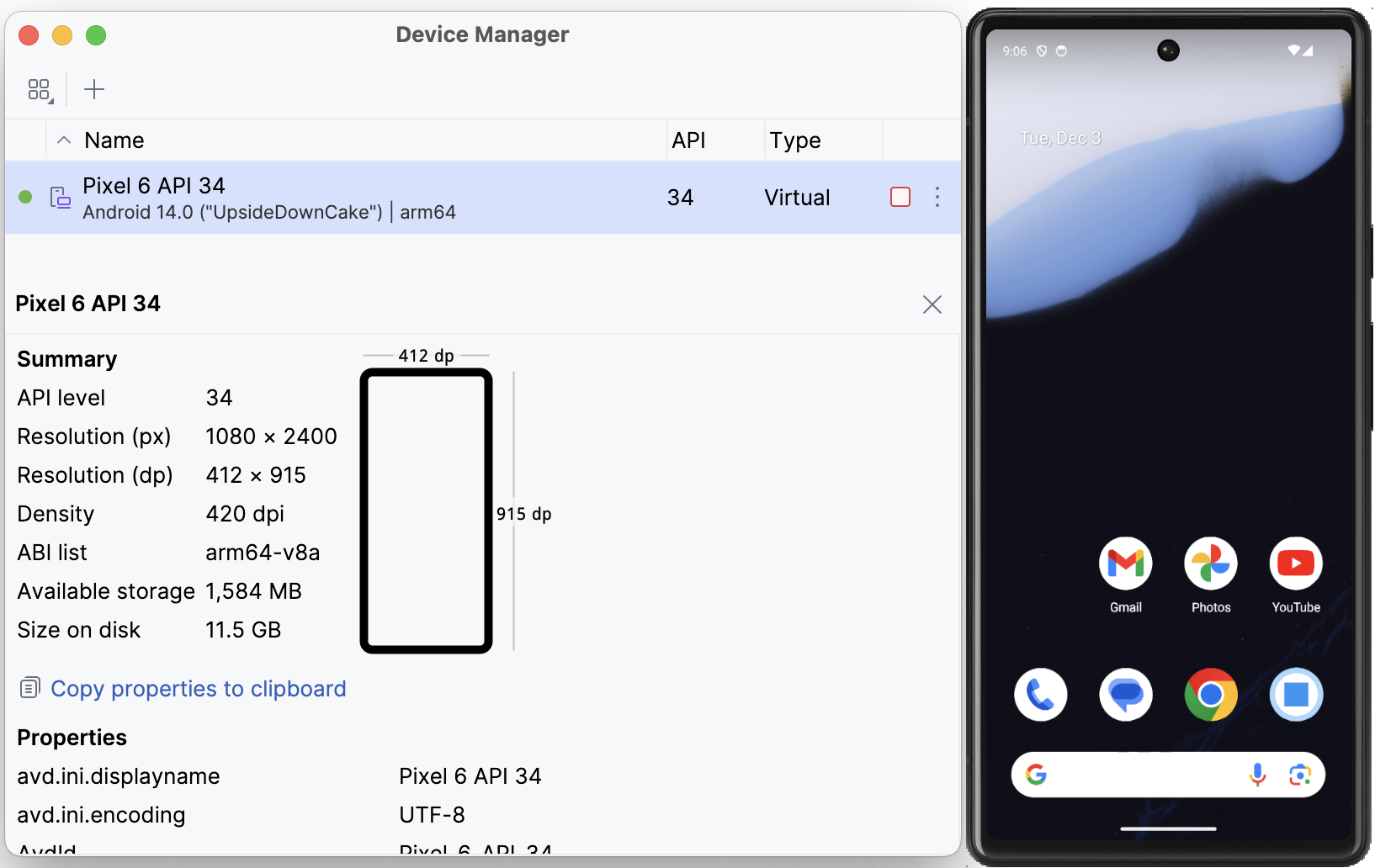
In order to run and test your app on Android, you will need either an Android emulator or a
paired Android device with developer mode enabled. You can set up an emulator by running
skip android emulator create and then skip android emulator launch, as described in
the command line reference.
Alternatively, you can install and launch Android Studio.app,
and then open the Device Manager from the ellipsis menu of the Welcome dialog
to create an emulator of your choice.
You can then use the Device Manager to launch the emulator, or you can run it from the terminal with a command like ~/Library/Android/sdk/emulator/emulator @Pixel_6_API_33.
In order to install and run an app on a connected Android device, you must enable USB debugging on the device, as per the ADB documentation ↗. Then pair the Android device with your development machine.
Make sure only one device or emulator is running at a time. Otherwise Skip cannot know where to launch your app. Alternatively, set the ANDROID_SERIAL variable in your project’s .xcconfig file to the desired device or emulator’s identifier. Running the /opt/homebrew/bin/adb devices command will show the available paired identifiers.
Assuming you followed the app creation instructions using skip create, each successful build of your Skip app will automatically attempt to launch it on the running Android emulator or device. Exactly one emulator or device must be running in order for the Skip project’s Launch APK script phase to install and run the app successfully.
If you are having trouble with Skip’s Xcode plugin, check the Troubleshooting section for help.
By default, whenever you run your iOS app from Xcode, Skip will also create and run the Android app. Building and running the app side-by-side is very useful for ensuring that both sides of the app look and behave the same while iterating on the app.
When debugging an iOS-specific issue, you can disable the Android launch by editing the AppName.xcconfig file (in your project’s root directory alongside Package.swift) and changing SKIP_ACTION = launch to SKIP_ACTION = build. This still builds the Android side but does not launch it on the emulator.
To skip the Android build entirely, set SKIP_ACTION = none in the same file. This makes builds faster when you are focused only on iOS.
If you’ve chosen to create separate iOS and Android apps that share dual-platform Swift frameworks, then you will build and run each app in its respective IDE. The Project Types guide contains tips for integrating dual-platform frameworks into your development workflow.
Building a dual-platform framework in Xcode builds your iOS code and runs the SkipStone build plugin. It does not, however, perform an Android build. Due to limitations on Xcode plugins, the only way to invoke the Android compiler is to run the module’s unit test suite against the macOS destination, or to export the framework’s build artifacts. For more information, see the testing and deployment documentation.
Writing dual-platform code with Skip resembles coding a standard iOS app, and seeing your Swift and SwiftUI run on Android is a great experience. But writing for two platforms does introduce complications not found in pure iOS development:
At some point, you will likely want to use an iOS API, framework, or feature that is not yet supported on Android. This section discusses your options when you encounter a limitation in dual-platform coverage.
Our porting guide covers some of the common issues you’ll run into when compiling cross-platform Swift. Additionally, compiled Swift must use bridging to interact with Android’s Kotlin and Java APIs.
Writing a dual-platform apps means using dual-platform libraries. Our documentation on dependencies discusses how to use other dual-platform libraries as well as iOS and Android-specific libraries.
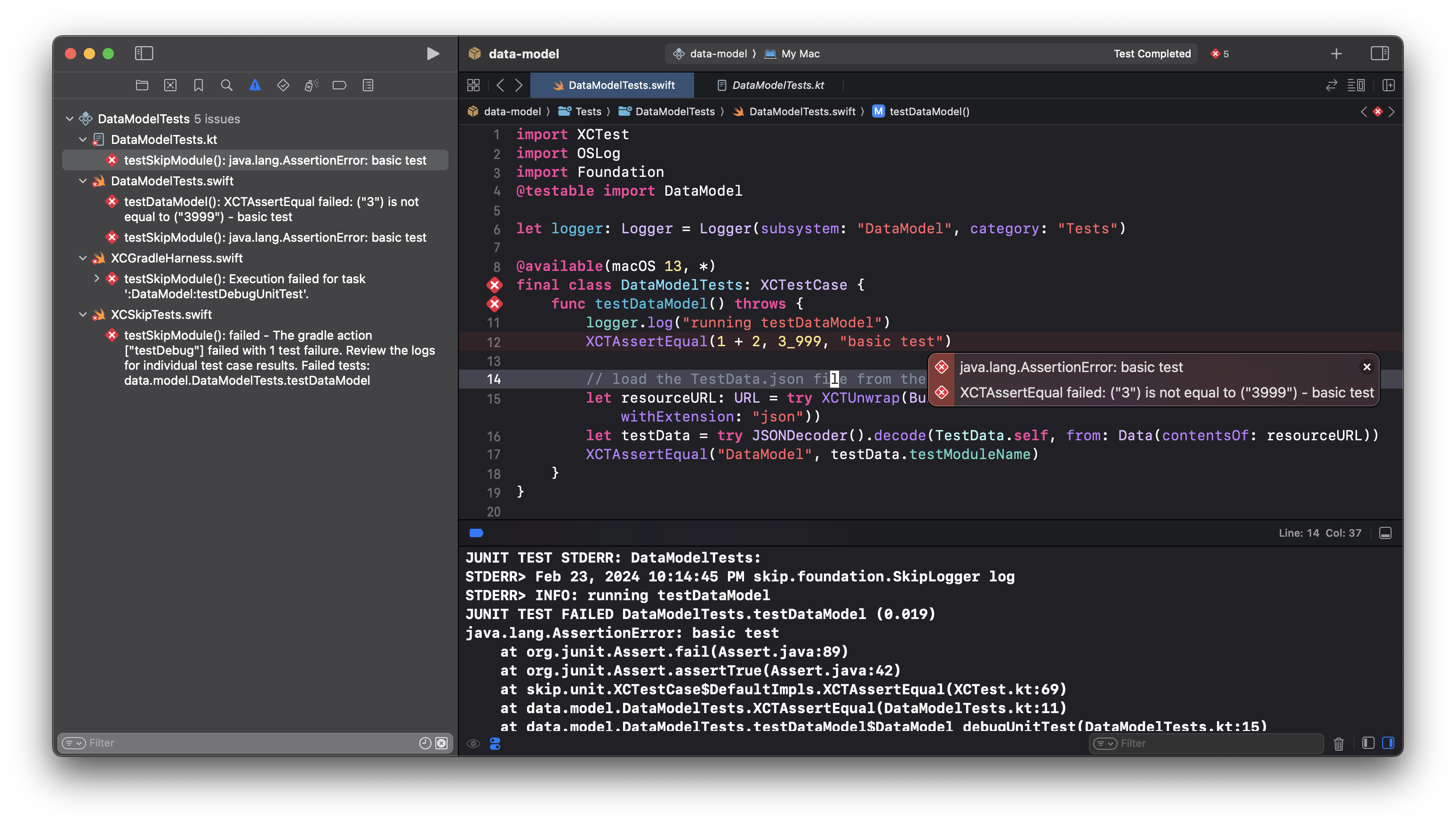
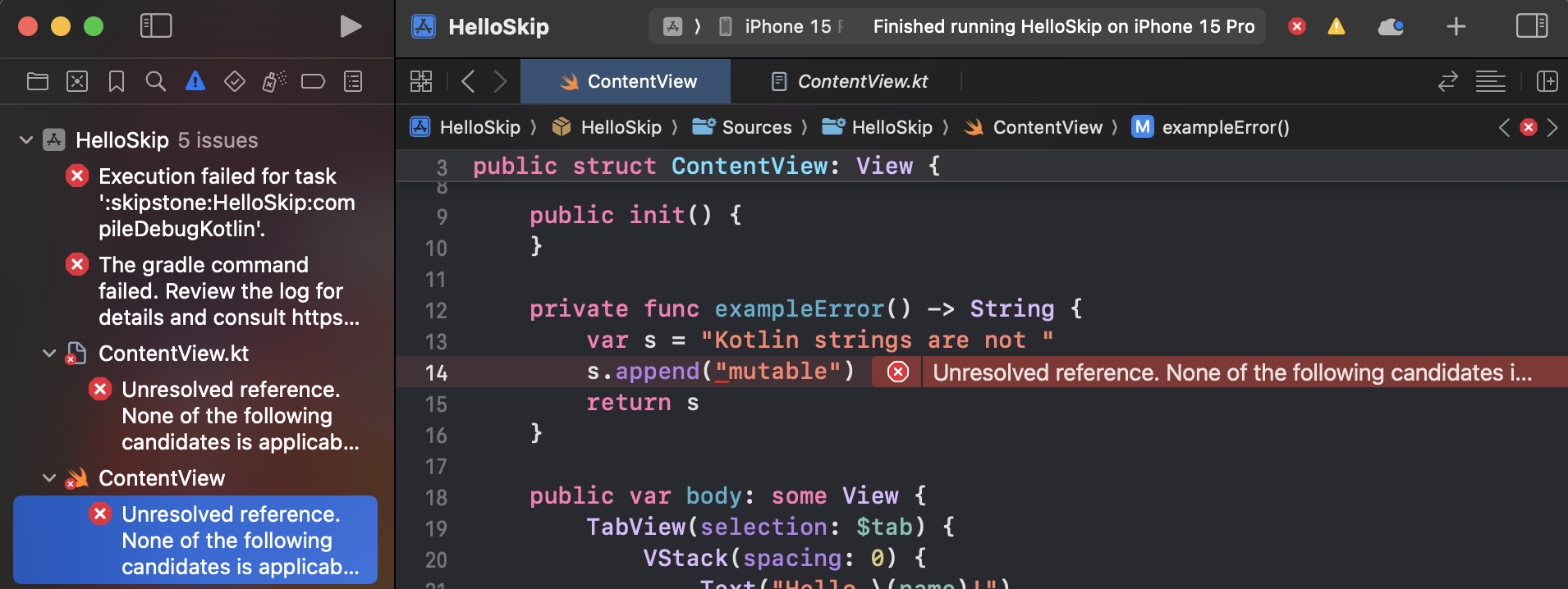
Skip tries to warn you as quickly as possible when you’re going down the wrong path. For example, the Skip build plugin may report warnings and errors even before Skip attempts to compile your project for Android. Skip also attempts to map all errors back to the offending Swift source code and surface them in Xcode, whether they come from bridging, transpilation, Kotlin compilation, or native compilation. Each error message therefore typically appears in two places: once inline in your Swift source code, and once in Xcode’s sidebar issue navigator. Clicking an entry will jump you to the offending code.
The most common build errors are:
Using an API without Android support. We discuss your options when an API you want to use has not yet been ported to Android below.
Needing to modify your imports for cross-platform Swift. Consult the porting guide for details.
Dealing with errors is an integral part of development. Be sure to read the Debugging chapter to learn how to access generated code, view your log statements, and debug the Android side of your Skip framework or application.
Google recommends Jetpack Compose ↗ for Android user interface development. Skip can translate a large subset of SwiftUI into Compose, allowing you to build cross-platform iOS and Android UI in SwiftUI. Or you can write a separate Android UI in pure Compose using your Android IDE of choice. Skip even allows you to move fluidly between SwiftUI and Compose, as described in our Cross-Platform Topics documentation. In the end, the choice between using SwiftUI, Jetpack Compose, or a combination of the two is up to you.
Regardless of whether you use Skip’s translated SwiftUI or write to the Compose API in Kotlin, Skip ensures that your @Observable model types participate in Compose state tracking. This allows them to seamlessly power your Android user interface just as they power your iOS one.
@Observable integration is transparent, but some caveats apply when you use a Swift model to power a bespoke Compose UI:
You must import SkipFuse in any Swift file that defines an @Observable type. This import enables the state tracking that keeps the Android UI in sync with your Swift model. The SkipStone build plugin will warn you if this import is missing.
In order to use an @Observable from a Kotlin UI, ensure that your @Observable is bridged.
Finally, if you are writing a bespoke Compose UI, you must add a SwiftPM dependency on SkipModel for your @Observables to work properly on Android, as in the following example. This is not necessary when you use a SwiftUI interface, because SkipModel will be included in your dependency on SkipFuseUI.
Skip lets you share all or parts of your user interface across both platforms. Because Skip translates your SwiftUI views to Jetpack Compose on Android, the result is a fully native user interface on both platforms, not a cross-platform approximation.
On Android, import SwiftUI provides SkipFuseUI, which bridges SwiftUI views to Jetpack Compose. Your Views and their SwiftUI properties must use default (internal) or public visibility. Private views and properties are not visible to Skip’s bridging layer and will not appear on Android. Here is an example of a valid cross-platform SwiftUI view:
import SwiftUI
struct MyView : View {
@Statevar counter =1// Use internal or public access for all SwiftUI types and members
privatelet title ="..."// OK to use private for non-SwiftUI members
...
var body: some View {
...
}
}
Under the hood, SkipFuseUI uses the SkipUI user interface library. The SkipUI documentation includes a list of supported SwiftUI components and coverage of various SkipUI topics. Reviewing these will help you avoid common issues when writing cross-platform SwiftUI.
Skip’s coverage of iOS APIs is growing with each release, but some iOS frameworks and features are not yet available on Android. Check the SkipUI supported components for current coverage.
Using an iOS API that is not yet supported on Android will result in either an unavailable API error or build error from the Android Swift compiler. If you encounter an error, check the porting guide to see if the API is actually available, but requires different imports for Android. If you are writing SwiftUI code, consult the SkipUI module to learn what is supported.
When you encounter missing API on Android, you have options! You may be able to use alternate, supported APIs to accomplish the task. The Swift Package Index ↗ site lists many cross-platform Swift packages that are known to build for Android. If you can’t find an existing solution, you can use Skip’s iOS and Android integration techniques to implement separate iOS and Android code paths, taking advantage of each platforms’ respective native solutions. And if the API you want to use is in a framework already mirrored for Android - either as a Skip open source library ↗ or a community library - you may be able to easily add the missing API to the existing library. If you augment an existing library, please consider contributing your improvements back to the Skip community. Follow the instructions here to configure Xcode for local Skip library development.
Some iOS app extensions and features are not yet implemented for Android, or have no direct Android counterpart. Use the techniques in Cross-Platform Topics to implement iOS-only or Android-only solutions. For example, you might use a compiler directive to exclude your iOS widget from your Android build, and include a Kotlin file implementing a native widget for Android instead.
Skip makes it easy to use platform-specific UI frameworks side by side with your shared SwiftUI code. On iOS you can use any SwiftUI view (including those backed by MapKit, Charts, or other Apple frameworks), while on Android you can drop into Jetpack Compose directly using ComposeView inside a #if SKIP block.
The key pattern is:
Use #if !SKIP to wrap your iOS-specific imports and view code.
Use #if SKIP (or the #else branch) to wrap your Android-specific Compose imports and view code.
On Android, use ComposeView to bridge from the SkipUI view hierarchy into raw Jetpack Compose composables.
The following example from the Skip Showcase app ↗ demonstrates this pattern by embedding an Apple MapKit Map on iOS and a Google Maps GoogleMap composable on Android:
// Copyright 2023–2026 Skip
import SwiftUI
#if !SKIP
import MapKit
#else
// add dependency in skip.yml: implementation("com.google.maps.android:maps-compose:6.4.1")
You can also embed legacy platform views — UIKit UIView subclasses on iOS and traditional Android XML-based View subclasses on Android — into your Skip app. This is useful when you need to integrate existing platform components that don’t have SwiftUI or Compose equivalents.
On iOS, you use UIViewRepresentable (or NSViewRepresentable on macOS) to wrap a UIKit view for use in SwiftUI. On Android, you use Compose’s AndroidView factory inside a ComposeView to wrap a traditional Android view for use in the SkipUI view hierarchy.
The following example from the Skip Bookings app ↗ shows how to embed a WKWebView on iOS and an android.webkit.WebView on Android:
For instructions on how to handle common development tasks like localization, resource and image loading, and JSON coding across platforms with Skip, see Common Topics.
You are visitor 01402503 — GeezerVison does not store the pages you look up. Best viewed with Netscape Navigator 4.7 or Internet Explorer 6 at 800×600. No cookies required.