GV

GeezerVison

The World Wide Web, restored to 800 pixels of glory.

Home|About|Gaming cabinet|Archives|How it works|Starter sites

On this site

  • Skip
  • Documentation
  • Blog
  • Sponsor
  • Forums
  • Slack
  • Mastodon
  • Twitter
  • GitHub
  • RSS
  • Getting Started
  • Project Structure
  • Lite and Fuse Modes
  • App Development

This view

  • Original page
  • New address

GeezerVison is showing skip.dev — Project Structure

Project Structure

Conventional Skip Projects

Section titled “Conventional Skip Projects”

A Skip app project is one that is created with skip init or skip create. At its essence, it is a standard Swift Package Manager project ↗, with a top-level Package.swift and directories for Sources/ and Tests/.

Skip augments this structure by adding shared Skip.env metadata and Darwin/ and Android/ sub-folders that house the build systems for their respective platforms along with platform-specific metadata and deployment information.

Tip

A Skip project is a strict superset of a conventional SwiftPM package, and can be included as a dependency of any other Swift package regardless of whether or not they use Skip.

A Skip project can be built locally with swift build and tested with swift test. In addition, Skip-specific commands like skip export can be used to build the platform-specific binaries (.ipa for iOS and .apk for Android) for distribution through the various app stores.

Samples

Section titled “Samples”

There are four standard examples that can be perused that illustrate the structure of a conventional Skip project:

  1. HelloSkip: A basic example of a transpiled Skip Lite app project.
  2. HowdySkip: A basic example of a compiled Skip Fuse app project.
  3. AhoySkipper: A multi-module Skip Fuse app project.
  4. HiyaSkip: An example of a Skip app project that uses a compiled (Skip Fuse) UI module bridging to a transpiled (Skip Lite) model layer module.

Filesystem Layout

Section titled “Filesystem Layout”

Consider an “Ahoy Skipper” Skip Fuse app with two modules and test cases that can be generated with the following skip init command (or the equivalent skip create interactive command):

Terminal window
skip init --native-app --bridged --module-tests --show-tree --appid=ahoy.skipper ahoy-skipper AhoySkipper SkipperModel

An abridged view of the filesystem layout of the app will look like this:

  • README.md
  • Skip.env App metadata (name, version, appid, etc.)
  • Package.swift Standard SwiftPM build file
  • Project.xcworkspace Xcode workspace container for Darwin project
  • DirectorySources
    • DirectoryAhoySkipper App module with SwiftUI source
      • AhoySkipperApp.swift App entry point
      • ContentView.swift Top-level SwiftUI view
      • DirectoryResources
        • Localizable.xcstrings Localized UI strings
        • Module.xcassets Images and other resources
      • DirectorySkip
        • skip.yml Skip module configuration
    • DirectorySkipperModel Model code used by AhoySkipper
      • ViewModel.swift Observable model code
      • DirectoryResources
        • Localizable.xcstrings Localized model strings
      • DirectorySkip
        • skip.yml Skip module configuration
  • DirectoryTests
    • DirectorySkipperModelTests
      • SkipperModelTests.swift XCUnit test cases
      • DirectoryResources
        • TestData.json Test data
      • DirectorySkip
        • skip.yml Skip module configuration
  • DirectoryAndroid
    • gradle.properties
    • settings.gradle.kts Top-level Gradle configuration
    • Directoryapp
      • build.gradle.kts Gradle build file
      • proguard-rules.pro Proguard/R8 optimization configuration
      • Directorysrc
        • Directorymain
          • AndroidManifest.xml Android app metadata
          • Directorykotlin
            • Main.kt Entry point for Android app
          • Directoryres
            • Directorymipmap-hdpi Android app icon
              • ic_launcher.png
              • …
            • …
    • Directoryfastlane configuration for App Store
      • Appfile
      • Fastfile
      • Directorymetadata
        • Directoryandroid
          • Directoryen-US
            • title.txt
            • short_description.txt
            • full_description.txt
            • …
  • DirectoryDarwin
    • AhoySkipper.xcconfig Xcode build configuration
    • AhoySkipper.xcodeproj Xcode project
    • Info.plist iOS app metadata
    • Entitlements.plist iOS permissions
    • DirectoryAssets.xcassets iOS app assets
      • DirectoryAppIcon.appiconset iOS app icon
        • AppIcon.png
        • …
    • DirectorySources
      • Main.swift Entry point for Darwin app
    • Directoryfastlane configuration for Play Store
      • Appfile
      • Deliverfile
      • Fastfile
      • Directorymetadata
        • app_privacy_details.json
        • rating.json
        • Directoryen-US
          • title.txt
          • subtitle.txt
          • description.txt
          • …

Package.swift

Section titled “Package.swift”

This file is the manifest for the Swift Package Manager (SwiftPM). It defines the project’s name, products (libraries or executables), dependencies, and targets. In a Skip project, it also declares the skipstone plugin, which handles the translation of the iOS project into an equivalent Android project.

  • Example: https://github.com/skiptools/skipapp-ahoy/blob/main/Package.swift ↗
  • Reference: Swift Package Manager - Package.swift Manifest ↗

Project.xcworkspace

Section titled “Project.xcworkspace”

This file is an Xcode Workspace, a container used to group multiple Xcode projects and Swift packages together. In Skip, it allows you to manage the primary Darwin app project alongside the shared Swift modules in a single interface, ensuring that shared code changes are immediately reflected in the app build.

The generated Project.xcworkspace will contain only the Darwin/ProjectName.xcodeproj, but additional projects and frameworks can be added to it, as described in the Contribution Guide.

  • Example: https://github.com/skiptools/skipapp-ahoy/blob/main/Project.xcworkspace/contents.xcworkspacedata ↗
  • Reference: Xcode Help - Workspace Concepts ↗

Skip.env

Section titled “Skip.env”

This is a shared configuration environment file for Skip projects. It contains key-value pairs for project-wide metadata, such as the PRODUCT_NAME, MARKETING_VERSION, and PRODUCT_BUNDLE_IDENTIFIER. These variables are used by both the Xcode build process and the Gradle build process to ensure consistency between the iOS and Android binaries. It is included by both the Darwin/ProjectName.xcconfig and Android/settings.gradle.kts files.

  • Example: https://github.com/skiptools/skipapp-ahoy/blob/main/Skip.env ↗
  • See also: Configuration Metadata

Sources/<Module>/<Module>App.swift

Section titled “Sources/<Module>/<Module>App.swift”

The shared app entry point, which launches and configures the app and holds the primary ContentView.swift and contains app lifecycle callbacks. This will be the common app logic that is invoked from the Darwin Main.swift and Android Main.kt.

  • Example: https://github.com/skiptools/skipapp-ahoy/blob/main/Sources/AhoySkipper/AhoySkipperApp.swift ↗

Sources/<Module>/ContentView.swift

Section titled “Sources/<Module>/ContentView.swift”

This file is a SwiftUI View file representing the main user interface of the application. In a Skip project, the SwiftUI code in this file will be translated into Jetpack Compose for Android, allowing a single declarative UI definition to drive both platforms.

  • Example: https://github.com/skiptools/skipapp-ahoy/blob/main/Sources/AhoySkipper/ContentView.swift ↗
  • Reference: SwiftUI Views ↗

Sources/<Module>/Skip/skip.yml

Section titled “Sources/<Module>/Skip/skip.yml”

This is a YAML Configuration file specific to Skip. It controls module-level settings, such as Skip mode, bridging configurations, and Android-specific dependencies.

  • Example: https://github.com/skiptools/skipapp-ahoy/blob/main/Sources/AhoySkipper/Skip/skip.yml ↗

Sources/<Module>/Resources/Module.xcassets

Section titled “Sources/<Module>/Resources/Module.xcassets”

This is an Asset Catalog located within a specific Swift module. It holds resources like images, data, and localized strings that are scoped to that module. Skip ensures these assets are processed and made available to both the iOS bundle and the Android res directory.

  • Example: https://github.com/skiptools/skipapp-ahoy/tree/main/Sources/AhoySkipper/Resources/Module.xcassets ↗
  • Reference: Apple Developer - Asset Catalogs ↗

Sources/<Module>/Resources/Localizable.xcstrings

Section titled “Sources/<Module>/Resources/Localizable.xcstrings”

This is a String Catalog file used for managing translations. It is the modern format for Darwin localization. Skip converts these strings into Android asserts during the build process which will be used to provide translation parity on both platforms.

  • Example: https://github.com/skiptools/skipapp-ahoy/blob/main/Sources/AhoySkipper/Resources/Localizable.xcstrings ↗
  • Reference: Apple Developer - Localizing UI Strings ↗

Sources/<Module>/ViewModel.swift

Section titled “Sources/<Module>/ViewModel.swift”

This file contains the business logic and state for the app, typically utilizing the @Observable macro.

  • Example: https://github.com/skiptools/skipapp-ahoy/blob/main/Sources/SkipperModel/ViewModel.swift ↗

Tests/<Module>/SkipperModelTests.swift

Section titled “Tests/<Module>/SkipperModelTests.swift”

This file contains test cases used to verify the logic of your modules. For a Skip Fuse project, these tests can be run directly with skip android test, and for a Skip Lite project, tests will be transpiled into Kotlin and can be run with skip test.

  • Example: https://github.com/skiptools/skipapp-ahoy/blob/main/Tests/SkipperModelTests/SkipperModelTests.swift ↗

Darwin/ProjectName.xcconfig

Section titled “Darwin/ProjectName.xcconfig”

This is an Xcode Build Configuration file. It provides a way to define build settings (such as compiler flags or search paths) in a plain-text format rather than within the opaque .xcodeproj file, making it easier to manage environment-specific settings.

This configuration file automatically includes the root-level Skip.env file, so common properties can be shared between the Darwin and Android projects.

  • Example: https://github.com/skiptools/skipapp-ahoy/blob/main/Darwin/AhoySkipper.xcconfig ↗
  • Reference: Apple Developer - Configuration Settings File (xcconfig) format ↗

Darwin/ProjectName.xcodeproj

Section titled “Darwin/ProjectName.xcodeproj”

This is the Xcode Project file, a bundle containing the configuration, build targets, and file references for the Darwin (iOS/macOS) version of the app. It is the primary entry point for developers focused on the Apple ecosystem.

This project will automatically be included by the generated Project.xcworkspace.

Tip

Many of the project configuration options are specified in the Darwin/ProjectName.xcconfig. You should generally prefer to manage the project settings in the .xcconfig file rather than managing them through the Xcode interface, since those are human-readable and more amenable to source control management systems like git.

  • Example: https://github.com/skiptools/skipapp-ahoy/tree/main/Darwin/AhoySkipper.xcodeproj ↗
  • Reference: Apple Developer - Xcode Project Structure ↗

Darwin/Assets.xcassets

Section titled “Darwin/Assets.xcassets”

This is the Primary Asset Catalog for the Darwin application. It typically contains the application’s icon sets, launch images, and global color assets required for the iOS target.

Caution

Because it is located in the Darwin/ folder, this asset catalog is not shared between the platforms. For shared per-module resources, instead use the Sources/<Module>/Resources//Module.xcassets files.

  • Example: https://github.com/skiptools/skipapp-ahoy/tree/main/Darwin/Assets.xcassets ↗

Darwin/Assets.xcassets/AppIcon.appiconset/AppIcon.png

Section titled “Darwin/Assets.xcassets/AppIcon.appiconset/AppIcon.png”

This is the Source Image file for the Darwin application icon.

  • Example: https://github.com/skiptools/skipapp-ahoy/tree/main/Darwin/Assets.xcassets/AppIcon.appiconset ↗
  • Reference: Apple Developer - App icons ↗

Darwin/Entitlements.plist

Section titled “Darwin/Entitlements.plist”

This is an XML Property List that defines the capabilities and permissions of the iOS app, such as Push Notifications or application permissions.

  • Example: https://github.com/skiptools/skipapp-ahoy/blob/main/Darwin/Entitlements.plist ↗
  • Reference: Apple Developer - Entitlements ↗

Darwin/Info.plist

Section titled “Darwin/Info.plist”

This file is the Information Property List for the iOS application. It contains essential configuration data, such as the bundle identifier, supported orientations, and required hardware capabilities.

  • Example: https://github.com/skiptools/skipapp-ahoy/blob/main/Darwin/Info.plist ↗
  • Reference: Apple Developer - Info.plist Keys ↗

Darwin/Sources/Main.swift

Section titled “Darwin/Sources/Main.swift”

This file serves as the Darwin Entry Point. It contains the @main attribute which initializes the SwiftUI App lifecycle for the iOS/macOS version of the project.

The contents of this file will be quite minimal. Like its Kotlin Main.kt counterpart, it mostly calls into the shared <Module>App.swift.

  • Example: https://github.com/skiptools/skipapp-ahoy/blob/main/Darwin/Main.swift ↗
  • Reference: Apple Developer - App Structure ↗

Darwin/fastlane/

Section titled “Darwin/fastlane/”

This directory contains Fastlane configuration files (Deliverfile, Fastfile, Appfile) used to automate the deployment process for the iOS app, specifically for uploading to the Apple App Store and TestFlight.

  • Example: https://github.com/skiptools/skipapp-ahoy/tree/main/Darwin/fastlane ↗
  • Reference: Fastlane - Upload metadata and binary to App Store Connect ↗

Android/app/src/main/kotlin/Main.kt

Section titled “Android/app/src/main/kotlin/Main.kt”

This is the Android Entry Point. It contains the MainActivity class, which serves as the primary Activity for the Android app. The contents of this file will be quite minimal. Like its Swift Main.swift counterpart, it mostly calls into the shared <Module>App.swift.

  • Example: https://github.com/skiptools/skipapp-ahoy/blob/main/Android/app/src/main/kotlin/Main.kt ↗
  • Reference: Android Developers - Activities ↗

Android/settings.gradle.kts

Section titled “Android/settings.gradle.kts”

This is a Gradle Settings file written in Kotlin DSL. It defines the project-level settings and includes the sub-modules (like :app) that make up the Android build.

  • Example: https://github.com/skiptools/skipapp-ahoy/blob/main/Android/settings.gradle.kts ↗
  • Reference: Gradle - Settings File ↗

Android/app/build.gradle.kts

Section titled “Android/app/build.gradle.kts”

This is the Module-level Gradle Build file. It defines the Android-specific build configuration, including SDK versions, signing configurations, and dependencies (including the transpiled Swift modules).

  • Example: https://github.com/skiptools/skipapp-ahoy/blob/main/Android/app/build.gradle.kts ↗
  • Reference: Android Developers - Configure Your Build ↗

Android/app/proguard-rules.pro

Section titled “Android/app/proguard-rules.pro”

This file contains R8/ProGuard rules for code shrinking and optimization. It ensures that the Kotlin code and its dependencies are properly minified for production.

  • Example: https://github.com/skiptools/skipapp-ahoy/blob/main/Android/app/proguard-rules.pro ↗
  • Reference: Enable app optimization ↗

Android/src/main/AndroidManifest.xml

Section titled “Android/src/main/AndroidManifest.xml”

This is the Android Manifest file. It describes essential information about the app to the Android build tools, the Android OS, and Google Play, including permissions and the entry point Activity.

  • Example: https://github.com/skiptools/skipapp-ahoy/blob/main/Android/app/src/main/AndroidManifest.xml ↗
  • Reference: Android Developers - App Manifest Overview ↗

Android/src/main/kotlin/res/

Section titled “Android/src/main/kotlin/res/”

This is a folder that contains app icon for various density Android screens.

  • Example: https://github.com/skiptools/skipapp-ahoy/tree/main/Android/app/src/main/res ↗
  • Reference: Android Developers - App Icons ↗

Android/fastlane/

Section titled “Android/fastlane/”

This directory contains Fastlane configuration files (Appfile, Fastfile) used to automate the deployment process for the Android app, specifically for uploading to the Google Play Store.

  • Example: https://github.com/skiptools/skipapp-ahoy/tree/main/Android/fastlane ↗
  • Reference: Fastlane - Upload metadata, screenshots and binaries to Google Play ↗

Project Types

Section titled “Project Types”

The Skip Getting Started guide demonstrates using skip create to generate a basic app project interactively, but there are a variety of additional project types. This document discussed the various different project types that can be created and built with Skip.

Creating an App with skip init

Section titled “Creating an App with skip init”

The skip init command is an alternative to the interactive skip create command, which facilitates the initialization of an app with a single, non-interactive command. Run skip init --help or see the the command line reference for a complete listing of skip init options.

Creating a Standard App

Section titled “Creating a Standard App”

Create a new dual-platform app project with the command:

Terminal window
skip init --native-app --appid=bundle.id project-name AppName

Tip

Passing --native-app creates a Skip Fuse app, and --transpiled-app will create a Skip Lite app.

Note

Your appid must contain at least two words, and each word must be separated by a .. It is conventional to use reverse-DNS naming, such as com.companyname.AppName. Also make sure that your project-name and AppName are different. It is conventional to use a lowercase, hyphenated name for your project (which Skip uses to create your app’s main SwiftPM package name), and UpperCamelCase for your app name.

Pass the --open-xcode argument to immediately open the project in Xcode. For example:

Terminal window
skip init --open-xcode --native-app --appid=bundle.id.HelloSkip hello-skip HelloSkip

This will create a hello-skip/ folder with a new SwiftPM package containing a single module named HelloSkip, along with folders named Darwin and Android and the shared Skip.env app configuration file. The Darwin folder will contain a HelloSkip.xcodeproj project with a HelloSkip target, which you can open in Xcode.

Note

See the command line reference for a complete listing of skip init options.

Creating a Multi-Module App

Section titled “Creating a Multi-Module App”

Skip is designed to accommodate and encourage using multi-module projects. You can create a modularized project by specifying additional module names to skip init at the end of the chain. For example:

Terminal window
skip init --native-app --appid=bundle.id.HelloSkip multi-project HelloSkip HelloModel HelloCore

This command will create a SwiftPM project with three modules: HelloSkip, HelloModel, and HelloCore. The heuristics of such module creation is that the modules will all be dependent on their subsequent peer module, with the first module (HelloSkip) having an initial dependency on SkipFuseUI and the second module depending on SkipFuse and SkipModel. The Package.swift file can be manually edited to shuffle around dependencies, or to add new dependencies on additional frameworks.

Creating Separate iOS and Android Apps

Section titled “Creating Separate iOS and Android Apps”

You might choose to share functionality using dual-platform frameworks, but create separate iOS and Android apps. Some development teams, for example, would like to share common model and business logic layers, but write the UI separately for each platform.

The Travel Posters sample app provides an example of this pattern. You can read more about it in this blog post. It has the following top-level entries:

  • travel-posters-model: This SwiftPM package builds a dual-platform framework containing a common model layer for the iOS and Android apps. Skip ensures that the @Observable types you write in Swift can power not only a SwiftUI interface, but a Compose interface as well. See the Development documentation for details.
  • iOS: Directory containing the TravelPosters iOS app and Xcode project, which has travel-posters-model as a package dependency.
  • Android: Directory containing the Android version of the app. The Android/lib directory contains exported archives of travel-posters-model and the various Skip frameworks that it depends on.
  • TravelPostersNative.xcworkspace: A workspace that includes both the iOS app and the travel-posters-model package.

Use TravelPostersNative.xcworkspace to iterate on the iOS app and/or shared model layer. To donate the latest travel-posters-model code to the Android app:

Terminal window
skip export --project travel-posters-model -d Android/lib/debug/ --debug
skip export --project travel-posters-model -d Android/lib/release/ --release

There are many ways to automate this process, from simple scripting to git submodules to publishing Skip’s generated Android travel-posters-model output to a local Maven repository. Use whatever system fits your team’s workflow best.

Note

See the Deployment chapter for more information on skip export.

Additional notes:

  • You may need to “Sync Project with Gradle Files” in Android Studio after updating the exported libraries.
  • Using an exported library function which has transitive dependencies on additional Android libraries can cause a runtime error. You must ensure that all transitive dependencies are in your own app’s build.gradle.kts.

Creating a Dual-Platform Framework

Section titled “Creating a Dual-Platform Framework”

SkipFuse apps can depend on pure SwiftPM packages as well as pure Kotlin/Java Android libraries. See the chapter covering dependencies for details. This section describes how to create a Swift framework whose API can be used from both Swift and Kotlin. The most common use cases are powering SkipLite transpiled apps or separate iOS and Android apps.

Dual-platform Skip frameworks are pure SwiftPM packages that encapsulate common functionality. Frameworks are simpler than app projects, as they do not need Darwin/ and Android/ folders.

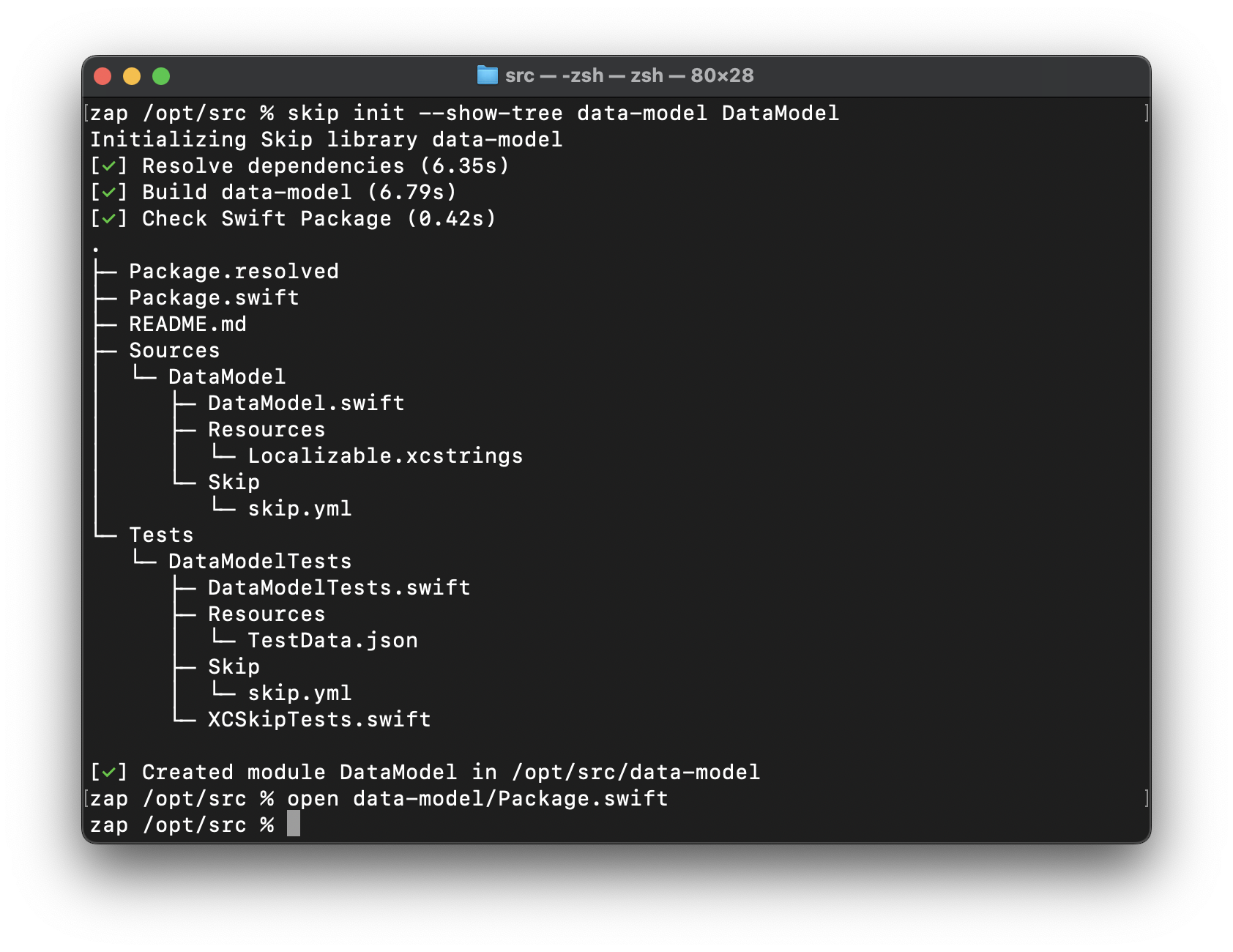
Framework Development Screenshot

A new framework project can be generated with:

Terminal window
skip init --native-model lib-name ModuleName

This will create a new lib-name folder containing a Package.swift with targets of ModuleName and ModuleNameTests.

Tip

Passing --native-model creates a Skip Fuse compiled Swift package. Omit this flag to create a Skip Lite transpiled package instead. Skip frameworks like SkipLib and SkipFoundation are examples of transpiled packages, and they are rich sources of examples of various strategies for providing dual-platform functionality.

The generated package can be opened in Xcode, which you can use to build and run the unit tests. Or use swift build and swift test from the Terminal for headless testing as part of a continuous integration process.

Note

Due to limitations on Xcode plugins, building your framework target only builds the iOS version. To build the Android version, you must run your unit tests. The Android build occurs as part of the testing process.

The --native-model option we passed to skip init will configure Skip to automatically bridge our model’s public API from compiled Swift to Android’s ART ↗ Java runtime. This is done through the skip.yml configuration file included in every Skip module. See the documentation on bridging and skip.yml for details.

Skip Framework Structure

Section titled “Skip Framework Structure”

The structure of a Skip framework is exactly the same as any other SwiftPM package:

  • Directorylib-name
    • Package.swift
    • README.md
    • DirectorySources
      • DirectoryModuleName
        • ModuleName.swift
        • DirectoryResources
          • Localizable.xcstrings
        • DirectorySkip
          • skip.yml
    • DirectoryTests
      • DirectoryModuleNameTests
        • ModuleNameTests.swift
        • XCSkipTests.swift
        • DirectoryResources
          • TestData.json
        • DirectorySkip
          • skip.yml

Skip frameworks use a standard Package.swift file, with the exception of added dependencies on Skip libraries and use of the skipstone plugin for transpilation:

Package.swift
// swift-tools-version: 5.9
import PackageDescription
let package = Package(
name: "lib-name",
defaultLocalization: "en",
platforms: [.iOS(.v16), .macOS(.v13), .tvOS(.v16), .watchOS(.v9), .macCatalyst(.v16)],
products: [
.library(name: "ModuleName", targets: ["ModuleName"]),
],
dependencies: [
.package(url: "https://github.com/skiptools/skip.git", from: "1.7.0"),
.package(url: "https://github.com/skiptools/skip-fuse.git", from: "1.0.0"),
.package(url: "https://github.com/skiptools/skip-model.git", from: "1.0.0"),
],
targets: [
.target(name: "ModuleName", , dependencies: [
.product(name: "SkipFuse", package: "skip-fuse")
.product(name: "SkipModel", package: "skip-model")
], plugins: [
.plugin(name: "skipstone", package: "skip")
]),
.testTarget(name: "ModuleNameTests", dependencies: ["ModuleName"], plugins: [.plugin(name: "skipstone", package: "skip")]),
]
)

This configuration includes the dependencies you need to write common model code, including @Observables that will work with both SwiftUI and Compose user interfaces. You are free to edit Package.swift for your particular needs.


Migrating an Existing App to Skip

Section titled “Migrating an Existing App to Skip”

Migrating an existing app to Skip is not trivial. Most apps contain many iOS-only dependencies that make an Android port challenging.

Additionally, when you use skip create or skip init to create a new Skip app, it handles all the messy details involved in making an app that can build for both iOS and Android. The process is complex enough that we do not recommend trying to migrate an existing Xcode project. Instead, choose one of two options to create an Android version of your existing app:

  1. Use skip create or skip init to create a new Skip app, then add your existing app’s dependencies and code.
  2. Keep your existing Xcode app, and create a separate Android app using Android Studio or your IDE of choice. Manage the apps separately, but share code by creating dual-platform frameworks.

Regardless of which option you choose, your first steps are the same:

  1. Modularize your app into Swift Package Manager packages, if it isn’t already.
  2. Starting with your “base” module and working your way up the stack, attempt to get each module building for Android.

We recommend using Skip Fuse where possible, as it offers greater compatibility with existing Swift code and dependencies.

Porting an app to an entirely new platform isn’t easy, even with Skip. Remember that we’re here to help.

You are visitor 01402503 — GeezerVison does not store the pages you look up.
Best viewed with Netscape Navigator 4.7 or Internet Explorer 6 at 800×600. No cookies required.