GeezerVisonThe World Wide Web, restored to 800 pixels of glory. |
| Home|About|Gaming cabinet|Archives|How it works|Starter sites |
GeezerVison is showing thepythoncode.com — How to Detect Contours in Images using OpenCV in Python - The Python Code Turn your code into any language with our Code Converter. It's the ultimate tool for multi-language programming. Start converting now! A contour is a closed curve joining all the continuous points having some color or intensity, they represent the shapes of objects found in an image. Contour detection is a useful technique for shape analysis and object detection and recognition. In a previous tutorial, we have discussed edge detection using the Canny algorithm and we've seen how to implement it in OpenCV, you may ask, what's the difference between edge detection and contour detection? Well, when we perform edge detection, we find the points where the intensity of colors changes significantly, and then we simply turn those pixels on. However, contours are abstract collections of points and segments corresponding to the shapes of the objects in the image. As a result, we can manipulate contours in our programs such as counting the number of contours, using them to categorize the shapes of objects, cropping objects from an image (image segmentation), and much more. Contour detection is not the only algorithm for image segmentation though, there are a lot of others, such as the current state-of-the-art semantic segmentation using transformers, hough transform, and K-Means segmentation. For better accuracy, here is the whole pipeline that we gonna follow to successfully detect contours in an image:
Related: How to Apply HOG Feature Extraction in Python. Alright, let's get started. First, let's install the dependencies for this tutorial: Importing the necessary modules: We gonna use this image for this tutorial:
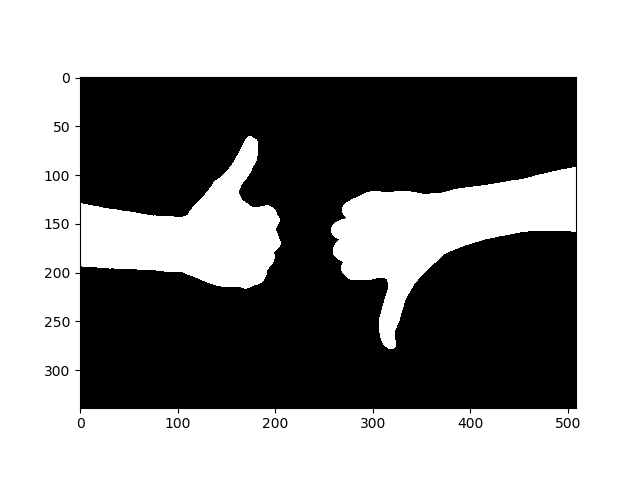
Let's load it: Converting it to RGB and then grayscale: As mentioned earlier in this tutorial, we gonna need to create a binary image, which means each pixel of the image is either black or white. This is a necessity in OpenCV, finding contours is like finding a white object from a black background, objects to be found should be white and the background should be black. The above code creates the binary image by disabling (setting to 0) pixels that have a value of less than 225 and turning on (setting to 255) the pixels that has a value of more than 225, here is the output image:
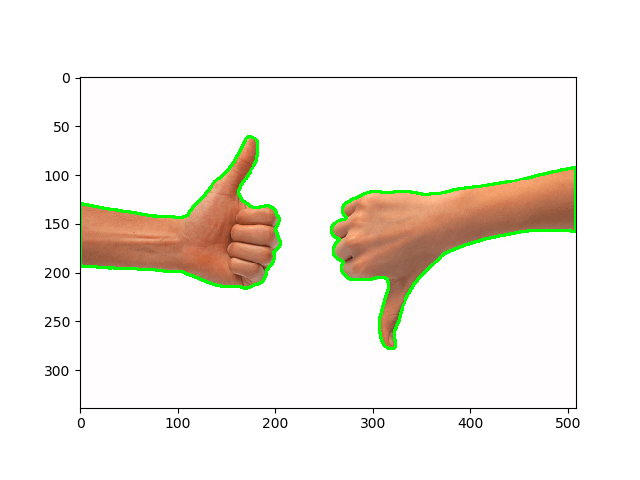
RELATED: Mastering YOLO: Build an Automatic Number Plate Recognition System with OpenCV in Python. Now, this is easy for OpenCV to detect contours: The above code finds contours within the binary image and draws them with a thick green line to the image, let's show it: Output image:
RELATED: How to Detect Shapes in Images using OpenCV in Python You can always check the OpenCV's official documentation for more information. Mastering YOLO: Build an Automatic Number Plate Recognition SystemBuilding a real-time automatic number plate recognition system using YOLO and OpenCV library in Python Download EBookHappy Coding ♥ Finished reading? Keep the learning going with our AI-powered Code Explainer. Try it now!
Sharing is caring!
Read also
How to Perform Edge Detection in Python using OpenCVLearning how to apply edge detection in computer vision applications using canny edge detector algorithm with OpenCV in Python. 
How to Detect Shapes in Images in Python using OpenCVDetecting shapes, lines and circles in images using Hough Transform technique with OpenCV in Python. Hough transform is a popular feature extraction technique to detect any shape within an image. 
Image Transformations using OpenCV in PythonLearn how to perform perspective image transformation techniques such as image translation, reflection, rotation, scaling, shearing and cropping using OpenCV library in Python. CommentsGot a coding query or need some guidance before you comment? Check out this Python Code Assistant for expert advice and handy tips. It's like having a coding tutor right in your fingertips! |
| You are visitor 01402503 — GeezerVison does not store the pages you look up. Best viewed with Netscape Navigator 4.7 or Internet Explorer 6 at 800×600. No cookies required. |

 To achieve good results on different and real-world images, you need to tune your threshold value or perform edge detection. For instance, for a pancakes image, I've decreased the threshold to
 Alright, this is it for this tutorial, if you want to test this on your live camera, head to
