GeezerVisonThe World Wide Web, restored to 800 pixels of glory. |
| Home|About|Gaming cabinet|Archives|How it works|Starter sites |
GeezerVison is showing thepythoncode.com — How to Build a GUI Currency Converter using Tkinter in Python - The Python Code Step up your coding game with AI-powered Code Explainer. Get insights like never before! Tkinter is one of those great built-in Python libraries that has been around for a long time; it is used to create snazzy graphical user interfaces (GUIs) for desktop applications. This article will teach you to build a currency converter application using the Tkinter library and ExchangeRate API. If you wish to use another source of data, then check this tutorial, where we used five different sources for currency conversion, including Fixer API, Yahoo Finance, and more. The ExchangeRate API is a real-time currency API that is both free and pro, it supports currency conversion rates for 161 currencies, and for a freemium account, you are required to make 250 requests per month, so using a free account will save the day for us. At the end of this article, we are going to build an application that looks as follows:
Here is the table of contents:
Setting up the ProjectFirst things first, let us set up the project. We will start by creating the virtual environment and then installing the Python Create a folder named We will create the virtual environment in this folder and name it Activate the virtual environment, on Windows: On Linux/macOS: Now that the virtual environment is activated, let's install the Designing the Graphical User Interface (GUI)In this section, we will start designing the GUI for the application from the ground up. First of all, create a file named
We will start by creating the main window of the application. Open the file and paste this code: In the above code, we are creating the main window using the We also use the If you run this program, you will get this output:
Now let us create two frames, the top frame and the button frame. The top frame will contain the text "Currency Converter" and it should look like this:
Just after this line of code: Paste these lines of code: We added some colors and created the top frame containing the label. The top frame must be placed inside the main window that we have just created; the frame is taking three other attributes, The output of this code is this:
Let us now create the bottom frame; this frame will contain widgets like
Below the We are creating a bottom frame; just like the top frame, we will place the bottom frame inside the main window. Inside this frame, we will place the remaining widgets, the two labels, the two combo boxes, the entry, and the button. Running the code, you will get this output:
Congratulations on successfully designing the graphical user interface of the application! Getting the API Key for the ExchangeRate APIThe ExchangeRate API requires us to have an API key that will enable us to make successful requests to it. To get the API Key, go to this URL and enter your email in the email field:
Click the Get Free Key button, and you will be prompted to create an account. After providing your credentials, it will take you to this window:
Sign in to your email account and confirm your email address to activate your ExchangeRate API account. You will find the email in the promotions folder; if not, check the primary or spam folder. If you have confirmed successfully, you will be taken to the ExchangeRate API dashboard, and in your dashboard, you will also find your personal secret API Key. For security reasons, this key is not to be shared. In the dashboard, on the side navigation bar under Documentation, click the Docs Overview link:
Or visit this URL. Here we will focus on two requests, standard and pair conversion:
The Standard request will return the whole list of currencies that the API provides, and it takes this format: On the other hand, the Pair Conversion request will convert two given currencies, and it takes this format: Populating the Combo Boxes with CurrenciesWe have created the combo boxes, but they hold no values, so let's populate them with the currencies so that the user will select currencies from them. For this, we will use the Standard request to give us the list of currencies. Below your imports, paste these lines of code: Make sure to replace the Scroll down to where you have defined the two combo boxes. The combo box takes an argument called As you can notice, we have added the Testing this:
Let us also populate the second combo box: Result:
Implementing the Currency Conversion FunctionalityNow that all the combo boxes are working, it is time we implement the convert currency functionality. All this will be done inside a function. Remember to do a Pair Conversion; we use this URL: Creating the function for converting the two pairs of currencies just above the: Paste the following code: The This function will be triggered when we click the Convert button, so we need to tell the button to trigger this function. In Tkinter, buttons take a Now the button knows what function to trigger after it is clicked, let us test this, run the program and fill the combo boxes with data (from EUR to USD) and enter an amount of 1000, click the button, and make sure you get the below output:
Catching ExceptionsThe application runs successfully, but what if the user clicks the Convert button without filling the required fields? The answer is obvious, the application will throw an error, but the user will not see this error since it will occur in the backend. So next, we need to improve the application's user experience; we will make it possible for the user to know what errors have occurred. In the file, under the imports section, paste this code: The code inside the Rerun the application, but this time around, do not fill the required fields and click the Convert button. We will get this output:
Now the application can catch all the errors and display them to the user. ConclusionCongratulations on successfully building a currency converter GUI app. You can get the complete code for this application here. That's it for this tutorial! We hope you enjoyed this article on how to build a currency converter application using Python, Tkinter, and ExchangeRate API. We hope it helps you with your future Python projects. In this tutorial, we have built five different currency converters using ExchangeRate API, Fixer API, Yahoo Finance, Xe, and X-RATES. Make sure to check it out and merge it with this GUI. Learn also: How to Make a Calculator with Tkinter in Python. Happy coding ♥ Let our Code Converter simplify your multi-language projects. It's like having a coding translator at your fingertips. Don't miss out!
Sharing is caring!
Read also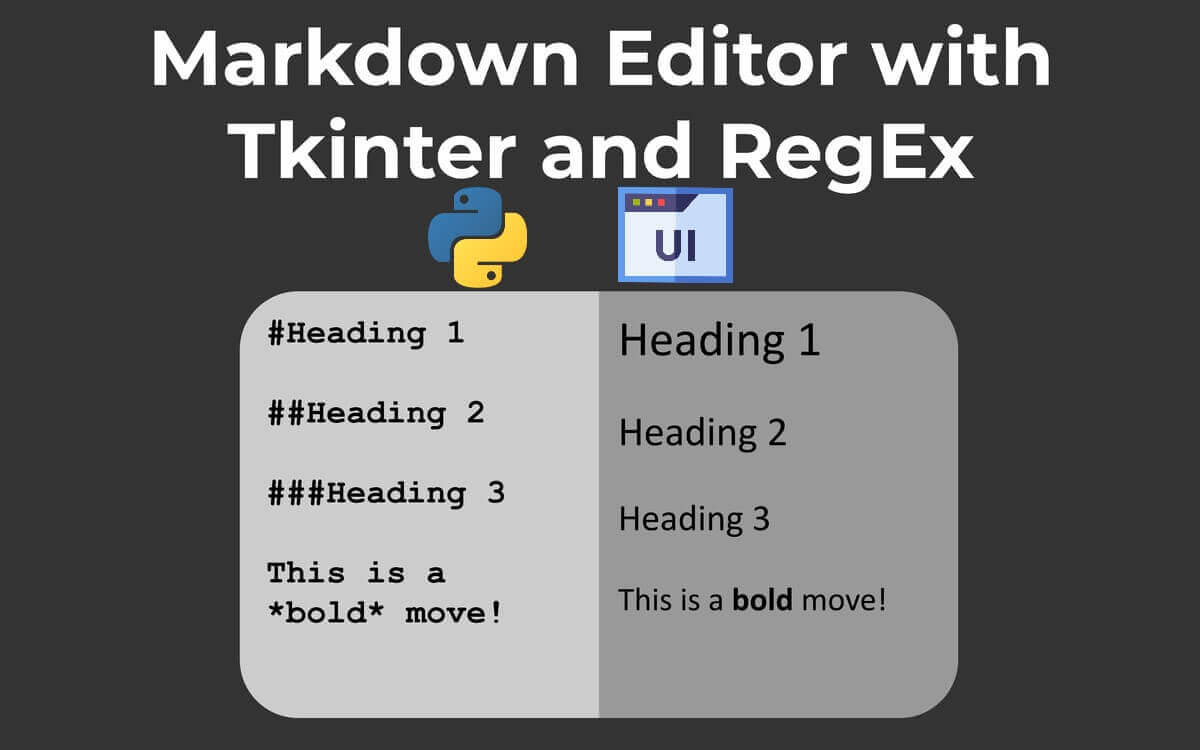
How to Make a Markdown Editor using Tkinter in PythonLearn how you can create a markdown editor using the Tkinter library and regular expressions in Python. 
How to Make a File Explorer using Tkinter in PythonLearn how to make a simple file explorer that is able to navigate through folders, create folders and files and more using Tkinter in Python. 
How to Make a Text Editor using Tkinter in PythonLearn how to build a simple text editor that opens and saves text files using Tkinter library in Python CommentsGot a coding query or need some guidance before you comment? Check out this Python Code Assistant for expert advice and handy tips. It's like having a coding tutor right in your fingertips! |
| You are visitor 01402503 — GeezerVison does not store the pages you look up. Best viewed with Netscape Navigator 4.7 or Internet Explorer 6 at 800×600. No cookies required. |


