GeezerVisonThe World Wide Web, restored to 800 pixels of glory. |
| Home|About|Gaming cabinet|Archives|How it works|Starter sites |
GeezerVison is showing www.pgadmin.org — User Management — pgAdmin 4 9.19 documentation
This page in other versions:
Latest
(9.19) | 9.18 | 9.17 | Development
Warning: this documentation is for a pre-release version of pgAdmin 4. Contents
User Management¶When invoking pgAdmin in desktop mode, a password is randomly generated, and then ignored. If you install pgAdmin in server mode, you will be prompted for an administrator email and password for the pgAdmin client. When you authenticate with pgAdmin, the server definitions associated with that login role are made available in the tree control. Users Tab¶An administrative user can use the Users tab to:
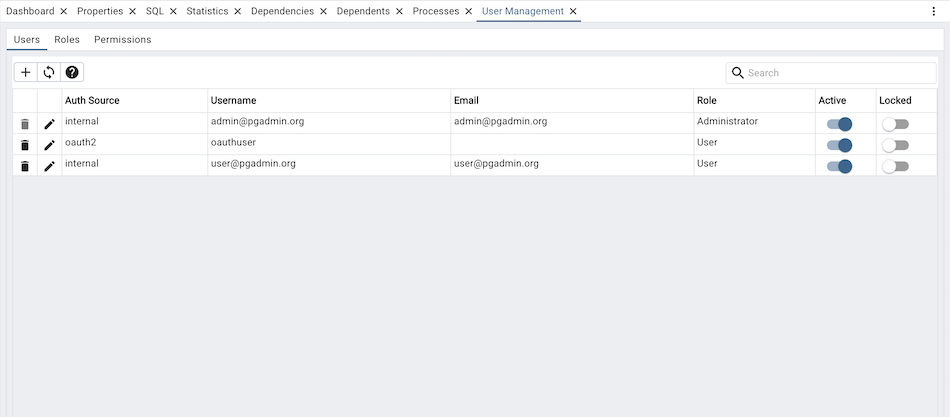
Use the Search field to specify a criteria and review a list of users that matches with the specified criteria. You can enter a value that matches the following criteria types: Authentication source, Username, or Email. For example, you can enter ldap in the search box and only the records having ldap as authentication source will be displayed in the User Management table. To add a user, click the Add (+) button at the top left corner. It will open a dialog where you can fill in details for the new user. 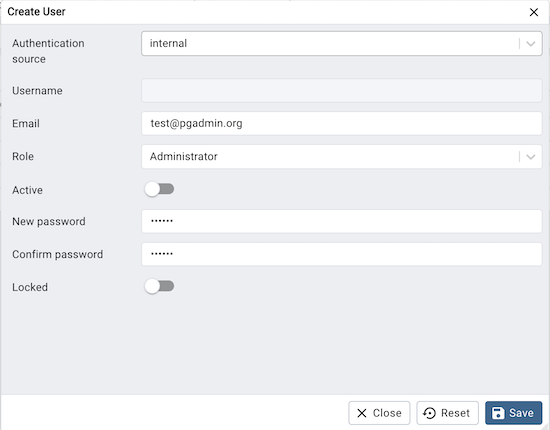
Provide information about the new pgAdmin role in the row:
To discard a user, and revoke access to pgAdmin, click the trash icon to the left of the row and confirm deletion in the Delete user? dialog. If the user has created some shared servers, then the Change Ownership dialog will appear to change the ownership of a shared server. Users with the Administrator role are able to add, edit and remove pgAdmin users, but otherwise have the same capabilities as those with the User role.
Roles Tab¶An administrative user can use the Roles tab to:
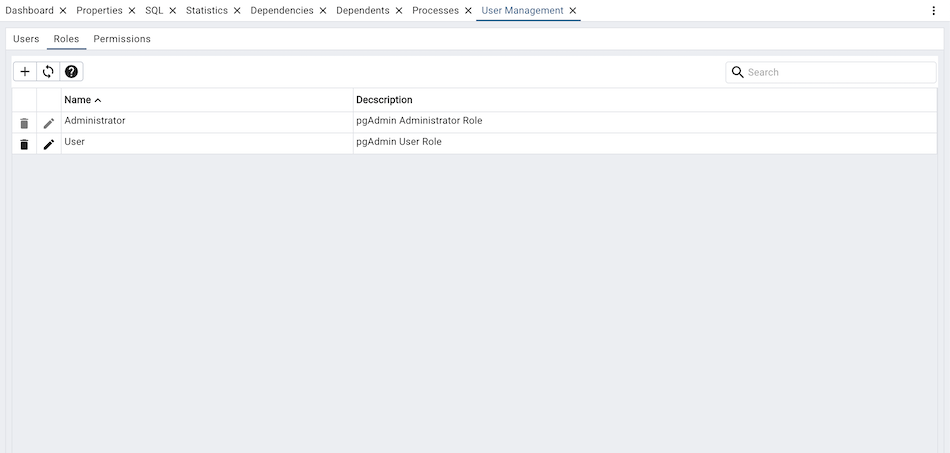
Use the Search field to specify criteria and review a list of roles that match the specified criteria. You can enter a value that matches the following criteria types: Role Name or Description. To add a role, click the Add (+) button at the top left corner. It will open a dialog where you can fill in details for the new role. 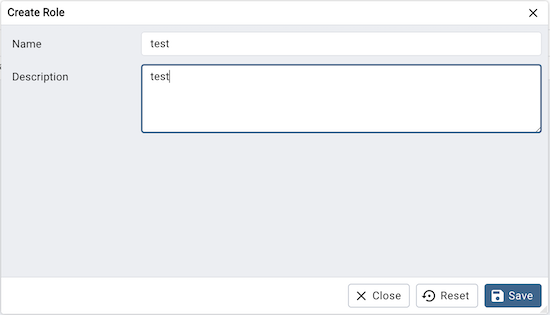
Provide information about the new pgAdmin role in the row:
To delete a role, click the trash icon to the left of the row and confirm deletion in the Delete role? dialog. If the role is associated with any users or resources, you may need to reassign those associations before deletion. Roles allow administrators to group privileges and assign them to users more efficiently. This helps in managing permissions and access control within the pgAdmin client.
Permissions Tab¶An administrative user can use the Permissions tab to manage pgAdmin permissions for a role. 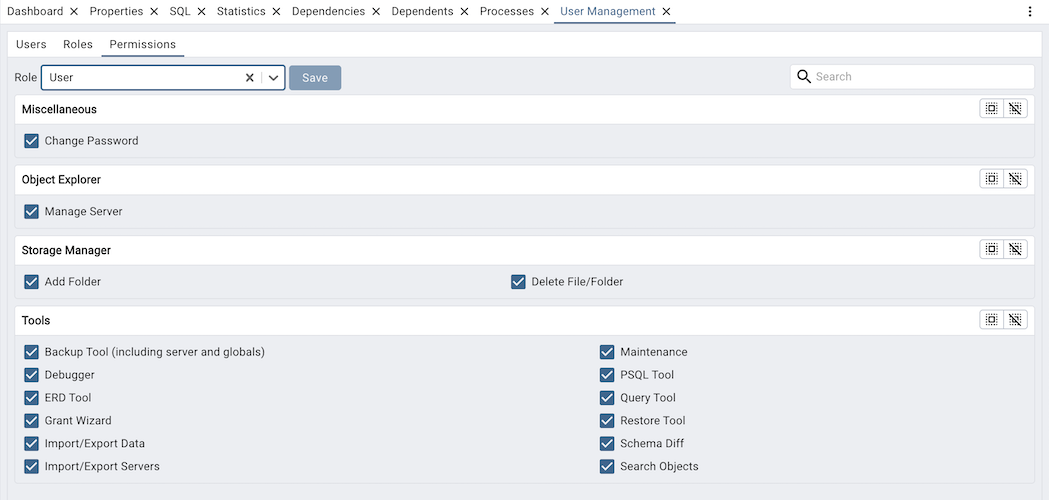
Accounts from different authentication sources¶pgAdmin treats accounts from different authentication sources as separate accounts, even when they share a username or an email address. Each has its own role, settings and servers:
The account-lockout setting MAX_LOGIN_ATTEMPTS applies only to The administrator account created when pgAdmin is first set up always uses the
/path/to/python /path/to/setup.py add-external-user ldapuser --auth-source ldap --admin and then deactivate the initial /path/to/python /path/to/setup.py update-user [email protected] --inactive Using ‘setup.py’ command line script¶Note To manage users using When using PIP wheel package to install pgadmin, all the commands can be used without Python interpreter. Some of the examples: pgadmin4-cli add-user user1@gmail.com password –role User pgadmin4-cli get-prefs Manage Users¶Add User¶To add user, invoke /path/to/python /path/to/setup.py add-user [email protected] password # to specify a role, either you can use --admin for Administrator role or provide the # role using --role. If both are provided --admin will be used: /path/to/python /path/to/setup.py add-user [email protected] password --admin /path/to/python /path/to/setup.py add-user [email protected] password --role User # to specify user's status /path/to/python /path/to/setup.py add-user [email protected] password --active /path/to/python /path/to/setup.py add-user [email protected] password --inactive Add External User¶To add external authentication user, invoke /path/to/python /path/to/setup.py add-external-user [email protected] --auth-source ldap # to specify an email: /path/to/python /path/to/setup.py add-external-user ldapuser --auth-source ldap --email [email protected] # to specify a role, either you can use --admin for Administrator role or provide the # role using --role. If both are provided --admin will be used: /path/to/python /path/to/setup.py add-external-user ldapuser --auth-source ldap --admin /path/to/python /path/to/setup.py add-external-user ldapuser --auth-source ldap --role User # to specify user's status /path/to/python /path/to/setup.py add-external-user [email protected] --auth-source ldap --active /path/to/python /path/to/setup.py add-external-user [email protected] --auth-source ldap --inactive Update User¶To update user, invoke /path/to/python /path/to/setup.py update-user [email protected] --password new-password # to specify a role, either you can use --admin for Administrator role or provide the # role using --role. If both are provided --admin will be used: /path/to/python /path/to/setup.py update-user [email protected] --admin /path/to/python /path/to/setup.py update-user [email protected] --role User # to specify user's status /path/to/python /path/to/setup.py update-user [email protected] --active /path/to/python /path/to/setup.py update-user [email protected] --inactive Update External User¶To update the external user, invoke # to change email address: /path/to/python /path/to/setup.py update-external-user ldapuser --auth-source ldap --email [email protected] # to specify a role, either you can use --admin for Administrator role or provide the # role using --role. If both are provided --admin will be used: /path/to/python /path/to/setup.py update-external-user ldapuser --auth-source ldap --admin /path/to/python /path/to/setup.py update-external-user ldapuser --auth-source ldap --role User # to change user's status /path/to/python /path/to/setup.py update-external-user ldapuser --auth-source ldap --active /path/to/python /path/to/setup.py update-external-user ldapuser --auth-source ldap --inactive Delete User¶To delete the user, invoke /path/to/python /path/to/setup.py delete-user [email protected] --auth-source internal /path/to/python /path/to/setup.py delete-user [email protected] --auth-source internal --yes /path/to/python /path/to/setup.py delete-user ldapuser --auth-source ldap Get User¶To get the user details, invoke # to list all the users: /path/to/python /path/to/setup.py get-users # to get the user's details: /path/to/python /path/to/setup.py get-users --username [email protected] Load Users¶To bulk import users from a JSON file, invoke /path/to/python /path/to/setup.py load-users /path/to/users.json JSON File Format The input JSON file must contain a { "users": [ { "username": "[email protected]", "email": "[email protected]", "password": "securepassword", "role": "Administrator", "active": true, "auth_source": "internal" }, { "username": "ldap_user", "email": "[email protected]", "role": "User", "active": true, "auth_source": "ldap" } ] } The command handles errors gracefully:
Output¶Each command output can be seen in the json format too by adding –json command line option. |
| You are visitor 01402775 — GeezerVison does not store the pages you look up. Best viewed with Netscape Navigator 4.7 or Internet Explorer 6 at 800×600. No cookies required. |