GeezerVisonThe World Wide Web, restored to 800 pixels of glory. |
| Home|About|Gaming cabinet|Archives|How it works|Starter sites |
GeezerVison is showing www.tutorialspoint.com — Selenium with Ruby Tutorial 
Selected Reading
Selenium with Ruby TutorialSelenium can be used with multiple languages like Java, Python, Kotlin, JavaScript, Ruby, and so on. Selenium is used extensively for web automation testing. Selenium is an open-source and a portable automated software testing tool for testing web applications. It has capabilities to operate across different browsers and operating systems. Selenium is not just a single tool but a set of tools that helps testers to automate web-based applications more efficiently. From the Selenium 4 version, the entire architecture is fully compatible with W3C - World Wide Consortium meaning Selenium 4 follows all the standards and guidelines given by W3C. How to Setup Selenium With Ruby?Step 1 − Download and install Ruby in the local system using the below link − https://www.ruby-lang.org/en/downloads/. Confirm the version of the Ruby installed by running the below command − ruby -v The output of the command executed would signify the Ruby version installed in the system. Step 2 − Download and install the Ruby code editor RubyMine from the below link to write and run the Selenium test − https://www.jetbrains.com/ruby/download. Step 3 − Launch RubyMine and click on the New Project button. 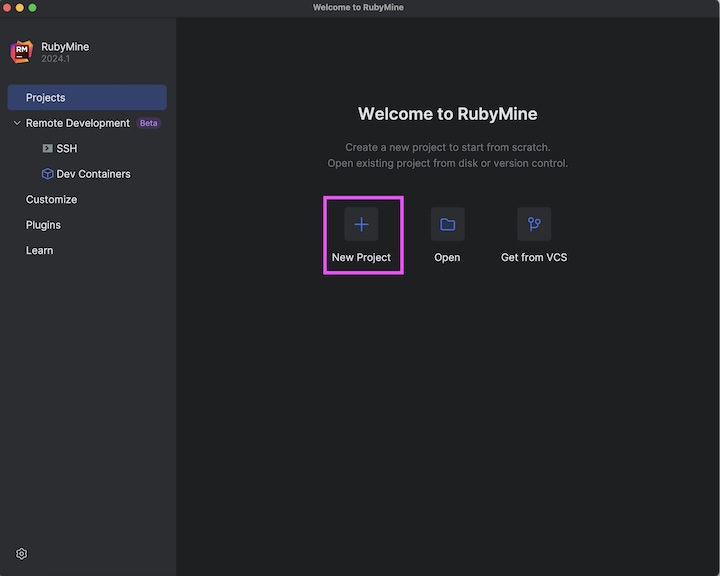
Step 4 − Enter a project name, say SeleniumTest, select a Ruby Interpreter, then click on the Create button. 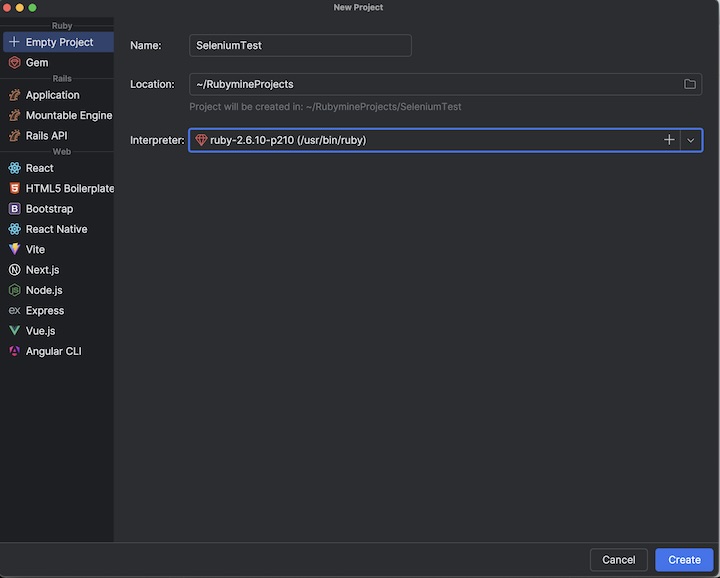
Step 5 − Right click on the SeleniumTest project, click on the New option, and then click on the File option. 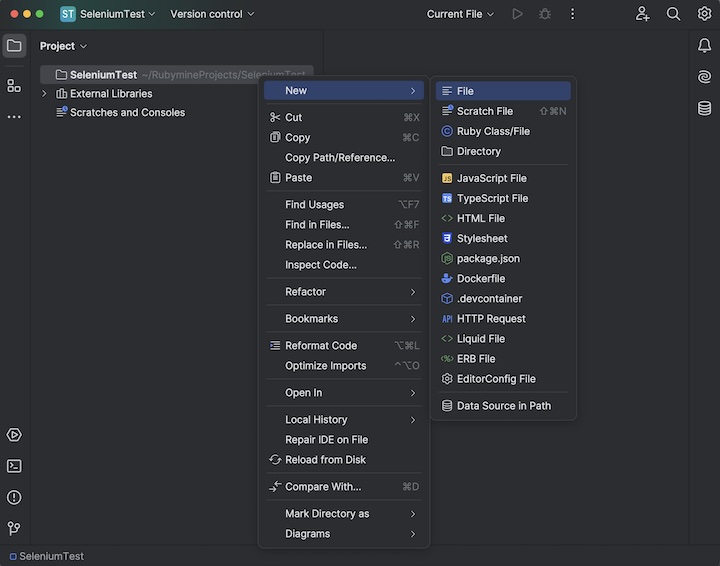
Step 6 − Enter a filename, say FirstTest.rb under the New File field, and then press Enter. 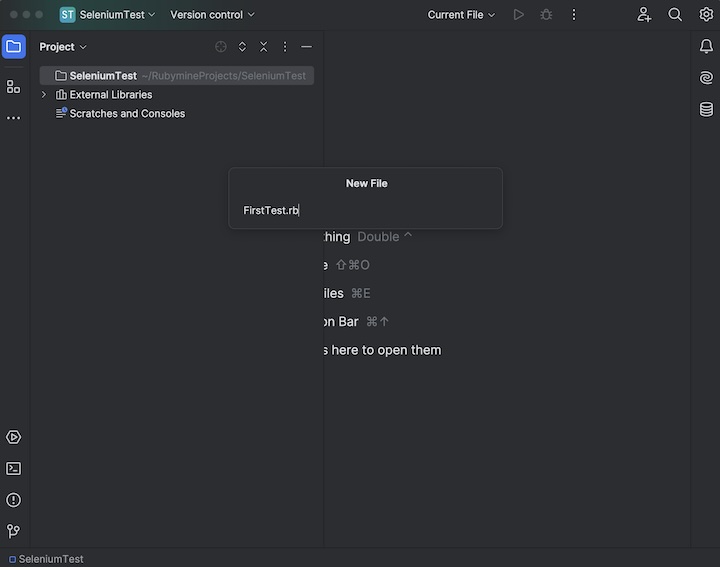
Step 7 − Confirm if the Ruby Interpreter is configured correctly by adding the piece of below code in the FirstTest.rb file − puts 'Tutorialspoint' Step 8 − Run the code by right clicking and selecting the option Run FirstTest. 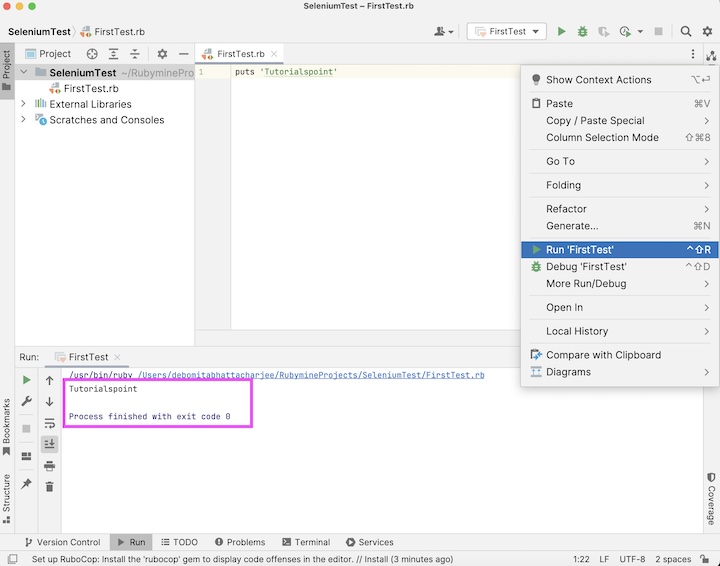
It will show the following output − Tutorialspoint Process finished with exit code 0 In the above example, the message - Tutorialspoint got captured in the console, and the message Process finished with exit code 0 was received, signifying successful execution of the code. Step 9 − To install Selenium, run the below command from the terminal − gem install selenium-webdriver Step 10 − Add the below code in the FirstTest.rb file. require 'selenium-webdriver' # Initiate Webdriver driver = Selenium::WebDriver.for :edge # adding implicit wait of 15 seconds driver.manage.timeouts.implicit_wait = 15 # launch an application driver.get 'https://www.tutorialspoint.com/selenium/practice/text-box.php' # get page title puts 'Page Title: ' + driver.title It will show the following output − Page title: Selenium Practice - Text Box Process finished with exit code 0 In the above example, we had first launched the Edge browser and opened an application then retrieved the browser title and in the console with the message - Page title: Selenium Practice - Text Box. Along with that Chrome browser got launched with the message Edge is being controlled by automated test software at the top. Finally, the message Process finished with exit code 0 was received, signifying successful execution of the code. Launch a Browser and Quit a Driver With Selenium RubyWe can launch the browser and open an application using the get method, and finally quit the browser with the quit method. Code Implementationrequire 'selenium-webdriver' # Initiate Webdriver driver = Selenium::WebDriver.for :edge # adding implicit wait of 15 seconds driver.manage.timeouts.implicit_wait = 15 # launch an application driver.get 'https://www.tutorialspoint.com/selenium/practice/selenium_automation_practice.php' # get page title puts 'Browser title after launch: ' + driver.title # close browser driver.quit It will show the following output − Browser title after launch: Selenium Practice - Student Registration Form Process finished with exit code 0 In the above example, we had first launched the Edge browser then retrieved the browser title, finally quit the browser, and in the console received the message - Browser title after launch: Selenium Practice - Student Registration Form. Finally, the message Process finished with exit code 0 was received, signifying successful execution of the code. Identify An Element and Check Its Functionality using Selenium RubyOnce we navigate to a webpage, we have to interact with the web elements available on the page like clicking a link/button, entering text within an edit box, and so on to complete our automation test case. For this, our first job should be to identify the element. We can use the link text for a link for its identification and utilize the method find_element(name: '<value of name attributes>'). With this, the first element with the matching value of the name attribute should be returned. In case there is no element with the matching value of the name attribute, NoSuchElementException should be thrown. Let us see the html code of the edit box in the below image − 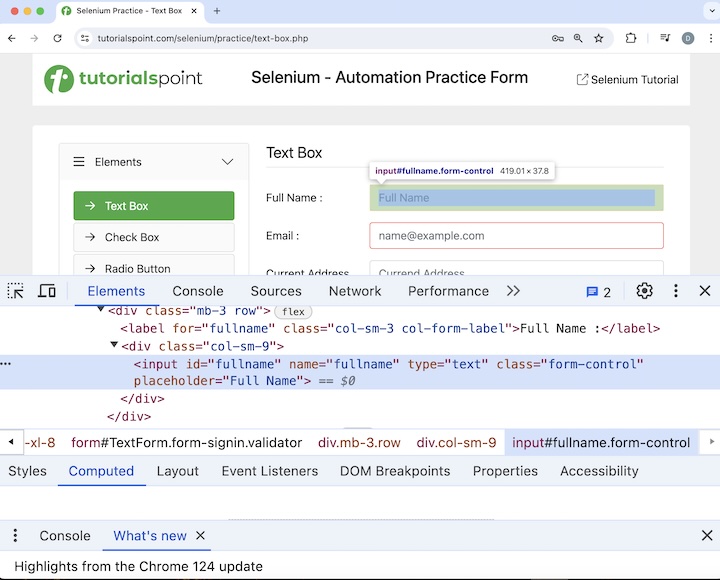
<input id="fullname" name="fullname" type="text" class="form-control" placeholder="Full Name"> The edit box beside the FullName: label highlighted in the above image has a name attribute with a value as fullname. Let us input the text Selenium into this edit box after identifying it. Finally we would quit the browser. Code Implementationrequire 'selenium-webdriver'
# Initiate Webdriver
driver = Selenium::WebDriver.for :edge
# adding implicit wait of 15 seconds
driver.manage.timeouts.implicit_wait = 15
# launch an application
driver.get'https://www.tutorialspoint.com/selenium/practice/text-box.php'
# identify element then enter text
name = driver.find_element(:name ,'fullname')
name.send_keys("Selenium")
# close browser
driver.quit
In the above example, we had first launched the Edge browser and opened an application then entered the text Selenium in the input box. Finally, the message Process finished with exit code 0 was received, signifying successful execution of the code. ConclusionThis concludes our comprehensive take on the tutorial on Selenium Ruby Tutorial. Weve started with describing how to set up Selenium with Ruby and quit a session using the Selenium Ruby, how to launch a browser and quit a session using the Selenium Ruby, and how to identify an element and check its functionality using Selenium Ruby. This equips you with in-depth knowledge of the Selenium Ruby Tutorial. It is wise to keep practicing what youve learned and exploring others relevant to Selenium to deepen your understanding and expand your horizons. 
Advertisements
|
| You are visitor 01402503 — GeezerVison does not store the pages you look up. Best viewed with Netscape Navigator 4.7 or Internet Explorer 6 at 800×600. No cookies required. |