A project-ready environment
Dev Containers define your project's tools, runtimes, and dependencies as code, so you and your teammates can work from a consistent setup.
GeezerVisonThe World Wide Web, restored to 800 pixels of glory. |
| Home|About|Gaming cabinet|Archives|How it works|Starter sites |
GeezerVison is showing code.visualstudio.com — Continuity - Visual Studio Code Continue where you work bestKeep your work moving across windows, Copilot experiences, and devices. Switch between orchestrating agents and working directly with code, pick up work started elsewhere, and connect to your development environment from the desktop or browser. Zoom out to orchestrate. Zoom in to code.Choose your focus, not a different task. Move agent sessions between the Agents window and editor without restarting the conversation. 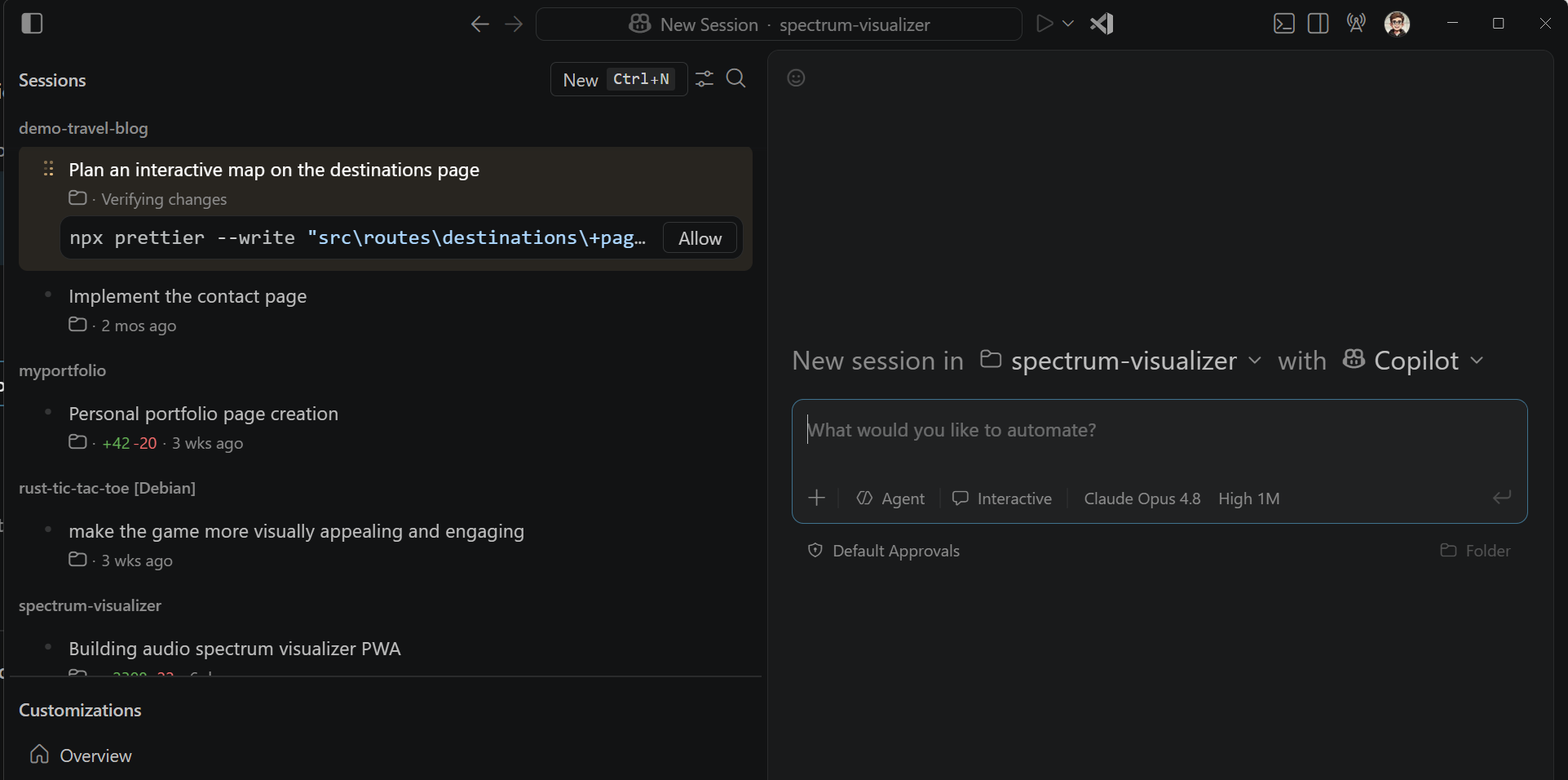
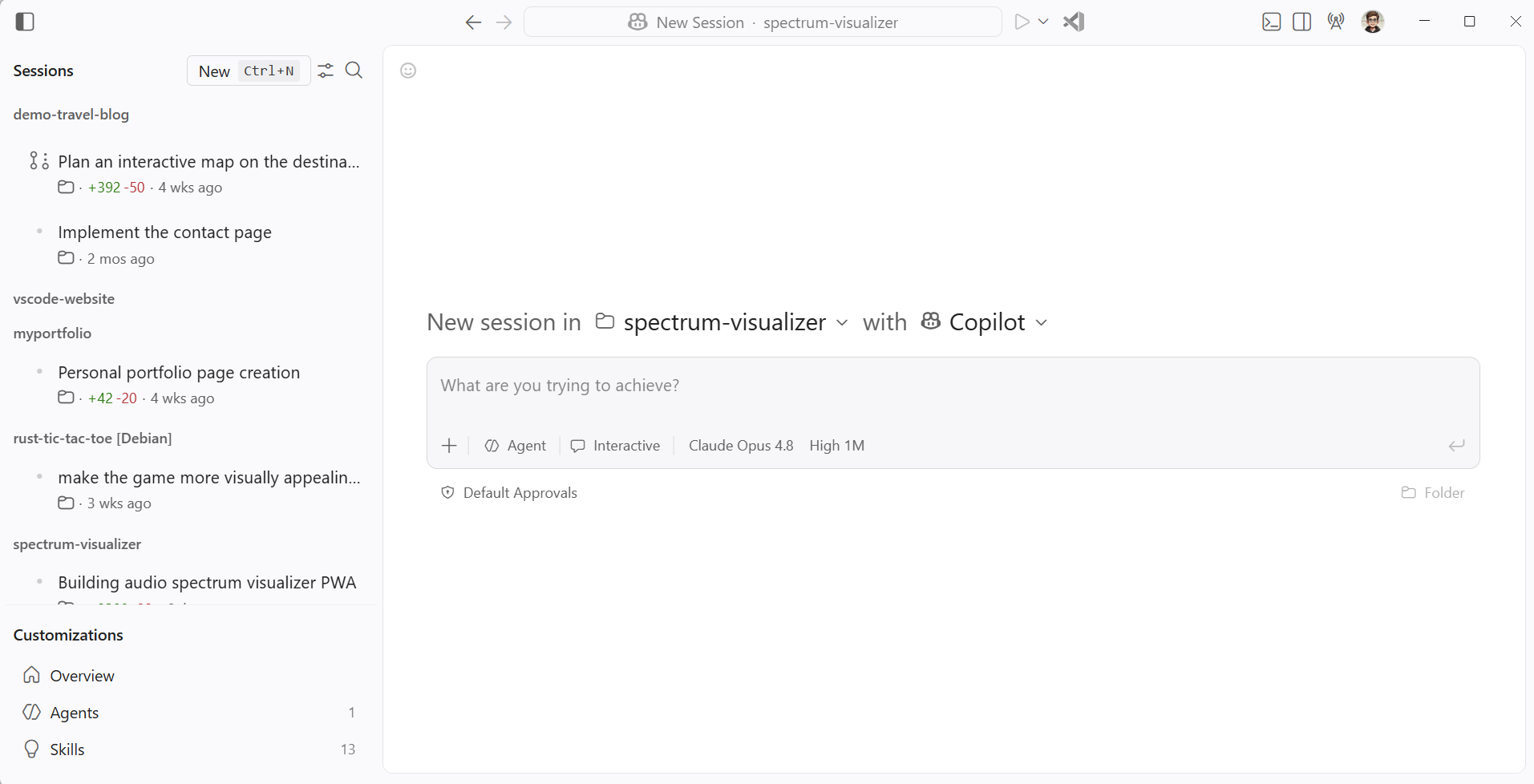
Orchestrate across projectsUse the Agents window to assign higher-level tasks, monitor multiple sessions across projects, and review where your attention is needed. Open the Agents window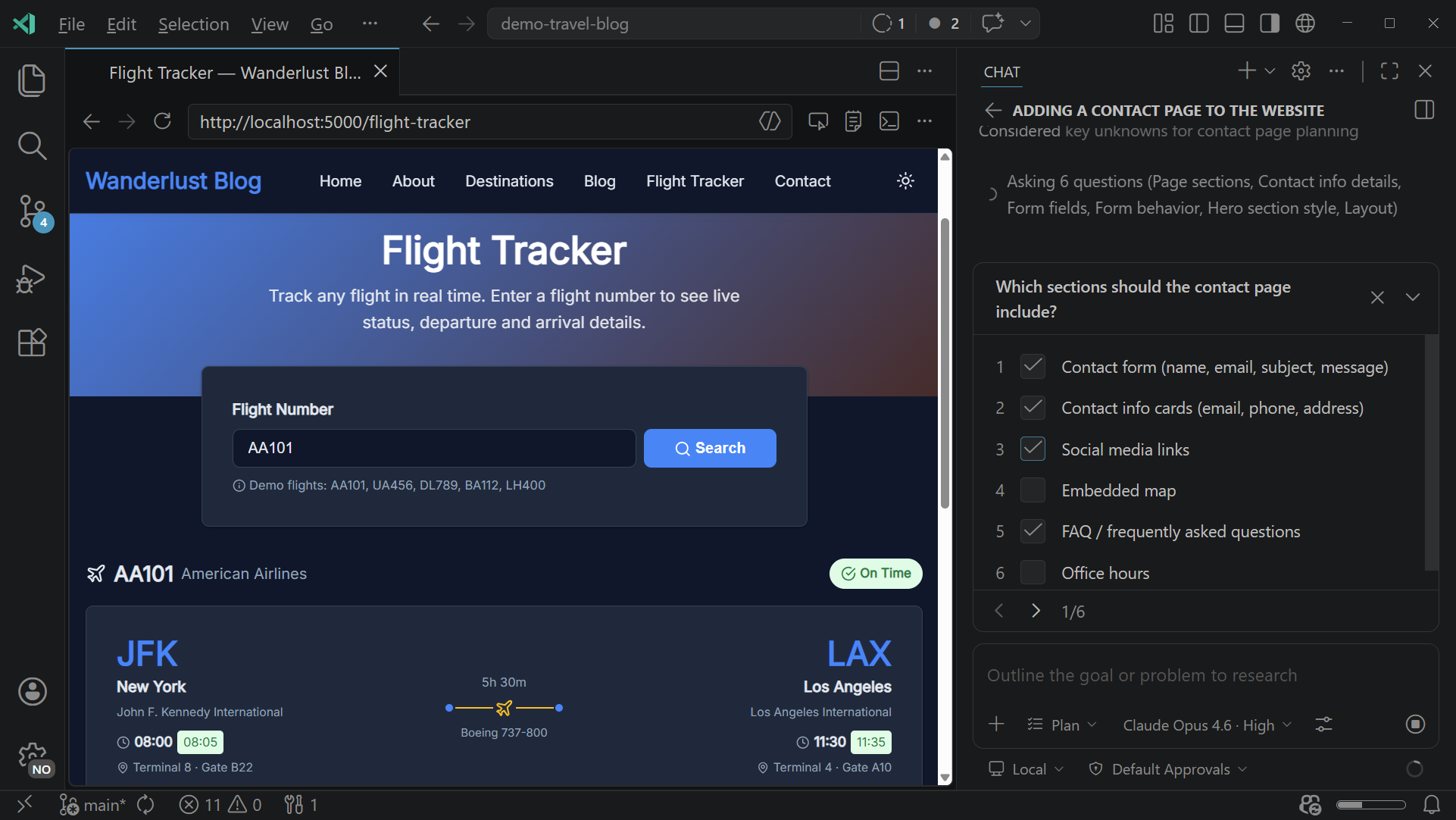
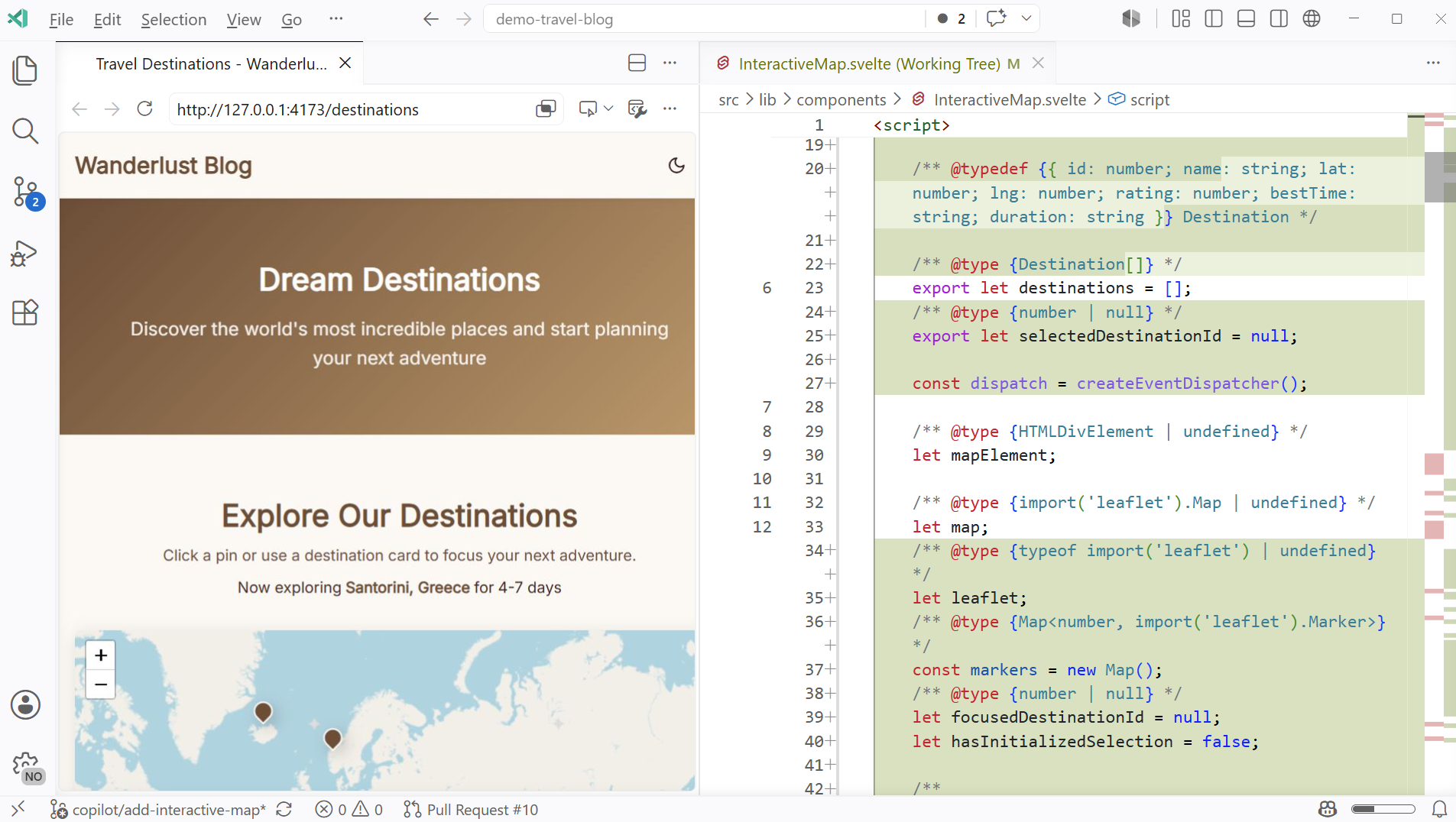
Collaborate alongside your codeFocus on one project with your agent beside the editor. Inspect changes, refine an implementation, run tests, and debug together. Open chat in the editorStarted elsewhere? Keep going here.Start where the task finds you. Continue supported Copilot sessions or pick up cloud-agent work in VS Code when you want its editing, testing, and debugging tools at hand. Step away from your desk, not your work.Check in on your agents from another device while they run on your development machine.
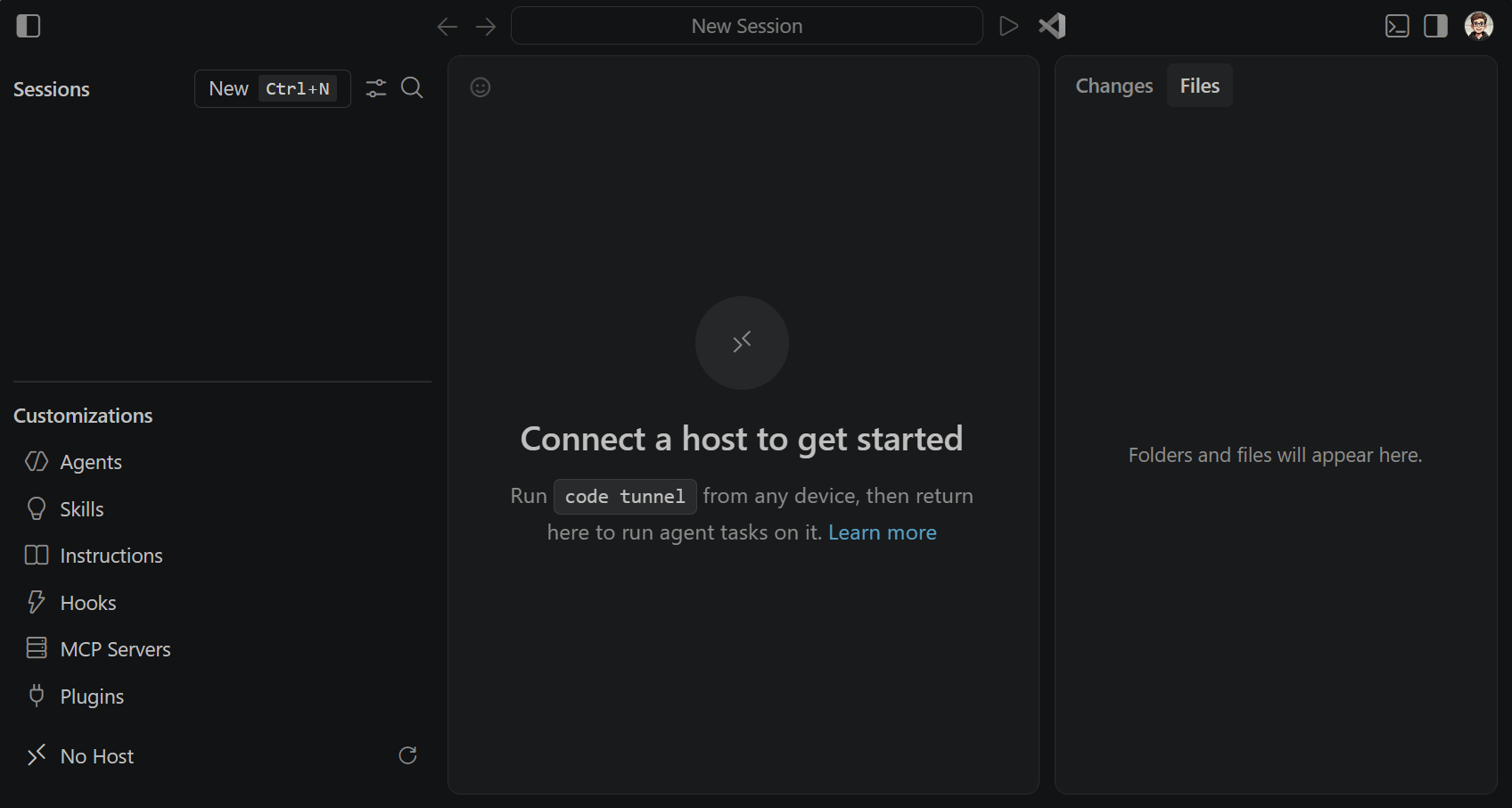
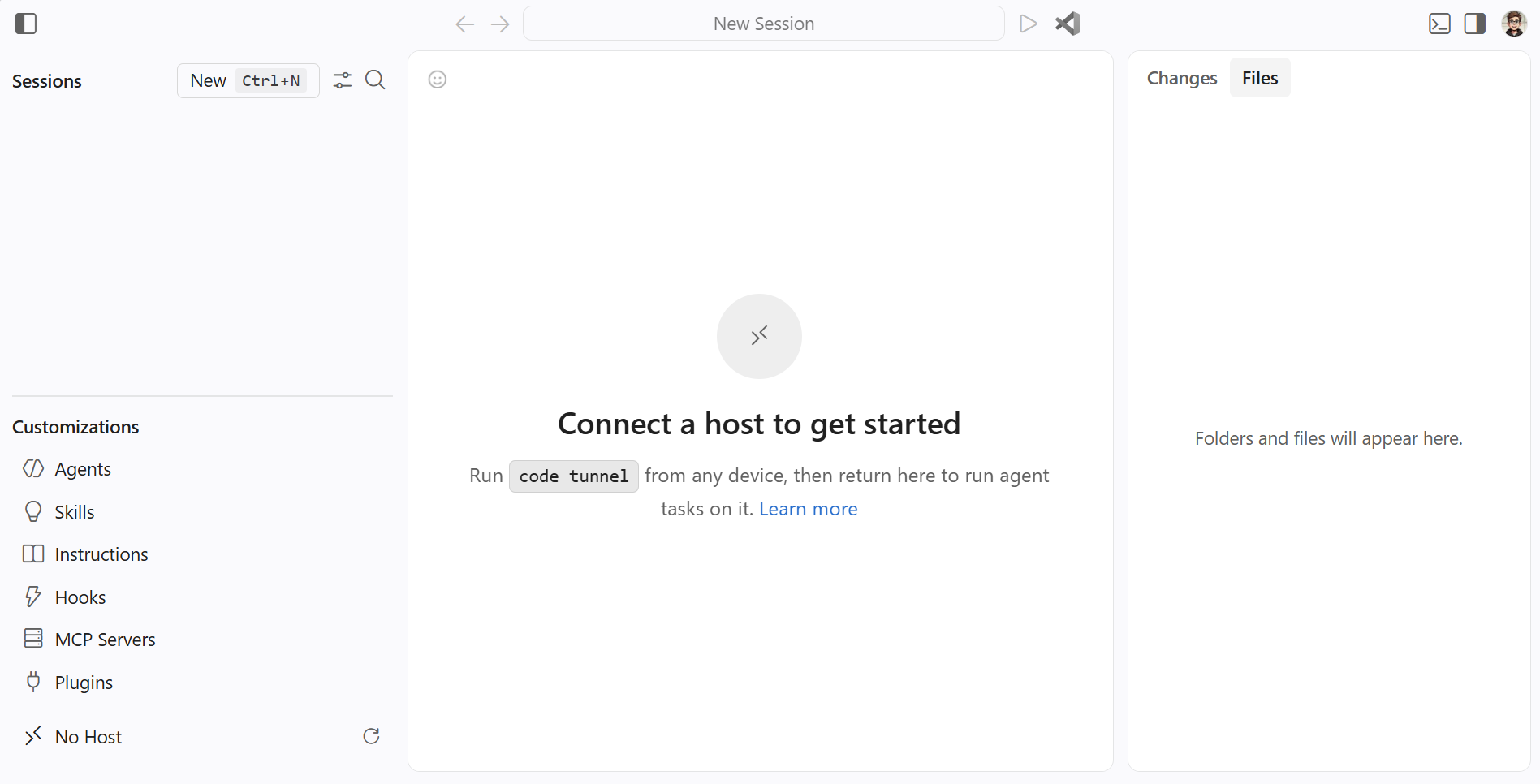
Your tools, wherever you work.Continuing the task is about more than the conversation. Work with the code, tools, and environment your project needs, from a remote machine, inside a Dev Container, or in your browser. A project-ready environmentDev Containers define your project's tools, runtimes, and dependencies as code, so you and your teammates can work from a consistent setup. Open your browser and get to workEdit and review repositories on vscode.dev, or use GitHub Codespaces for a cloud-hosted development environment. Start from your browser without a desktop install. Your remote machine, within reachConnect over SSH or Dev Tunnels to use VS Code's editing, terminal, and debugging tools. Your code and development tools stay on the remote machine. Pick up your next step.Orchestrate, collaborate, or check in from somewhere else. Choose how you want to work next, with your code and tools within reach. |
| You are visitor 01402503 — GeezerVison does not store the pages you look up. Best viewed with Netscape Navigator 4.7 or Internet Explorer 6 at 800×600. No cookies required. |