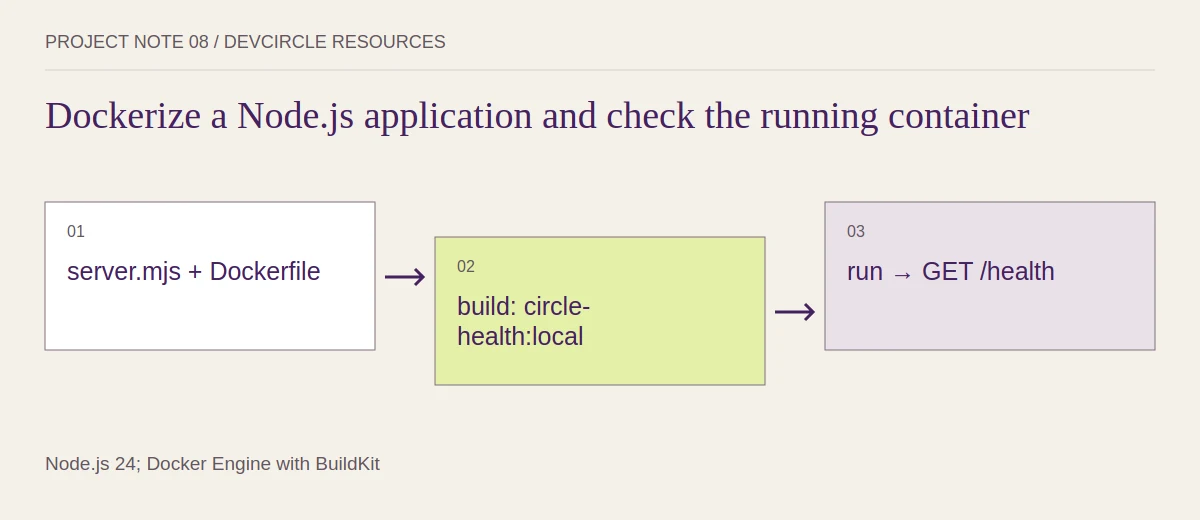
Think of a container image as a recipe for a runtime filesystem, and of a running container as a process started from that recipe. Once you hold the two apart, it makes sense that editing a local source file does nothing to an image that has already been built.
Begin by downloading Download the complete Docker project and extracting it into an empty directory. The archive contains a configured server with its container bind address, a Dockerfile, a .dockerignore file, and an optional verification script.
Your host terminal and the container choose their runtimes independently. For host-side checks, pick Node 24 with the Node version manager guide; changing what that shell selects does not touch the image named in FROM.
Prepare a tiny server
Install Docker Engine or Docker Desktop configured for Linux containers, with BuildKit enabled. Copy the complete server.mjs from the Node HTTP server guide and replace its listen address, 127.0.0.1, with 0.0.0.0. Otherwise, the server listens only on the container’s loopback interface and cannot receive connections forwarded to its network interface.
Put server.mjs and this Dockerfile in an otherwise empty directory:
FROM node:24-bookworm-slim
WORKDIR /app
ENV NODE_ENV=production
COPY --chown=node:node server.mjs ./server.mjs
USER node
EXPOSE 3000
CMD ["node", "server.mjs"]
Since this small service depends on no npm packages, the Dockerfile skips an install step entirely. A larger application would copy the package manifest and lockfile first, run a deterministic installer such as npm ci, and, where possible, leave development-only tools out of the production image.
Build, then run
Run these commands from the directory containing the two files:
docker build -t circle-health:local .
docker run --rm -d --name circle-health -p 127.0.0.1:3000:3000 circle-health:local
curl -i http://127.0.0.1:3000/health
In Windows PowerShell, use curl.exe for the command above so you run the curl executable. The request should return 200 and {"status":"ok"}. The publish argument binds the host port to loopback so this test is local. EXPOSE documents the container port; it does not publish that port by itself.
Use docker logs circle-health to inspect standard output and errors. To verify the process runs as a non-root user, run docker exec circle-health id. The official Node image provides the node user used by this Dockerfile.
Run a repeatable container check
The extracted archive also ships check_container.py. With Python 3.11+ and a running Docker daemon, launch python check_container.py from that folder. The script builds an image under a unique tag, starts a container on a free loopback port, and checks the behaviors below:
Scroll sideways if the columns extend beyond the frame.
| Probe | Expected result |
|---|---|
GET /health |
200 with {"status":"ok"} |
GET /missing |
404 |
POST /health |
405 and Allow: GET |
GET /health?check=1 |
200 |
| Process user | A nonzero user ID |
| Container stop | Exit code 0 before the stop timeout |
At completion, the script prints the values it observed along with the image ID. It removes only the container and image tag it created, both of which have unique names. The first build needs network access to download the base image, and the Docker CLI requires a running engine. If the script exits with a nonzero status, review its report before proceeding.
Before starting the script on Docker Desktop, make sure it is set to Linux containers rather than Windows containers. The verifier refuses to build against the wrong engine, and its assertions stay enforced even if Python runs in optimized mode.
Explain a failed connection
A port conflict means another process is already using host port 3000. Stop the earlier local Node exercise, or map a different host port, such as 127.0.0.1:3002:3000; then direct your request to port 3002.
When a container exits moments after it starts, begin with its logs, because missing files, syntax errors, and bad startup commands each call for a different fix. When the process stays up but connections are refused, examine two things: the address the app listens on inside the container and the host-to-container port flag.
Scroll sideways if the columns extend beyond the frame.
| Container detail | Why it matters in this setup |
|---|---|
0.0.0.0 inside server.mjs vs 127.0.0.1:3000:3000 on docker run |
Inside the container namespace, 127.0.0.1 only accepts traffic from inside that same container; listening on 0.0.0.0 lets Docker forward host loopback traffic into the container without exposing the host port on your LAN. |
CMD ["node", "server.mjs"] (exec form) vs shell form |
The JSON array exec form runs node directly as PID 1 so docker stop delivers SIGTERM straight to process.on('SIGTERM') instead of an intermediate /bin/sh process that might ignore or swallow the signal. |
USER node and --chown=node:node |
Runs the application under UID 1000 instead of root (UID 0), limiting permissions inside the container filesystem. |
Make changes observable
To observe an edited response, rebuild the image, stop the current container, and start a replacement. Rebuilding does not change a container already running. In this example, docker stop circle-health stops it; the --rm option removes it after it stops.
Because a rolling tag such as node:24-bookworm-slim shifts to newer builds over time, a production release should record and pin the exact image digest, then update it on purpose as security patches arrive. Do not lift a stale digest from an older walkthrough without first confirming it is still safe to deploy.
Don’t put secrets in the Dockerfile or build context. Use .dockerignore to leave out .git, local dependency directories, environment files, and unrelated data. Because this example copies only one explicitly named source file, you can easily review everything included in the image.
Decide what hosting must provide
A local run shows nothing beyond the fact that the process starts and responds over HTTP. Before shipping, you still must decide where TLS terminates, how crashes recover, how logs are collected, what memory and CPU limits apply, how releases roll back, and where durable storage lives if state matters. The health endpoint is stateless, while the notes API loses its in-memory store at each restart; a container does not turn volatile memory into persistent storage.
Source: Docker’s Dockerfile reference explains the WORKDIR, USER, EXPOSE, and CMD instructions used in this example. The application is intentionally small and has no dependencies.
Keep building
- REST API tutorial: validation before persistence
Design a small notes endpoint with a bounded request body, explicit errors, and predictable status codes.
- A Node.js HTTP server with clear routes and shutdown
Build a small JSON server using the standard library, inspect status codes, and close it cleanly.
- JavaScript localStorage: save progress without losing the page
Save a versioned list of completed lessons, recover from invalid data, and make clearing progress explicit.