Status: Supported · Applies to: All radios · Platforms: Linux, Windows, macOS (Apple Silicon)
Copy Assist is on-device speech-to-text for received voice. It transcribes what you are hearing on SSB, AM or FM into a live, scrolling text panel docked under the waterfall — an aid for weak or noisy copy, for accessibility, and for following nets and contests. It runs whisper.cpp on your own computer (and, for the live preview, sherpa-onnx or Apple's on-device recognizer), is receive-only, and never keys the transmitter.
Copy Assist is host-side, so it works with every supported radio family, including receive-only setups and sessions with TX disabled.
Requirements
- Platform: the Linux, Windows and Apple Silicon macOS builds include Copy Assist. The Intel macOS DMG ships without speech-to-text; building from source on an Intel Mac still works.
- Mode: a voice mode on the selected slice (see When it is available).
- Model download: the first time you enable it, a speech model downloads (see Models).
- ONNX Runtime for Silero VAD and speaker labels. The release builds include it.
Setup
Models
Model weights are not bundled. The selected model downloads the first time you enable Copy Assist — from Hugging Face, with AetherSDR's GitHub release as a fallback (the live preview's Kroko model comes from Hugging Face only) — and is SHA-256 verified before use. Models are cached in the app data folder (on Linux, ~/.local/share/AetherSDR/models/).
| Model | Size | Notes |
|---|---|---|
| tiny | 74 MB | Fastest, roughest |
| base | 141 MB | Default on CPU and ARM, including the Raspberry Pi 5 |
| small | 465 MB | Desktop CPU |
| large-v3-turbo | 1.6 GB | Default when a usable GPU with enough free memory is found |
Offline or air-gapped: copy a ggml-*.bin model file into the models folder by hand.
Custom model… loads any whisper ggml-*.bin or .gguf file you choose — a fine-tune or a different quantization. It loads directly, with no download or checksum, and is remembered as Custom: <name>.
sherpa-onnx model… (Linux and macOS builds that include sherpa-onnx) runs a non-whisper offline model such as Zipformer, Moonshine or Paraformer. Point it at the extracted model folder. These are much faster than whisper on CPU and ARM, so they are the practical choice on a Raspberry Pi.
None (live preview only) runs no model at all: the live preview recognizer's text is the transcript. It is the lightest choice, for a computer that cannot keep up with even the smallest whisper model, such as a Raspberry Pi. The preview turns on by itself and cannot be turned off while None is chosen. Its words are less accurate than whisper's on a noisy signal, but they come within about a second of each pause instead of waiting for a decode. Listed wherever a preview recognizer can run.
GPU acceleration
The model runs on the GPU when one is available, otherwise on the CPU:
- Vulkan on Linux and Windows (NVIDIA, AMD or Intel).
- Metal on macOS (Apple Silicon).
If a GPU cannot be used — not enough free memory, or a driver fault — Copy Assist falls back to the CPU rather than crashing. The compute picker marks unusable devices (unavailable) and says when a fallback happened, without overwriting your saved choice.
A few faults inside the speech engine close the app outright. Copy Assist records which step it was in, so on the next launch:
- a GPU that failed while loading a model is left out, and the model runs on the next device;
- a failure while starting the engine or loading on the CPU keeps local Copy Assist off for that session (a remote server still works).
The settings window shows the reason under Compute with a Try again next launch button — use it after a driver update, or if something else closed the app. Updating AetherSDR clears the note automatically.
Remote server
Instead of the built-in engine, Copy Assist can send audio to your own OpenAI-compatible /v1/audio/transcriptions endpoint — whisper.cpp's whisper-server, faster-whisper, or any compatible server — so inference runs on another machine.
Choose Remote server… in the model picker and enter the endpoint URL (for example http://host:8080/v1/audio/transcriptions), an optional API key, and the model name. AetherSDR ships no server and no default endpoint; nothing leaves your computer unless you configure this. The API key is stored in the OS keychain, not in the settings database.
Using Copy Assist
Opening Copy Assist
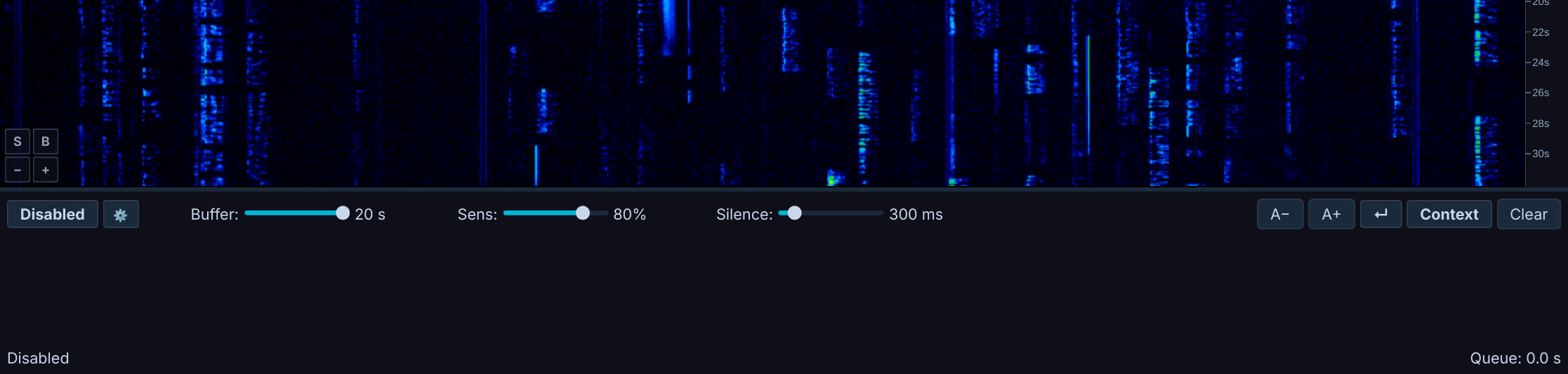
The Copy Assist panel under the waterfall, before it is enabled.
- Click the ASR toggle in the status bar (between CWX and DVK), or Tab to it and press Enter, or
- Tools → Copy Assist.
Either one shows or hides the panel, which docks under the waterfall of the active panadapter. Drag the panel's grip to resize it; the height is remembered.
When it is available
- Voice modes only: USB, LSB, DSB, AM, AME, SAM, FM, NFM, FMN (RTL-SDR narrow FM) and wide FM (WFM/WBFM). In CW, DIGU/DIGL, RTTY and FM data (DFM) the toggle is dimmed. Receive-only voice modes are available to Copy Assist even when they cannot use the voice keyer.
- The mode check follows the slice you have selected, not the transmit slice. The CWX and DVK indicators follow the TX slice instead, so the three can legitimately disagree — with a CW transmit slice and a USB slice selected, CWX and ASR are both live.
- Selecting a slice that is not in a voice mode closes the panel and stops transcription. To resume, select the voice slice, reopen the panel and enable it again.
- A band-stack recall or a disconnect does not close an open panel, so transcription survives a band change.
- Whenever the panel is open, the ASR toggle is lit and clickable, so you can always close it by hand.
Which receiver is transcribed
On RTL-SDR, Copy Assist uses the selected slice's independent audio before speaker volume, mute and client DSP. Other audible slices do not enter that feed. Transcribe from unprocessed audio (bypasses NR and RX effects) is unavailable for this route and explains why; its saved preference is retained for radios that use the presentation stream. Retuning, switching slices or parking the receiver starts a fresh transcription context. A parked receiver supplies no audio until it returns to capture.
Other radios retain their existing presentation-audio route and pre/post-DSP choice. Selecting a slice controls mode availability; it does not isolate that slice from a shared presentation mix.
Transcribing
- Open the panel and click Disabled so it reads Enabled.
- The first time, the selected model downloads, is verified and loads. A loading indicator shows progress.
- Transcribed text streams into the panel.
Text is colored by recognition confidence, the same way as the CW Decoder:
| Color | Confidence |
|---|---|
| Green | High |
| Yellow | Medium |
| Orange | Questionable |
| Red | Low |
On radios using the presentation stream, the default processed-audio setting hears client-side DSP Noise Mitigation, which can affect transcription as well as listening. The unprocessed setting and RTL's independent receiver feed bypass those client effects. Noise-reduction artifacts can confuse the speech model more than noise does. On presentation-stream radios, turn on Transcribe from unprocessed audio (bypasses NR and RX effects) in Copy Assist Settings to bypass those effects for transcription. What you hear is unchanged.
Context
Context conditions each decode on the text of the previous confident segment, which helps with continuity of names, callsigns and topic. It applies live, so you can A/B it on the fly.
- A low-confidence segment is not carried forward, so one garbled over cannot poison the next.
- A real pause, Clear, or a retune starts fresh.
- Context works with the whisper models only. It is grayed out on the sherpa-onnx and remote backends.
Live preview
Copy Assist can show a quick first look at what is being said while the selected model is still waiting for its segment to finish. Turn on Show a live preview while the model decodes in Copy Assist Settings. It is off by default.
- Gray italic text appears within about a second of each word being spoken.
- When the model has decoded that stretch of audio, its text replaces the gray text and is colored by confidence as usual. A stretch is decoded when the speaker pauses (Silence) or when the Buffer fills, whichever comes first, so a shorter Buffer brings the colored text sooner.
- The preview is less accurate than the whisper models on noisy signals, so treat it as a first look. The colored text is the transcript; only it is saved to the transcript file, and only it is read by a screen reader.
- It works with every model, including the sherpa-onnx and remote backends.
- The preview itself runs on your computer.
Preview recognizer picks what draws the gray text:
- Kroko streaming, English (sherpa-onnx) is the default, on Windows, Linux and Apple-silicon Macs. It is English only: with any other Language set, the status line adds "Live preview understands English only". The first time you press Enable with the preview on, Copy Assist downloads its model (about 71 MB, checked against a pinned SHA-256) into the models folder; the status line shows the progress. The Kroko model is Banafo's Kroko ASR English community model, in the sherpa-onnx conversion by the k2-fsa project, used unchanged under CC BY-SA 4.0. It is provided as-is, without warranties; see
THIRD_PARTY_LICENSESfor the full notice. - Apple speech recognition is available on macOS 26 and later. It follows the Language setting, so there is no separate preview language to set. The accent it expects comes from the Mac's region (System Settings → General → Language & Region) where Apple supports that pairing: Spanish on a Mac set to the United States uses US Spanish. It understands English, Spanish, French, German, Italian, Portuguese, Chinese (Mandarin and Cantonese), Japanese and Korean, in their main regional variants. The first use of a language may download Apple's speech model for it; the status line says so while it does. For any other language the status line says it is not supported and no gray text appears; the colored transcript is unaffected.
Apple speech recognition is listed on Macs only. A listed recognizer your computer cannot run is shown dimmed, with the reason.
With None (live preview only) as the model, the preview is the transcript. Gray italic text still shows words that may change. When the speaker pauses, or the Buffer fills, that stretch becomes ordinary transcript text. It is colored by the recognizer's own confidence, saved to the transcript file, and read by a screen reader, like any model's text. Kroko's confidence reads lower than whisper's for the same copy, so expect more yellow; Apple's reads about the same. Speaker labels need a model, so Label speakers is grayed out with None. Its setting is kept and comes back when you choose a model.
The Queue readout
The status line shows Queue: N s — seconds of received audio not yet transcribed. It stays near zero when the engine keeps up and climbs (amber, then red) when it cannot, for example a large model on a Raspberry Pi.
The backlog cannot grow without limit. Once it reaches twice the Buffer setting (never less than 10 s), Copy Assist drops incoming audio until it has drained to half that, and the readout changes to Queue: N s · dropped M s in red. Those seconds were never transcribed, so the transcript has gaps. A retune or Disable resets both numbers. If you see drops, use a smaller model, the remote backend, a longer Buffer, or faster hardware.
Reference
Panel controls
| Control | Range | What it does |
|---|---|---|
| Enabled / Disabled | — | Starts and stops transcription. Closing the panel turns it off. |
| ⚙ | — | Opens Copy Assist Settings (below). |
| Buffer | 1–20 s | The longest stretch of audio collected before a decode is forced, even without a pause. |
| Sens | 1–100 % | Voice-activity sensitivity. Higher picks up fainter speech. |
| Silence | 100–2000 ms | How much trailing silence ends an utterance. |
| A− / A+ | — | Transcript text size. |
| ↵ | — | Start a new line after each pause. |
| Context | Off by default | Carries context across segments (see below). |
| Clear | — | Clears the transcript. Also on the text area's right-click menu. |
Buffer, Sens, Silence and the panel height are remembered.
Copy Assist Settings (⚙)
The ⚙ button opens a small modeless settings window that can stay open while you operate.
| Setting | What it does |
|---|---|
| Model | Which speech model runs (see Models). Also Custom model…, sherpa-onnx model…, Remote server… and None (live preview only). |
| Compute | Which device runs the model: a GPU or the CPU. Shows Detecting… while GPU discovery runs in the background. |
| Language | The spoken language to transcribe (multilingual models only). |
| Save transcript to a file | Appends each finished utterance as a timestamped line. A date is inserted before the extension, so net.txt writes to net-2026-07-21.txt and rolls over daily. A frequency marker line is written when ASR starts, on every retune, and at the top of each day's file. |
| Show a live preview while the model decodes | Off by default. Shows gray provisional text while the model decodes, then replaces it with the model's text (see Live preview). Applies immediately. |
| Preview recognizer | What draws the preview: Kroko streaming, English (sherpa-onnx) (the default; downloads about 71 MB on first use) or, on macOS 26 and later, Apple speech recognition. Applies immediately. |
| Transcribe from unprocessed audio (bypasses NR and RX effects) | Off by default. Transcribes the receive audio before AetherSDR's noise reduction and RX effects instead of after them. What you hear is unchanged, and processing done by the radio itself still applies. On a noisy band the unprocessed audio has little level difference between speech and noise, so leave Sens high; Silero VAD rejects most real speech on a noisy HF signal. Switching starts the transcription over. |
| Use Silero VAD (ONNX) | Replaces the built-in energy detector with the small Silero neural voice-activity model, which segments real speech far better in HF noise. Downloads on demand; Browse… lets you use your own .onnx. |
| Label speakers (A/B/C…) | Tags each utterance with a speaker label ([A] …, [B] …) using a downloaded speaker-embedding model. Match threshold (0.00–1.00) sets how strict the matching is: higher splits voices more finely, lower merges them. Labels reset on retune or re-enable. |
| Boundary overlap | 0–2000 ms, Off by default. When a long over is cut at the Buffer limit, the last N ms carry into the next segment so a word split at the cut is decoded whole, and the repeated words are removed. A few hundred ms is the practical setting. It does nothing useful for languages written without spaces (Chinese, Japanese, Thai). |
Silero VAD and speaker labels need an ONNX Runtime build; the release builds include it.
Troubleshooting
The ASR toggle is dimmed
The selected slice is not in a voice mode. Copy Assist follows the slice you have selected, not the transmit slice.
- Select a slice in USB, LSB, DSB, AM, AME, SAM, FM, NFM, FMN or wide FM (WFM/WBFM).
- Reopen the panel and click Disabled so it reads Enabled.
The panel closed and transcription stopped
You selected a slice that is not in a voice mode.
- Select the voice slice again.
- Reopen the panel and enable it again.
The transcript falls behind, or shows "dropped" in red
The engine cannot keep up with the audio. Once the backlog reaches twice the Buffer setting (never less than 10 s), Copy Assist drops audio, so the transcript has gaps.
- Choose a smaller model in ⚙ → Model, or a sherpa-onnx model on CPU or ARM.
- Or use a Remote server… on a faster machine.
- Or choose None (live preview only), which has no decode to fall behind.
- Or set a longer Buffer.
Copy Assist runs on the CPU instead of the GPU
The GPU could not be used, because it lacks free memory or the driver failed, so Copy Assist fell back to the CPU. If the GPU failed during a crash, it is left out on the next launch.
- Open ⚙ and read the reason under Compute. Unusable devices are marked (unavailable).
- After a driver update, or if something else closed the app, click Try again next launch and restart AetherSDR.
Copy Assist stays off after the app closed unexpectedly
The speech engine faulted while starting or while loading on the CPU, so local Copy Assist is kept off for that session.
- Open ⚙ and read the reason under Compute.
- Click Try again next launch and restart AetherSDR.
- In the meantime, a Remote server… still works.
Transcription turns off immediately
Read the status below the transcript. If startup, model download, or model loading fails, the button returns to Disabled and the explanation stays visible. The same reason is written to the application log.
- For a missing custom model file or sherpa-onnx folder, select it again in ⚙ → Model.
- For a download or load failure, use the displayed reason to check the network connection or model file, then click Disabled to retry.
- If local Copy Assist is off for the session after an earlier crash, follow the startup-fault steps above.
The model will not download
The computer has no internet access, for example in an air-gapped shack.
- Copy a
ggml-*.binmodel file into the models folder by hand (on Linux,~/.local/share/AetherSDR/models/). - Or choose Custom model… and point it at a whisper
ggml-*.binor.gguffile.
The live preview setting is dimmed
No recognizer can run on this computer: this build has no sherpa-onnx (Intel Macs, for example) and, on a Mac, macOS is older than 26. Hover the setting, or read its description with a screen reader, for the reason. A single dimmed entry in Preview recognizer works the same way. Copy Assist works normally without the preview.
If you built AetherSDR yourself and the reason says the build has no sherpa-onnx, it was not staged before CMake ran; Copy Assist downloads the preview model but cannot add the library. Run scripts/setup/setup-sherpa-onnx.sh (Windows: scripts\setup\setup-sherpa-onnx.ps1; on a Mac, run scripts/setup/setup-onnxruntime.sh first), then configure and build again. The configure output should say sherpa-onnx found.
The live preview shows nothing
- On first use with Kroko, the status line shows the model downloading. If the download fails, it says why and turns the preview off; turn it on again to retry. With None (live preview only), a failed download turns Copy Assist off instead; press Enable to retry.
- With Apple's recognizer, the status line reports a language it does not support (see Live preview for the list). Pick a supported Language instead. Its first use of a language may also download Apple's speech model.
- The preview only appears while Copy Assist is Enabled and audio is arriving.
The live preview shows nonsense
Kroko understands English only, and the status line says so when Language is set to anything else. For another language, pick Apple speech recognition (macOS 26 and later), or turn the preview off.
See also
- DSP Noise Mitigation — clean up the audio you and Copy Assist hear
- CW Decoder
- Accessibility
- Primary reference: docs/asr-copy-assist.md