Status: Supported · Applies to: FlexRadio, Hermes-Lite 2, Networked Icom (early; IC-7300MK2 supported)
AetherSDR includes a built-in CW (Morse code) decoder powered by ggmorse (MIT license). It automatically detects the CW tone pitch and keying speed, and displays decoded text in real time in a panel below the waterfall. It can decode what you receive, what you send, or both.
On Apple Silicon Macs, Linux and Windows you can also choose one of two neural decoders, DeepFist or DeepCW, which can copy weak or irregular signals that ggmorse misses. See Choosing a decoder.
The decoder works on every radio family that has a CW mode: FlexRadio, the Hermes-Lite 2, Networked Icom, and experimental RTL-SDR reception.
Requirements
- The selected slice is in a supported CW mode: CW, CWU, CWL or CWR (reverse CW on RTL-SDR).
- On a FlexRadio, a DAX RX channel (1–8) assigned to the selected slice is recommended, so the decoder hears that slice alone. See Which audio is decoded.
Setup
Decoding is controlled in Settings → Radio Setup... → Phone & CW, next to Decode:
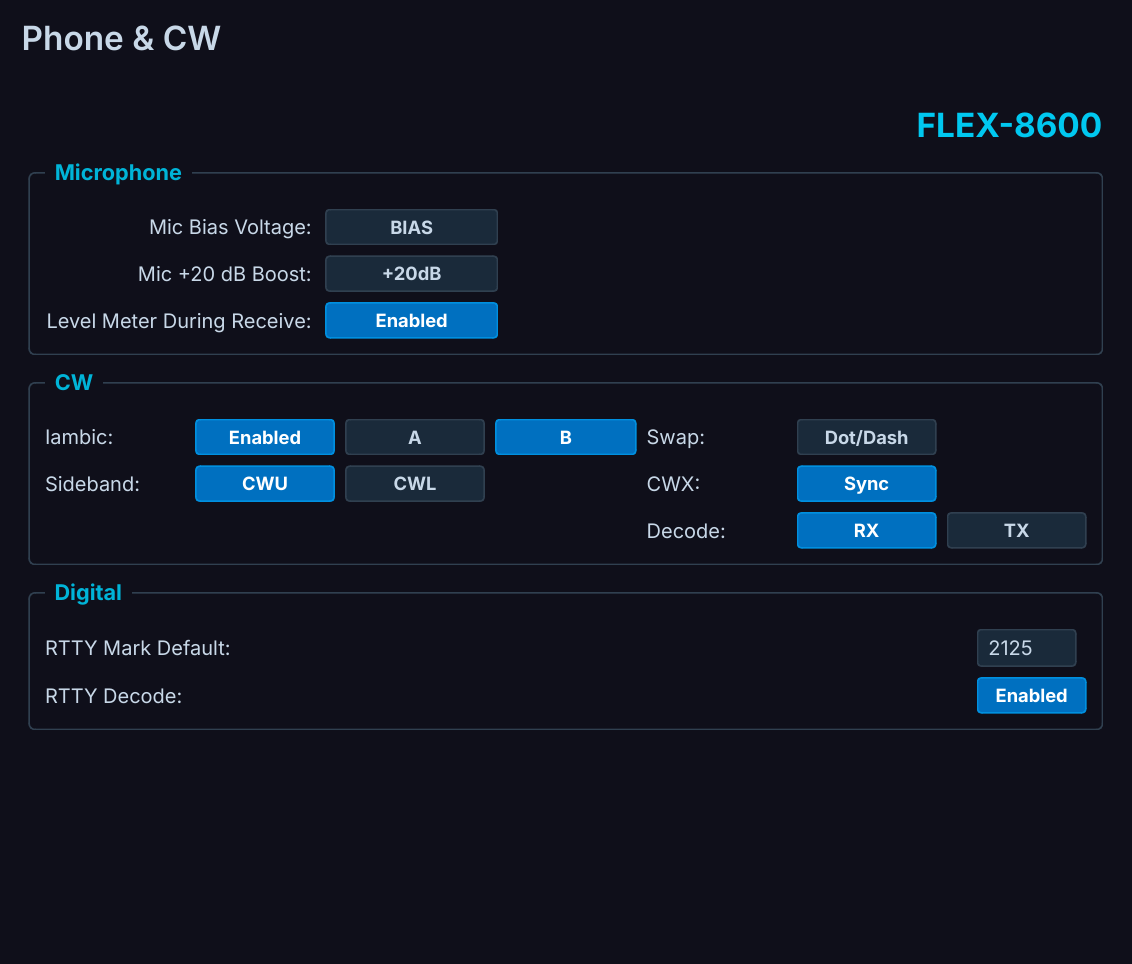
Radio Setup, Phone & CW page on a FLEX-8600: microphone, CW and digital settings.
| Toggle | Default | What it decodes |
|---|---|---|
| RX | On | The received CW on the selected slice |
| TX | Off | Your own keying, from AetherSDR's sidetone — useful for checking paddle or bug timing |
Both appear in the same panel. Your own sending is shown in cyan, so it stands apart from the confidence-colored received text.
Using the CW decoder
When the selected slice is in CW, CWU, CWL or CWR, the decode panel appears below the waterfall, and it hides again when you switch to another mode.
Drag the grip on the panel's edge to resize it; the height is remembered. Right-click the text for font size and Clear.
Double-click a callsign in the decoded text, or right-click it and choose Use … as DX call, to make it the DX call that fills {CALL} in CWX macros. This works on received text from any decoder and on your own sending. A word that does not have the shape of a callsign is not taken. See The DX call placeholder.
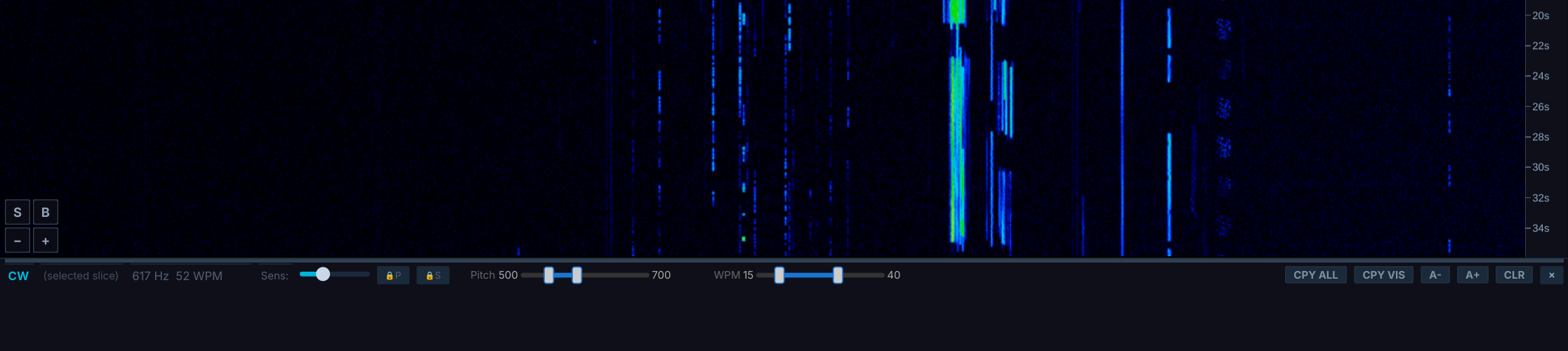
The CW decoder pane under the waterfall, with its sensitivity, pitch and speed controls.
Choosing a decoder
The decoder selector in the panel's toolbar picks which decoder reads the received CW. Only the selected decoder runs. Your own sending (the TX toggle) is always decoded by ggmorse and follows ggmorse's Sens setting, whichever decoder is selected.
| Decoder | Text appears | Typical use | Model |
|---|---|---|---|
| ggmorse (default) | About half a second after each character | Clean, steady signals | None; built in |
| DeepFist | About 2 seconds behind the signal | Weak and hand-sent CW | Downloaded on first use, about 13 MB |
| DeepCW | About 6–8 seconds behind the signal, a few characters at a time; it holds text back so later audio can correct it | Weak signals | Downloaded on first use, about 15 MB |
No decoder is best on every signal. Try each on the signals you work. DeepCW analyzes tones from 400 to 1200 Hz; keep the received CW tone in that range.
The neural decoders' models are not part of the AetherSDR download. The first time you select one, AetherSDR downloads its model from the model's own published source and checks it before use; the status beside the selector shows the progress. Cancel stops a download, and Retry appears if it fails. Once downloaded, the model is kept and works offline. If a model cannot be downloaded, the decoder shows Model unavailable and you can switch back to ggmorse.
With a neural decoder selected:
- The lock buttons and the Pitch and WPM ranges are unavailable; they apply to ggmorse only.
- Characters are colored by the model's own confidence, on the same green-to-red scale. Sens hides the low-confidence ones, as it does for ggmorse. Each decoder keeps its own Sens setting; DeepFist and DeepCW start at 0, which hides nothing. DeepFist text is hidden one character at a time and DeepCW text one group of characters at a time, as each is given its confidence. With DeepFist a word space is always shown; a hidden DeepCW group that contained a space leaves one space, so the words on either side of it stay apart.
- The MQTT text stream comes from ggmorse only. The Live CW contacts window works with every decoder: it reads the text shown in the panel.
- AetherSDR's Zero Beat button is unavailable; it needs ggmorse's pitch estimate. A FlexRadio's own Autotune (on a radio licensed for it through SmartSDR+, which it keeps after the subscription lapses) works with any decoder.
The slice's Once and Loop auto-tune controls adjust receive tuning; they do not transmit. Starting requires an unlocked CW slice owned by this client and a CW auto-tune license. Loop shows this client's requested loop state, not a radio-reported indication that a signal has been found. Rebuilding the slice controls preserves that request. Locking the slice or leaving CW mode requests Stop; an existing loop can also be stopped if its license becomes unavailable. Disconnecting or losing ownership clears the local request, and reconnecting does not restart it. Without a CW auto-tune license, the local Zero Beat control remains available where its decoder requirements are met.
DeepCW discards its provisional text (about 5–7 seconds) when the source changes, audio is interrupted, or decoding stops. Its worker finishes the current inference or model load before stopping, so switching decoders can pause the interface until that work finishes.
The neural decoders are not available on Intel Macs; there the selector does not appear and ggmorse decodes as before.
How it works
The decoder processes the received audio on a separate worker thread. It detects the dominant tone frequency, then uses a Goertzel filter and timing analysis to decode Morse characters.
- Auto pitch detection within the pitch search range
- Auto speed detection within the speed search range
- Cost function: measures how well the detected on/off timing matches ideal Morse ratios; this drives the confidence colors
Retuning resets the decoder state; pitch and speed locks survive a retune. Selecting a slice on another panadapter releases both locks.
Which audio is decoded
The decoder follows the selected slice, independently of speaker volume or mute:
- On RTL-SDR, CW and CWR use the selected slice's independent audio. Speaker gain and mute do not affect decoding. Moving that receiver outside capture suspends decoding until it can receive again.
- On a FlexRadio, assign a DAX RX channel to the selected slice (1–8). The decoder then reads that slice's audio alone, regardless of speaker gain, mute, or other audible slices.
- Without a DAX channel, it uses the shared receive audio, which mixes every audible slice and follows speaker gain and mute. The panel shows RX: shared audio; hover it for the explanation.
Reading the confidence colors
Received characters are color-coded by decode confidence (see Confidence colors). Green text can be trusted. Yellow is usually correct. Orange and red should be read skeptically — they often appear during QSB, QRM, or with operators who have irregular spacing.
Callsign lookup
Turn on View → Show live CW contacts to see the station the decoder copies identifying itself (DE <call>) in a separate Live CW contacts window, with its QRZ.com details when lookups are enabled. It is off by default and never covers the decoded text; closing the window turns it off. See Live CW contacts.
MQTT
Decoded text is published to the MQTT topic aethersdr/cw/decode, one JSON message per character, with "rx": false marking text from the TX decoder. Received text is published only while ggmorse is the selected decoder. See MQTT Station Automation.
Tips for best results
- Tune accurately: Center the CW signal in your filter passband. The decoder auto-detects the pitch, but a clean signal helps.
- Use narrow filters: CW filter widths of 200–500 Hz reduce noise and competing signals that confuse the decoder.
- APF helps: The Audio Peaking Filter (APF) narrows the audio around the CW pitch, giving the decoder a cleaner signal.
- Give it a DAX channel: On a FlexRadio, a DAX RX channel on the selected slice keeps other slices and your speaker settings out of the decode.
- Narrow the search ranges or lock: If the decoder wanders between signals, narrow the Pitch and WPM ranges, or lock pitch and speed once it has the right station.
- Strong signals decode best: Weak signals near the noise floor produce mostly red/orange text.
- Client-side noise reduction is voice-only and turns itself off in CW, so it does not affect the decoder.
Reference
Panel controls
| Control | What it does |
|---|---|
| Decoder | ggmorse, DeepFist or DeepCW (Apple Silicon, Linux and Windows); see Choosing a decoder |
| Stats | Detected pitch (Hz) and speed (WPM); with a neural decoder, its status |
| Sens | 0–100. Hides low-confidence characters: 0 shows everything, higher values show only confident decodes. Each decoder has its own setting: ggmorse starts at 30, DeepFist and DeepCW at 0. |
| 🔒P | Lock the decoder's pitch at the current value |
| 🔒S | Lock the decoder's speed at the current WPM |
| Pitch | Pitch search range, 300–1200 Hz (default 500–700 Hz), remembered and the same on every pan. When the CW pitch changes, or when you connect to the radio, the range moves to the pitch ±150 Hz, unless it already covers the pitch; then it stays as you set it. |
| WPM | Speed search range, 5–60 WPM (default 15–40 WPM), remembered and the same on every pan |
| CPY ALL / CPY VIS | Copy all decoded text, or just the visible text, to the clipboard |
| A− / A+ | Decoded-text size (8–32 px), remembered |
| CLR | Clear the decoded text |
| ✕ | Close the decoder panel |
Confidence colors
Colors are based on ggmorse's cost function:
| Color | Confidence | Cost range | Meaning |
|---|---|---|---|
| Green | High | < 0.15 | Clean, well-timed CW |
| Yellow | Medium | 0.15–0.35 | Slightly imperfect timing |
| Orange | Questionable | 0.35–0.60 | May be incorrect |
| Red | Low | 0.60–1.00 | Likely noise or bad decode |
Technical details
- Library: ggmorse by Georgi Gerganov (MIT license)
- Neural decoders: DeepFist (n9bc/DeepFist, downloaded with the pinned upstream release’s GPL-3.0-or-later notice) and DeepCW (e04/deepcw-engine, AGPL-3.0); both run with ONNX Runtime, and their models are downloaded, not bundled
- ggmorse is built in — no external dependency
- Runs on a dedicated worker thread — does not block audio playback
- CPU usage: negligible
Known issues
- The decoder shows no text on some FLEX-8600 setups (#6158).
- The squelch threshold line can appear on the panadapter in CW, although squelch is unavailable there (#6276).
Troubleshooting
The decode panel doesn't appear
The panel follows the mode of the selected slice.
- Select the slice you want to decode.
- Switch it to CW or CWL.
- Check that RX is on next to Decode: in Settings → Radio Setup... → Phone & CW.
The decode changes with speaker volume, mute or other slices
The decoder has no DAX channel on the selected slice, so it uses the shared receive audio. The panel shows RX: shared audio.
- On a FlexRadio, assign a DAX RX channel (1–8) to the selected slice.
- Check that RX: shared audio is no longer shown.
The decoder jumps between stations
Another signal inside the pitch or speed search range is pulling the decoder away.
- Narrow the filter to 200–500 Hz, or turn on APF.
- Narrow the Pitch and WPM search ranges around the station you want.
- Once it copies the right station, lock pitch (🔒P) and speed (🔒S).
Text is mostly orange or red
The signal is weak, poorly tuned or irregularly sent.
- Center the signal in the filter passband.
- Narrow the filter or turn on APF.
- Raise Sens to hide low-confidence characters.
See also
- CWX Panel — sending CW from the keyboard
- RTTY Operation — the built-in RTTY decoder works the same way
- DAX Virtual Audio
- Callsign Lookup
- ggmorse