Status: Supported · Applies to: FlexRadio
This page walks through connecting to a FlexRadio for the first time. AetherSDR also connects to other radio families, and has a demo mode that needs no radio at all; see Supported Radios and Demo Mode.
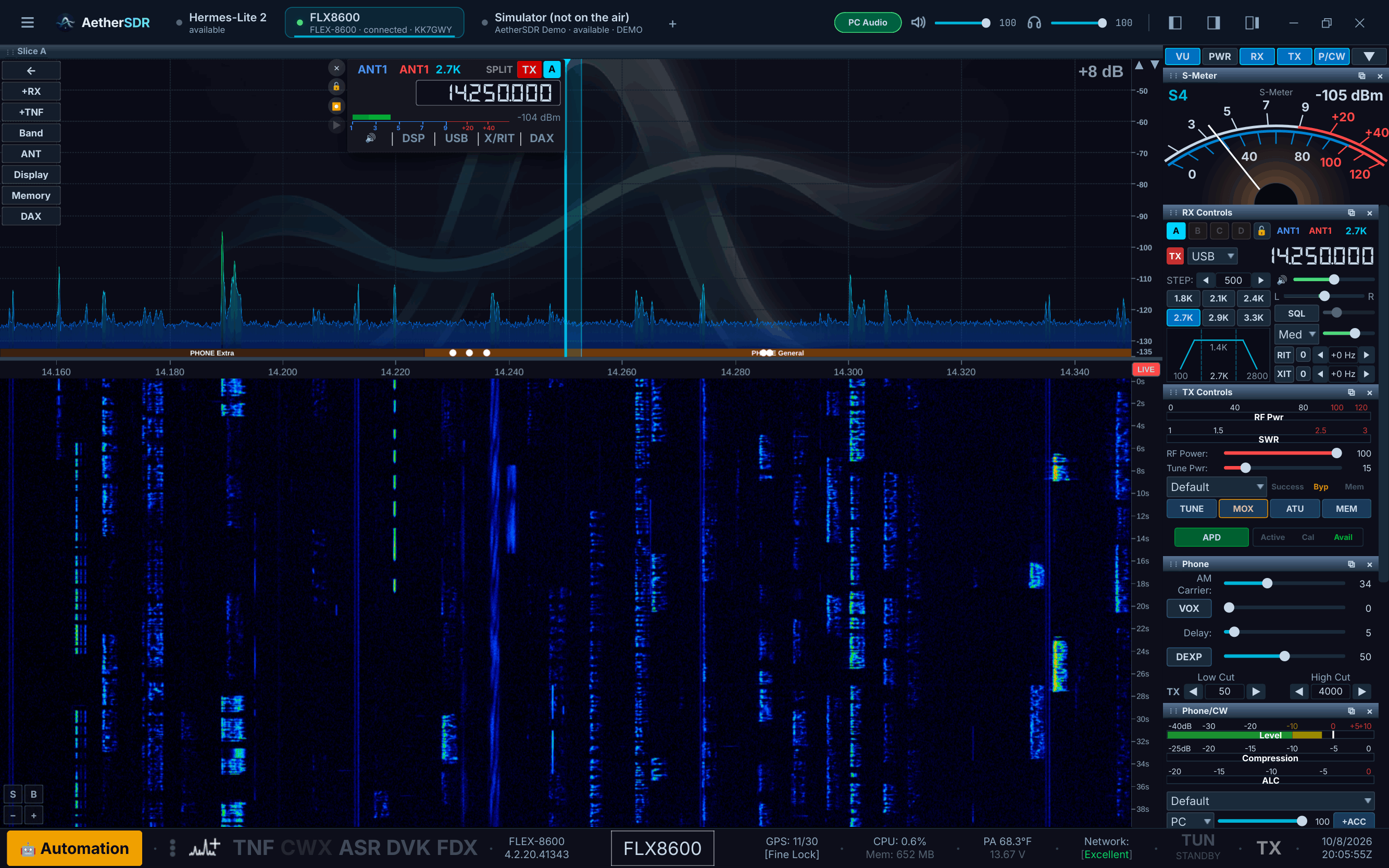
The AetherSDR main window connected to a FLEX-8600 on 20 m: title bar along the top, panadapter and waterfall on the left, applet panel on the right, status bar along the bottom.
Requirements
- A FlexRadio transceiver (FLEX-6000, FLEX-8000 or Aurora series) powered on
- Your computer on the same network as the radio
- AetherSDR installed (Installation)
Setup
The Connect to a radio window keeps your saved radios together in named locations, such as Home, POTA or Cabin. The initial Home location preserves your current connection settings. See Location and Operator Profiles.
The window has no title bar. It opens above the status bar; drag any empty part of it to move it, and drag an edge or corner to resize it. Close it with the round ✕ in the top-right corner, Esc or Ctrl+W (⌘W on macOS). View → Frameless Window does not apply to it, and pressing Return in a field (an IP address, a SmartLink password) does only what that field does.
The window automatically fits its height to the available screen space, including room for a horizontal scrollbar when the contents are wider than the window. On a smaller screen, scroll the body to reach its controls; the connection status and Disconnect button remain below it.
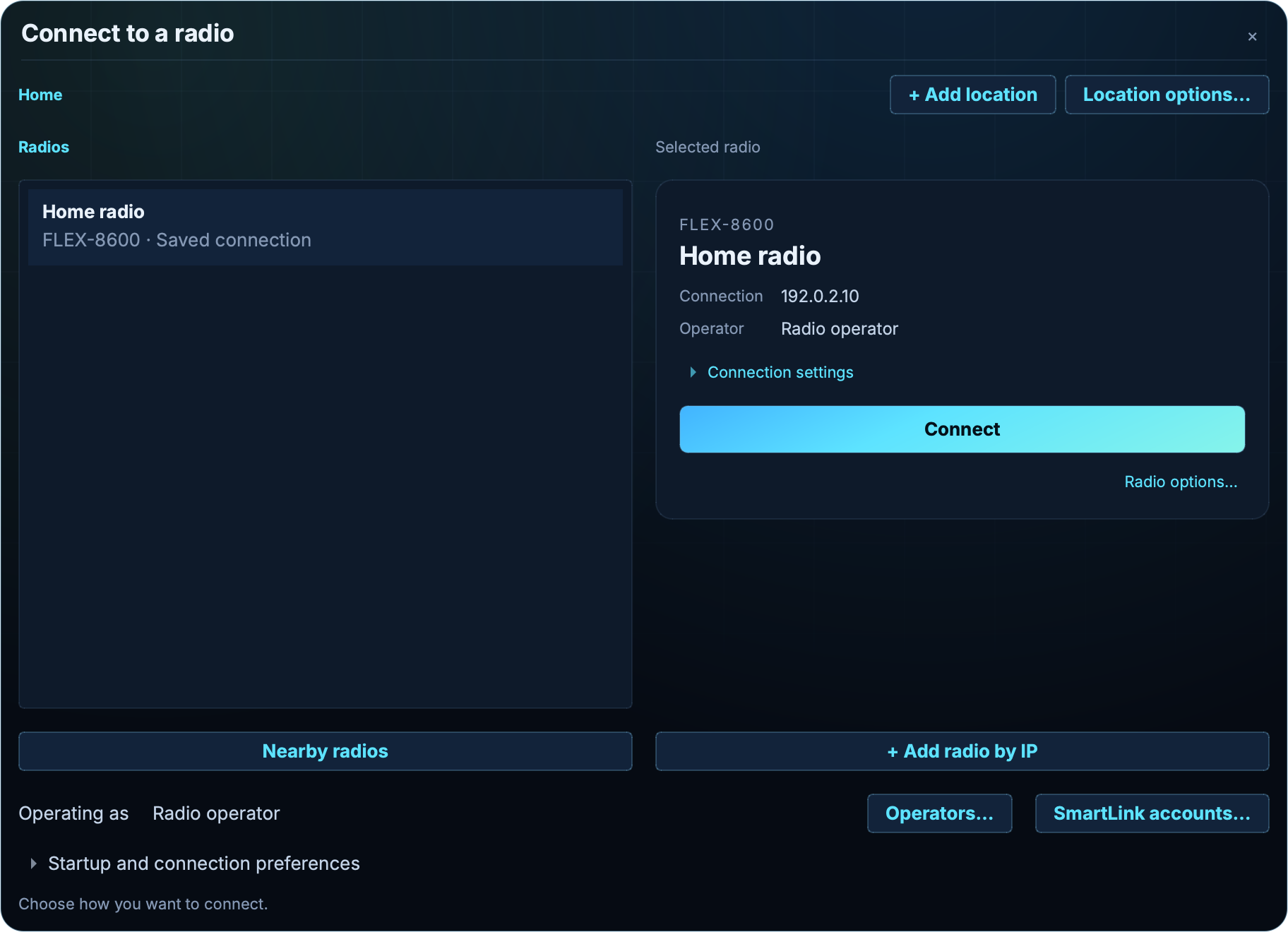
Choose a location, select a radio and use Connect to connect to that radio.
- Launch AetherSDR. On first launch, the Connect to a radio window opens at Home. Later launches can auto-connect to the last radio when that startup preference is enabled. Reopen it with File → Connect to Radio..., or ⋯ More radios → Locations and connections… beside the title bar’s radio shortcuts.
- Select your location. If it has no saved connections, discovered radios appear directly in its list.
- Select your radio and click Connect. The connection is saved in this location.
- The spectrum, waterfall and receive audio start.
Nearby radios opens the full discovery list. Select a radio and click Save selected radio to location, then ‹ Back to Locations to return to the launcher. Discovery continues as you browse locations. If nothing appears, use Retry Discovery or Open Network Diagnostics there.
The list can also include:
- Hermes-Lite 2 and ANAN-G2 radios on the same LAN, and RTL-SDR dongles plugged into this computer (on builds with the RTL-SDR backend).
- AetherSDR Demo, labeled "Simulator (not on the air)". It always sorts below real radios. Untick Show the AetherSDR demo simulator to hide it.
What to Expect
After connecting, you'll see:
- Spectrum (top) showing the RF environment
- Waterfall (bottom) scrolling in real time
- VFO widget with frequency, S-meter and controls
- Title bar with a tab for the radio; its dot pulses with each heartbeat and turns red with "Link lost" if the connection drops
- Applet panel (right) with the RX, TX, P/CW and other applets
Controls that the connected radio cannot use are hidden or dimmed with a reason. Continue with Your First Session.
Other Ways to Connect
Auto-connect
With Connect to last radio on start up checked (the default), AetherSDR reconnects to the last radio on the next launch if it is reachable. Untick it under Startup and connection preferences in the connection window to choose a radio yourself each time. If startup auto-connect gives up, the Connect to Radio window opens again.
Connect by IP (routed networks)
If your radio is on a different subnet or behind a VPN, discovery cannot see it. Choose + Add radio by IP, set Radio type:, enter Radio IP: and click Connect by IP. See Manual Connection.
SmartLink (remote operation)
Choose Accounts… (SmartLink accounts) to reach a FlexRadio over the internet. See SmartLink Setup.
Known issues
- On a FLEX-8600 on macOS, receive audio can stutter badly on the first connection until the radio is restarted (#5700).
- On Windows, a FLEX-6300 that SmartSDR finds on the network may not appear under On This Network (#6221).
Troubleshooting
The radio does not appear in the list
Discovery broadcasts do not cross routers or most VPNs, and guest Wi-Fi isolation, VPN software or firewall rules can block them.
- Make sure the radio and computer are on the same subnet.
- Check the radio is reachable:
ping <radio-ip>. - Allow UDP port 4992 through the firewall (for example
sudo ufw allow 4992/udp). - Click Open Network Diagnostics to narrow it down.
- If the radio is on another subnet or behind a VPN, use Connect by IP; see Manual Connection.
The radio refuses the connection
The radio rejected AetherSDR's client registration (for example with error F3000001). AetherSDR closes the connection, does not retry on its own, and returns to the Connect to Radio window with the radio's error.
- Follow the message shown: typically another client must disconnect first, or the radio needs a restart.
- If the Connected Stations dialog appears, select a station and click Disconnect Station; see Multi-Flex.
Registration or client disconnection does not complete
If GUI registration or a client disconnection required for startup goes unanswered for 30 seconds, AetherSDR reports the incomplete operation and closes that connection so the normal reconnect path can recover. A radio rejection is different: follow the radio's error as described above. After a reconnect, replies and delayed actions from the old connection cannot continue its registration or disconnect another station.
Check the network connection and retry from File → Connect to Radio... if automatic reconnection does not restore the session.
Connected, but no audio
The PC audio path is off, or the wrong output device is selected.
- Check that PC Audio is on in the title bar.
- Open Settings → Radio Setup... → Audio and check the output device. See Audio Settings.
- Check that the slice and the title-bar speaker are not muted.
Spectrum, but no waterfall
The waterfall needs data from the radio before it starts drawing.
- Wait a few seconds.