Status: Supported · Applies to: FlexRadio
Multi-Flex lets AetherSDR operate alongside SmartSDR, Maestro, or another AetherSDR instance, each as an independent client on the same radio.
Multi-Flex is a FlexRadio feature. Unsupported multiFLEX controls are dimmed with an explanation (see Supported Radios). The Enabled / Disabled button waits for the radio's initial setting and returns to its last reported value if a change is rejected or times out. An accepted request stays visible until the radio reports a setting, including when you reconnect.
Requirements
- The radio must have multiFLEX enabled (
mf_enable=1). - Enable it in SmartSDR (Settings → Radio Setup → Radio → multiFLEX → Enabled), or in AetherSDR with the multiFLEX: toggle on Settings → Radio Setup... → Radio, or the dashboard's Enabled / Disabled button.
How Multi-Flex Works
When several clients connect to the same FlexRadio, each gets its own:
- Client handle (assigned by the radio)
- Slice(s) and panadapter
- Independent tuning, mode and filter settings
AetherSDR filters status messages and VITA-49 packets by client_handle, so you only see your own slices and panadapter data.
AetherSDR handles this automatically:
- On connect: AetherSDR checks whether existing slices belong to another client. If so, it creates its own slice and panadapter.
- Ownership: panadapter and slice ownership is taken from the radio's status, not from the order packets arrive in, so joining a radio that already has clients attaches you to the right objects.
- Released slices: a slot becomes available when the radio reports its removal or its owning client disconnects. A reassigned slice uses its new owner's state; queued updates from a disconnected session do not restore the old slice.
- Joining: the connection watchdog allows a grace period while a second client joins, so the join does not trigger a false disconnect.
- Status filtering: only slice, pan and waterfall updates that match your
client_handleare processed. Spectrum and waterfall packets from other clients' panadapters are dropped. - Shared radios show "Shared radio on your network via multiFLEX" in the Connect to Radio list.
Using the multiFLEX Dashboard
Settings → multiFLEX... opens the multiFLEX Dashboard, a live list of every connected station. It stays open beside the main window while you work; choosing multiFLEX... again brings it to the front, and it closes when the radio disconnects. Drag any empty part of it to move it, drag an edge to resize it, and close it with the round button in its top-right corner, Escape or Ctrl+W (⌘W on macOS). It remembers its size and place:
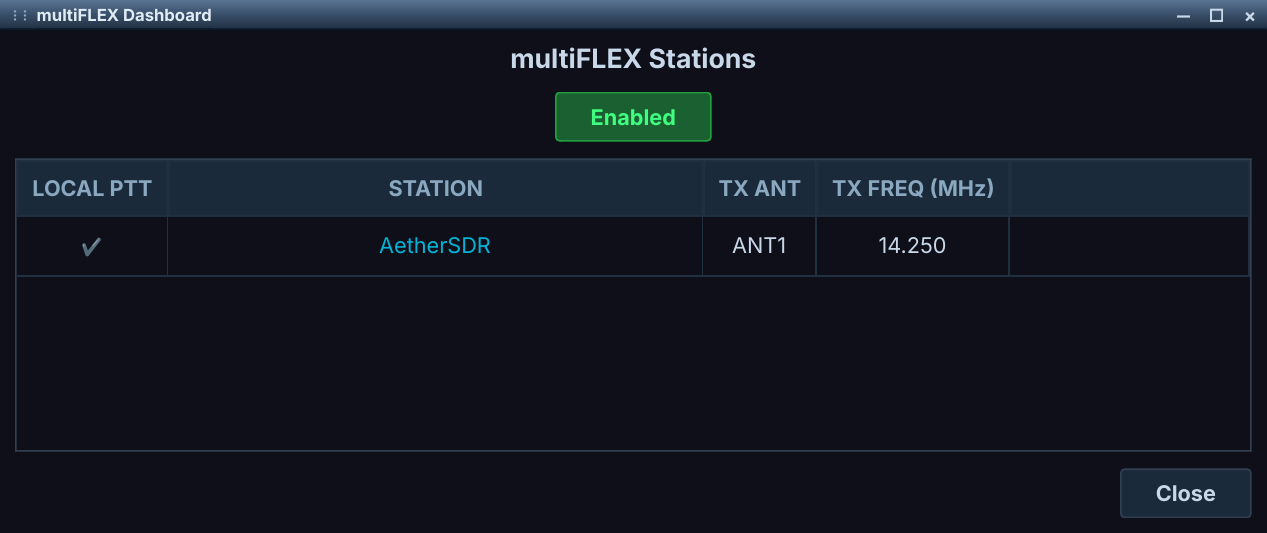
The multiFLEX Dashboard: every station sharing the radio.
| Column | Meaning |
|---|---|
| LOCAL PTT | A check mark shows which station holds PTT authority |
| STATION | The client's program and station name |
| TX ANT | Transmit antenna |
| TX FREQ (MHz) | Transmit frequency |
| (button) | Disconnect removes that client from the radio |
The Enabled / Disabled button above the table turns multiFLEX on or off on the radio. Below the table, Enable (Local PTT) requests PTT for your station when another client holds it. The request does not key the transmitter. With multiple clients connected, the Local PTT check follows the radio’s reported ownership; an accepted request alone does not change it.
A green multiFLEX button appears in the title bar while other clients are connected. Hover it for the list of stations; click it to open the dashboard.
Connected Stations
When multiFLEX is disabled on the radio and another client is already connected, the Connected Stations dialog appears automatically when you connect. It lists the radio and each connected station. Select a station and click Disconnect Station to free the radio, or Cancel.
Reference
Slice Letter Display
Settings → Radio Setup... → Appearance & Behavior → Slice Letter Display chooses how slice letters appear in badges, faders and applet labels:
- Global slot index (A=0, B=1, …), the default.
- Radio-assigned letter with global subscript (A₂), which matches SmartSDR's letters in multi-client sessions and still shows which physical slot you are on.
Client names and local PTT status follow the radio's live reports. A disconnected client is removed from the client list; its delayed connection notification cannot be reused for a later connection with the same radio-assigned handle.
Troubleshooting
The Connected Stations dialog appears when you connect
multiFLEX is disabled on the radio, and another client is already connected.
- To take over the radio, select the other station and click Disconnect Station.
- To share the radio instead, click Cancel, enable multiFLEX on the radio (see Requirements) and connect again.
You cannot transmit while another station is connected
Another client holds PTT authority. The LOCAL PTT column of the dashboard shows which one.
- Open Settings → multiFLEX....
- Click Enable (Local PTT) to request PTT for your station.