Status: Supported · Applies to: FlexRadio, Hermes-Lite 2
RTTY (Radio Teletype) is a digital mode that encodes text as two alternating audio tones — a Mark tone and a Space tone. AetherSDR supports RTTY with the radio's RTTY mode, a built-in RTTY decoder that shows received text below the waterfall, and the usual DAX and CAT path for external RTTY software. The decoder also works on the Hermes-Lite 2.
Squelch switches itself off when a slice enters RTTY, because it would break the decode, and AetherSDR's client-side noise reduction is voice-only and stays off in RTTY.
Setup
Mark frequency
The radio's default Mark tone is RTTY Mark Default in Settings → Radio Setup... → Phone & CW (Digital group). The default is 2125 Hz, which is the worldwide amateur RTTY standard. Other common values are listed under Mark frequencies.
The radio stores a global default (rtty_mark_default) that applies to all new RTTY sessions. AetherSDR reads this from the radio on connect.
The mark belongs to the slice (the radio's rtty_mark). The decoder's Mark and Mark on the VFO's DSP tab show and set the same value.
Shift
The shift is the frequency difference between the Mark and Space tones. The standard amateur RTTY shift is 170 Hz. Other shifts exist (for example 850 Hz for military/commercial) but are uncommon on the amateur bands.
The shift belongs to the slice (the radio's rtty_shift). The decoder's Shift and Shift on the VFO's DSP tab show and set the same value, and the panadapter's space line sits that far below the mark line.
Changing the shift leaves the receive filter as it is, so a filter narrower than the shift does not pass both tones. For a wide shift, choose a filter width wider than the shift, for example 1K for an 850 Hz shift; AetherSDR centers it between the mark and space tones.
Using RTTY
Tuning with the Mark and Space lines
RTTY transmits binary data by switching between two audio frequencies, Mark and Space (see Mark and Space tones). The difference between them is the Shift — by default 170 Hz, the standard amateur RTTY shift.
When you switch to RTTY mode, AetherSDR displays two dashed vertical lines on the panadapter labeled M (Mark) and S (Space). These lines show exactly where the two RTTY tones sit in the audio passband, and they move with your VFO frequency.
When you tune to an RTTY signal, position the two dashed lines so that the Mark line sits on the higher-frequency tone and the Space line sits on the lower-frequency tone. When both tones fall on their respective lines, the signal is properly tuned and can be decoded.
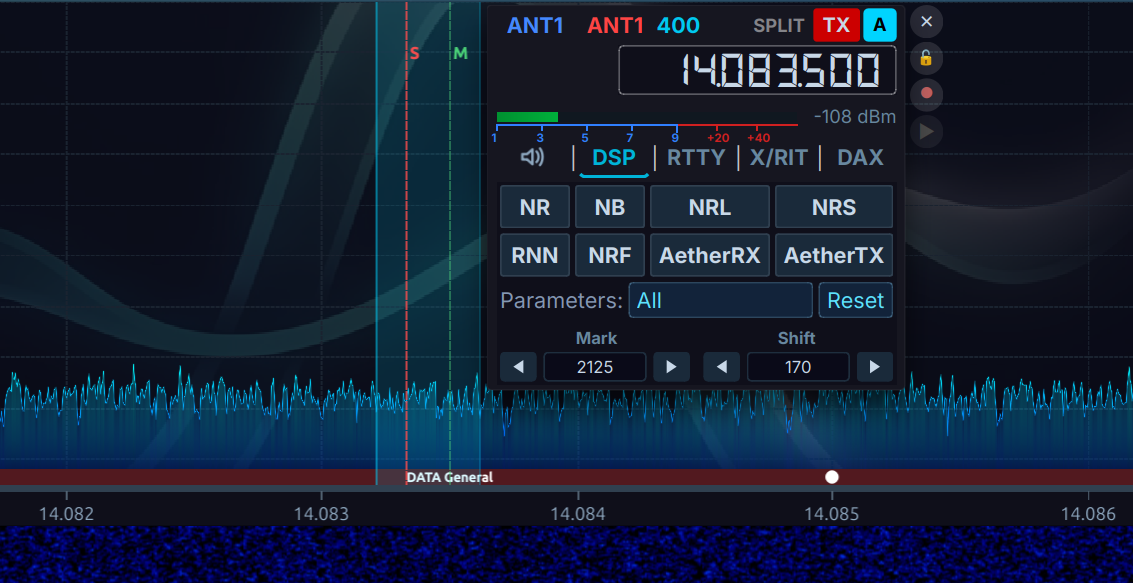
RTTY mode on a narrow span: the red S (space) and green M (mark) lines sit inside the passband. The VFO's DSP tab is open, showing Mark 2125 and Shift 170.
Panadapter view (RTTY mode):

    S           M
    |           |        ← dashed lines on panadapter
    ┊    ╱╲     ┊╱╲
    ┊   ╱  ╲    ╱  ╲
    ┊──╱────╲──╱────╲──
    ┊ ╱      ╲╱      ╲
  Space     Mark
  tone      tone
  (1955 Hz) (2125 Hz)

  ←── 170 Hz shift ───→
The M/S lines appear only in RTTY mode. A DIGL slice shows the normal carrier marker, not RTTY cues.
Built-in RTTY decoder
When the selected slice is in RTTY, a decoder pane opens below the waterfall and shows the decoded text (Baudot/ITA2, with LTRS/FIGS shift tracking). Its controls are listed under Decoder controls.
The stats bar updates about twice a second. Its level bar and LOCKED / UNLOCK follow how cleanly recent characters were received: a full bar and LOCKED on a clean copy, an empty bar and UNLOCK when nothing is being decoded, a steady carrier included. The dB figure compares the two tones over the same characters, so it depends on the shift as well as the signal: a clean copy reads about 6 dB at 170 Hz and 45.45 baud, about 3 dB at 85 Hz and about 9 dB at 850 Hz. Each letter is colored by how cleanly it was received: green, yellow, orange, then red. Baud, REV and Sens are remembered. Mark and Shift are not: they are the slice's mark and shift, which the radio holds, and a new slice starts at a 170 Hz shift.
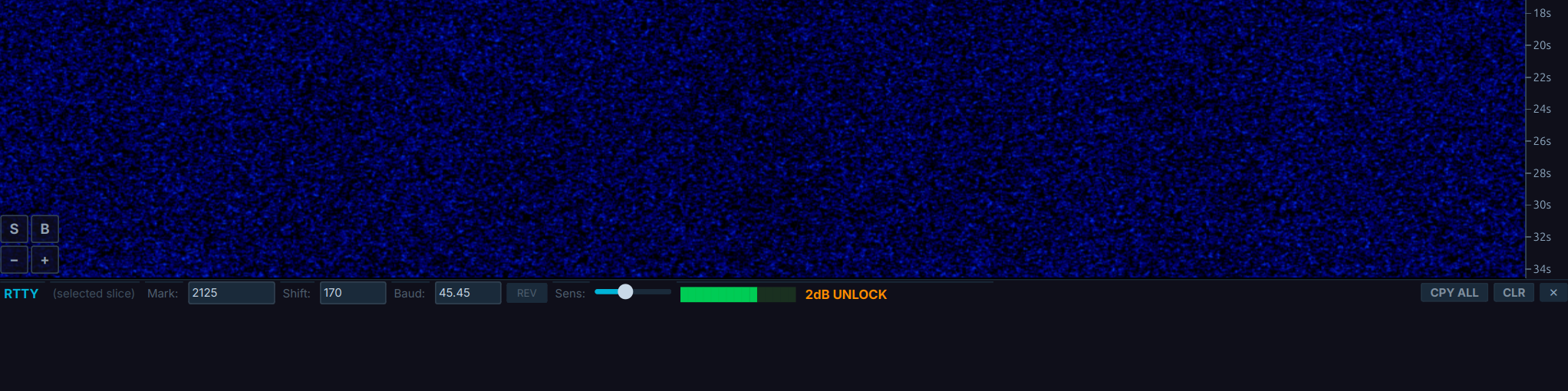
The RTTY decoder pane under the waterfall, with Sens raised to about 38.
Which audio is decoded
Like the CW Decoder, the RTTY decoder follows the selected slice. On a FlexRadio, assign a DAX RX channel to that slice and the decoder reads it alone, regardless of speaker gain, mute or other slices. Without one it uses the shared receive audio and shows RX: shared audio.
Closing and reopening the pane
Closing the pane with ✕ turns the decoder off, and it stays closed on later RTTY slices. To bring it back, open Settings → Radio Setup... → Phone & CW and set RTTY Decode (in the Digital group) to Enabled.
Using external RTTY software
Many operators use external RTTY software (MMTTY, fldigi and so on) connected through AetherSDR's DAX virtual audio and CAT control:
- Enable DAX — Assign a DAX channel (for example DAX 1) to the slice and make sure DAX is running in the DAX applet. This routes the slice's receive audio to a virtual audio device your RTTY software can open.
- Set up CAT — In the CAT applet, enable a port (rigctld, TS-2000 or Flex dialect, or a virtual serial port on Linux/macOS). Your RTTY software uses it to key the radio and read the frequency.
- Select RTTY mode — Switch the slice to RTTY mode. The radio applies the correct filter bandwidth and enables its RTTY demodulator.
- Use DIGU/DIGL for AFSK — If your RTTY software generates audio-frequency shift keying (AFSK) rather than expecting the radio to do FSK, use DIGU or DIGL mode instead of RTTY. The Mark/Space lines and the built-in decoder do not appear in DIGU/DIGL, since the demodulation is handled by your software.
See DAX Virtual Audio and CAT Control for setup details.
Reference
Mark and Space tones
| Tone | Meaning | Default frequency |
|---|---|---|
| Mark (M) | Binary 1 — the "key down" tone | 2125 Hz above the carrier |
| Space (S) | Binary 0 — the "key up" tone | 2125 − 170 = 1955 Hz above the carrier |
Decoder controls
| Control | Options | What it does |
|---|---|---|
| Mark | 500, 850, 915, 1000, 1275, 1700, 2125, 2210 Hz | The slice's Mark tone, the same value as Mark on the VFO's DSP tab. A mark set there in 25 Hz steps (for example 2150 Hz) is listed as its own entry. |
| Shift | 45, 50, 75, 100, 170, 182, 200, 240, 425, 450, 500, 850 Hz | The slice's mark-to-space shift, the same value as Shift on the VFO's DSP tab; the panadapter's space line follows it. A shift set there in 5 Hz steps (for example 175 Hz) is listed as its own entry. |
| Baud | 45.45, 50, 75, 100, 110, 150, 300 | Symbol rate |
| REV | On / off | Reverse polarity — space above mark (inverted signal) |
| Sens | 0–100 (default 0) | Display squelch: hides characters the decoder is not confident about, so noise between transmissions doesn't fill the pane. 0 shows everything; 23 hides the red letters, 45 the orange ones too, and 78 keeps only the green ones. Display only — nothing is retuned. |
| CPY ALL | — | Copy all decoded text to the clipboard |
| CLR | — | Clear the text |
| ✕ | — | Close the decoder pane |
Mark frequencies
| Mark frequency | Usage |
|---|---|
| 2125 Hz | Amateur radio standard (default) |
| 2295 Hz | Commercial / maritime RTTY |
| 1275 Hz | Some European stations |
Recommended RTTY software
| Software | Platform | Notes |
|---|---|---|
| fldigi | Linux, macOS, Windows | Full-featured, supports many digital modes |
| MMTTY | Windows | Classic RTTY-specific decoder |
| WSJT-X | Linux, macOS, Windows | Primarily FT8/FT4, but connects via the same DAX/CAT path |
Typical RTTY operating frequencies
| Band | Frequency range | Notes |
|---|---|---|
| 80m | 3.580 – 3.600 MHz | RTTY/Data segment |
| 40m | 7.040 – 7.080 MHz | RTTY activity center ~7.080 |
| 30m | 10.130 – 10.150 MHz | RTTY ~10.143 |
| 20m | 14.080 – 14.100 MHz | RTTY activity center ~14.085 |
| 15m | 21.080 – 21.100 MHz | RTTY ~21.085 |
| 10m | 28.080 – 28.100 MHz | RTTY ~28.085 |
Known issues
- The squelch threshold line can still appear on the panadapter in RTTY, although squelch is off in that mode (#6276).
Troubleshooting
Mark/Space lines are in the wrong position
The Mark frequency may not match the station you're receiving. Most amateur stations use 2125 Hz Mark / 170 Hz Shift.
- If the lines don't align with the signal's two tones, check RTTY Mark Default in Settings → Radio Setup... → Phone & CW.
I don't see the M/S lines
The Mark and Space lines only appear in RTTY mode. They do not appear in DIGU, DIGL, or other modes.
- Make sure the slice mode selector shows RTTY.
The decoder pane doesn't appear
The pane opens only for a selected slice in RTTY mode, and closing it with ✕ turns the decoder off.
- Select the slice and set it to RTTY.
- If you closed the pane earlier, set RTTY Decode to Enabled in Settings → Radio Setup... → Phone & CW.
The decoder prints gibberish between transmissions
The decoder is printing noise while it has no lock.
- Raise Sens on the decoder bar. Noise decodes as mostly red and orange letters, which 45 hides.
Audio sounds like two alternating tones but no decode
The tones are not on the M and S lines, or the decoder settings don't match the signal.
The built-in decoder stays idle while either tone is at or below 0 Hz. It resumes automatically when both tones are above 0 Hz.
- Tune your VFO until both tones sit on their respective dashed lines.
- Check that Shift, Baud and REV match the signal.
- With REV off, keep Mark above Shift. With REV on, keep Mark above 0 Hz.
- If you use external software, verify the DAX channel is routing audio correctly.