GeezerVisonThe World Wide Web, restored to 800 pixels of glory. |
| Home|About|Gaming cabinet|Archives|How it works|Starter sites |
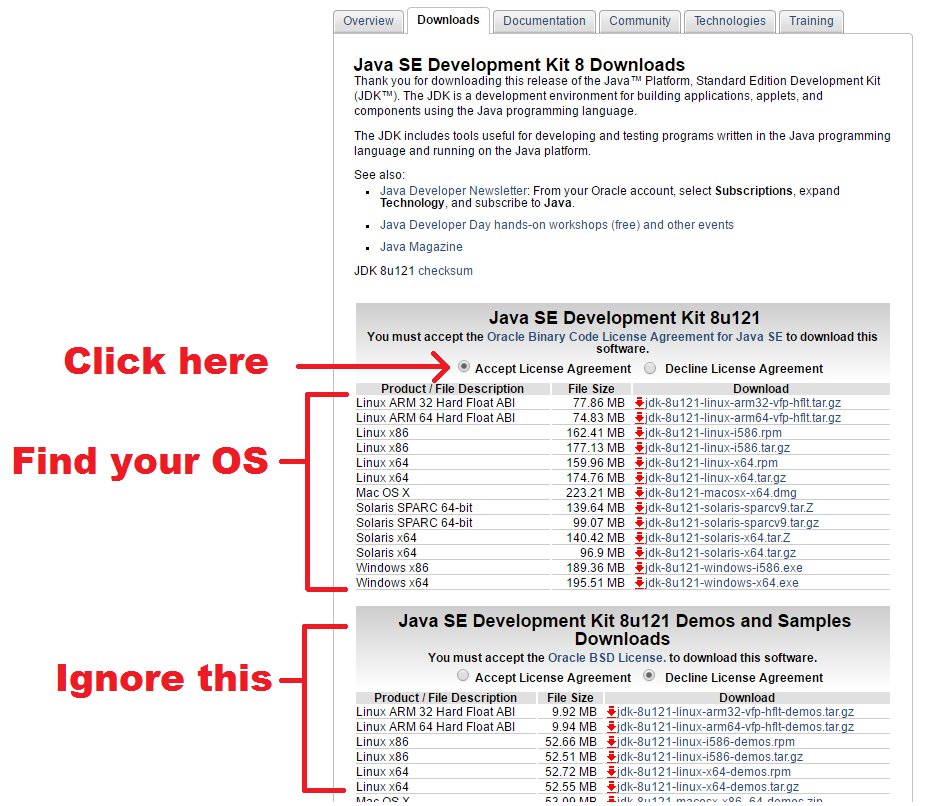
GeezerVison is showing happycoding.io — Java Setup Java SetupJava SetupThis tutorial introduces Java and goes over the steps you need to follow to program Java on your computer. When we get to the programming part, I’m going to assume you’ve already been through the Processing tutorials. If you haven’t done them yet, go do them before moving on to Java! Download the JDKSince you’ll be writing code, you need to download the Java Development Kit, aka the JDK. Go here and find the download button that says JDK (not JRE) and click that. That takes you to a page containing OS-specific download files. Download the one for your computer!
When the download completes, run the installer. The default settings should be fine. Remember where the installer puts Java- you’ll need that location in the next step! Set your PATH
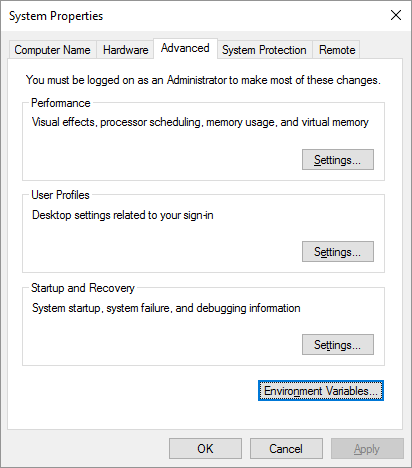
Here are instructions for setting the On Windows 10, you can open the start menu and just type “path” which will show you an option for editing the system environment variables. Click that, which opens the System Properties dialog:
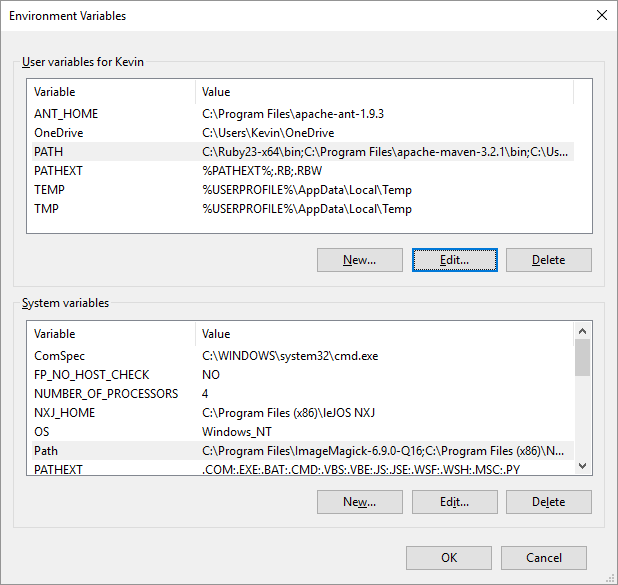
On that screen, click the “Environment Variables…” button, which opens up the Environment Variables dialog:
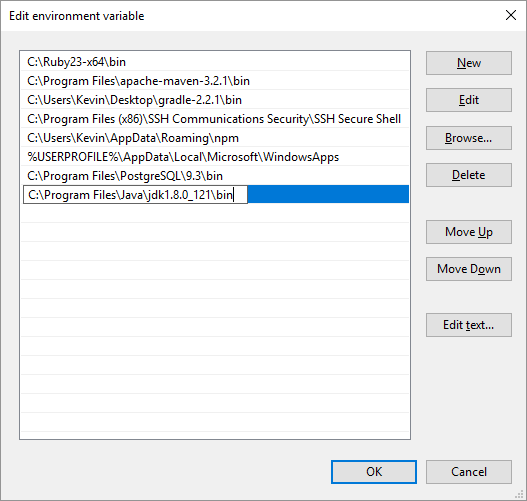
On that screen, find a variable called
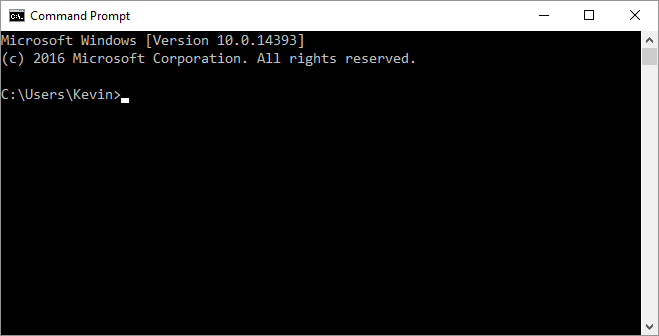
Finally, on that screen, click the Press Command PromptThe command prompt is a text-based interface that lets you interact with the computer without any windows. It’s how a lot of coding tools are run, and it’s how we’re going to work with Java for now. To open the command prompt, go to the start menu and then type “command” until you see a shortcut that says Command Prompt. Click that to open the command prompt, which looks like this:
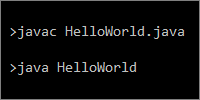
You can use the command prompt by typing commands and pressing the enter key. Try these commands:
Homework:
Next: To the code! |
| You are visitor 01402503 — GeezerVison does not store the pages you look up. Best viewed with Netscape Navigator 4.7 or Internet Explorer 6 at 800×600. No cookies required. |