GV

GeezerVison

The World Wide Web, restored to 800 pixels of glory.

Home|About|Gaming cabinet|Archives|How it works|Starter sites

On this site

  • Worktrunk
  • wt switch
  • wt list
  • wt merge
  • wt remove
  • wt config
  • wt step
  • wt hook
  • Agent integration
  • Extending Worktrunk
  • LLM commit messages
  • Tips & patterns
  • Shell integration
  • FAQ

This view

  • Original page
  • New address

GeezerVison is showing worktrunk.dev — wt switch

wt switch

Switch to a worktree; create if needed.

Worktrees are addressed by branch name; paths are computed from a configurable template. Unlike git switch, this navigates between worktrees rather than changing branches in place.

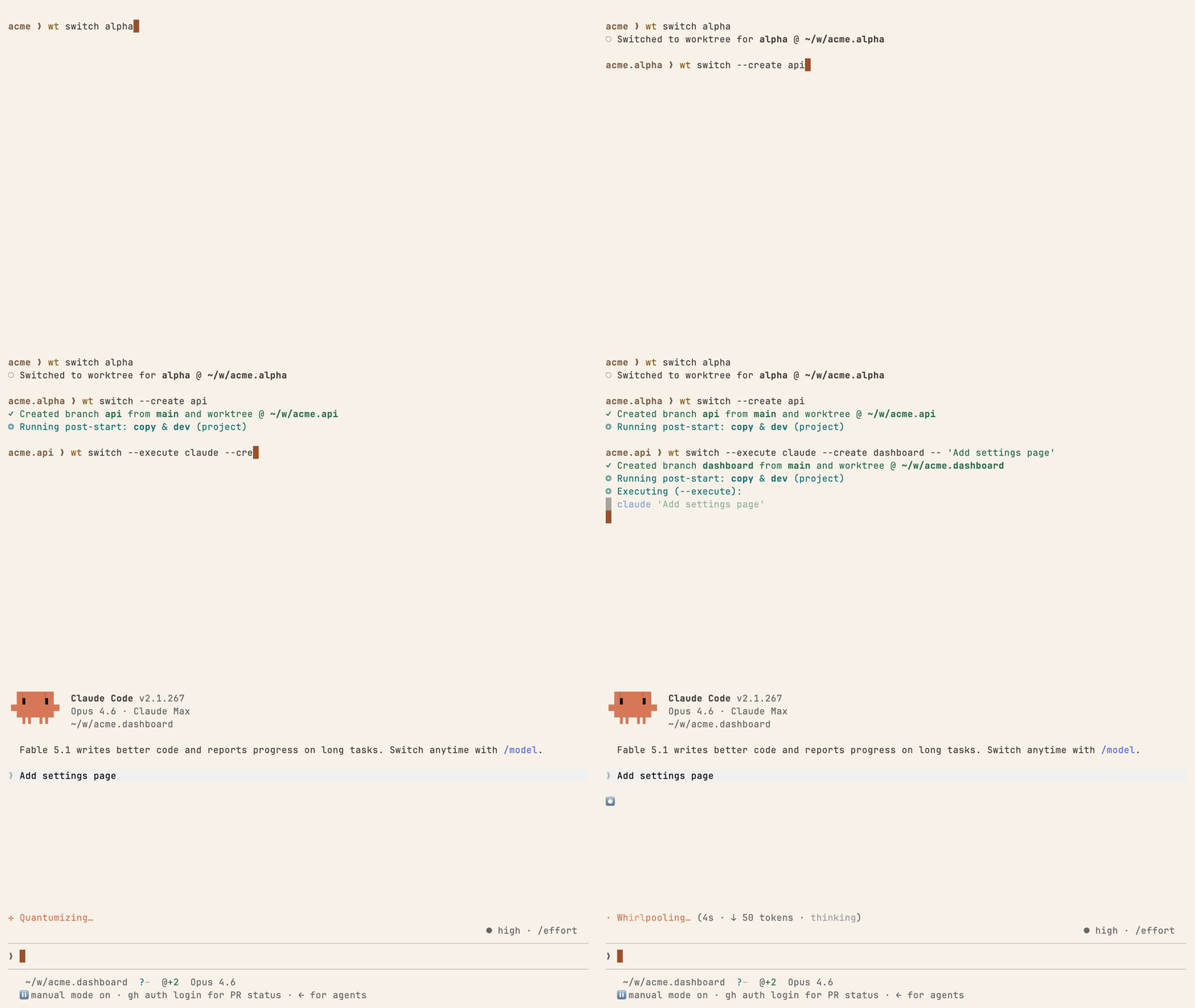
wt switch demo
Switching to a worktree, creating one, and creating one that launches an agent

Examples

Section titled “Examples”
wt switch feature-auth # Switch to worktree
wt switch - # Previous worktree (like cd -)
wt switch --create new-feature # Create new branch and worktree
wt switch --create hotfix --base production
wt switch pr:123 # Switch to PR #123's branch
wt switch https://github.com/owner/repo/pull/123 # ...or paste the PR's URL

Creating a branch

Section titled “Creating a branch”

The --create flag creates a new branch from --base — the default branch unless specified. Without --create, the branch must already exist. Switching to a remote branch (e.g., wt switch feature when only origin/feature exists) creates a local tracking branch.

To complete branches from a specific remote, type its prefix before pressing Tab (e.g., wt switch origin/).

A new branch tracks the remote branch it starts from only when the two share a name: --create release --base origin/release tracks origin/release, while --create feature --base origin/release gets no upstream. Publish such a branch with git push --set-upstream origin <branch>, or set git’s push.autoSetupRemote = true once.

Creating worktrees

Section titled “Creating worktrees”

If the branch already has a worktree, wt switch changes directories to it. Otherwise, it creates one:

  1. Runs pre-switch hooks, blocking until complete
  2. Creates worktree at configured path (or at --path)
  3. Switches to new directory
  4. Runs pre-start hooks, blocking until complete
  5. Spawns post-start and post-switch hooks in the background
wt switch feature # Existing branch → creates worktree
wt switch --create feature # New branch and worktree
wt switch --create fix --base release # New branch from release
wt switch --create temp --no-hooks # Skip hooks

Custom path

Section titled “Custom path”

--path places one worktree outside the worktree-path template, keeping the branch name intact:

wt switch --create feature/JIRA-1234 --path ../dark-mode
wt switch ../dark-mode # Switch by path...
wt switch feature/JIRA-1234 # ...or by branch

Other commands reach it by branch or path as usual. wt list marks it ⚐, since it isn’t at the path its branch implies, and wt step relocate offers to move it back to the template path.

Naming a worktree

Section titled “Naming a worktree”

Worktrees are addressed by branch name, and every argument that takes one also accepts the path of the worktree itself — resolved after the branch, so a directory never shadows a branch sharing its name. A path names what a branch cannot: a detached worktree, or one of two checkouts of the same branch. Relative paths resolve against -C and a leading ~ against the home directory, so a path worktrunk printed can be pasted back.

Shortcuts

Section titled “Shortcuts”
ShortcutMeaning
^Default branch (main/master)
@Current branch/worktree
-Previous worktree (like cd -)
pr:{N}GitHub PR #N’s branch
mr:{N}GitLab MR !N’s branch
wt switch - # Back to previous
wt switch ^ # Default branch worktree
wt switch --create fix --base=@ # Branch from current HEAD
wt switch --create fix --base=pr:123 # Branch from PR #123's head
wt switch pr:123 # PR #123's branch
wt switch mr:101 # MR !101's branch

Shortcuts also apply to --base.

Interactive picker

Section titled “Interactive picker”

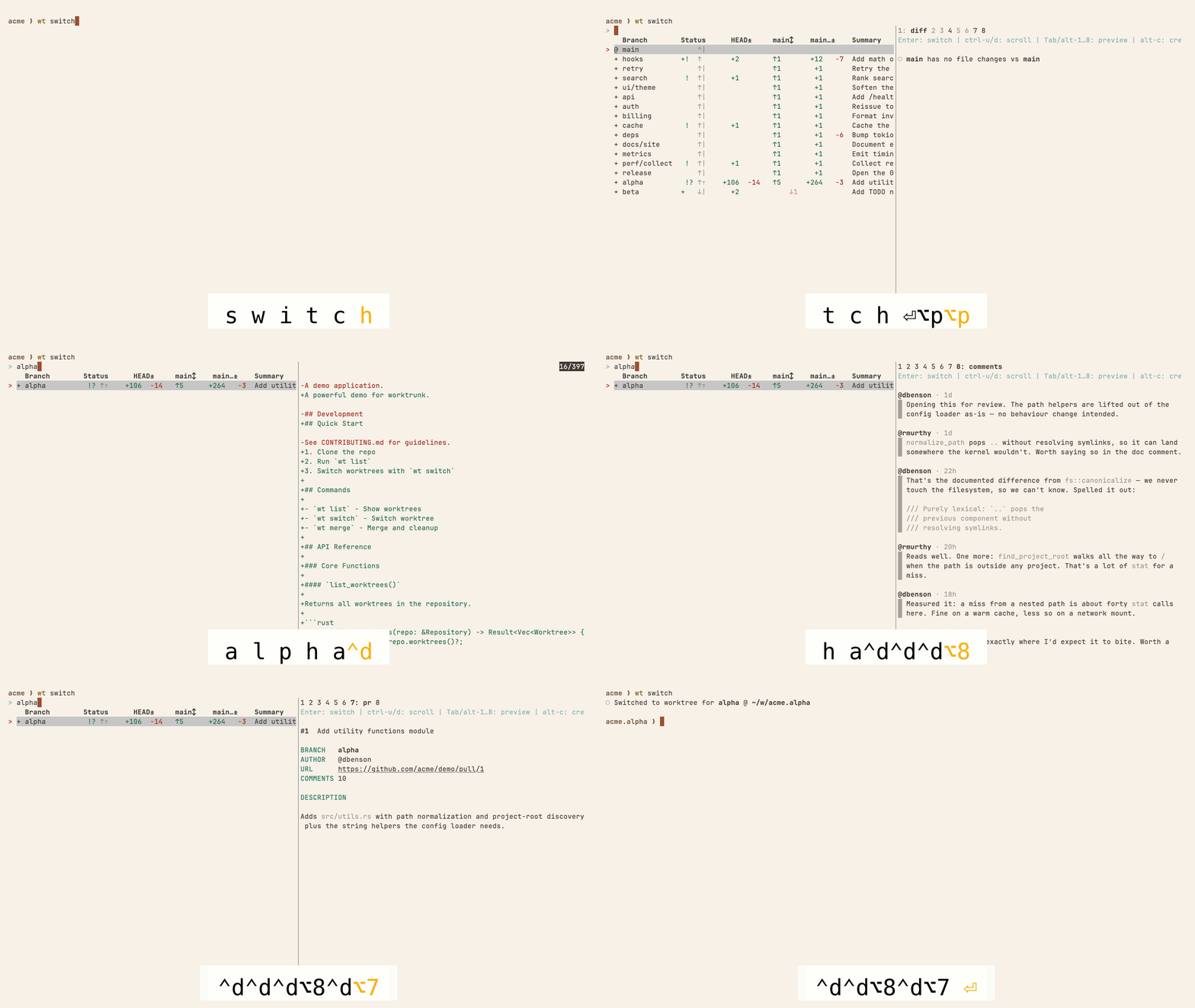
When called without arguments, wt switch opens an interactive picker to browse and select worktrees with live preview. The candidate set widens with --branches (local branches without worktrees), --remotes (remote branches), and --prs (open PRs/MRs — see below).

The CI column shows each row’s PR/MR CI and review status, the same as wt list --full.

wt switch picker demo
Alt-p to reveal the CI and summary columns as they fill in, then paging a diff, a PR's comment thread, and the PR itself

Keybindings:

KeyAction
↑/↓Navigate worktree list
(type)Filter worktrees
EnterSwitch to selected worktree
Alt-cCreate new worktree named as entered text
Alt-xRemove selected worktree/branch (never forces; not the current worktree)
Alt-yCopy selected branch name to the clipboard
Alt-oOpen the selected row’s PR/MR URL in the browser
Alt-rRefresh the list (pick up worktrees created elsewhere)
EscCancel
Alt-1–Alt-8Jump to a preview tab
Tab/Shift-TabCycle available preview tabs forward/backward
Alt-pToggle preview panel
Ctrl-u/Ctrl-dScroll preview up/down

On macOS, Alt is the Option key; the terminal needs to send it as Meta (e.g. Terminal.app’s Use Option as Meta key).

The filter matches each row’s branch, path, and — when it has a PR/MR — the PR/MR’s number, title, and author. Typing + narrows to linked worktrees, and @ to the current worktree.

Preview tabs:

  1. diff — One net diff from the comparison base through the current worktree: committed, staged, unstaged, and untracked changes
  2. working — Staged, unstaged, and untracked changes against HEAD
  3. committed — Committed changes since the comparison base
  4. log — Recent commits; commits already on the default branch have dimmed hashes
  5. remote⇅ — Ahead/behind diff vs upstream tracking branch
  6. summary — LLM-generated branch summary; requires [list] summary = true and commit.generation
  7. pr — The selected row’s PR/MR, for any row whose branch has one
  8. comments — The PR/MR’s comment thread, fetched from the forge for any row whose branch has one

The comparison base is the merge-base with the default branch, or with its upstream when the local default branch lags. The picker opens on diff for local rows and pr for a PR/MR listed by --prs but not available locally. A tab with no content for the selected row has a dimmed label, and the active tab’s label is underlined. Tab and Shift-Tab skip the dimmed tabs; Alt-1 through Alt-8 open any tab directly. After you choose a tab, that choice stays active while you navigate.

Pager configuration: The preview panel pipes diff output through git’s pager. Override in user config:

~/.config/worktrunk/config.toml
[switch.picker]
pager = "delta --paging=never --width=$COLUMNS"

Hiding the preview: Set preview = false under [switch.picker] to open the picker with the preview hidden; Alt-p still shows it.

Pull requests and merge requests

Section titled “Pull requests and merge requests”

The pr:<number> / mr:<number> shortcut and the PR/MR’s web URL both resolve to its branch. For same-repo PRs/MRs, worktrunk switches to the branch directly. For fork PRs/MRs, it fetches the ref (refs/pull/N/head or refs/merge-requests/N/head) and configures pushRemote to the fork URL.

wt switch pr:101 # GitHub PR #101
wt switch https://github.com/owner/repo/pull/101 # ...the same PR, by URL
wt switch mr:101 # GitLab MR !101
wt switch https://gitlab.com/owner/repo/-/merge_requests/101 # ...the same MR, by URL
wt switch --prs # Browse open PRs/MRs in the picker

Both work anywhere a branch is accepted, including --base. The --create flag cannot be used with a PR/MR reference since the branch already exists.

If the PR or MR is on a fork, the local branch uses its branch name directly, so git push works normally. If a local branch with that name already exists for a different ref, Worktrunk uses a prefixed branch instead. The prefixed branch can fetch the PR or MR but cannot push to the fork.

The --prs flag adds the repository’s open PRs (GitHub) or MRs (GitLab) that aren’t already in the interactive picker. Selecting one switches to it as pr:<number> / mr:<number> would.

Requires gh (GitHub), glab (GitLab), or an equivalent CLI installed and authenticated; see forge platform for Gitea, Azure DevOps, and other supported platforms.

When wt switch fails

Section titled “When wt switch fails”
  • Branch doesn’t exist — Use --create, or check wt list --branches
  • Path occupied — Another worktree is at the target path; switch to it or remove it
  • Stale directory — Use --clobber to remove a non-worktree directory at the target path

To change which branch a worktree is on, use git switch inside that worktree.

See also

Section titled “See also”
  • wt list — View all worktrees
  • wt remove — Delete worktrees when done
  • wt merge — Integrate changes back to the default branch

Command reference

Section titled “Command reference”
wt switch - Switch to a worktree; create if needed
Usage: wt switch [OPTIONS] [BRANCH] [-- <EXECUTE_ARGS>...]
Arguments:
[BRANCH]
Branch, worktree path, shortcut, or PR/MR URL
Opens interactive picker if omitted. Shortcuts: ^ (default branch), - (previous), @
(current), pr:{N} (GitHub PR), mr:{N} (GitLab MR)
[EXECUTE_ARGS]...
Additional arguments for --execute command (after --)
Each argument is expanded for templates and passed directly to the program.
Options:
-c, --create
Create a new branch
-b, --base <BASE>
Base branch
Defaults to default branch. Supports the same shortcuts as the branch argument: ^, @, -,
pr:{N}, mr:{N}.
--path <PATH>
Worktree directory for a new worktree [experimental]
Overrides the worktree-path template for this worktree. Relative paths resolve from the
current directory, as with git worktree add. The branch keeps its own name; afterwards,
switch by branch or by path.
-x, --execute <EXECUTE>
Program to run after switch
Runs one external program after switching, with full terminal control. Arguments after --
go directly to that program without Worktrunk shell parsing. Program lookup and argument
decoding follow the operating system. Shell syntax requires an explicit shell, for example
-x sh -- -c 'npm install && npm test'. On Windows, shell shims need their extension (-x
code.cmd) or an explicit shell such as -x cmd.exe -- /C code.
Without a branch argument, the interactive picker opens and the command runs against the
selected worktree — so wt switch -x claude picks a worktree, then launches Claude Code
there.
The program starts in the worktree the switch selected, whether or not your shell follows
it there: --no-cd governs only the shell.
Supports hook template variables ({{ branch }}, {{ worktree_path }}, etc.) and filters. {{
base }} and {{ base_worktree_path }} describe the source: the selected base with --create,
or the invoking worktree when switching to an existing worktree.
A variable inside a shell body is substituted before that shell parses it, so a path with
spaces splits into several arguments. Pass it as a separate argument instead — sh binds
the first one to $0, so the path arrives as $1:
wt switch feature -x sh -- -c 'cd "$1" && npm test' sh '{{ worktree_path }}'
Especially useful with shell aliases:
alias wsc='wt switch --create -x claude'
wsc feature-branch -- 'Fix GH #322'
Then wsc feature-branch creates the worktree and launches Claude Code. Arguments after --
are passed to the command, so wsc feature -- 'Fix GH #322' runs claude 'Fix GH #322',
starting Claude with a prompt.
Template example: -x code -- '{{ worktree_path }}' opens VS Code at the worktree, -x tmux
-- new -s '{{ branch | sanitize }}' starts a tmux session named after the branch.
--clobber
Remove stale paths at target
--no-cd
Skip directory change after switching
Hooks still run normally, and an --execute program still starts in the worktree — only
your shell stays put, so wt switch feature --no-cd -x code -- . opens the worktree in an
editor and leaves your terminal where it was. Useful when hooks handle navigation (e.g.,
tmux workflows) or for CI/automation. Use --cd to override.
-h, --help
Print help (see a summary with '-h')
Picker Options:
--branches
Include branches without worktrees
--remotes
Include remote branches
--prs
Include open PRs/MRs
Automation:
--no-hooks
Skip hooks
--format <FORMAT>
Output format
JSON prints one structured result to stdout once the switch, including any --execute
command, completes. A worktree created before a later failure remains in place and is
included in the result. Read stdout even when the exit status is nonzero. Errors,
diagnostics, and --execute output go to stderr. Failure before a result exists and
canceling the interactive picker produce no result. Background hooks run independently of
the result. Designed for tool integration (e.g., Claude Code WorktreeCreate hooks).
[default: text]
[possible values: text, json]
Global Options:
-C <path>
Working directory for this command
--config <path>
User config file path
--config-set <toml>
Override config with inline TOML, e.g. --config-set list.full=true (repeatable)
-v, --verbose...
Verbose output (-v: template variables; -vv: debug logs)
-y, --yes
Skip approval prompts
You are visitor 01402775 — GeezerVison does not store the pages you look up.
Best viewed with Netscape Navigator 4.7 or Internet Explorer 6 at 800×600. No cookies required.