Status: Early · Applies to: FlexRadio
The CTR2 window connects a CTR2-Max controller to your FlexRadio through AetherSDR, and installs AetherCTR2 on a CTR2-Max. The CTR2 talks to the radio exactly as it would directly; AetherSDR forwards every byte unchanged in both directions over its own network route to the radio, including a VPN or tailnet route the CTR2 could not reach by itself.
The CTR2 stays an independent radio client. The relay never passes through AetherSDR's own command or transmit paths.
Requirements
- AetherSDR connected to a radio that accepts more than one client, over the LAN or a VPN. The proxy is unavailable on SmartLink connections.
- USB mode needs a CTR2-Max running Lynovation's firmware v2.00.00 or later, or AetherCTR2 (AetherSDR installs it; see Installing AetherCTR2 on a CTR2-Max), a CTR2-MIDI on firmware with USB support, or an AetherKnob, and a build with USB HID support (hidapi). From v2.00.00 the CTR2-Max's firmware connects over USB only.
- Wi-Fi mode is for CTR2s that connect over Wi-Fi: Lynovation's other CTR2 controllers (the M5Dial-based CTR2-Quad, Duo and Uno, and a CTR2-MIDI on earlier firmware), and a CTR2-Max still on firmware older than v2.00.00.
Setup
Open Settings → Controllers → CTR2.... The window has two parts: CTR2 Relay at the top, and CTR2-Max Firmware below it (see Installing AetherCTR2 on a CTR2-Max). When the USB device selected is another kind of controller (a CTR2-MIDI, an M5Dial or an AetherKnob) and no CTR2-Max is connected, the window shows only the relay. The firmware part comes back when a CTR2-Max is connected, and stays until the window is closed. Closing the window does not stop the relay.
The relay starts when you press Start, or by itself with Start automatically (see Starting automatically). Each time it starts, its setup (mode, device, listen address and port) is saved and offered again at the next launch. In USB mode several controllers can relay at the same time, a CTR2 and an AetherKnob for example, each with its own Start (see Using USB mode).
The Mode selector offers Wi-Fi and USB.
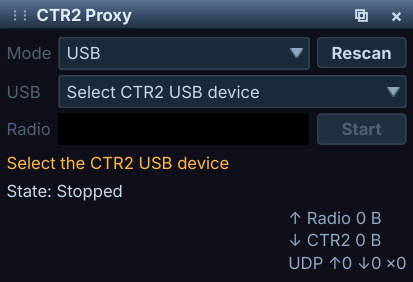
The CTR2 relay controls before a CTR2 is selected, from before they moved into the CTR2 window and before USB mode listed each controller in its own row. The radio's address is blacked out.
Check the mode the first time. On builds with USB support, USB is the default until the relay has been started once. Lynovation's M5Dial-based CTR2s, a CTR2-MIDI without USB support, and a CTR2-Max on firmware older than v2.00.00, work only in Wi-Fi mode, so pick it for those.
Starting automatically
Tick Start automatically when AetherSDR connects to a radio to have the relay start by itself, with the setup it last started with, whenever AetherSDR connects to a radio. The choice is saved.
- If the CTR2 is not plugged in yet, AetherSDR keeps looking every few seconds and starts the relay when it appears.
- In USB mode it starts every controller it has relayed before that is plugged in. Until it has relayed one, it starts the selected one.
- Pressing Stop holds that controller off until AetherSDR next connects to a radio, even if it is unplugged and plugged back in meanwhile.
- A controller it remembers shows Forget beside its Start while it is not relaying. Forget removes it from the remembered list, and any Stop hold with it, so it is no longer started by itself. Once you have forgotten every controller, nothing is started by itself, the selected one included, until you press Start on one.
- A controller it remembers that is not plugged in keeps a dimmed row, after the plugged-in ones: its name, its USB IDs and serial number, Not connected, and only Forget, so you can forget a controller you no longer have. Plug it back in and the row becomes its normal row again.
- In USB mode it starts a CTR2-Max (on Lynovation's firmware or AetherCTR2), a CTR2-MIDI or an AetherKnob. A CTR2-Max on firmware older than v2.00.00, or a CTR2-MIDI on firmware without USB support, never answers; see No answer from the CTR2. Lynovation's firmware uses its board's generic USB name (Espressif's, or Seeed's XIAO_ESP32S3), so another board with the same name and kind of HID interface may be tried too. A device that never answers is tried about once a minute.
- Linux: if the CTR2 udev rule is not installed yet, press Start once to install it.
Using Wi-Fi mode
- On the CTR2, set the radio IP address to this PC's LAN address.
- In the CTR2 window, pick the Listen address: one of this PC's local IPv4 addresses. The listen port is 4992; it can be changed while stopped.
- Press Start.
The relay reaches the radio at the address AetherSDR is connected to, IPv4 or IPv6, in both Wi-Fi and USB mode; only the Wi-Fi Listen address must be IPv4.
Each CTR2 connection gets a fresh connection to the radio. Only one CTR2 connection is active at a time; extra ones are closed and counted as rejected. Wi-Fi mode relays TCP only (no UDP discovery or UDP streams), so features of the CTR2 that rely on UDP may not work this way.
Using USB mode
The CTR2's traffic travels in USB HID reports, and AetherSDR starts the link, so you only pick the device and press Start. It needs a CTR2-Max running Lynovation's firmware v2.00.00 or later or AetherCTR2 (see below), a CTR2-MIDI on firmware with USB support, or an AetherKnob.
-
The USB list has a row for each candidate HID device, with known CTR2 boards and the AetherKnob named and listed first. Each row shows the controller's firmware version when known, its state, and its own Start or Stop, so several controllers relay at once, each as its own client of the radio. Select a row to see that controller's state, traffic and last error below it, and to aim the CTR2-Max firmware part at it; selecting a row starts or stops nothing.
-
A row's firmware version is read when you select the row or start its relay, and the row keeps showing it after you select another row or stop the relay. AetherSDR remembers it until it quits, or until a firmware install or Restart into on that controller. A controller with no serial number loses it when unplugged.
-
The list refreshes itself every 2 seconds, also while controllers relay, so one plugged in later appears, and a CTR2-Max that switches between its stock firmware and AetherCTR2 shows up as it is now; Rescan refreshes it (and the local addresses) at once. USB discovery is shared with other HID controllers, so you can rescan while an encoder is reconnecting.
-
A firmware install or Restart into stops only the selected controller's relay; the others keep relaying.
-
Linux: a udev rule for the CTR2 ships with the build. If the device cannot be opened, Start offers to install the rule (
/etc/udev/rules.d/70-aethersdr-ctr2.rules) throughpkexec, asking for your administrator password once. The rule opens CTR2 controllers, the AetherKnob, and the USB serial port of ESP32-S3 boards (which the CTR2-Max uses in download mode, for firmware installs) to whoever is logged in at the computer, and to no one else. -
AetherKnob (an AetherSDR controller on the Waveshare ESP32-S3-Knob-Touch-LCD-1.8 rotary display) uses USB mode the same way. It appears in the list as AetherKnob. While it is relaying, AetherSDR also sends it a 32-bar spectrum for its center display. While receiving it shows the audio you are hearing (after the radio's DSP, AetherSDR's noise reduction and the RX chain up to the EQ) across the active slice's filter width, for example 20–600 Hz for a 600 Hz filter. While transmitting it shows your transmit audio across the TX filter width. Either way it reaches at most half the audio sample rate (12 kHz for 24 kHz audio), and the bars are spaced logarithmically in frequency, as on an audio analyzer, so the low end gets more detail. AetherSDR also tells it the UDP port the relay uses, so its meters update. A CTR2 never receives either.
-
CW on a controller. Controller firmware that supports them can take two more things while you receive CW:
- A zero-beat spectrum. The bars are spaced evenly across a window centered on your CW pitch: the filter's passband, plus half its width on each side. For a ±200 Hz filter at a 600 Hz pitch that is 200–1000 Hz, with the pitch in the middle of the display, so you can see how far a signal is from zero beat. The window follows the pitch and the filter. Near 0 Hz it narrows so the pitch stays centered. Firmware without this keeps the logarithmic spectrum described above.
- The CW decode. The text the CW decoder reads from the active slice, as it arrives, with its confidence. The decoder must be running (Decode: RX on in Settings → Radio Setup... → Phone & CW), and the CW panel's Sens slider filters what is sent, as it filters the panel. Only plain ASCII is sent, and line breaks become spaces. DeepFist's decode is not sent yet.
A CTR2 never receives either.
-
A faster link. Controller firmware that supports it (AetherCTR2 builds with wide reports) and AetherSDR agree by themselves on a USB link about seven times faster; AetherCTR2 uses it for the panadapter's zoom and reference levels. Lynovation's firmware and older AetherCTR2 releases keep the plain link and work as before. On Windows, update AetherSDR first: AetherSDR releases from before the faster link cannot relay firmware that supports it there.
-
Other controller firmware that speaks the same USB link can name itself: a
303A:1001device whose USB product name starts with Aether (that exact case) and continues with at least one more character appears in the list under that name, as long as the whole name is printable ASCII and at most 32 characters long.
Installing AetherCTR2 on a CTR2-Max
AetherCTR2 is firmware for the CTR2-Max that adds USB mode. It is installed beside the stock firmware, which stays on the unit with its settings and registration: the CTR2-Max can restart into either one. AetherCTR2 builds on the work of Dariusz Socha, SQ5X (smartmtr.net), and Lynn Hansen, Lynovation (lynovation.com).
The CTR2-Max Firmware part of the CTR2 window (Settings → Controllers → CTR2...) has two tabs, one per firmware:
- AetherCTR2: the AetherCTR2 releases AetherSDR can install, newest first, from the list on aethersdr.com. Pick a release and press Install…; an older one can be picked to go back to it.
- Lynovation: the CTR2-Max's own firmware, from files you downloaded from Lynovation (see Updating the CTR2-Max's own firmware).
Both lists end with the connected unit's backups (see Backups). Below the tabs, Status shows what the window found:
- AetherCTR2 (cyan): the unit runs AetherCTR2. An AetherCTR2 update goes over the USB cable.
- Stock firmware (gold): the unit runs its stock firmware.
- Bootloader (aqua): the unit is in download mode (its ROM bootloader). Its screen stays dark; that is normal.
- No CTR2-Max: nothing was found.
Restart into AetherCTR2, Stock Firmware or Bootloader (download mode) restarts the unit into what is installed on it, writing nothing but the choice of firmware to start. The one it runs now is dimmed.
Installs, restores and restarts run in download mode. From AetherCTR2 0.9.2 or later the window restarts the unit into it by itself, and so it does from CTR2-Max firmware releases that support it. With older AetherCTR2, an unknown version, or other stock firmware it asks you to, in an alert: hold BOOT (through the hole in the back), press and release RESET, then release BOOT. It then carries on by itself.
Requirements
- The CTR2-Max must be registered with its stock firmware, v2.00.00 or later (your call and registration key, entered on the unit). A unit registered with an earlier version is taken once it has run v2.00.00 or later: update its firmware first (see Updating the CTR2-Max's own firmware). AetherSDR reads the registration before writing anything, and refuses an unregistered unit; AetherCTR2 also checks it at every start.
- Linux: download mode uses the unit's USB serial port. If AetherSDR
cannot open it, the CTR2 window offers to install the CTR2 access rule
(the same one Start installs) through
pkexec, asking for your administrator password once, then carries on with the install. No group change or logging out is needed. - A build with serial-port support (Qt Serial Port) for download mode, and USB HID support (hidapi) for updates over the cable.
First install
- Connect the CTR2-Max with a USB cable.
- On the AetherCTR2 tab, pick the release and press Install…, then Install.
- If the unit runs its stock firmware, put it in download mode when the alert asks.
- AetherSDR backs up the whole flash (about a minute), checks the unit (chip, flash size, partition layout and registration), writes AetherCTR2 and selects it, then restarts the unit into it.
Only the parts that change are written; the stock firmware, its settings and its registration are never written. If anything is not as expected, nothing is written.
Updating AetherCTR2 (over the USB cable)
With Status reading AetherCTR2, pick the release and press Install…. The relay stops for the update and starts again afterwards. The update takes about three minutes. The CTR2-Max checks the firmware's signature, restarts into it and keeps it only once it has connected again; if anything goes wrong it goes back to the version it had.
Switching between AetherCTR2 and the stock firmware
Both firmwares stay installed; switching only changes which one the CTR2-Max starts.
To the stock firmware, from AetherCTR2, either:
- press Restart into → Stock Firmware in the CTR2 window, or
- on the CTR2-Max, tap CTR2-Max firmware on AetherCTR2's status screen, then tap it again (Tap again to restart) to confirm.
Back to AetherCTR2, from the stock firmware, either:
- with CTR2-Max firmware v2.00.00 or later, choose Run AetherCTR2 at the bottom of page 1 of the CTR2-Max's Settings menu (it reads AetherCTR2 n/a when AetherCTR2 is not installed), or
- with any version, press Restart into → AetherCTR2 in the CTR2 window. It only changes which firmware the unit starts; nothing else is written.
The CTR2 window notices the switch by itself: the device list and Status follow within a couple of seconds, with no Rescan needed. With Start automatically ticked, the relay starts again once the CTR2-Max is back in AetherCTR2. After a restart asked for from the CTR2 window, it waits for the unit to leave and come back rather than reopening it on its way out; if AetherSDR misses that, it tries again after 20 seconds. Another controller is not kept waiting.
Before Restart into, Install or a stock-firmware install, the window may show Reading the CTR2-Max's firmware… for a moment while it checks whether the running firmware can restart on request, so it asks for the BOOT and RESET buttons only when the firmware really needs them.
Backups
Every install first saves the unit's whole flash to the CTR2-Max Backups
folder in your Documents folder, with a description beside it (.json, same
name). The latest three of each unit are kept.
The connected unit's backups are listed at the end of both tabs' lists, by
date, including any saved with Back Up… in earlier versions of AetherSDR
(in the Documents folder itself), as long as each backup's .json is beside
it. Installing one restores it: the whole flash goes back exactly as it
was, both firmwares, the settings and the registration included, and anything
since is lost. A backup restores only onto the unit it came from (matched by
its MAC address), and only if the file is unchanged since it was made. The
question before a restore has Cancel as its default, so pressing Return
keeps what is on the unit; restoring takes a click on Restore.
Cancelling
Cancel stops between steps: a write already started finishes, and no new one starts. While the window waits for download mode, Cancel ends the wait. A unit interrupted part way through a download-mode install stays in download mode, so you can install again or restore a backup. An update over the cable that is cancelled leaves the firmware the unit had.
Updating the CTR2-Max's own firmware
AetherSDR also installs updates to the CTR2-Max's own firmware, the one Lynovation makes, from the file Lynovation publishes. AetherSDR does not supply this firmware: download it from Lynovation's CTR2-Max firmware page.
- Download the firmware zip from Lynovation's page. There is no need to unzip it.
- In the CTR2 window, choose the Lynovation tab, press Open File…
and choose the zip (or the
.binfile inside it). The firmware is added to the tab's list, for example CTR2-Max firmware v2.00.01, and chosen. - Connect the CTR2-Max with a USB cable and press the tab's Install…, then Update.
- If the CTR2-Max is running its stock firmware, put it in download mode when the alert asks. The update then starts by itself. From AetherCTR2 0.9.2 or later, or already in download mode, no buttons are needed. Older or unknown AetherCTR2 versions need the same BOOT/RESET steps when asked.
AetherSDR backs up the whole flash first (about a minute), writes the new firmware, and restarts the CTR2-Max into it.
- What is written: only the firmware itself. The CTR2-Max keeps its settings, its registration and AetherCTR2, if installed.
- What is checked first: that the file is intact CTR2-Max firmware for the CTR2-Max's chip, and that the unit's flash is laid out as the firmware expects. If anything is not as expected, nothing is written.
- Earlier versions: AetherSDR keeps a copy of each version you open, in its own data folder, and lists them all on the tab, newest first. To go back to an earlier version, choose it and press Install….
- Releases from lynovation.com: when Lynovation publishes its releases for AetherSDR, the tab also lists them, marked (lynovation.com). Install… on one downloads it from Lynovation's site first; it is then kept like a file you opened.
- No registration is needed to update the CTR2-Max's own firmware.
Reference
Status
While running, the CTR2 Relay part of the window shows:
- State: Stopped, Listening, Connecting, Relaying, Closing or Error. In USB mode, for the selected controller, whose name it starts with.
- The endpoints: the listener, the connected CTR2, and the radio.
- A table of counters, toward the radio (
↑ Radio) and toward the CTR2 (↓ CTR2): Bytes relayed, bytes Queued and not yet sent, and in USB mode UDP datagrams relayed and datagrams Dropped because the link to the CTR2 was backed up. In Wi-Fi mode, Rejected counts extra CTR2 connections that were turned away. - The last error, kept apart from the relayed data.
Stop the proxy to change its settings. In USB mode, stop every controller to change the mode.
Limits
- It always relays to the radio AetherSDR is connected to, captured at Start, and stops when AetherSDR disconnects or switches radios. In USB mode every controller relays to that same radio, and all of them stop.
- Wi-Fi mode relays one CTR2 at a time; several controllers at once need USB mode.
- It is unavailable on SmartLink connections and on radios without multi-client sessions.
- It is not a VPN or tunnel; the PC must be reachable from the CTR2 and the radio from the PC.
Troubleshooting
Start is unavailable: "Connect AetherSDR to a radio first"
The proxy relays to the radio AetherSDR is connected to, and there is none.
- Connect AetherSDR to your radio.
- Press Start.
"AetherSDR is connected through SmartLink"
The relay needs a direct LAN or VPN connection to the radio.
- Disconnect from SmartLink.
- Connect to the radio over the LAN or a VPN (see Tailscale Remote Access).
- Press Start.
"This radio does not accept another client alongside AetherSDR"
The connected radio has no multi-client sessions, so the CTR2 cannot join as a second client. The proxy cannot be used with this radio.
USB mode is dimmed: "This build has no USB HID support (hidapi)"
The build was made without hidapi.
- Pick Wi-Fi mode instead, if the CTR2's firmware still has Wi-Fi.
No answer from the CTR2
The relay is running in USB mode, but the CTR2 has not answered it: "No answer from the CTR2. USB mode needs CTR2-Max firmware v2.00.00 or later, AetherCTR2, or CTR2-MIDI firmware with USB support."
- Check the CTR2-Max's firmware version. Before v2.00.00 it has no USB mode. A CTR2-MIDI needs Lynovation's firmware with USB support.
- Update it to v2.00.00 or later (see Updating the CTR2-Max's own firmware), or install AetherCTR2.
- Or stop the relay and use Wi-Fi mode with the firmware it has. Other M5Dial-based CTR2s (Quad, Duo, Uno) always use Wi-Fi mode.
If the relay stops with an error before the CTR2 ever answered, Start automatically waits a minute before trying it again, instead of a few seconds. It tries again at once when the USB device list changes (the CTR2 switches firmware, or another device is plugged in or out), when you pick another device or mode, when you tick Start automatically again, or when AetherSDR next connects to a radio. Start always tries again.
"... is in use by another AetherSDR"
Another AetherSDR on this computer has the CTR2 open over USB. Two relays on one CTR2 break each other's link, so only one AetherSDR may use it at a time.
- In the other AetherSDR, press Stop in the CTR2 window, or close that AetherSDR.
- Press Start here.
The proxy stopped on its own
It stops when AetherSDR disconnects or switches radios.
- Reconnect AetherSDR to the radio.
- Check the mode and settings again, then press Start.
"This CTR2-Max is not registered"
AetherSDR installs AetherCTR2 only on a unit registered with CTR2-Max firmware v2.00.00 or later.
- If its CTR2-Max firmware is older than v2.00.00, update it first (see Updating the CTR2-Max's own firmware).
- Start the stock firmware (press RESET), and if it is not registered, enter your call and registration key on the unit.
- Put it in download mode and install again.
The CTR2-Max's screen is dark and nothing happens
The CTR2-Max is in download mode, waiting. To leave it without installing anything, press RESET: the unit starts the firmware it was running.
The CTR2-Max's screen is dark after an install or restore failed
It is still in download mode, which is safe.
- Install again, or restore the backup.
- To leave without changing anything, press RESET: the unit starts the firmware it had.
"This is not a CTR2-Max firmware file as Lynovation publishes it"
The file opened is not the CTR2-Max firmware, or is damaged.
- Download the zip again from Lynovation's CTR2-Max firmware page.
- Open the zip, or the
.binfile inside it, with Open File….
"This CTR2-Max's flash is not laid out as the firmware expects"
The unit's partition layout is not the one this firmware runs in, so AetherSDR did not write anything. Use Lynovation's own instructions on its firmware page for this update.
Settings are locked: "Stop the proxy to change its settings"
The proxy is running.
- Press Stop.
- Change the mode, address or device, then press Start.
See also
- Multi-Flex
- MIDI Controller Mapping
- Tailscale Remote Access
- docs/ctr2-tcp-proxy-design.md: Wi-Fi relay and operator controls
- docs/ctr2-usb-relay-design.md: USB link format and firmware installation
- AetherCTR2 releases