Status: Supported · Applies to: FlexRadio, Hermes-Lite 2 (local keyer: beta), Networked Icom (local keyer: beta)
The DVK (Digital Voice Keyer) panel records and plays up to 12 voice messages, commonly used for contesting and repetitive voice operations. The messages are kept in one of two places:
- Radio DVK — on the radio, using the FlexRadio's own voice keyer. It requires the radio to be licensed for it through SmartSDR+.
- Local — on this computer, recorded from the PC microphone and played through AetherSDR's transmit audio. It needs no subscription, works with any radio AetherSDR can transmit on, and the recordings go with you from radio to radio.
The panel, its buttons and the F1–F12 keys work the same way with either keyer.
The local keyer is verified on FlexRadio. On the Hermes-Lite 2 and Networked Icom radios it is Beta: it is expected to work, has not yet been tested on the air there, and the panel title says Beta while one of those radios is connected. Reports from those radios are welcome on GitHub.
Requirements
- Mode: the DVK plays on the transmit slice, so it is available when the TX slice is in a voice mode (USB, LSB, DSB, AM, AME, SAM, FM, NFM) that the radio can transmit. FM data (DFM) is not a voice mode. The indicator is grayed out in digital, CW and receive-only modes, and switching to one of those modes closes the panel. A local message playing when the TX slice leaves a transmittable voice mode stops at once.
- Radio DVK: a FlexRadio Aurora, FLEX-8000 series or FLEX-6000 series radio licensed for the voice keyer through SmartSDR+. See SmartSDR+ license. Older FLEX-6000 firmware, such as 3.9, has no DVK: AetherSDR sees this when it connects, and Automatic then uses Local.
- Local: a radio AetherSDR can transmit on. Recording uses the PC microphone, so on a FlexRadio the mic source must be PC.
The DVK indicator is hidden only on a radio that can neither transmit nor host a voice keyer, such as an RTL-SDR or an ANAN-G2.
Using the DVK panel
Opening DVK
Choose Tools → Digital Voice Keyer, or click the DVK indicator in the status bar at the bottom of the screen. The panel opens beside the panadapter, and the Tools entry is ticked while it is open; choose it again to close the panel. When the panel can't open, the Tools entry is grayed out and its tooltip says why. With no radio connected the panel still opens and its status line reads Not connected to a radio. Nothing can be played on the air or recorded then, but with the Local keyer you can preview slots on your speakers and rename, clear, import or export them. The title names the keyer in use, for example Digital Voice Keyer (Local).
The DVK panel and the CWX Panel share the same space — opening one closes the other.
When the window is short, scroll the list of recording slots; the panel title, status and transport buttons stay visible.
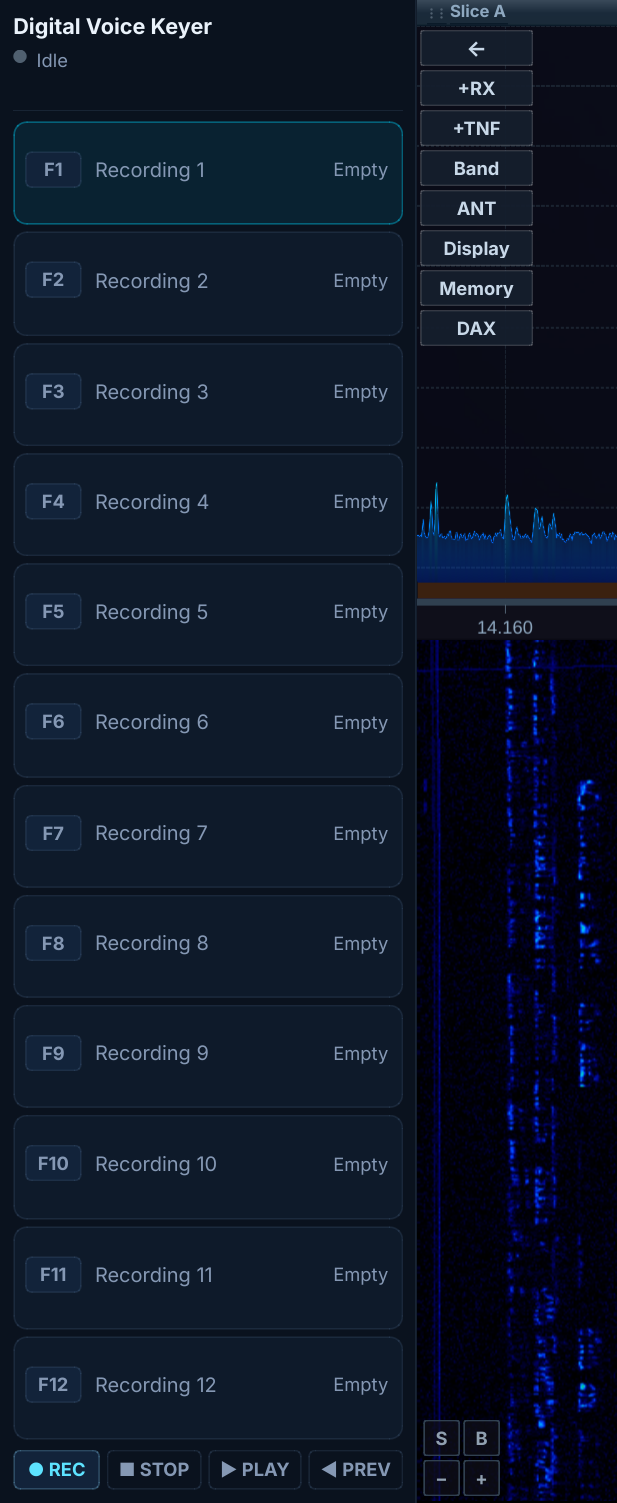
The DVK panel, opened from DVK in the status bar.
Choosing where recordings are kept
Click the ⚙ button at the right end of the panel title. From the keyboard, Tab to it and press Space or Enter; with Settings → Keyboard Shortcuts on, Space is PTT, so use Enter. A menu opens with these choices:
- Automatic by radio license — the default. Uses the Radio DVK when the radio has one and has not reported that SmartSDR+ is missing, and Local otherwise. A radio that refuses a DVK command with the SmartSDR+ error counts as reporting it, and Automatic switches to Local once anything recording or playing has ended. The menu shows which one it picks on this radio, for example
(now: Local). - Radio DVK — recordings on the radio — grayed out, with the reason, on a radio with no voice keyer or no SmartSDR+.
- Local — recordings on this computer.
- Open Local Recordings Folder — opens the folder the local recordings are kept in.
The panel opens even when the keyer chosen here can't be used on this radio, so this menu is always within reach.
A change made while a recording, playback or preview is running waits for it to end, so STOP and the F-keys keep driving the keyer that started it. The status line says so, for example On air · slot 1 · 2.6s of 3.0s · Radio keyer when this ends.
If the source changes while you are renaming a slot or using its context menu or file dialog, the pending action is canceled. Open it again on the keyer you want to change.
Recording
- Click a slot to select it (the row takes the highlight).
- Click ● REC to start recording. The status line reads
Recording · slot 1 · 0.4s of 10.0s. A Radio DVK slot holds up to 10 seconds, the radio's own limit; a local slot holds up to 30 seconds, enough for a contest exchange or a longer CQ. - Click ■ STOP to end recording.
- The recording is stored and the slot shows its duration.
Recording is separate from on-air playback.
For Radio DVK, turn VOX off and wait for the radio to confirm it before pressing ● REC. If VOX is on or its state is unconfirmed, the recording request is refused with a message in the panel. Keep VOX off while recording.
With the local keyer:
- VOX is held off while you record. If VOX is on, AetherSDR turns it off before recording starts — only once the radio has confirmed it — so your voice cannot key the transmitter, and turns it back on afterwards. If you have just turned VOX off yourself and the radio has not confirmed it yet, recording asks the radio again and starts once it answers; VOX stays off afterwards. The status line shows
· VOX held offmeanwhile. If you change VOX yourself during the recording, your setting is kept, and turning VOX on stops the recording without saving it. On a radio with no VOX that AetherSDR controls, such as the Hermes-Lite 2, there is nothing to hold. - STOP works while recording is starting. Pressing STOP before the radio has confirmed VOX is off cancels the recording.
Playback (on-air)
- Click ▶ PLAY or press the F-key button to transmit the recording.
- The radio keys TX automatically during playback and unkeys at the end.
- PLAY, the playing slot's F-key and its progress bar take the MOX (transmit) colors, and the bar fills in proportion to elapsed/total time.
- The status line reads
On air · slot 3 · 0.4s of 4.2s.
Preview (local)
- Click ◀ PREV to hear the recording locally without transmitting.
- The progress bar fills cyan.
- The status line reads
Previewing · slot 3 · 0.4s of 4.2s.
Only one operation runs at a time. STOP is enabled only while something is running, PLAY and PREV are disabled on an empty slot, and while a recording, playback, preview or WAV transfer is in progress the other start controls stay disabled. The button of the running recording, playback or preview stays enabled, so clicking it again stops it. A refused operation shows in the status line as, for example, Play failed (slot 3): DVK is not licensed on this radio (SmartSDR+).
Radio DVK waits for radio status to confirm that an operation has ended. A missing reply does not mean the radio rejected or stopped it, so AetherSDR does not retry it automatically. ■ STOP is an explicit request to stop the radio's current operation, even if you selected a different slot.
Managing slots
Right-click any slot row, or Tab to the slot's F-key button and press the Menu key or Shift+F10, to access:
- Rename… — inline text editor (also available via double-click on name). A name holds up to 61 UTF-8 bytes; Radio DVK removes quotes, backslashes and
|. Enter saves, Escape cancels. - Clear — erase the recording (grayed out for empty slots and while the DVK is busy). The Radio DVK decides whether the slot keeps its name.
- Import WAV… — load a WAV file into this slot (see WAV file requirements)
- Export WAV… — save the recording as a WAV file (grayed out for empty slots)
If an import or export fails, the destination is left intact — a failed export never leaves a half-written file over an existing one. With the Radio DVK, Import WAV… and Export WAV… stay grayed out for about 3 seconds after an import while the radio's file server finishes.
Radio WAV transfers stay with the connection and slot selected when the file dialog opened. If the radio reconnects while that dialog is open, choose the operation again. Firmware, waveform and profile transfers also use the radio's file server, so a competing transfer can report that it is busy.
Reference
Recording slots
The panel shows 12 recording slots (F1–F12), each with:
- F-key button — click to toggle playback on-air
- Recording name — displayed next to the button
- Duration — shown on the right (or "Empty" if no recording)
- Progress bar — 3 px colored bar during active operations
Empty slots appear dimmed. Slots with recordings show bright text.
Screen readers announce each slot as, for example, "Slot 3: CQ Contest, 4.2s", and each F-key as "Play slot 3: CQ Contest".
Keyboard shortcuts
| Key | Action |
|---|---|
| F1–F12 | Play that slot on-air; press again to stop. Works while the TX slice is in a voice mode, even with the panel closed. |
| Escape | Stop any active recording, playback, or preview (or cancel a rename) |
| Menu key or Shift+F10 | On a focused F-key button in the panel, open that slot's menu (Rename, Clear, Import, Export) |
F1–F12 follow the transmit slice's mode: in voice modes they play DVK recordings, in CW they send CWX macros (see CWX Panel), and only one of the two responds.
Local recordings folder
Local recordings are kept in Documents/AetherSDR/VoiceKeyer, one file per slot, named slot-01.wav to slot-12.wav. On Windows, when the Documents folder is redirected to OneDrive, the folder is inside OneDrive and the recordings sync with it.
A WAV file copied into the folder under a slot's name appears in that slot the next time you choose Local in the keyer menu. It is checked when it plays, so a file longer than 30 seconds is refused then.
WAV file requirements
Import WAV… converts the file for you, so most WAV files import as they are. The two keyers accept slightly different files:
| Radio DVK | Local | |
|---|---|---|
| Encoding | PCM 8, 16, 24 or 32-bit, or 32-bit float | PCM 8, 16, 24 or 32-bit, or 32 or 64-bit float |
| Header | plain or WAVE_FORMAT_EXTENSIBLE | plain or WAVE_FORMAT_EXTENSIBLE |
| Channels | 1 to 8, mixed down to mono | 1 to 8, mixed down to mono |
| Sample rate | 8 kHz to 384 kHz | 8 kHz to 192 kHz |
| Length | at most 10 seconds | at most 30 seconds |
| File size | — | at most 100 MB |
Every file is resampled to 24 kHz. The Radio DVK receives it as 24 kHz mono 16-bit PCM; a local slot stores it as 24 kHz 16-bit PCM. Files that can't be converted are rejected with a specific error message, such as Recording is 12.0 s long; a DVK slot holds at most 10 s.
Status bar indicator
The DVK label in the status bar has three visual states:
- Bright cyan — panel is open
- Dim white — available (voice mode), click to open
- Dark gray — not ready: the TX slice is not in a voice mode, or the keyer chosen can't be used on this radio. In the second case a click still opens the panel, so you can choose another keyer.
The indicator can also be reached with the keyboard: Tab to it and press Enter.
SmartSDR+ license
When the Radio DVK is in use and the radio reports that the feature is not licensed, or refuses a DVK command or transfer with the SmartSDR+ error, the DVK indicator turns dark gray with the tooltip "Digital Voice Keyer — not licensed on this radio (SmartSDR+). Click to open, then choose Local with ⚙." The panel still opens, with its slots and buttons disabled and the status Radio DVK not licensed (SmartSDR+). Choose Local with ⚙., and the F1–F12 shortcuts are off. With Automatic by radio license selected, the same report switches the panel to the local keyer instead.
A SmartSDR+ subscription licenses every feature released before it expires, and the radio keeps those features after it lapses, so AetherSDR goes by what the radio reports for the feature, never by the subscription's expiration date. AetherSDR only applies this once the radio positively says no; if the radio never reports the license, the Radio DVK stays available. If the radio later reports the license as enabled, for example after a subscription is activated mid-session, the Radio DVK becomes available again without reconnecting.
Troubleshooting
The DVK indicator is grayed out
The transmit slice is not in a voice mode; or Radio DVK is selected and the radio reports no SmartSDR+ license, or has no voice keyer of its own (a Hermes-Lite 2 or Networked Icom radio).
- Switch the TX slice to a voice mode (USB, LSB, DSB, AM, AME, SAM, FM or NFM). Outside a voice mode the panel can't be opened.
- In a voice mode, open the panel anyway. If its status line says the radio isn't licensed, renew SmartSDR+ on the radio, or click ⚙ and choose Local — recordings on this computer.
- On a radio with no voice keyer of its own, the status line reads
This radio has no DVK. Choose Local with ⚙.Click ⚙ and pick Local — recordings on this computer or Automatic by radio license.
REC says to set the mic source to PC
The local keyer records the PC microphone, and the radio is taking its transmit audio from one of its own inputs.
- Set Mic source to PC in the P/CW applet (see TX Controls).
- Click ● REC again.
Recording does not start: the radio did not confirm VOX is off
VOX is on, and the radio did not confirm that it had turned VOX off for the recording. Some radios never confirm it.
- Turn VOX off yourself.
- Click ● REC again.
- Turn VOX back on when you have finished recording.
A local recording is empty or says no microphone audio arrived
The PC microphone is not capturing.
- Check the microphone in Audio Settings.
- Make sure your operating system allows AetherSDR to use the microphone.
- Record again.
The DVK indicator is missing
The radio can neither transmit nor host a voice keyer, as with an RTL-SDR or an ANAN-G2. DVK is not available there.
A WAV import is rejected
The file can't be converted, is too long for the keyer in use, or the radio is busy.
- Read the message in the panel's status line.
- If it says the file is too long, trim it to 10 seconds or less for the Radio DVK, or 30 seconds for Local.
- If it names an unsupported encoding, save the file as PCM or 32-bit float WAV.
- If it says the voice keyer or file server is busy, stop the running operation, wait a few seconds and try again.
- Import it again with Import WAV….