The FlexRadio FlexControl is a USB tuning knob with a weighted encoder, three Aux buttons and a push on the knob. AetherSDR detects it automatically and uses it for smooth tuning with acceleration. The buttons can also switch the knob to other jobs (RIT, XIT, volume, AGC-T, APF, CW speed, RF power) or run actions such as MOX, split or CWX macros.
The FlexControl is a host device: it plugs into your computer, so its settings stay available whichever radio you connect. Actions a radio cannot perform are refused with a notice.
AetherControl is an on-screen copy of the FlexControl that works with or without the physical knob (see Using AetherControl below).
Requirements
- FlexControl USB tuning knob (FlexRadio accessory)
- AetherSDR built with Qt serial-port support
The FlexControl is a USB serial device (VID 0x2192, PID 0x0010) running at 9600 baud 8N1. No special driver is needed.
Setup
Open Settings → Radio Setup... → Serial & Controllers and find the FlexControl Tuning Knob group. Shortcuts straight to it: Settings → Controllers → FlexControl Knob & Buttons..., or the Settings… button in the AetherControl window.
| Control | What it does |
|---|---|
| Status | "Not detected", or the port it is connected on |
| Detect / Close | Look for the knob now and open it / release it |
| Button 1–3, Knob Button: Tap and Double | The action for a single and a double press of each button |
| Auto-detect on startup | Find and open the knob at launch (on by default) |
| Invert tuning direction | Reverse the knob |
If you plug the knob in after launch, click Detect.
Using the knob
The encoder reports its own acceleration (1–6 steps per detent depending on how fast you turn). Each step is the current tuning step from the RX applet (10 Hz, 100 Hz, 1 kHz, …), so change the step size to change the tuning resolution.
Wheel modes
Actions whose name starts with Wheel do not fire once: they change what the knob does. Tap a button bound to, say, WheelRit, and turning the knob now adjusts RIT; the button's LED shows which mode is active. Press the knob, or tap a button bound to an ordinary action, to return the knob to tuning.
Master Volume is the level you are hearing: with PC Audio on it is this computer's audio level, and with PC Audio off it is the radio's own output (line out). WheelVolume, VolumeUp and VolumeDown step from that level, the same one the title-bar master slider shows.
Upgrading from an older version: the FlexControl volume action drives Master Volume, not the active slice's volume. The older
WheelMasterAfaction has been merged into it, and saved bindings that use it keep working as Master Volume. UseWheelSliceAudiofor per-slice volume (#2925, #2986).
Using AetherControl (virtual FlexControl)
Settings → Controllers → AetherControl... opens AetherControl, an on-screen tuning controller laid out like the FlexControl. It shares its button assignments with the physical knob and mirrors it when one is connected.
The window has no title bar. Drag any empty part of it to move it, and drag an edge or corner to resize it; it reopens at the size and place you left it. Close it with the round ✕ in the top-right corner, Esc or Ctrl+W (⌘W on macOS); while the knob has the mouse captured, Esc releases it instead. It's a window of its own, with its own taskbar entry, so you can minimize it from the taskbar or park it on another monitor. View → Frameless Window does not apply to it.
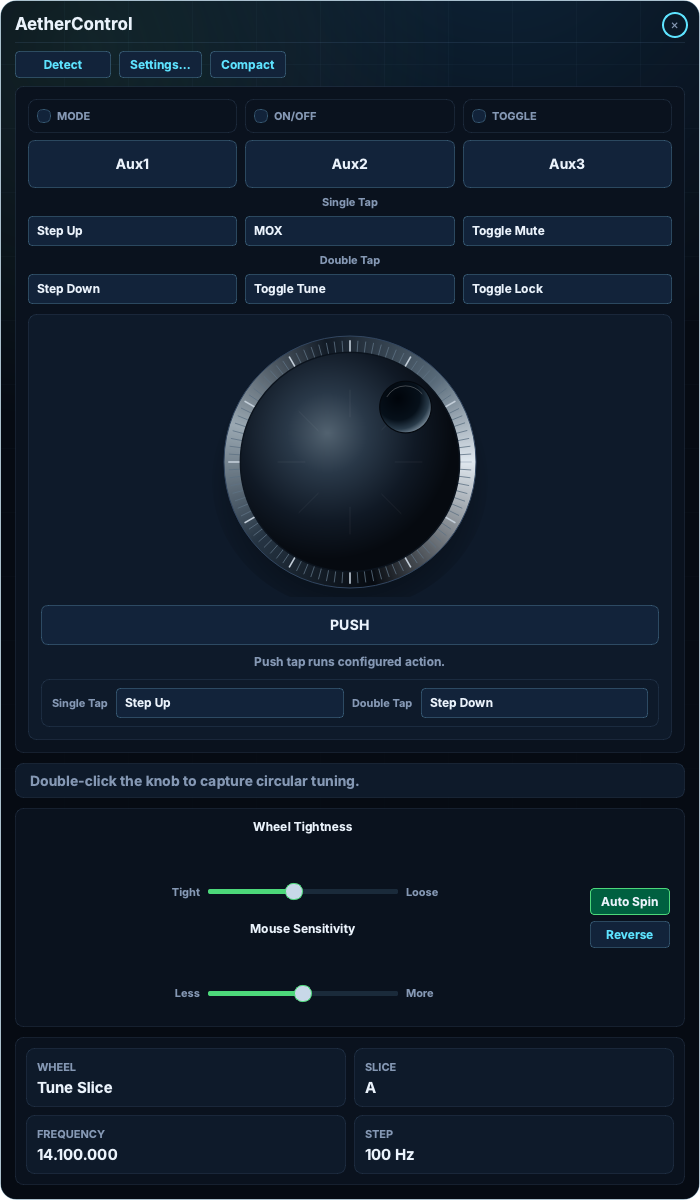
AetherControl, the on-screen FlexControl knob.
- Wheel: double-click the knob to capture the mouse for circular tuning; double-click again to release (Esc also releases). A single fast mouse jump moves the wheel by at most 15°, and the wheel only coasts after a real flick.
- Aux1–Aux3 and PUSH, each with a Single Tap and Double Tap action, from the action list below.
- Wheel Tightness (Tight ↔ Loose, default 45) and Mouse Sensitivity (Less ↔ More, default 50).
- Auto Spin animates the wheel when the slice frequency changes from elsewhere. Reverse reverses the tuning direction of both the virtual and the physical knob.
- Compact hides the configuration controls for a smaller window, which also suits short displays. The window is kept within the screen.
- Settings… opens the FlexControl Tuning Knob group in Radio Setup.
Reference
Default button actions
| Button | Tap | Double |
|---|---|---|
| Button 1 | StepUp | StepDown |
| Button 2 | ToggleMox | ToggleTune |
| Button 3 | ToggleMute | ToggleLock |
| Knob Button | StepUp | StepDown |
Action list
Radio Setup lists actions by their internal names:
| Action | What it does |
|---|---|
| None | Nothing |
| StepUp / StepDown | Next larger / smaller tuning step |
| ToggleMox | MOX on/off |
| ToggleTune | TUNE on/off |
| ToggleMute | Mute on/off |
| ToggleLock | Tune lock on/off |
| BandZoom / SegmentZoom | Band zoom / segment zoom |
| NextSlice / PrevSlice | Change the active slice |
| SplitActiveSlice | Split the active slice |
| SplitMonitorTx | Monitor the TX frequency |
| ToggleAgc | Cycle AGC mode |
| ToggleApf | APF on/off |
| VolumeUp / VolumeDown | Master Volume up / down by 5 |
| ClearRit / ClearXit | Zero the RIT / XIT offset |
| CwxF1 … CwxF12 | CWX macro 1–12; follows the active slice's mode, so in voice modes it fires the matching DVK slot |
| WheelFrequency | Knob tunes the slice |
| WheelVolume | Knob sets Master Volume |
| WheelSliceAudio | Knob sets the active slice's audio volume |
| WheelHeadphoneVolume | Knob sets headphone volume |
| WheelRit / WheelXit | Knob adjusts RIT / XIT |
| WheelAgcT | Knob adjusts AGC threshold |
| WheelApf | Knob adjusts APF level |
| WheelCwSpeed | Knob adjusts keyer speed |
| WheelPower | Knob adjusts RF power |
Known issues
- Pressing the knob always returns it to tuning, even when the knob button is bound to another action such as MOX (#2350).
- On Windows the FlexControl is sometimes not detected until it is unplugged and plugged back in (#4276).
Troubleshooting
FlexControl not detected
The knob is not plugged in, or your user cannot open the serial port.
- Check that it is plugged in: on Linux,
ls /dev/ttyUSB*should show a device andlsusb | grep 2192should list the FlexControl. - On Linux your user must be in the serial-port group:
Log out and back in for the change to take effect.sudo usermod -aG uucp $USER # Archsudo usermod -aG dialout $USER # Debian/Ubuntu
- Click Detect in Settings → Radio Setup... → Serial & Controllers.
The knob stopped after a USB glitch
The knob's serial port dropped. AetherSDR notices this and re-detects the knob about every 2 seconds, so it comes back on its own, on Windows possibly on a different COM port.
- Wait a few seconds for the knob to come back.
- Turn on the Ext Devices log category (see Support and Logging) to see the serial error.
Tuning is too fast or too slow
The knob multiplies the tuning step by its acceleration (1–6×).
- Change the step size in the RX applet.
Buttons don't work
The button actions may have been set to None, or the knob is in a wheel mode.
- Check the button actions in Settings → Radio Setup... → Serial & Controllers → FlexControl Tuning Knob.
- If the knob adjusts RIT or volume instead of tuning, it is in a wheel mode: press the knob to return it to tuning.
See also
- USB Control Surfaces: RC-28, PowerMate, Contour Shuttle, Stream Deck+ and serial keying
- Ulanzi Dial
- MIDI Controller Mapping
- Keyboard Shortcuts