GeezerVisonThe World Wide Web, restored to 800 pixels of glory. |
| Home|About|Gaming cabinet|Archives|How it works|Starter sites |
GeezerVison is showing www.tutorialspoint.com — Python - Courier Tracking Management System 
Selected Reading
Python - Courier Tracking Management SystemHere, we will learn to design a courier tracking management system using the Python tkinter library and SQLite for the database with the features such as user registration, login and tracking of status of their consignment products through use of mobile numbers. FeaturesThis app consists the following features −
Required LibrariesTo create courier tracking management system, you will have to install the following libraries −
App Workflow and Functional Components1. Database SetupFirst create an SQLite database and define a table user to store the username, password, and mobile number of users. The CREATE TABLE IF NOT EXISTS query ensures that the table is only created if it doesn't already exist. 2. Class StructureThe main function of the program is in the main class. Here, we see all variables and methods that control the GUI behavior and database interactions. 3. LoginThe login() method checks the credentials entered by the user against the records in the SQLite database. If the credentials match, the user is authenticated and allowed to track products. 4. New User RegistrationIn the new_user() method, we allow new users to create accounts by entering a username, password, and mobile number. The system checks if the username already exists before adding a new record to the database. 5. Tracking a CourierOnce logged in, the user can track their courier by entering the mobile number and selecting the product. The courier method retrieves the courier details from the database, displays them in the UI, and generates a random product ID. 6. GUI WidgetsThe widgets method defines all the GUI components, including labels, entry fields, buttons, and comboboxes. It creates the main layout for the login, registration, and consignment tracking forms. Python Code for Courier Tracking Management SystemThe below is the complete code to design this application − from tkinter import *
from tkinter import messagebox as ms
from tkinter import ttk
import sqlite3
import random
# Database
with sqlite3.connect('Akash5.db') as db:
c = db.cursor()
try:
c.execute('CREATE TABLE IF NOT EXISTS user (username TEXT NOT NULL, password TEXT NOT NULL, mobile TEXT NOT NULL);')
except:
pass
db.commit()
db.close()
class main:
def __init__(self, master):
self.master = master
self.username = StringVar()
self.password = StringVar()
self.n_username = StringVar()
self.n_password = StringVar()
self.n_reg = StringVar()
self.n_mobile = StringVar()
self.mobile11 = StringVar()
self.destination = StringVar()
self.selected_product = StringVar()
self.widgets()
def login(self):
with sqlite3.connect('Akash5.db') as db:
c = db.cursor()
find_user = ('SELECT * FROM user WHERE username = ? and password = ?')
c.execute(find_user, [(self.username.get()), (self.password.get())])
result = c.fetchall()
if result:
self.track()
else:
ms.showerror('Oops!', 'Username Not Found.')
def new_user(self):
with sqlite3.connect('Akash5.db') as db:
c = db.cursor()
if self.n_username.get() != ' ' and self.n_password.get() != ' ' and self.n_mobile.get() != ' ':
find_user = ('SELECT * FROM user WHERE username = ?')
c.execute(find_user, [(self.n_username.get())])
if c.fetchall():
ms.showerror('Error!', 'Username Taken. Try a Different One.')
else:
insert = 'INSERT INTO user(username, password, mobile) VALUES(?, ?, ?)'
c.execute(insert, [(self.n_username.get()), (self.n_password.get()), (self.n_mobile.get())])
db.commit()
ms.showinfo('Success!', 'Account Created!')
self.log()
else:
ms.showerror('Error!', 'Please Enter the details.')
def consignment(self):
try:
with sqlite3.connect('Akash5.db') as db:
c = db.cursor()
find_user = ('SELECT * FROM user WHERE mobile= ?')
c.execute(find_user, [(self.mobile11.get())])
result = c.fetchall()
if result:
self.track()
self.crff.pack_forget()
self.head['text'] = self.username.get() + '\n Your Product Details'
# Get the latest value of destination before packing the frame
destination_value = self.destination.get()
# Update product details in consi frame
self.consi.pack()
for widget in self.consi.winfo_children():
widget.destroy() # Clear previous widgets in consi frame
Label(self.consi, text='Product ID:', font=('Arial', 15), pady=5, padx=5, fg="white", bg="black").grid(sticky=W)
Label(self.consi, text=random.randint(565154, 99994216), font=('Arial', 13), pady=5, padx=5, fg="white", bg="black").grid(row=0, column=1)
Label(self.consi, text='Product Name:', font=('Arial', 15), pady=5, padx=5, fg="white", bg="black").grid(sticky=W)
Label(self.consi, text=self.selected_product.get(), font=('Arial', 13), pady=5, padx=5, fg="white", bg="black").grid(row=1, column=1)
Label(self.consi, text='Destination:', font=('Arial', 15), pady=5, padx=5, fg="white", bg="black").grid(sticky=W)
Label(self.consi, text=destination_value, font=('Arial', 13), pady=5, padx=5, fg="white", bg="black").grid(row=2, column=1)
Label(self.consi, text='Product Status: Pending', font=('Arial', 15), pady=5, padx=5, fg="white", bg="black").grid(row=3, column=1)
Button(self.consi, text='Back', bd=2, font=('Arial', 13), padx=6, pady=6, command=self.track1, bg="gray").grid(row=4, column=0)
else:
ms.showerror('Oops!', 'Mobile Number Not Found.')
except:
ms.showerror('Oops!', 'Mobile Number Not Found.')
def track1(self):
self.consi.pack_forget()
self.head['text'] = self.username.get() + '\n Track your Product'
self.crff.pack()
def log(self):
self.username.set('')
self.password.set('')
self.crf.pack_forget()
self.head['text'] = 'Login'
self.logf.pack()
def cr(self):
self.n_username.set('')
self.n_password.set('')
self.logf.pack_forget()
self.head['text'] = 'Create Account'
self.crf.pack()
def track(self):
self.logf.pack_forget()
self.head['text'] = self.username.get() + '\n Track your Product'
self.crff.pack()
def widgets(self):
self.head = Label(self.master, text='LOGIN', font=('Arial', 20), pady=10, fg="white", bg="black")
self.head.pack()
self.logf = Frame(self.master, padx=10, pady=10, bg="black")
Label(self.logf, text='Username:', font=('Arial', 15), pady=5, padx=5, fg="white", bg="black").grid(sticky=W)
Entry(self.logf, textvariable=self.username, bd=3, font=('Arial', 15)).grid(row=0, column=1)
Label(self.logf, text='Password:', font=('Arial', 15), pady=5, padx=5, fg="white", bg="black").grid(sticky=W)
Entry(self.logf, textvariable=self.password, bd=3, font=('Arial', 15), show='*').grid(row=1, column=1)
Button(self.logf, text=' Login ', bd=2, font=('Arial', 13), padx=6, pady=6, command=self.login, bg="gray").grid(row=8, column=0)
Button(self.logf, text=' New user ', bd=2, font=('Arial', 13), padx=6, pady=6, command=self.cr, bg="gray").grid(row=8, column=1)
self.logf.pack()
self.crf = Frame(self.master, padx=10, pady=10, bg="black")
Label(self.crf, text='Username:', font=('Arial', 15), pady=5, padx=5, fg="white", bg="black").grid(sticky=W)
Entry(self.crf, textvariable=self.n_username, bd=3, font=('Arial', 15)).grid(row=0, column=1)
Label(self.crf, text='Password:', font=('Arial', 15), pady=5, padx=5, fg="white", bg="black").grid(sticky=W)
Entry(self.crf, textvariable=self.n_password, bd=3, font=('Arial', 15), show='*').grid(row=1, column=1)
Label(self.crf, text='Mobile No.:', font=('Arial', 15), pady=5, padx=5, fg="white", bg="black").grid(sticky=W)
Entry(self.crf, textvariable=self.n_mobile, bd=3, font=('Arial', 15)).grid(row=5, column=1)
Button(self.crf, text='Create Account', bd=2, font=('Arial', 13), padx=6, pady=6, command=self.new_user, bg="gray").grid(row=11, column=0)
Button(self.crf, text='Go to Login', bd=2, font=('Arial', 13), padx=6, pady=6, command=self.log, bg="gray").grid(row=11, column=1)
self.crff = Frame(self.master, padx=10, pady=10, bg="black")
Label(self.crff, text='Consignment No:', font=('Arial', 15), pady=5, padx=5, fg="white", bg="black").grid(sticky=W)
Entry(self.crff, bd=3, font=('Arial', 15)).grid(row=0, column=1)
Label(self.crff, text='Mobile no:', font=('Arial', 15), pady=5, padx=5, fg="white", bg="black").grid(sticky=W)
Entry(self.crff, bd=3, textvariable=self.mobile11, font=('Arial', 15)).grid(row=1, column=1)
Label(self.crff, text="Select Product:", font=('Arial', 15), pady=5, padx=5, fg="white", bg="black").grid(sticky=W)
self.selected_product.set("Bag")
products = ["Bag", "Colgate", "Shoe", "Redmi 2", "Jeans", "Mac", "Ipad", "Pen", "Book", "Shirt"]
product_menu = ttk.Combobox(self.crff, textvariable=self.selected_product, values=products, font=('Arial', 13))
product_menu.grid(row=2, column=1)
Label(self.crff, text="Destination:", font=('Arial', 15), pady=5, padx=5, fg="white", bg="black").grid(sticky=W)
Entry(self.crff, textvariable=self.destination, bd=3, font=('Arial', 15)).grid(row=3, column=1)
Button(self.crff, text='Track', bd=2, font=('Arial', 13), padx=6, pady=6, command=self.consignment, bg="gray").grid(row=4, column=0)
self.consi = Frame(self.master, padx=10, pady=10, bg="black")
Label(self.consi, text='Product ID:', font=('Arial', 15), pady=5, padx=5, fg="white", bg="black").grid(sticky=W)
Label(self.consi, text=random.randint(565154, 99994216), font=('Arial', 13), pady=5, padx=5, fg="white", bg="black").grid(row=0, column=1)
Label(self.consi, text='Product Name:', font=('Arial', 15), pady=5, padx=5, fg="white", bg="black").grid(sticky=W)
Label(self.consi, text=self.selected_product.get(), font=('Arial', 13), pady=5, padx=5, fg="white", bg="black").grid(row=1, column=1)
Label(self.consi, text='Destination:', font=('Arial', 15), pady=5, padx=5, fg="white", bg="black").grid(sticky=W)
Label(self.consi, text=self.destination.get(), font=('Arial', 13), pady=5, padx=5, fg="white", bg="black").grid(row=2, column=1)
Label(self.consi, text='Product Status: Pending', font=('Arial', 15), pady=5, padx=5, fg="white", bg="black").grid(row=3, column=1)
Button(self.consi, text='Back', bd=2, font=('Arial', 13), padx=6, pady=6, command=self.track1, bg="gray").grid(row=4, column=0)
if __name__ == '__main__':
root = Tk()
root.title('Track Consignment')
root.geometry('800x450+300+300')
root.configure(bg='black') # Set background to black
main(root)
root.mainloop()
App Explanation with Output Screenshots1. Login ScreenThis is the first screen the user sees when they launch the app. The login screen consists of: Username and password input fields, buttons for login and new user registration − 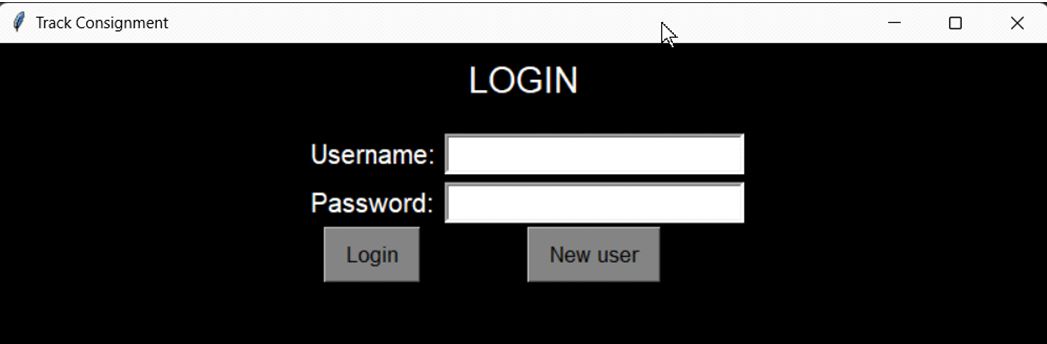
2. New User Registration ScreenWhen the user clicks the "New User" button, they are taken to the registration screen. We created new username "Rama DAS" and add Password, phone number. This form asks the user for − 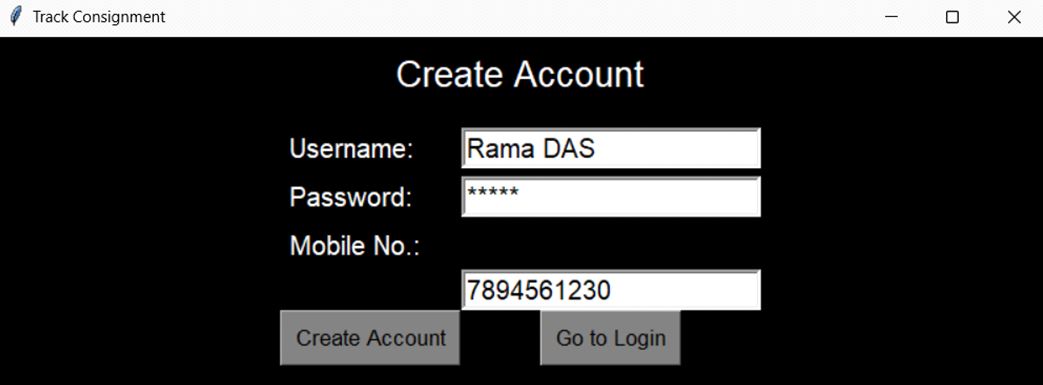
3. Courier Tracking ScreenOnce a user successfully logs in, they are taken to the consignment tracking screen. They can enter a mobile number to find the consignment linked to it. Choose a product and view its details like destination and status − 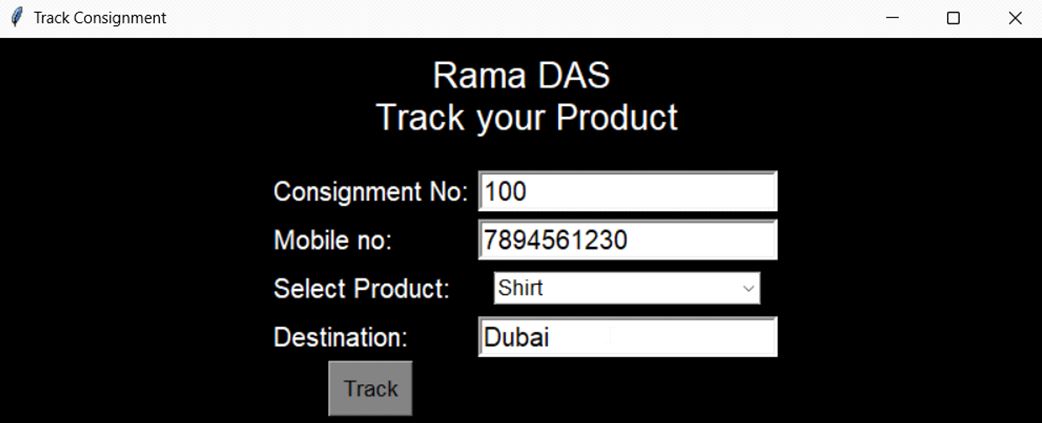
4. Courier Details OutputAfter entering the mobile number and product, the system displays courier details such as: Product ID (randomly generated), Product Name, Destination, Status (Pending by default) 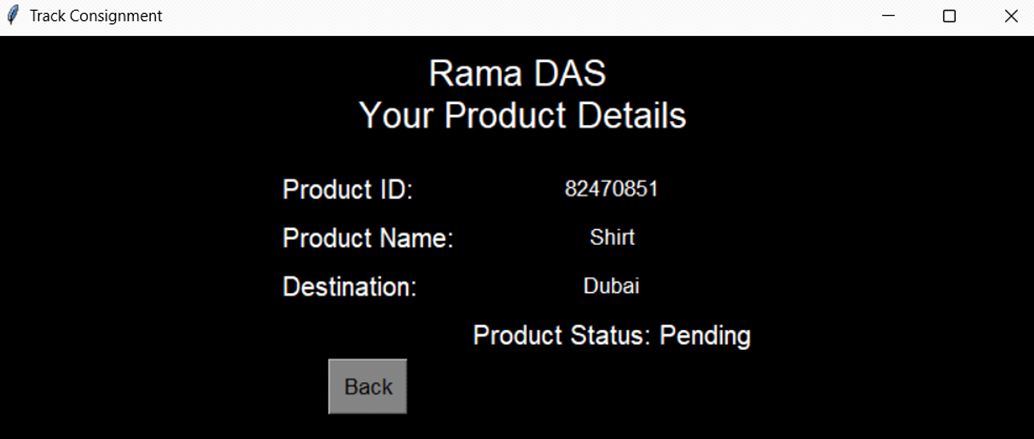
Code Explanation
python_reference.htm

Advertisements
|
| You are visitor 01402503 — GeezerVison does not store the pages you look up. Best viewed with Netscape Navigator 4.7 or Internet Explorer 6 at 800×600. No cookies required. |