GeezerVisonThe World Wide Web, restored to 800 pixels of glory. | ||||||||||||||||||||||||||
| Home|About|Gaming cabinet|Archives|How it works|Starter sites | ||||||||||||||||||||||||||
GeezerVison is showing www.tutorialspoint.com — Python - Environment Setup 
Selected Reading
Python - Environment SetupFirst step in the journey of learning Python is to install it on your machine. Today most computer machines, especially having Linux OS, have Python pre-installed. However, it may not be the latest version. Python is available on a wide variety of platforms including Linux and Mac OS X. Let's understand how to set up our Python environment.
Python has also been ported to the Java and .NET virtual machines Local Environment SetupOpen a terminal window and type "python" to find out if it is already installed and which version is installed. If Python is already installed then you will get a message something like as follows: $ python Python 3.11.2 (main, Feb 8 2023, 14:49:24) [GCC 9.4.0] on linux Type "help", "copyright", "credits" or "license" for more information. >>> Downloading PythonThe most up-to-date and current source code, binaries, documentation, news, etc., is available on the official website of Python https://www.python.org/ You can download Python documentation from https://www.python.org/doc/. The documentation is available in HTML, PDF, and PostScript formats. Installing PythonPython distribution is available for a wide variety of platforms. You need to download only the binary code applicable for your platform and install Python. If the binary code for your platform is not available, you need a C compiler to compile the source code manually. Compiling the source code offers more flexibility in terms of choice of features that you require in your installation. Here is a quick overview of installing Python on various platforms − Install Python on Ubuntu LinuxTo check whether Python is already installed, open the Linux terminal and enter the following command − $ python3.11 --version In Ubuntu Linux, the easiest way to install Python is to use apt Advanced Packaging Tool. It is always recommended to update the list of packages in all the configured repositories. $ sudo apt update Even after the update, the latest version of Python may not be available for install, depending upon the version of Ubuntu you are using. To overcome this, add the deadsnakes repository. $ sudo apt-get install software-properties-common $ sudo add-apt-repository ppa:deadsnakes/ppa Update the package list again. $ sudo apt update To install the latest Python 3.11 version, enter the following command in the terminal − $ sudo apt-get install python3.11 Check whether it has been properly installed. $ python3
Python 3.11.2 (main, Feb 8 2023, 14:49:24) [GCC 9.4.0] on linux
Type "help", "copyright", "credits" or "license" for more information.
>>> print ("Hello World")
Hello World
>>>
Install Python on other LinuxHere are the simple steps to install Python on Unix/Linux machine.
Now issue the following commands: $ run ./configure script $ make $ make install This installs Python at standard location /usr/local/bin and its libraries at /usr/local/lib/pythonXX where XX is the version of Python. Using Yum CommandRed Hat Enterprise Linux (RHEL 8) does not install Python 3 by default. We usually use yum command on CentOS and other related variants. The procedure for installing Python-3 on RHEL 8 is as follows: $ sudo yum install python3 Install Python on WindowsIt should be noted that Python's version 3.10 onwards cannot be installed on Windows 7 or earlier operating systems. The recommended way to install Python is to use the official installer. A link to the latest stable version is given on the home page itself. It is also found at https://www.python.org/downloads/windows/. You can find embeddable packages and installers for 32 as well as 64-bit architecture. 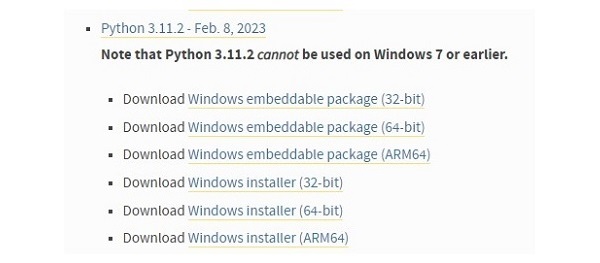
Let us download 64-bit Windows installer − (https://www.python.org/ftp/python/3.11.2/python-3.11.2-amd64.exe) Double click on the file where it has been downloaded to start the installation. 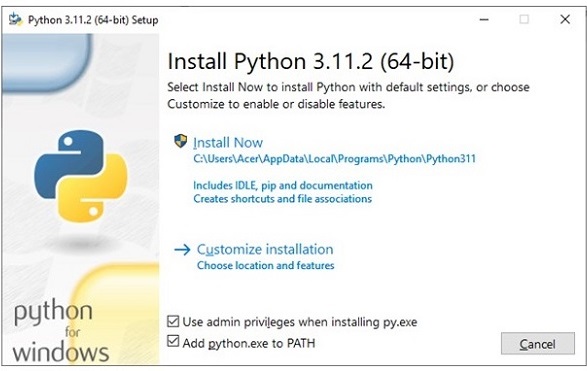
Although you can straight away proceed by clicking the Install Now button, it is advised to choose the installation folder with a relatively shorter path, and tick the second check box to update the PATH variable. Accept defaults for rest of the steps in this installation wizard to complete the installation. 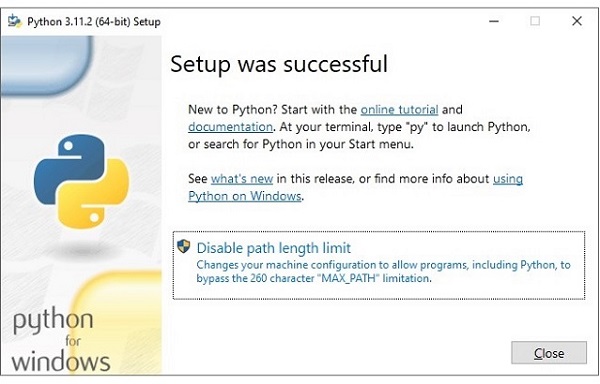
Open the Window Command Prompt terminal and run Python to check the success of installation. C:\Users\Acer>python Python 3.11.2 (tags/v3.11.2:878ead1, Feb 7 2023, 16:38:35) [MSC v.1934 64 bit (AMD64)] on win32 Type "help", "copyright", "credits" or "license" for more information. >>> Python's standard library has an executable module called IDLE short for Integrated Development and Learning Environment. Find it from Window start menu and launch. 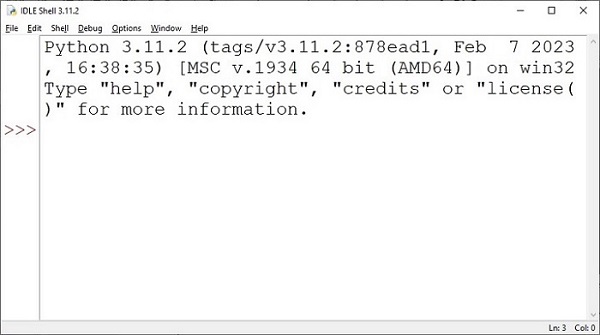
IDLE contains Python shell (interactive interpreter) and a customizable multi-window text editor with features such as syntax highlighting, smart indent, auto completion etc. It is cross-platform so works the same on Windows, MacOS and Linux. It also has a debugger with provision to set breakpoints, stepping, and viewing of global and local namespaces. Here are the steps to install Python on Windows machine.
Macintosh InstallationRecent Macs come with Python installed, but it may be several years out of date. See http://www.python.org/download/mac/ for instructions on getting the current version along with extra tools to support development on the Mac. For older Mac OS's before Mac OS X 10.3 (released in 2003), MacPython is available. Jack Jansen maintains it and you can have full access to the entire documentation at his website − https://homepages.cwi.nl/~jack/macpython/index.html. You can find complete installation details for Mac OS installation. Setting up PATHPrograms and other executable files can be in many directories, so operating systems provide a search path that lists the directories that the OS searches for executables. The path is stored in an environment variable, which is a named string maintained by the operating system. This variable contains information available to the command shell and other programs. The path variable is named as PATH in Unix or Path in Windows (Unix is case sensitive; Windows is not). In Mac OS, the installer handles the path details. To invoke the Python interpreter from any particular directory, you must add the Python directory to your path. Setting path at Unix/LinuxTo add the Python directory to the path for a particular session in Unix −
Setting path at WindowsTo add the Python directory to the path for a particular session in Windows − At the command prompt − type path %path%;C:\Python and press Enter. Note − C:\Python is the path of the Python directory Python Environment VariablesHere are important environment variables, which can be recognized by Python −
Running PythonThere are three different ways to start Python − Interactive InterpreterYou can start Python from Unix, DOS, or any other system that provides you a command-line interpreter or shell window. Enter python the command line. Start coding right away in the interactive interpreter. $python # Unix/Linux or python% # Unix/Linux or C:> python # Windows/DOS Here is the list of all the available command line options −
Script from the Command-lineA Python script can be executed at command line by invoking the interpreter on your application, as in the following − $python script.py # Unix/Linux or python% script.py # Unix/Linux or C: >python script.py # Windows/DOS Note − Be sure the file permission mode allows execution. Integrated Development EnvironmentYou can run Python from a Graphical User Interface (GUI) environment as well, if you have a GUI application on your system that supports Python.
If you are not able to set up the environment properly, then you can take help from your system admin. Make sure the Python environment is properly set up and working perfectly fine. We have provided Python Online Compiler/Interpreter which helps you to Edit and Execute the code directly from your browser. Try to click the icon Below code box allows you to change the value of the code. Try to change the value inside print() and run it again to verify the result. # This is my first Python program.
# This will print 'Hello, World!' as the output
print ("Hello, World!");

Advertisements
| ||||||||||||||||||||||||||
| You are visitor 01402503 — GeezerVison does not store the pages you look up. Best viewed with Netscape Navigator 4.7 or Internet Explorer 6 at 800×600. No cookies required. |
 to run the following Python code to print conventional "Hello, World!".