Tkinter Button
The Button widget is used to add buttons in a Python application. These buttons can display text or images that convey the purpose of the buttons. You can attach a function or a method to a button which is called automatically when you click the button.
Syntax
Here is the simple syntax to create this widget −
w = Button ( master, option=value, ... )
Parameters
| Sr.No. |
Option & Description |
| 1 |
Activebackground activebackground Background color when the button is under the cursor. |
| 2 |
Activeforeground Foreground color when the button is under the cursor. |
| 3 |
Bd Border width in pixels. Default is 2. |
| 4 |
Bg Normal background color. |
| 5 |
Command Function or method to be called when the button is clicked. |
| 6 |
Fg Normal foreground (text) color. |
| 7 |
Font Text font to be used for the button's label. |
| 8 |
Height Height of the button in text lines (for textual buttons) or pixels (for images). |
| 9 |
Highlightcolor The color of the focus highlight when the widget has focus. |
| 10 |
Image Image to be displayed on the button (instead of text). |
| 11 |
Justify How to show multiple text lines: LEFT to left-justify each line; CENTER to center them; or RIGHT to right-justify. |
| 12 |
Padx Additional padding left and right of the text. |
| 13 |
Pady Additional padding above and below the text. |
| 14 |
Relief Relief specifies the type of the border. Some of the values are SUNKEN, RAISED, GROOVE, and RIDGE. |
| 15 |
State Set this option to DISABLED to gray out the button and make it unresponsive. Has the value ACTIVE when the mouse is over it. Default is NORMAL. |
| 16 |
Underline Default is -1, meaning that no character of the text on the button will be underlined. If nonnegative, the corresponding text character will be underlined. |
| 17 |
Width Width of the button in letters (if displaying text) or pixels (if displaying an image). |
| 18 |
Wraplength If this value is set to a positive number, the text lines will be wrapped to fit within this length. |
Methods
Following are commonly used methods for this widget −
| Sr.No. |
Method & Description |
| 1 |
flash() Causes the button to flash several times between active and normal colors. Leaves the button in the state it was in originally. Ignored if the button is disabled. |
| 2 |
invoke() Calls the button's callback, and returns what that function returns. Has no effect if the button is disabled or there is no callback. |
Example
Try the following example yourself −
from tkinter import *
from tkinter import messagebox
top = Tk()
top.geometry("100x100")
def helloCallBack():
   msg=messagebox.showinfo( "Hello Python", "Hello World")
B = Button(top, text ="Hello", command = helloCallBack)
B.place(x=50,y=50)
top.mainloop()
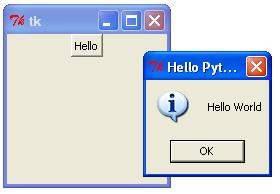
When the above code is executed, it produces the following result −
python_gui_programming.htm