Tkinter Frame
The Frame widget is very important for the process of grouping and organizing other widgets in a somehow friendly way. It works like a container, which is responsible for arranging the position of other widgets.
It uses rectangular areas in the screen to organize the layout and to provide padding of these widgets. A frame can also be used as a foundation class to implement complex widgets.
Syntax
Here is the simple syntax to create this widget −
w = Frame (master, option, ... )
Parameters
| Sr.No. |
Options & Description |
| 1 |
Bg The normal background color displayed behind the label and indicator. |
| 2 |
Bd The size of the border around the indicator. Default is 2 pixels. |
| 3 |
Cursor If you set this option to a cursor name (arrow, dot etc.), the mouse cursor will change to that pattern when it is over the checkbutton. |
| 4 |
Height The vertical dimension of the new frame. |
| 5 |
highlightbackground Color of the focus highlight when the frame does not have focus. |
| 6 |
Highlightcolor Color shown in the focus highlight when the frame has the focus. |
| 7 |
highlightthickness Thickness of the focus highlight. |
| 8 |
Relief With the default value, relief=FLAT, the checkbutton does not stand out from its background. You may set this option to any of the other styles. |
| 9 |
width The default width of a checkbutton is determined by the size of the displayed image or text. You can set this option to a number of characters and the checkbutton will always have room for that many characters. |
Example
Try the following example yourself −
from tkinter import *

root = Tk()
frame = Frame(root)
frame.pack()

bottomframe = Frame(root)
bottomframe.pack( side = BOTTOM )

redbutton = Button(frame, text="Red", fg="red")
redbutton.pack( side = LEFT)

greenbutton = Button(frame, text="Brown", fg="brown")
greenbutton.pack( side = LEFT )

bluebutton = Button(frame, text="Blue", fg="blue")
bluebutton.pack( side = LEFT )

blackbutton = Button(bottomframe, text="Black", fg="black")
blackbutton.pack( side = BOTTOM)

root.mainloop()
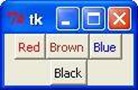
When the above code is executed, it produces the following result −
python_gui_programming.htm