Every menu item in AetherSDR, where it lives, and what it opens, followed by a tour of the title bar that sits above the panadapters. Menu items that need a connected radio, or a feature your radio or build does not have, are dimmed rather than hidden, and hovering one shows the reason.
The top-level menus are File · Settings · Profiles · Tools · View · Window · Help.
- Windows and Linux: the menus sit behind the ☰ button at the far left of the title bar. Alt+letter mnemonics (Alt+F, Alt+S, …) still open each menu under the button, and every menu shortcut keeps working.
- macOS: the menus are in the system menu bar at the top of the screen. Radio Setup… appears as AetherSDR → Preferences….

The title bar shows two recent radio shortcuts, More radios, PC Audio and volume controls.
File
| Item | What it does |
|---|---|
| Connect to Radio... | Opens the connection panel (LAN radios, SmartLink, manual IP). See First Connection and Manual Connection. |
| Disconnect | Ends the radio session without closing AetherSDR. |
| Update... | The Updates window: the newest AetherSDR release, what is in it, and the download for this computer. See Updates. |
| Quit | Closes the application. |
Settings
| Item | What it does |
|---|---|
| Radio Setup... | The main multi-page configuration dialog. See Radio Setup. On macOS: AetherSDR → Preferences…. |
| Controllers ▸ | Every controller's settings: CTR2... (the CTR2 relay and CTR2-Max firmware; see CTR2 Proxy), AetherControl... (the on-screen AetherControl window), FlexControl Knob & Buttons... (the FlexControl section of Radio Setup → Serial & Controllers; see FlexControl Tuning Knob), MIDI Mapping... (see MIDI Controller Mapping), Icom RC-28 Remote Encoder... (see USB Control Surfaces) and Ulanzi Dial Mapping... (see Ulanzi Dial). Some appear only in builds with MIDI, USB HID or serial-port support. |
| Receive Sync ▸ | Timing alignment between the radio and a KiwiSDR receiver: Sync Kiwi Audio & Display, Manual Offset / Auto Assist, Delay KiwiSDR 50 ms, Delay Flex 50 ms, Reset Offset, and Latency ▸ Normal (360 ms) / More Stable (520 ms) / High Jitter (1000 ms). See KiwiSDR and Web-888. |
| MQTT... | Broker, subscriptions and publish buttons. See MQTT Station Automation. |
| USB Cables... | See USB Cable Management. |
| Keyboard Shortcuts | Checkable. Turns operating shortcuts on or off; off by default. See Keyboard Shortcuts. |
| Configure Shortcuts... | The shortcut editor. |
| SpotHub... | See SpotHub. |
| multiFLEX... | The multi-client dashboard. See Multi-Flex. |
| TX Band Settings... | Per-band RF power, tune power and inhibit choices. |
| Inhibit during TUNE ▸ | Selects ACC TX inhibition during TUNE. On Flex firmware 4.2 and older, also selects TX1/TX2/TX3. On 4.3 and later, the submenu contains ACC TX and Configure RCA suppression…, which opens TX Band Settings directly for per-band RCA suppression. |
| Settings Browser... | Browse and edit stored settings. See Settings and Backups. |
| Autostart CAT with AetherSDR / Autostart TCI… / Autostart DAX… | Start those services automatically. |
| Reset Settings... | Restores application settings after confirmation. A backup is written first. |
Items that depend on optional build features (MQTT, MIDI, serial controllers) only appear in builds that include them.
Profiles
| Item | What it does |
|---|---|
| Profile Manager... | The main profile dialog. |
| Import/Export Profiles... | SmartSDR-compatible .ssdr_cfg import and export. |
| (profile names) | Below the separator, the radio's global profiles; pick one to load it. |
See Profile Management.
Tools
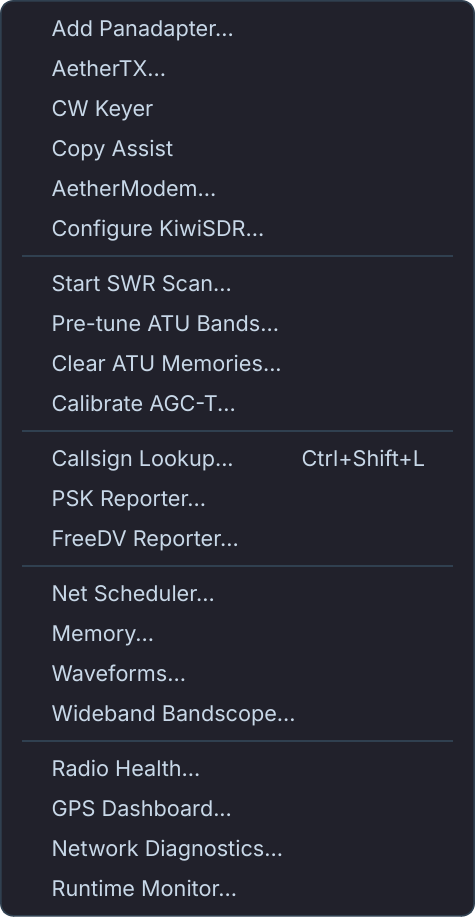
The Tools menu, connected to a FLEX-8600.
| Item | What it does |
|---|---|
| Add Panadapter... | Opens the layout picker and adds a pan if the radio has capacity. |
| AetherRX... | Opens the receive audio chain. See Aetherial Audio. |
| AetherTX... | Checkable. Shows the transmit audio chain. See Aetherial Audio. |
| CW Keyer | Checkable. Shows the CW keyer panel. See CWX Panel. |
| Copy Assist | Checkable. Speech-to-text panel (builds with speech-to-text only). See Copy Assist. |
| AetherModem... | Packet and HF modem workspace. See AetherModem Packet Radio. |
| Configure KiwiSDR... | Opens Radio Setup → Antennas. |
| Start SWR Scan... | Transmits. Runs an SWR sweep. See AetherSweep. |
| Pre-tune ATU Bands... | Transmits. Steps the ATU through your bands. |
| Clear ATU Memories... | Clears the radio's ATU memories after confirmation. |
| Calibrate AGC-T... | Noise-floor AGC-T calibration for the active slice. It listens only; it does not transmit. The same calibration is on the AGC-T slider's right-click menu. |
| Callsign Lookup... | QRZ lookup (Ctrl+Shift+L). See Callsign Lookup. |
| AetherMap... | See AetherMap. |
| FreeDV Reporter... | FreeDV Reporter station list. |
| Net Scheduler... | See Net Scheduler. |
| Memory... | See Memory Channels. |
| Waveforms... | Install and manage radio waveforms (radios with installable waveforms only), and edit a Docker container's environment. Install adds the WSPR receiver. Its bottom bar can install Radio Health Tools and show the radio's free storage, memory and CPU. |
| Wideband Bandscope... | The radio's converter view before tuning; dimmed on radios without one. See Hermes-Lite 2. |
| Radio Health... | The health and status registers the radio reports, refreshed every 500 ms, with Copy for a bug report. A Hermes-Lite 2 shows reachability, other clients holding it and PA temperature even before you connect. See Runtime Monitor. |
| AetherGPS... | See AetherClock and GPS. |
| Network Diagnostics... | Link quality, trends and logs. See Troubleshooting. |
| Runtime Monitor... | CPU, memory, threads and logs for the app itself. See Runtime Monitor. |
View
| Item | What it does |
|---|---|
| Workspace Canvas ▸ | The experimental canvas shell. See Workspace Canvas. |
| Band Plan ▸ | Size (Off / Small / Medium / Large / Huge), Show Spots, and the region plan. See Panadapter Controls. |
| Theme ▸ | Pick a theme. See Themes and Theme Editor. |
| Theme Editor… | Edit or create a theme. |
| VFO Marker Size ▸ | Default VFO marker: Off, 1 px or 3 px (default 3 px). See VFO Widget. |
| VFO Filter Edge ▸ | Default filter-edge lines: Show (default) or Hide. |
| Single-Click to Tune | Tune with one click instead of a double-click. Off by default. |
| Pan Follows VFO | Keep the active slice in view while tuning. On by default. |
| UI Scale ▸ | 75 % to 200 %, plus Zoom In (Ctrl+=), Zoom Out (Ctrl+-) and Reset (100 %) (Ctrl+0). Takes effect after a restart. |
| Reset Applet Order | Restores the default applet order. |
| Minimal Mode | Ctrl+Shift+M. Collapses the window to a narrow applet strip. See Keyboard Shortcuts. |
| Frameless Window | Ctrl+Shift+F. On by default. On Windows, the frameless main window uses the app theme up to its border. On Windows 11, when maximized, the right-hand applet rail stays inside the Windows work area. Turn it off to return the main window to the operating system's own title bar and borders. |
| Propagation Conditions | Shows the propagation forecast on the panadapters. Off by default. |
| Smart Spot Filtering | Dims SSB spots with no detected voice signal nearby. Off by default; needs SpotHub Signal History. |
| Show live CW contacts | Shows station information for callsigns the CW decoder hears in a separate Live CW contacts window, so it never covers decoded text. Off by default; closing the window turns it off. See Callsign Lookup. |
| FPS Meters | Ctrl+F. Shows spectrum and waterfall frame rates on each pan. Off by default. |
| Blink Status Indicator | Pulses the radio-link dot on the radio tab. On by default. |
Window
Lists every open AetherSDR top-level window (pick one to bring it forward), plus:
| Item | What it does |
|---|---|
| Minimize | Cmd+M on macOS; no default key elsewhere. |
| Zoom (macOS) / Maximize or Restore (Windows, Linux) | Toggles the window's maximized state. |
| Enter Full Screen / Exit Full Screen | F11 on Windows/Linux, Cmd+Ctrl+F on macOS. |
| Bring All to Front | Raises every AetherSDR window. |
The Minimize and Full Screen keys can be rebound in Settings → Configure Shortcuts..., and they work even with Keyboard Shortcuts turned off.
Upgrading from an older version: Minimal Mode is Ctrl+Shift+M on every platform (it was Ctrl+M), so Cmd+M can be Minimize on macOS.
Help
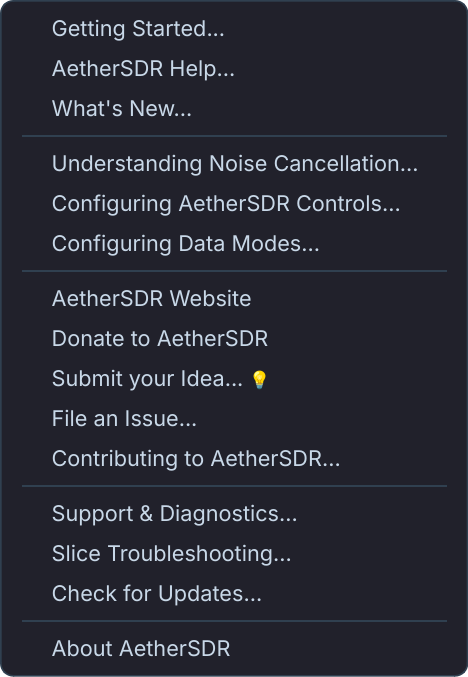
The Help menu.
| Item | What it does |
|---|---|
| AetherSDR Documentation | Opens this documentation site in your browser. |
| Printable Manual (PDF) | Downloads the printable manual, all of these pages in one PDF. |
| Log Analyzer | Opens the Log Analyzer, which checks a log or support bundle for known problems in your browser. |
| Getting Started..., AetherSDR Help... | Built-in guides, each in its own window. They work offline, and each guide links its page on this site. Choosing an open guide restores it if minimized and brings it to the front. Close a guide with the round ✕ in its top-right corner, Esc, or ⌘W (Ctrl+W on Windows and Linux). |
| What's New... | Release notes fetched from GitHub. Switching themes keeps your reading position and Find selection. Choosing this entry again brings the open window to the front. Only web links (http and https) open; any other kind of link in the release notes is ignored. Find searches the notes, and the window closes with the round ✕ in its top-right corner, Esc, or ⌘W (Ctrl+W on Windows and Linux). |
| Understanding Noise Cancellation..., Configuring AetherSDR Controls..., Configuring Data Modes... | Topic guides, also offline. |
| AetherSDR Website, Donate to AetherSDR | Open the web pages. |
| Submit your Idea... 💡 | The AI-assisted feature-request helper. |
| File an Issue... | Opens a GitHub issue pre-filled with a redacted log tail. |
| Contributing to AetherSDR... | See Contributing Guide. |
| Support & Diagnostics... | Logging categories and support bundles. See Support and Logging. |
| Slice Troubleshooting... | A diagnostics window for slice, audio and display state. |
| Check for Updates... | Opens the Updates window and checks again now. See Updates. |
| Check for Updates Automatically | On by default. Checks for a newer release at startup, at most once a day, and shows UPDATE in the title bar when there is one. The same setting as Check daily in the Updates window; turning it off also removes the badge. Dimmed on store-managed installs (the Microsoft Store, or a Flatpak build), which update themselves. |
| About AetherSDR | The About window (below). |
The Title Bar
The main window has one 52 px title bar. From left to right:
| Part | What it is |
|---|---|
| ☰ | The application menu (Windows and Linux only). |
| AetherSDR brand mark | Drag the bar here to move the window. |
| UPDATE badge | Shown when a newer AetherSDR release is available; hover names it, click opens the Updates window. See Updates. |
| Radio tabs | One tab per known radio (LAN, SmartLink or routed). See below. |
| EXPERIMENTAL badge | Shown when the connected radio family's support is experimental. |
| multiFLEX | Appears when other clients share the radio; hover lists them, click opens the dashboard. |
| TX station | Red badge when another client is transmitting. |
| Transmit timer | Elapsed key-down time (below). |
| PC Audio | Routes receive audio and PC-mic transmit through this computer. Hover shows the input and output devices. |
| Speaker + master slider | Mute and level for the audio path you are hearing (below). |
| Headphone + slider | Headphone mute and level. Dimmed, with the reason, on radios that have no headphone output. |
| Dock left / Dock right / Pop out | Move the applet panel to the left or right of the panadapters (click the active side again to hide it), or float it in its own window. Ctrl+Shift+S also pops it out. |
| Window controls | Minimize, maximize and close (see "Per platform"). |
Updates
The UPDATE badge appears when a newer AetherSDR release is available; click it for the Updates window. See Updates.
Radio tabs
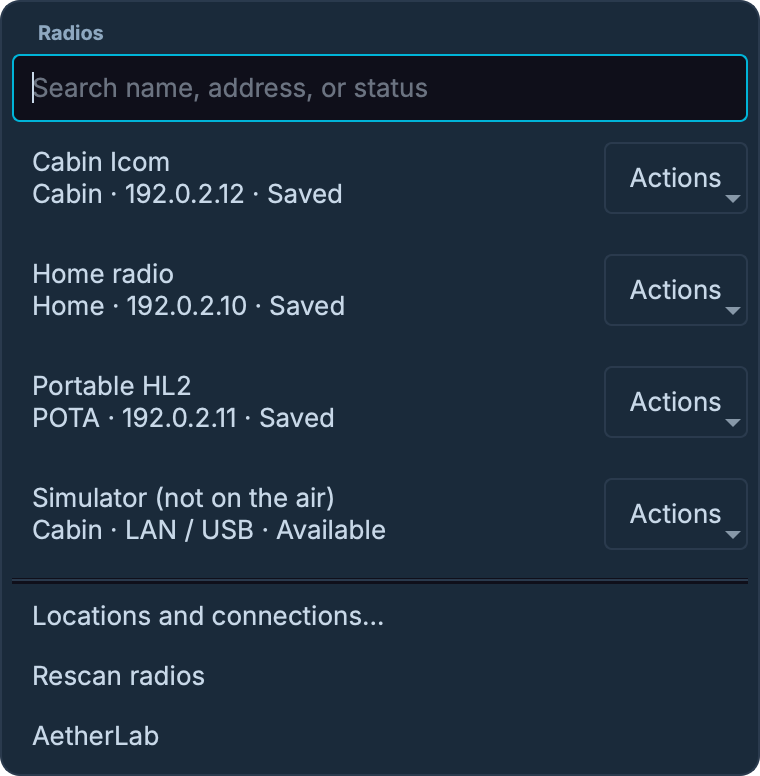
More radios keeps all saved and nearby radios available beyond the two title-bar shortcuts.
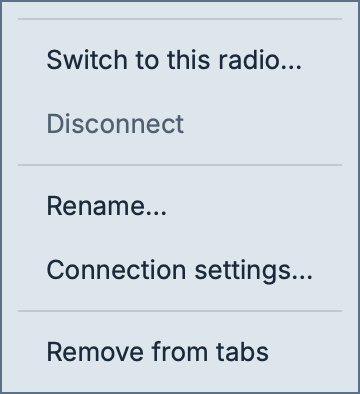
Highlighted menu text uses the matching canon foreground and selection surface in the light theme.
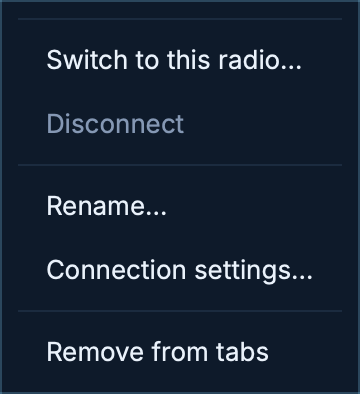
Each radio tab has a context menu. Unavailable actions remain visible with a reason.
-
Up to two recent radio shortcuts appear in the title bar. The active radio remains visible; a pending connection uses the other slot. Saved radios remain in the drawer when discovery cannot find them. Line one shows the saved name; line two shows the state and Location in words.
-
Click a disconnected tab to connect through its preferred saved path. If another radio is live, confirm Switch before it disconnects. Clicking the active tab keeps the current view.
-
Right-click a tab, or focus it and press Shift+F10, for Connect / Switch to this radio…, Disconnect, Rename…, Connection settings…, Move left / Move right, and Remove from tabs. A pending connection offers Cancel connection. Move left and Move right reorder tabs from the keyboard, the same as dragging them. Removing a tab keeps its saved connection; restore it through Radio options… → Add to tabs in the connection window.
-
⋯ More radios opens the full saved/discovered radio drawer. Locations and connections… opens Locations at the browsed Location. Connection settings opens the matching saved radio and path. Browsing preserves the active connection; see Location and Operator Profiles.
-
The dot on the active tab is the radio-link indicator. It pulses with discovery heartbeats and shows link loss in red. The tab also spells out Link lost. View → Blink Status Indicator controls blinking.
-
Drag tabs to reorder them; the order persists across restarts. Esc cancels a drag. When tabs no longer fit, drag near an edge to scroll while reordering, use the mouse wheel, or drag empty strip space.
-
An AT chip after the connected radio's name means the adaptive frame-rate throttle is on. The chip is outlined while the throttle is on standby. The tab expands for the chip and shrinks again when it disappears. It fills with the cap's quality color while a frame-rate cap is in force, and hovering the tab shows the cap (for example "Adaptive throttle: 8 fps cap"). See Low Bandwidth Connections.
-
While the AT chip is showing and the link is healthy, the connected radio's dot shows the network quality in the same colors as the status bar: green for Excellent or Very Good, blue for Good, amber for Fair and red for Poor. Hover the tab to see the quality in words. The quality colors follow the selected theme. With the throttle off, the dot stays the plain green "connected" color.
Transmit timer
A green outlined M:SS readout (H:MM:SS past an hour) just left of PC Audio. It appears when you key up, starts from 0:00 for each transmission, holds the final time for 15 seconds after you unkey, then fades out. It counts transmissions you key yourself (MOX, PTT, footswitch, VOX, including digital modes keyed with MOX). CW, TUNE/ATU, a TGXL autotune, and transmissions keyed by other programs through TCI, DAX or CAT are excluded.
The audio controls stay in place as the timer appears and fades. In minimal mode, the hidden timer reserves no space.
Speaker and master slider
The speaker icon and master slider show the path you are actually hearing:
| PC Audio | Speaker icon shows | Master slider shows |
|---|---|---|
| On | PC mute | PC playback level |
| Off | The radio's Line Out mute | The radio's Line Out level |
With PC Audio off, a Line Out change made by another client (or in Radio Setup) shows up here too. See Audio Settings.
On a radio with no Line Out AetherSDR can control (Hermes-Lite 2, Icom, RTL-SDR), the speaker mutes only this computer's output; with PC Audio off too, the click is refused with a notice.
Per platform
| Platform | Window frame and controls |
|---|---|
| macOS | Native window with the standard traffic-light buttons, tiling menu, Stage Manager and native full screen. |
| Windows | Qt-drawn frame with the system shadow and resize borders; AetherSDR draws its own minimize / maximize / close buttons. Snap Layouts on hover over maximize does not appear yet. |
| Linux | Frameless window with a 6 px resize band on the sides and bottom (no resize along the top edge under the bar). |
If your window manager or compositor misbehaves, turn off View → Frameless Window to go back to the system title bar on any platform.
In Minimal Mode the bar shrinks to the active radio tab and status badges; the ☰ button, audio controls and dock icons are hidden, and the maximize button leaves Minimal Mode.
About AetherSDR
Help → About AetherSDR opens a rounded, borderless window showing:
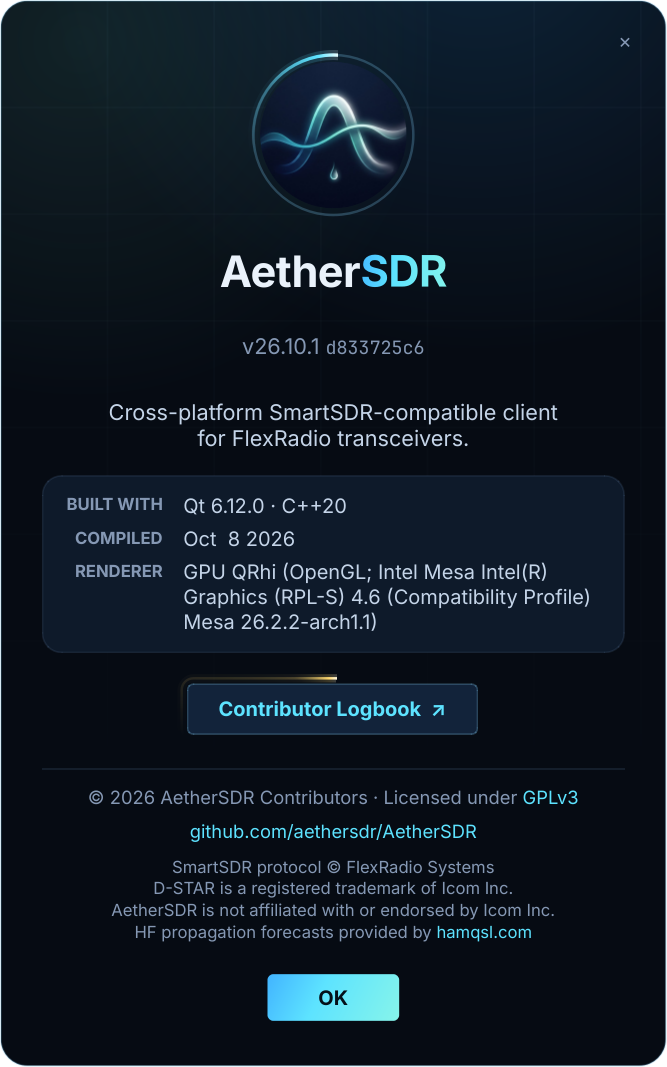
The About AetherSDR window: version, build and renderer details.
- the version and commit;
- a build details card (Qt version, compile date, and the spectrum renderer in use). The text is selectable, so you can paste it into a bug report;
- a Contributor Logbook ↗ button that opens contributors.aethersdr.com.
Drag anywhere in the window to move it. Esc or Ctrl+W (Cmd+W) closes it, and choosing About again raises the open window. Its animations stop when the operating system asks for reduced motion.
Known issues
- View → Pan Follows VFO has no visible effect for most tuning; it does not keep the slice centered the way Center Lock does (#5622).
Troubleshooting
A menu item is dimmed
The item needs a connected radio, or a feature your radio or build does not have.
- Hover over the item to read the reason.
- If it says no radio is connected, connect with File → Connect to Radio... and open the menu again.
The ☰ menu or the window frame misbehaves
Your window manager or compositor does not get on with AetherSDR's own frame.
- Turn off View → Frameless Window (Ctrl+Shift+F). The main window goes back to the operating system's title bar and borders.
- If the ☰ menu itself won't stay open, press Ctrl+Shift+F instead of using the menu.
The window is a narrow strip with no panadapters
Minimal Mode is on.
- Press Ctrl+Shift+M, or click the title bar's maximize button, to leave Minimal Mode.